

I’ll be honest with you. I’ve tried about 47 different productivity apps in the last two years. You know how many I actually use daily? Four. Maybe five on a good week.
Here’s the thing nobody tells you when you’re drowning in app reviews and “best of” lists: the perfect productivity stack doesn’t exist. What works for the productivity guru on YouTube with their color-coded Notion setup? Yeah, that’ll probably make you want to throw your laptop out the window.
So let’s talk about software, apps, and productivity tools the way they actually work in real life. Not the Instagram version where everything’s perfectly organized. The version where you’ve got 23 browser tabs open, three different to-do lists, and you still forgot about that meeting.
Quick Navigation:
The Productivity App Trap (And How I Fell Into It)
Back in 2023, I convinced myself that Notion was going to change my life. Spent two entire weekends building the perfect dashboard. Custom databases, linked pages, the whole nine yards. Used it religiously for about three weeks.
Then I needed to jot down a quick note during a call, and you know what I reached for? Apple Notes. Because it opened in half a second and didn’t require me to navigate through my elaborate temple of productivity.
That’s when it hit me: I’d been optimizing my productivity system instead of actually being productive.
The best productivity apps for 2025 aren’t the ones with the most features. They’re the ones you’ll actually use when you’re tired, distracted, or just need to get something done fast.
What Actually Makes Software Useful
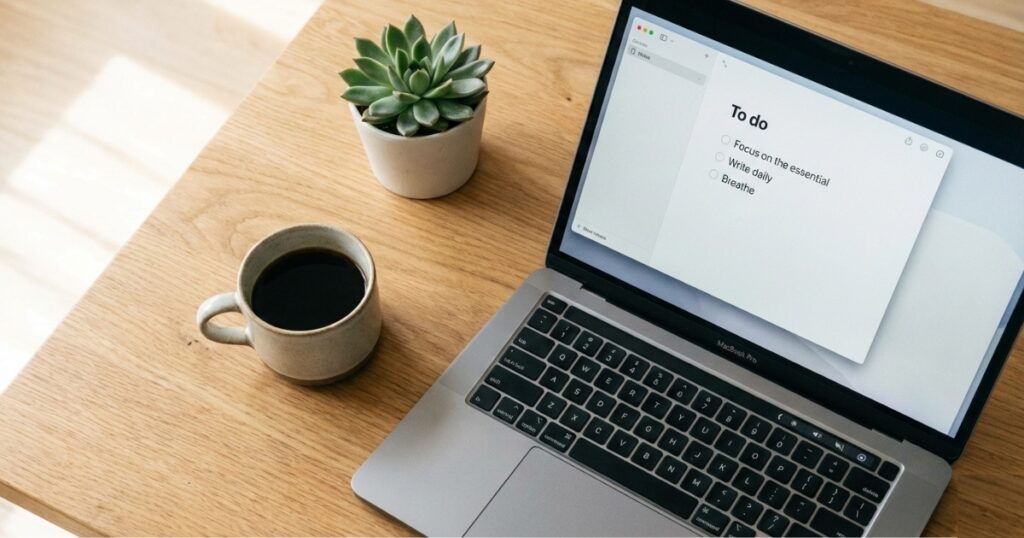
After years of trying every shiny new tool that launches on Product Hunt, I’ve figured out what matters:
Speed matters more than features. If your note-taking app takes 3 seconds to load, you won’t use it. I don’t care how beautiful the interface is. Real talk: I’ve abandoned perfectly good software because it was 200ms too slow.
Friction kills adoption. Every extra click, every additional menu, every “are you sure?” dialog is another reason to just… not. The task management apps that work best have one thing in common: you can add a task in under 5 seconds.
Cross-platform actually matters. I learned this the hard way when I built my entire workflow around a Mac-only app, then had to use a Windows machine for a client project. Spent a week trying to export everything. Not fun.
Offline mode isn’t optional. Found this out on a flight to Seattle when my beautifully cloud-synced system became completely useless at 30,000 feet. Now? Offline capability is non-negotiable.
The Core Tools You Need (Probably)
Look, everyone’s workflow is different. But after working with dozens of teams and trying basically everything, here’s what most people actually need:
Note-Taking: Your Brain’s External Hard Drive
I’ve used Evernote, OneNote, Notion, Bear, Obsidian, and about a dozen others. Here’s what I learned: the best note-taking app is the one you can search instantly.
I’m currently using Obsidian for long-form stuff and Apple Notes for quick captures. Why two? Because sometimes you need a text editor with backlinks and local files. Other times you just need to write “buy milk” and move on with your life.
Check out our detailed note-taking apps guide if you want to go deeper, but honestly? Start simple. You can always get fancy later.
Project Management: Where Good Intentions Go to Die
Here’s my hot take: most teams don’t need project management software. They need better communication.
But when you do need it (like when you’re managing more than 3 people or projects), don’t overthink it. I’ve seen teams spend three months choosing between Asana, Monday.com, and Jira, only to end up using Google Sheets anyway.
For detailed comparisons, see our project management software breakdown. But the TL;DR? Pick one that integrates with your chat tool, has a mobile app that doesn’t suck, and doesn’t require a PhD to create a task.
Time Management: Because Calendars Lie
Your calendar says you have a “quick 30-minute meeting.” That meeting will take 47 minutes and derail your entire afternoon. I’ve made peace with this.
The time management apps that work aren’t the ones with fancy time-blocking features. They’re the ones that help you see where your time actually goes. I use Toggl Track because it shows me, in painful detail, how much time I waste in Slack.
Also? Time blocking works great until someone sends you an “urgent” email. Then it all falls apart. Don’t beat yourself up about it.
Collaboration Software That Doesn’t Suck
Let me tell you about the worst collaboration setup I ever encountered: Email for approvals, Dropbox for files, Skype for calls, and Basecamp for project updates. Four different places to check. Nothing synced. Absolute chaos.
Modern collaboration tools for teams should do one thing well: keep everyone on the same page without requiring everyone to check five different apps.
Slack changed the game here, but it also created a new problem: constant interruptions. I now use Slack with Do Not Disturb scheduled for 4 hours every morning. Revolutionary.
For remote teams (which is basically everyone now), our collaboration tools for remote work article covers the specifics. But the key insight? Async communication beats real-time for most things. Not everything needs a video call.
The Cloud Storage Dilemma
I pay for three different cloud storage services. Google Drive for shared docs, Dropbox for client files, and iCloud for personal stuff. This is dumb. I know it’s dumb. But here we are.
The best cloud storage solutions all have the same problem: they want to be your everything. Google Drive wants to be your office suite. Dropbox wants to be your collaboration hub. OneDrive is… well, OneDrive is trying.
My advice? Pick one for work, one for personal, and try not to think about how much you’re paying per month for what should be a commodity service. Check our cloud vs local productivity apps comparison if you’re considering going back to local storage. (Spoiler: you probably shouldn’t, but there are valid reasons.)
Automation: When It Helps vs When It’s Overkill
I spent an entire Saturday building a Zapier workflow to automatically save email attachments to specific Dropbox folders based on sender and subject line. It worked perfectly. Saved me maybe 2 minutes per week.
That’s 8 minutes per month. I spent 4 hours building it.
Automation tools for productivity are powerful. They’re also really easy to over-engineer. The rule I follow now: if it doesn’t save me at least 10 minutes per week, I don’t automate it.
That said, some automations are worth their weight in gold:
- Auto-saving screenshots to a specific folder
- Scheduled Slack status updates
- Automatic backup of important directories
- Email filters (seriously, if you’re not using filters, start there)
Common Mistakes I See (And Made Myself)
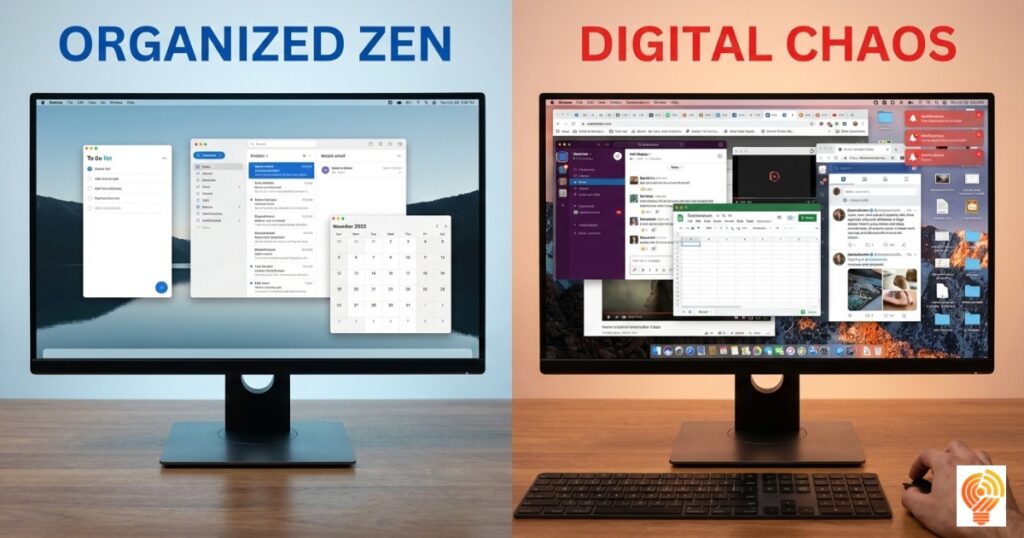
Mistake 1: Tool collecting instead of tool using. I’m guilty of this. There’s something satisfying about trying new software. But you know what’s actually satisfying? Finishing projects with the tools you already have.
Mistake 2: Ignoring the free tier. Most free vs paid productivity apps have free tiers that are perfectly fine for individuals. I paid for Todoist Premium for two years before realizing I never used any of the premium features.
Mistake 3: Not learning keyboard shortcuts. This one’s boring but real. Learning 5 keyboard shortcuts for your main apps will save you more time than any fancy productivity system. I switched from Notion to Obsidian partly because I could navigate entirely by keyboard.
Mistake 4: Treating productivity apps like magic bullets. Look, no app is going to make you suddenly organized if you’re fundamentally disorganized. They can help, but they’re not going to fix deeper issues with how you work.
Building Your Actual Stack
Here’s how I’d approach this if I was starting from scratch today:
Start with the basics:
- One note-taking app (our note-taking apps guide can help you choose)
- One task manager (check out best to-do list apps)
- One calendar (the top calendar apps are all pretty similar, honestly)
- Cloud storage (literally pick any of them)
Use those for a month. Actually use them. Don’t customize, don’t optimize, just use them.
Then add as needed:
- If you’re distracted constantly: focus and distraction-blocking apps
- If you work in emails all day: email management tools
- If you need to share notes: best apps for note sharing
- If you’re brainstorming: mind mapping software
For students specifically, we’ve got a dedicated productivity tools for students guide, because student workflows are genuinely different from professional ones.
Consider your role:
- Writers need different tools than managers
- Remote workers need different setups than office workers
- Entrepreneurs need different systems than employees
We’ve got specific guides for productivity apps for writers, productivity apps for entrepreneurs, and more. But remember: role-specific doesn’t mean you need 10 different apps.
The Truth About Office Suites
Can we talk about Microsoft Office for a second? It’s 2025. We have Notion, Coda, Airtable, and about 50 other “Office killers.” And yet… Excel is still the king of spreadsheets. Word is still what most companies use for documents. PowerPoint is still the presentation standard.
The best office suites 2025 includes all the usual suspects, but here’s the reality: unless you’re a startup or a very progressive company, you’re probably using Microsoft 365 or Google Workspace. And that’s fine. They’re both good.
I use Google Docs for collaboration (real-time editing is still magic) and LibreOffice for anything I need offline. Sometimes boring and practical beats innovative and complicated.
Specialized Tools Worth Knowing About
Some tools don’t fit neatly into categories but solve specific problems really well:
For PDF work: If you handle PDFs regularly, check out our best PDF editors guide. I use Preview on Mac for 90% of PDF tasks and only break out the heavy tools when I need to actually edit content.
For file organization: Most people’s file systems are a disaster. Mine included. File organization apps can help, but honestly? A decent folder structure and search is usually enough.
For prioritization: If you struggle with what to work on (don’t we all?), task prioritization tools can help. I personally use the Eisenhower Matrix in Todoist, but a text file with “Do First” at the top works too.
For tracking productivity: Productivity analytics tools show you where your time goes. RescueTime taught me I spend way too much time in Twitter. Knowing is half the battle.
The Student vs Professional Divide
Students and professionals need different things. Students need collaboration apps for students that handle group projects and study groups. Professionals need tools that integrate with enterprise software and don’t require IT approval.
I work with both groups, and the mistake I see students make is adopting professional tools too early. You don’t need Slack when Discord will do. You don’t need Asana when a shared Google Doc works fine. Start simple.
The mistake professionals make? Not learning from students. That Discord server your kid uses for gaming? It’s often better organized than your company’s Slack workspace.
Looking Ahead: What’s Coming
I try to stay on top of productivity app trends 2026, and here’s what I’m seeing:
AI integration everywhere. Every app is adding AI features. Some are useful (Notion AI for summarizing notes is actually good). Most are not (I don’t need AI to write my to-do list items for me).
More consolidation. Apps want to be your everything. Notion wants to replace your docs, wiki, and project manager. ClickUp wants to replace… everything. This trend worries me because jack-of-all-trades tools often do everything mediocrely.
Better offline support. Finally. After years of “everything in the cloud,” developers are remembering that internet connections aren’t always reliable.
Privacy focus. More apps offering end-to-end encryption and local-first data storage. About time.
Related Articles
Looking for something more specific? We’ve got you covered:
Getting Started:
Core Tools:
- Note-Taking Apps Guide
- Task Management Apps
- Project Management Software
- Time Management Apps
- Best To-Do List Apps
- Top Calendar Apps
Collaboration & Communication:
- Collaboration Tools for Teams
- Collaboration Tools for Remote Work
- Email Management Tools
- Best Apps for Note Sharing
Specialized Tools:
- Mind Mapping Software
- Mind Mapping Apps for Creativity
- Focus and Distraction-Blocking Apps
- Automation Tools for Productivity
- Task Prioritization Tools
- Productivity Analytics Tools
Storage & Files:
By Role:
- Productivity Tools for Students
- Collaboration Apps for Students
- Note-Taking Apps for Professionals
- Productivity Apps for Writers
- Productivity Apps for Entrepreneurs
Comparisons:
Future Trends:
What Actually Matters
After all this, here’s what I’ve learned: the best productivity system is the one you’ll actually maintain.
It doesn’t matter if Notion is objectively more powerful than Apple Notes if you never open it. It doesn’t matter if Todoist has better keyboard shortcuts than your phone’s reminders app if you only check it once a week.
Start simple. Add complexity only when you need it. And for the love of all that is holy, stop spending more time organizing your productivity system than actually being productive.
I still use four main apps. Sometimes five. And you know what? That’s enough. It’s always been enough.
Now go close some of those browser tabs and get something done.