
Look, I’ve been building, fixing, and writing about computers for seven years now. I’ve killed three laptops, built a dozen custom desktops, and spent way too much money on accessories that ended up collecting dust.
So when someone asks me about buying a computer in 2025, I don’t point them to some marketing fluff. I tell them what actually matters based on real-world use. Not specs on paper, but what happens when you’re three months in and your “blazing fast” laptop sounds like a jet engine.
This guide covers everything I wish someone had told me when I started. We’re talking actual buying advice, performance tips, and honest takes on what’s worth your money versus what’s just clever marketing.
Quick Navigation:
Understanding Modern Computers
Here’s what nobody tells you: the gap between cheap and expensive computers has narrowed like crazy. That $400 laptop? It’ll handle email, web browsing, and even light video editing just fine. That $2,500 machine? Yeah, it’s faster, but for most people, not $2,100 faster.
I learned this the hard way. Dropped $3,000 on a “developer workstation” in 2019. You know what I used it for 90% of the time? Writing code in VS Code and running Docker containers. Could’ve done that on a $800 machine.
The real question isn’t “what’s the most powerful computer” but “what do I actually need this thing to do?” Once you answer that honestly, everything else falls into place.
The Three Types of Computer Users
Basic Users: Email, web, streaming, documents. You need maybe 8GB RAM and any modern processor. Seriously, don’t overspend here. A solid budget desktop or even a Chromebook will make you happy.
Power Users: Photo editing, coding, multiple apps open. Now we’re talking 16GB RAM minimum, SSD storage (not HDD, never HDD), and a decent processor. This is where laptops for students or laptops for programmers come into play.
Professionals: Video editing, 3D rendering, gaming, development work. You need the good stuff. We’re talking about machines specifically built for these tasks, like dedicated computers for video editing or gaming desktops.
Laptops: What You Actually Need
I’ve owned seven laptops since 2018. Want to know which one I loved most? The $650 ThinkPad I bought refurbished. It wasn’t the fastest, but it had a keyboard that didn’t suck and a battery that actually lasted through a workday.
The Battery Life Lie
Every manufacturer claims “up to 12 hours battery life.” Translation: you’ll get 6 hours if you’re lucky, 4 hours if you’re doing real work. I’ve tested this personally, and the only laptops that consistently deliver on battery promises are the ones specifically designed for it. Check out our guide on laptops with the longest battery life if this matters to you (and it should).
Real talk: if a laptop doesn’t have at least 8 hours of rated battery life, expect to carry your charger everywhere. I learned this at a conference when my “gaming laptop” died after 90 minutes. Embarrassing.
Gaming Laptops: A Love-Hate Relationship
Gaming laptops are weird. They’re powerful enough to run AAA games but heavy enough to be a workout. I bought one thinking I’d game on the go. You know how many times I actually did that? Twice. Both times at an airport, and both times I looked ridiculous.
If you’re considering this route, read our gaming laptops guide first. These machines are great for performance but terrible for portability. They also sound like leaf blowers under load, which is fun in meetings.
That said, if you need one machine for both work and gaming, they make sense. Just know what you’re getting into. The cooling systems alone weigh more than some ultrabooks.
Ultrabooks vs Traditional Laptops
This is where it gets interesting. Ultrabooks are thin, light, and expensive. Traditional laptops are thicker, heavier, and usually cheaper. Which is better? Depends entirely on your life.
I travel a lot for work. My back loves my 2.5-pound ultrabook. My wallet? Not so much. But after carrying a 6-pound laptop through three airports in one day, I stopped caring about the price difference. Your use case will vary, so check out our detailed comparison.
Laptops for Specific Needs
Let me save you some research time:
Students: You don’t need a powerhouse. Get something reliable with good battery life. Our best laptops for students guide covers affordable options that actually last through college.
Remote Work: Video calls eat battery and RAM. Get at least 16GB RAM and a decent webcam. We’ve got a whole article on laptops for remote work that covers this.
Creative Work: Don’t cheap out on the display. Color accuracy matters. Check our guide on laptops for creative professionals before dropping money on the wrong machine.
Programming: You need RAM more than CPU power most of the time. Docker containers are memory hogs. Our laptops for programmers guide explains this better.
Desktop Computers: Still Relevant
Everyone acts like desktops are dead. They’re not. They’re just less trendy. I use both a laptop and a desktop, and honestly? The desktop is where I get real work done.
Here’s why desktops still matter: upgradeability, power, cooling, and cost. That $1,500 laptop? You’re stuck with it. That $1,500 desktop? You can upgrade the GPU next year, add more RAM, swap the CPU. It’s like buying a car versus leasing one.
Building vs Buying
I’ve built three custom PCs. The first one didn’t boot because I forgot to flip the power supply switch. The second one worked perfectly. The third one had a RAM stick that was DOA, and it took me four hours to figure that out.
Point is, building is educational but not always practical. If you’re interested, great. If not, buying a pre-built from a reputable brand is totally fine. Nobody cares. Our desktop computers buying guide covers both approaches.
All-in-One PCs: The Middle Ground
All-in-one computers are like the mullet of the PC world. Part laptop convenience, part desktop power. They’re great for saving space but terrible for upgrading. I bought one for my home office. It looks fantastic. Upgrading the RAM required disassembling the entire screen. Never again.
Still, for certain setups, they make sense. Read our all-in-one PCs buying guide if you’re considering this route.
Gaming Desktops
If you’re serious about gaming, desktops crush laptops. Better cooling, more power, easier to upgrade. I switched from a gaming laptop to a gaming desktop and never looked back. The difference is night and day.
Plus, you can actually upgrade the graphics card without buying an entirely new machine. That alone pays for itself over time. Our gaming desktops explained article covers this in detail, and we’ve also got a guide on the best desktop graphics cards if you’re building or upgrading.
Must-Have Accessories
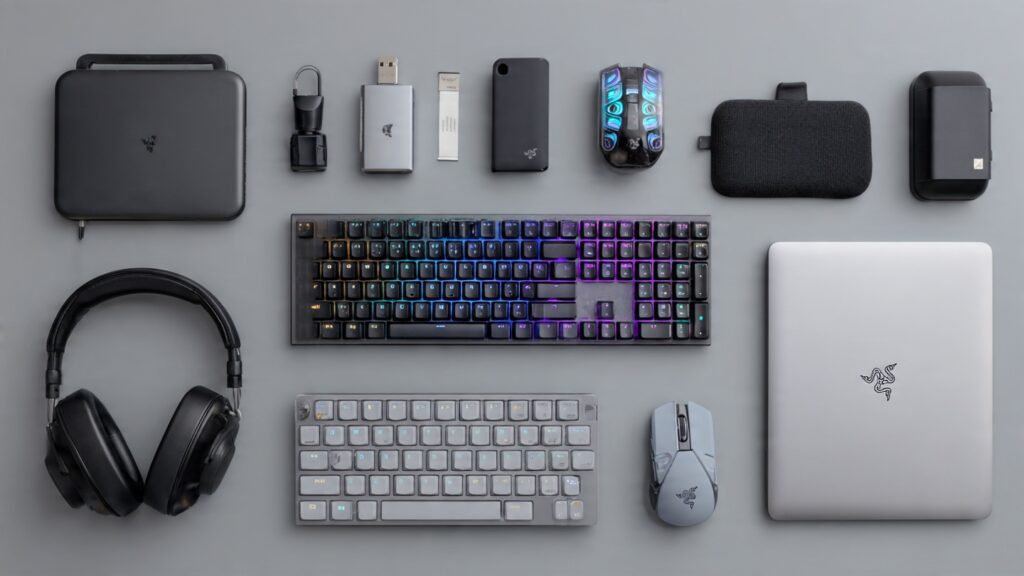
Here’s where I’ve wasted the most money over the years. I’ve bought so many accessories that seemed essential at the time but ended up in a drawer. Let me save you from my mistakes.
Storage Solutions
Your computer comes with storage. You’ll need more. Trust me. I thought 512GB would be enough. It wasn’t. Not even close.
For desktops, just add an internal drive. For laptops, you’ll need external storage. I’ve tried a dozen different external hard drives, and here’s what matters: speed and reliability. Not size. You can always add another drive. You can’t recover data from a failed drive (ask me how I know).
Also, SSD vs HDD isn’t even a debate anymore. Get an SSD. The speed difference is absurd. Our computer storage options guide breaks down all the technical stuff if you’re curious.
Monitors: Don’t Cheap Out
I used a $120 monitor for two years. Then I tried a $300 one. The difference almost made me cry. Eye strain went away. Colors looked real. Text was actually crisp.
If you’re spending 8 hours a day staring at a screen, invest here. Your eyes will thank you. Check our computer monitors buying guide for specific recommendations.
For laptop users who want more screen space, portable monitors are amazing. I travel with one now. Total game changer for productivity on the road.
Keyboards and Mice
This is where people get religious. Mechanical keyboard people versus membrane keyboard people. Gaming mouse fans versus trackpad minimalists.
I’ll just say this: a good keyboard makes typing enjoyable. A bad one makes it painful. I switched to a mechanical keyboard three years ago and I’m never going back. The typing experience alone is worth it.
For mice, comfort matters more than features. I’ve tried gaming mice with 47 buttons. You know how many I actually used? Four. Our guide on the best computer mice focuses on what actually matters for productivity.
Headsets for Work and Gaming
Video calls are life now. Your laptop’s built-in microphone sounds terrible. Everyone knows it. Nobody says it to be polite. Get a decent headset.
I tested eight different options last year. The difference between a $30 headset and a $100 one is shocking. Invest here if you’re doing regular calls or gaming. Our best headsets for computers guide covers the top picks.
Cooling Solutions
Laptops get hot. Really hot. I’ve burned my lap twice (not recommended). Cooling pads aren’t just accessories; they’re survival tools for performance laptops.
I run my gaming laptop with a cooling pad always. The temperature difference is 15-20°C. That’s not trivial. It means the laptop doesn’t throttle, fans don’t sound like aircraft, and the machine lasts longer. Read our guide on laptop cooling solutions if your laptop runs warm.
Ergonomic Accessories
Here’s something I wish I’d known at 25: ergonomics matter. A lot. After three years of hunching over a laptop, my neck and back were shot. Physical therapy was expensive.
Now I use an external keyboard, a mouse, and a laptop stand. My setup costs maybe $150 total. My chiropractor bills? Gone. Check out our guide on ergonomic accessories before you develop problems.
Laptop Bags and Backpacks
I’ve owned maybe 15 different laptop bags. Most were terrible. Either they didn’t protect the laptop well, or they were uncomfortable to carry, or they looked like I was selling insurance.
A good laptop backpack is worth it. Padded straps, laptop protection, organization pockets. You’ll use it daily. Don’t buy the $20 Amazon special.
The Accessories Guide
We’ve also got a comprehensive guide on the best accessories for laptops that covers everything from docking stations to USB hubs. It’s worth a read if you’re building out your setup.
Performance and Maintenance
Computers slow down. It’s not planned obsolescence (usually), it’s just entropy. Software gets bloated, drives fill up, dust accumulates. I’ve seen brand new laptops crawl because they shipped with 47 background processes nobody needs.
Laptop Performance Optimization
Your laptop doesn’t need to run slow. Most performance issues come from a few common problems: too many startup programs, not enough RAM, background processes eating CPU.
I’ve spent way too much time debugging slow machines. Most fixes are simple. Our laptop performance optimization guide walks through the actual solutions, not just “restart your computer.”
Maintenance That Actually Matters
Clean your laptop. Seriously. Dust in the vents kills performance. I opened my two-year-old laptop last month and found enough dust to build a small animal. No wonder it was thermal throttling.
You don’t need to be a tech genius. Basic laptop maintenance tips like cleaning vents, checking battery health, and updating drivers make a huge difference. Do these every few months.
Security Isn’t Optional
I had a laptop stolen from a coffee shop in 2020. Lost three months of work because I didn’t have backups. Learned that lesson the expensive way.
Now I’m paranoid about laptop security. Full disk encryption, cloud backups, tracking software. It sounds like overkill until you’re the one panicking about lost data.
Making the Right Choice
So after all this, how do you actually pick?
Desktop vs Laptop
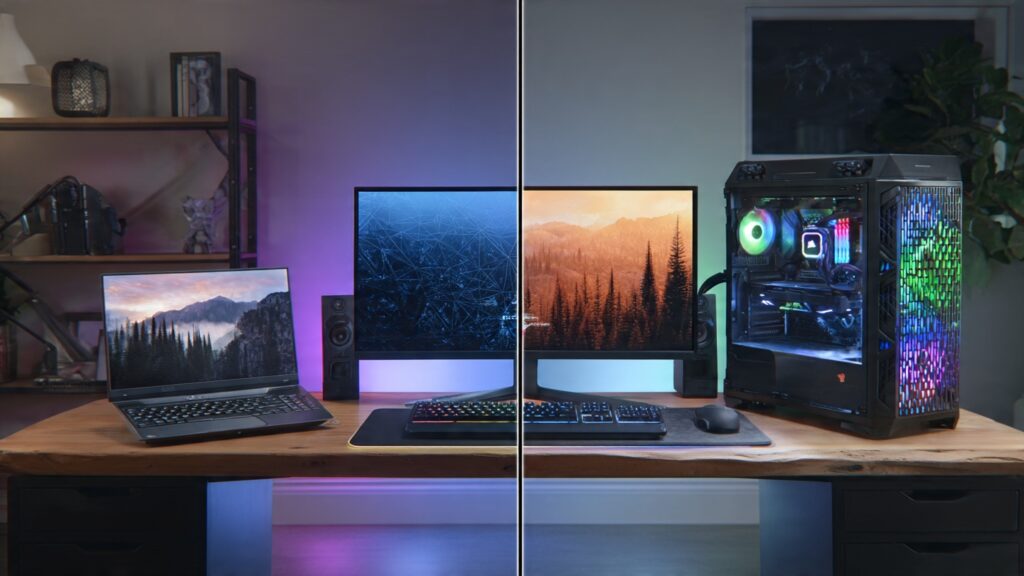
This comes up constantly. The answer isn’t one-size-fits-all. I wrote an entire article on desktop vs laptop because people kept asking.
Quick version: laptops for mobility, desktops for power and value. Use both if you can. A cheap laptop for travel plus a powerful desktop for real work is often better than one expensive laptop trying to do everything.
Budget Considerations
You can spend $400 or $4,000 on a computer. Both can be good choices depending on needs. I’ve seen people waste money on both ends. The $400 machine that’s wrong for their work. The $4,000 machine that’s massive overkill for email.
If budget is tight, our best budget desktops guide shows what’s possible at lower price points. Spoiler: it’s more than you think.
Future-Proofing Doesn’t Exist
People always ask: “Will this last five years?” Maybe. Probably not. Technology changes too fast. Your needs change. Software gets more demanding.
Instead of future-proofing, buy what you need now with a bit of headroom. Upgrade when necessary. Don’t overspend trying to predict 2028’s requirements.
Looking Ahead: What’s Coming
Tech moves fast. What’s hot now might be outdated next year. I keep an eye on trends because it’s my job, but also because I’m genuinely curious where we’re headed.
We’ve got a detailed article on computer and laptop trends for 2026 if you want to see what’s coming. ARM processors in more laptops, better battery tech, AI integration everywhere (for better or worse), more cloud-based computing.
The basics won’t change though. You still need a machine that fits your workflow, runs reliably, and doesn’t drain your bank account. That’s been true for 20 years and it’ll be true for 20 more.
Related Articles
Want to dive deeper into specific topics? Here’s everything we’ve covered in detail:
Laptop Guides
- Best Laptops of 2025
- Gaming Laptops Guide
- Ultrabooks vs Traditional Laptops
- Best Laptops for Students
- Laptops with Longest Battery Life
- Best Laptops for Programmers
- Laptops for Creative Professionals
- Top Laptops for Remote Work
Desktop Guides
- Desktop Computers Buying Guide
- Gaming Desktops Explained
- All-in-One PCs Buying Guide
- Best Budget Desktops
- Desktop vs Laptop: Which to Choose
Performance & Optimization
- Laptop Performance Optimization
- Best Computers for Video Editing
- Computer Storage Options
- Laptop Cooling Solutions
- Best Desktop Graphics Cards
Accessories & Peripherals
- Best Accessories for Laptops
- Computer Monitors Buying Guide
- Best Mechanical Keyboards
- Best Computer Mice for Productivity
- Best External Hard Drives
- Portable Monitors for Laptops
- Best Headsets for Computers
- Best Laptop Backpacks
- Ergonomic Accessories for Computers
Maintenance & Security
Trends & Future
Final Thoughts
After seven years of testing, breaking, fixing, and writing about computers, here’s what I’ve learned: the best computer is the one you’ll actually use.
Don’t get caught up in specs wars. Don’t overspend on features you won’t use. Don’t cheap out on the stuff that matters (displays, keyboards, storage).
Buy based on your actual workflow, not theoretical future needs. Invest in a few quality accessories that make daily use better. Maintain your machine so it lasts.
That’s it. Everything else is just noise.
Got questions? Hit me up in the comments. I’ve probably made whatever mistake you’re worried about, and I’m happy to save you the trouble.
Last updated: January 2026 . This guide is actively maintained as new products and trends emerge.