

Productivity Apps for Entrepreneurs: What Actually Works (And What Doesn’t)
Look, I’ve tried probably 40 different productivity apps over the last five years running my own consulting business. You know what I learned? Most of them end up being productivity theater instead of actual productivity.
But here’s the thing: there are a handful of tools that genuinely changed how I work. Not because they had the shiniest interface or the most features, but because they solved real problems I was having at 11 PM on a Tuesday when I realized I’d forgotten to follow up with three clients.
This article is part of our comprehensive guide on Software, Apps, and Productivity Tools. If you want the full overview of productivity software, that’s your starting point.
Why Entrepreneurs Need Different Tools Than Everyone Else
When you’re wearing six hats at once (sales, marketing, operations, customer support, janitor, and occasionally developer), generic productivity advice doesn’t cut it.
I remember reading articles about “batching similar tasks” and “time blocking.” Great in theory. Completely useless when a client calls at 2 PM with an urgent issue and your carefully planned afternoon explodes.
Entrepreneurs need tools that are:
- Fast to update (you’re not spending 10 minutes organizing your task manager)
- Flexible enough to handle chaos
- Actually reliable when you’re juggling 15 projects
- Not requiring a PhD to set up
So let’s talk about what actually works.
Task Management: Beyond Simple To-Do Lists

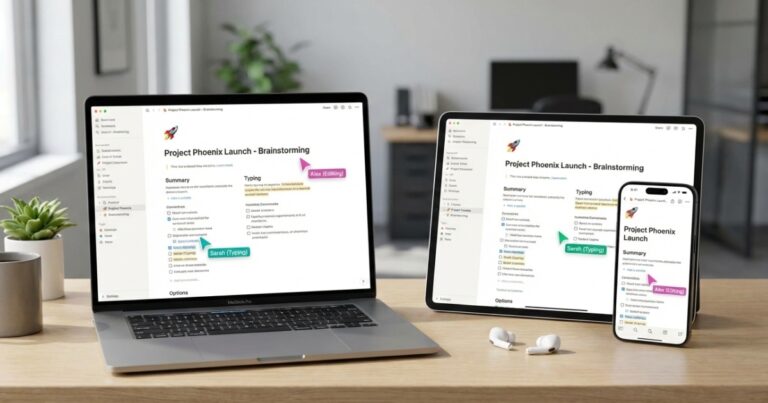
Notion: The Swiss Army Knife (That’s Sometimes Too Sharp)
I’ve used Notion for three years now. It’s powerful as hell, but I’ll be honest: I’ve spent entire afternoons building the “perfect” workspace instead of actually working.
What it’s good for:
- Project documentation that needs to live with your tasks
- Client wikis where you track conversations and deliverables
- Creating databases of literally anything (I track my content calendar, client info, and business expenses all in one place)
The gotcha: It’s slow sometimes. Like, painfully slow if your workspace gets big. And the mobile app? It’s gotten better, but you’re not doing serious work on your phone with Notion.
Real talk: If you’re the kind of person who likes building systems, Notion is incredible. If you just want to add a task and move on, it might be overkill.
Todoist: When You Just Need It Done
After my Notion setup got too complex, I moved my daily task list to Todoist. Best decision I made last year.
It’s stupid simple: add task, set date, mark complete. But the natural language processing is what sold me. I can type “Follow up with Sarah about contract next Tuesday at 2pm” and it just works.
The free version is solid, but I pay for Premium ($4/month) because I need reminders and the ability to add tasks via email. When I’m in a client call and someone asks me to send them something, I fire off a quick email to my Todoist inbox. Done.
Pro tip: Use labels for energy levels, not just categories. I tag tasks as @high-energy or @mindless so when I’m fried at 4 PM, I know exactly what I can still tackle.
For more on task management strategies, check out our guide on Task Management Apps.
Project Management: When Tasks Aren’t Enough
Trello: Visual Chaos That Somehow Works
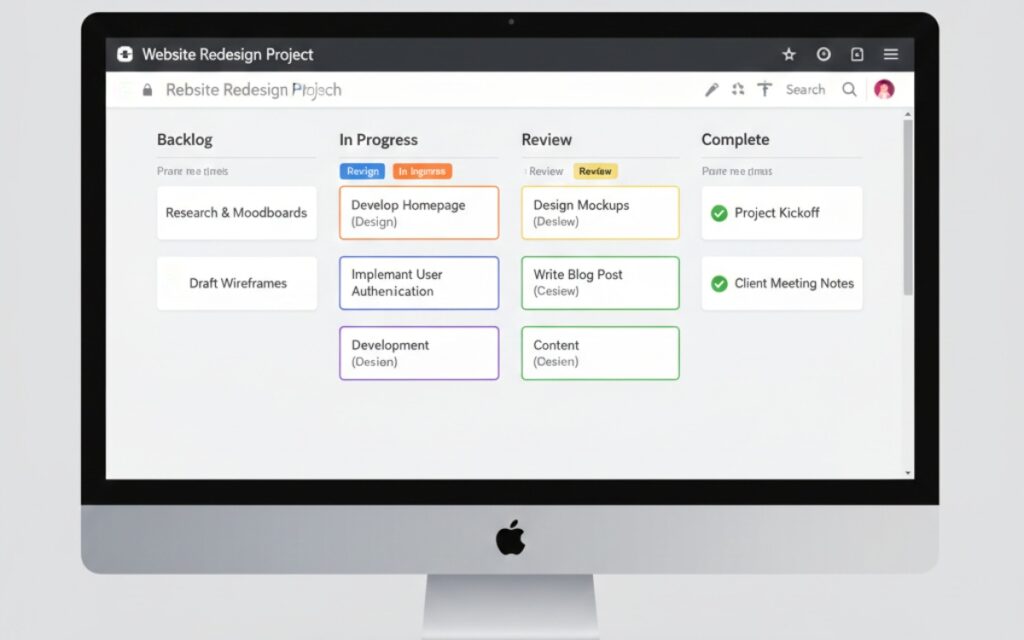
I use Trello for client projects. Each client gets a board, and I move cards through stages: Backlog → In Progress → Review → Complete.
It’s not fancy, but it’s visual enough that clients actually understand it when I share boards with them. That matters more than you’d think. I’ve tried explaining Asana to clients before, and their eyes just glaze over.
The limitation: Trello falls apart if you need dependencies between tasks or detailed resource planning. It’s a kanban board, period. Don’t try to make it do things it wasn’t designed for.
ClickUp: When You Outgrow Everything Else
I’m in the process of moving some projects to ClickUp. It’s like if Trello, Asana, and Notion had a baby that inherited all their good features and some of their complexity.
You can view the same data as lists, boards, calendars, or Gantt charts. I switch between board view for quick status checks and list view when I need to plow through tasks.
Fair warning: The learning curve is real. I watched probably six hours of YouTube tutorials before I felt comfortable. But if you’re managing multiple team members or complex projects, it’s worth it.
Want to dive deeper into project management? We’ve got a full breakdown in our Project Management Software guide.
Communication: Because Email Is Where Productivity Goes to Die
Slack: Love It and Hate It
Here’s my complicated relationship with Slack: it’s essential for my team, but it’s also a constant distraction.
What I’ve learned: channels are everything. I have strict rules:
#urgentis for actual emergencies only#questionsis async (I check it twice a day)#randomis muted unless I’m procrastinating anyway
The Slackbot reminders feature is underrated. I have it remind me to review weekly metrics every Friday at 10 AM. Simple, but it keeps me on track.
The dark side: Slack can become a black hole of “quick questions” that aren’t quick at all. I’ve started blocking “deep work” time where I literally quit Slack. Revolutionary, I know.
For team collaboration tools, our Collaboration Tools for Teams article covers more options.
Time Tracking: Because “Where Did My Day Go?” Is a Real Question
Toggl Track: Set It and Forget It (Mostly)
I resisted time tracking for years because I thought it was micromanagement bullshit. Then I started billing clients hourly and suddenly needed to know where my time was actually going.
Toggl Track has a desktop app that just sits in my menu bar. I click it when I start working on something, click it again when I’m done. At the end of the week, I can see that I spent 14 hours on client work and 8 hours on “admin” (which is code for “I have no idea”).
The insight that surprised me: I was spending 6-8 hours a week on email. Six to eight hours. Once I saw that, I implemented email batching and cut it to 3 hours. That’s a whole workday back every two weeks.
If you’re looking at overall productivity, check out our Time Management Apps comparison.
Document and Note Management: Because Your Brain Can’t Hold Everything
Obsidian: For the Overthinking Entrepreneur
I keep all my business notes, meeting logs, and random ideas in Obsidian. It’s a markdown-based note app that stores everything as plain text files on your computer.
Why I love it: it’s fast, works offline, and I’m not locked into some company’s ecosystem. If Obsidian disappears tomorrow, I still have all my notes as regular text files.
The linking between notes is what makes it powerful. I can connect a client meeting note to a project idea to a business strategy document, and see how everything relates.
The learning curve: If you’re not comfortable with markdown, there’s a small hump to get over. But honestly, markdown is just # Heading and **bold** and you’re 80% of the way there.
Our Note-Taking Apps Guide covers more options if Obsidian isn’t your speed.
Calendar Management: More Important Than You Think
Calendly: The Meeting Scheduler That Saves My Sanity
Before Calendly, setting up meetings was a back-and-forth nightmare. “How about Tuesday at 2?” “No, I’m busy. Wednesday at 10?” “That doesn’t work either…”
Now I just send my Calendly link and people pick a time that works for both of us. It syncs with my Google Calendar, buffers time between meetings so I’m not jumping from call to call, and sends automatic reminders.
Cost: Free for basic use, $10/month for Pro features like multiple event types and calendar integrations beyond Google.
Worth noting: Some people think sending a Calendly link is impersonal. I disagree, but if you’re dealing with VIP clients, maybe offer times manually for the first meeting.
Looking for other calendar solutions? See our Top Calendar Apps roundup.
Automation: The Secret Weapon

Zapier: When Apps Need to Talk to Each Other
I’m not a developer anymore (thank god), but I still need my apps to work together. Zapier connects them without code.
My favorite zaps:
- New Calendly booking → Add to Google Calendar → Create Notion database entry → Send Slack notification
- New client invoice in QuickBooks → Log in tracking spreadsheet → Remind me to follow up in 30 days
- Form submission on my website → Create Trello card → Send me an email
Each zap I build saves me maybe 5 minutes. But when you’re doing something 50 times a month, that’s 4 hours back.
The free plan gives you 100 tasks/month, which is enough to get started. I’m on the $20/month plan now because I’m addicted to automation.
Dive deeper into this in our Automation Tools for Productivity guide.
Focus Tools: When You Need to Actually Get Stuff Done
Freedom: The Nuclear Option for Distractions
When I absolutely need to focus, I use Freedom to block literally the entire internet except specific work sites. It’s extreme, but it works.
I have a “Deep Work” session saved that blocks:
- All social media
- Email (yes, even email)
- News sites
- YouTube
- Hacker News (my personal time sink)
Three-hour blocks, twice a week. That’s when I do my best work.
Cost: $7/month or $40/year.
The honest take: You don’t need an app to block distractions. But if you’re like me and have zero self-control, sometimes you need to remove the temptation entirely.
More focus tools in our Focus and Distraction-Blocking Apps article.
Cloud Storage: Don’t Overlook This
Dropbox: Boring and Reliable
I know Google Drive is free and Microsoft OneDrive is bundled with Office. I pay for Dropbox anyway ($12/month for 2TB).
Why? Because it just works. Every time. The syncing is faster, the conflict resolution is better, and the file recovery has saved me twice when I accidentally deleted important stuff.
For client file sharing, I create shared folders that they can access without needing a Dropbox account. Simple, professional, works every time.
Check out our Best Cloud Storage Solutions for more options.
What I Learned the Hard Way
After five years of trying every productivity app under the sun, here’s what actually matters:
1. Don’t optimize your tools, optimize your workflow first
I spent six months perfecting my Notion setup before realizing I was solving the wrong problem. My issue wasn’t organization, it was saying yes to too many projects.
2. Simpler is usually better
The fanciest app with 47 features sounds great until you realize you only use three of them and the complexity is making everything slower.
3. Integration matters more than individual features
I’d rather have three good apps that work together than five amazing apps that don’t talk to each other.
4. Free trials are your friend
Every app I recommend here offers a free trial or free tier. Test them with real work, not theoretical “what if” scenarios.
5. Your perfect setup will change
What worked for me as a solo consultant doesn’t work now that I have a small team. That’s fine. Be willing to change tools as your business evolves.
The Stack I’m Actually Using Right Now (January 2026)
Let me be specific about what’s open on my computer as I write this:
- Daily tasks: Todoist
- Project management: ClickUp (for team projects) and Trello (for solo client work)
- Communication: Slack + Email (unfortunately)
- Time tracking: Toggl Track
- Notes: Obsidian
- Scheduling: Calendly
- File storage: Dropbox
- Automation: Zapier
- Focus: Freedom (when I remember to actually use it)
Total monthly cost: About $70. That’s less than I spend on coffee, and it’s the foundation of how I run a six-figure business.
For broader productivity software insights, revisit our main Software, Apps, and Productivity Tools guide.
Tools Worth Mentioning But I Don’t Use
Asana: Powerful but too complex for my needs. If you’re managing a 10+ person team, look at it.
Monday.com: Beautiful, expensive ($10-20 per user/month), probably overkill for most entrepreneurs.
Airtable: Incredible for database-style organization. I tried it, couldn’t figure out a use case that Notion didn’t already handle.
RescueTime: Automatic time tracking. I tried it for three months, but knowing I spent 2 hours on Twitter didn’t make me stop spending 2 hours on Twitter.
The Real Secret Nobody Talks About
The best productivity app is the one you’ll actually use consistently.
I know people who swear by bullet journals and paper planners. That’s fine. I’d forget to check a paper planner after three days, but for some people, it’s perfect.
The tools don’t matter as much as the habit of planning, reviewing, and actually following through. Apps just make that habit easier (or harder, if you pick the wrong ones).
Final Thoughts
Look, you don’t need all of these tools. Start with one or two that solve your biggest pain points right now.
For me, that was Todoist (so I’d stop forgetting client deliverables) and Toggl (so I’d stop undercharging for my time).
As your business grows, add tools that solve new problems. But don’t add them because they’re trendy or because some productivity guru on Twitter says you need them.
And for the love of god, don’t spend more time organizing your productivity system than actually being productive. I’ve been there. It’s a trap.
Want more insights on boosting your efficiency? Check our related articles on Productivity Tools for Students and Best To-Do List Apps.




One Comment
Comments are closed.