PC Cleaning 101: How to Clean Your Computer Safely Like a Pro
Introduction
Whether you use your PC for work, gaming, or casual browsing, one thing is certain – dust, grime, and digital clutter build up over time. A dirty computer can slow down performance, cause overheating, and even shorten your hardware’s lifespan. That’s why learning how to clean your PC safely is one of the smartest maintenance habits you can develop in 2025.
In this guide, we’ll walk you step-by-step through how to clean your PC safely, covering both the physical components and software side of your system. You’ll discover professional tips, mistakes to avoid, and tools that make the process easier and safer – even for beginners.
Why Cleaning Your PC Matters
When your PC gathers dust inside, airflow becomes restricted, making components like the CPU and GPU overheat. Meanwhile, software clutter – unused apps, temporary files, and startup bloat – can slow your system down. Regular maintenance ensures:
- Better performance and stability
- Lower temperatures and quieter operation
- Extended hardware life
- More storage space and faster boot times
In short, if you want your computer to run like new, it’s essential to understand how to clean your PC safely – inside and out.
Part 1 – How to Clean Your PC Safely (Physical Cleaning)
1. Prepare Before You Start
Before diving in, always power down your PC, unplug it, and ground yourself to avoid static electricity. Here’s what you’ll need:
- Microfiber cloths
- Compressed air canister
- Soft brush or small paintbrush
- Isopropyl alcohol (90 % or higher)
- Cotton swabs
- Screwdriver (for desktops)
Never use household cleaners, sprays, or paper towels – they can damage delicate components.
2. Clean the Exterior
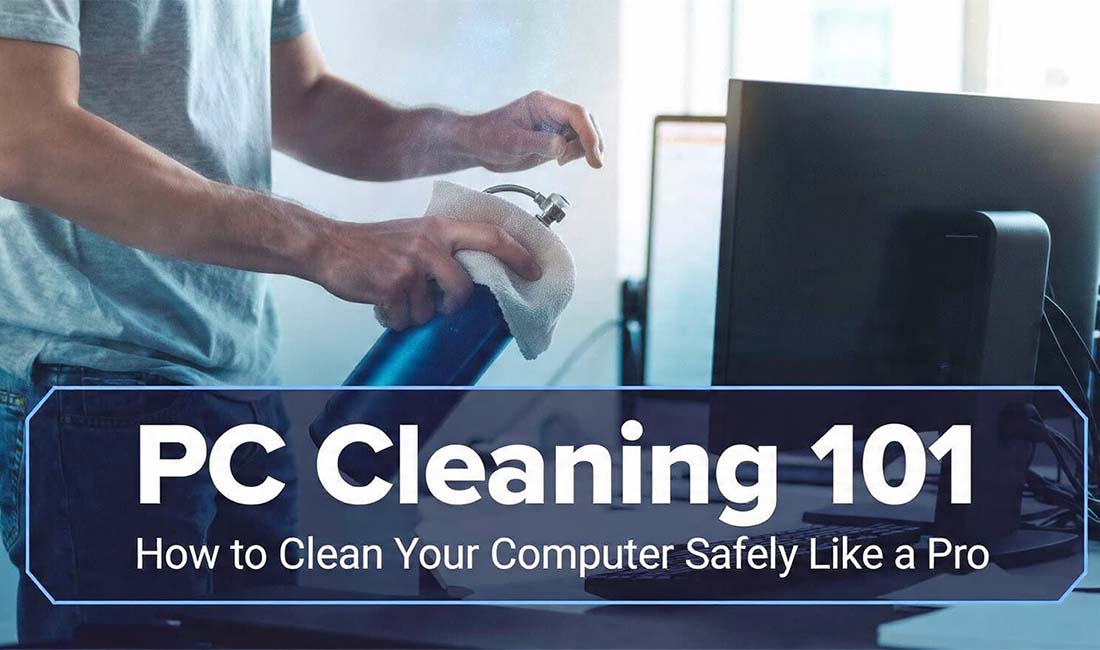
Start with the outside. Wipe your monitor, keyboard, and mouse with a lightly damp microfiber cloth. For stubborn grime, mix a 1:1 solution of distilled water and isopropyl alcohol.
Pro Tip: Don’t spray liquids directly onto your screen or keyboard – always apply to the cloth first. This is the first rule in how to clean your PC safely.
3. Open the Case and Remove Dust
If you have a desktop PC, unscrew and remove the side panel. Use compressed air to blow dust out of fans, vents, and components. Hold fans in place while blowing air to prevent them from spinning too fast and getting damaged.
Avoid: Using a vacuum cleaner – static electricity from vacuums can fry your motherboard.
For laptops, use compressed air around the vents and keyboard instead of opening the device unless you’re experienced.
4. Clean Fans and Heat Sinks
Fans collect the most dust. Use short bursts of air to clean each blade, or use a soft brush if buildup is thick. Clean the heat sink gently dust on this part can cause CPU or GPU overheating.
Keeping these components clean is one of the most important parts of how to clean your PC safely, as it directly affects temperature control.
5. Wipe Down Components Carefully
Use a dry microfiber cloth or alcohol-dampened swab to gently wipe down:
- GPU casing
- RAM sticks (contacts only if you’re confident)
- Power supply exterior
- Case edges
Do not touch circuit areas directly unless you know proper grounding techniques. Always prioritize safety and patience.
6. Reassemble and Test
Once everything looks clean, reattach panels, reconnect cables, and power up your PC. You should immediately notice quieter fans and smoother performance.
If something doesn’t power on, double-check connections , sometimes a loose cable is all it takes.
Part 2 – How to Clean Your PC Safely (Software Cleaning)
Cleaning the hardware is only half the job. Your computer also needs digital cleaning to run efficiently.
1. Uninstall Unused Programs
Go to Settings → Apps → Installed Apps and remove software you no longer use. These programs take up space and can run background processes that slow your system down.
If you’re using Windows 11, you can also manage startup apps directly from Task Manager.
2. Delete Temporary Files
Open “Disk Cleanup” or use the built-in “Storage Sense” tool to delete temporary files, cache data, and old system files.
For a deeper clean:
Press Windows + R → type %temp% → Delete all files inside
This can free several gigabytes instantly.
Regularly clearing temp files is a safe, non-invasive part of how to clean your PC safely without risking data loss.
3. Organize Your Files
Create folders for documents, images, and downloads. Delete duplicates or move large files to an external drive or cloud storage.
Use free software like WinDirStat to see which files consume the most space.
4. Update Your System and Drivers
Outdated software can cause slowdowns and compatibility issues. Keep Windows Update and all drivers current, especially GPU, chipset, and network drivers.
Automatic updates can be configured to minimize disruption while maintaining security , another key factor in how to clean your PC safely.
5. Scan for Malware and Viruses
Even the cleanest system can be compromised by hidden malware. Run a full scan using:
- Windows Defender (built-in)
- Or trusted tools like Malwarebytes
Remove any threats detected. Reboot afterward to ensure changes take effect.
6. Optimize Startup Apps
Too many programs running at startup slow down boot time.
To fix this:
- Open Task Manager (Ctrl + Shift + Esc)
- Go to “Startup Apps”
- Disable unnecessary entries
This simple tweak can improve your startup speed dramatically.
7. Defragment or Optimize Drives
If you use an HDD, run the “Defragment and Optimize Drives” utility every few weeks. SSDs don’t need defragmentation, but you can use the “Optimize” feature to manage space.
8. Back Up Your Data
Before performing deep cleanups or registry fixes, always back up your data. Use OneDrive, Google Drive, or an external HDD/SSD.
A good backup is part of how to clean your PC safely, because you never know when an accidental deletion might occur.
Pro Tips for Keeping Your PC Clean Long-Term
- Clean physically every 3–6 months depending on your environment.
- Use dust filters if your case supports them.
- Keep your workspace tidy , less dust around means less dust inside.
- Avoid eating or drinking near your PC.
- Use software like CCleaner or BleachBit cautiously for periodic cleanups.
- Enable automatic updates to maintain performance and security.
Following these steps ensures your machine stays clean, quiet, and efficient all year.
Common Mistakes to Avoid
- Using water or glass cleaners directly , moisture and electronics don’t mix.
- Skipping backups before cleaning software files.
- Blowing air too close to components, which can dislodge small parts.
- Ignoring thermal paste maintenance , old paste can cause overheating.
- Using vacuum cleaners , they can create static and damage parts.
When learning how to clean your PC safely, avoiding these pitfalls will save you from expensive mistakes.
Recommended Tools & Products
Here are a few tools professionals rely on for safe PC cleaning:
- Compressed air can – removes dust without contact
- Anti-static wrist strap – prevents shocks
- Isopropyl alcohol – safe for electronics
- Microfiber cloths – scratch-free surface cleaning
- Cable ties – improve airflow after reassembly
Optional advanced gear: electric air duster, small vacuum designed for electronics, or an anti-static mat for workspace safety.
Conclusion
Keeping your PC clean isn’t just about looks , it’s about performance, reliability, and longevity. Once you understand how to clean your PC safely, it becomes a simple maintenance routine that saves time and money.
A clean computer runs cooler, faster, and quieter. Whether you’re a gamer, student, or remote worker, regular maintenance ensures your machine stays in top shape for years.
So, grab your microfiber cloth and compressed air , your computer deserves it!
FAQs About How to Clean Your PC Safely
1. How often should I clean my PC?
Ideally, do a deep clean every 3–6 months. If you live in a dusty area or have pets, clean more frequently.
2. Is it safe to open my desktop PC?
Yes – as long as you unplug it, discharge static electricity, and handle components carefully. Avoid touching circuitry directly.
3. Can I use a hairdryer to clean my PC?
No. Hairdryers generate heat and static, which can damage sensitive components. Use compressed air instead.
4. What’s the safest way to clean my laptop keyboard?
Turn off the laptop, flip it upside down to shake out debris, then use compressed air and a slightly damp microfiber cloth.
5. Do software cleaners really work?
Yes – tools like CCleaner or Windows Disk Cleanup can safely remove temporary files and speed up performance when used properly.
6. Should I replace thermal paste when cleaning?
If your PC is over 2 years old or overheating, reapplying high-quality thermal paste can help cooling efficiency.