

Note-Taking Apps Guide: Best Apps for Students, Professionals & Creatives
Look, I’ve tried probably 15 different note-taking apps over the past seven years. Some lasted a week. Others stuck around for years. And here’s what I’ve learned: there’s no “best” note-taking app. There’s just the one that fits how your brain actually works.
I’m currently using three different apps depending on what I’m doing. Yeah, three. Before you judge me, let me explain why that’s not as chaotic as it sounds.
This guide covers everything I wish someone had told me before I spent two months migrating notes between apps like some kind of digital nomad.
This article is part of our comprehensive guide on Software, Apps, and Productivity Tools. For the complete productivity toolkit, check out the full guide.
Why Most People Pick the Wrong Note-Taking App
Here’s what usually happens: someone asks “what’s the best note-taking app?” on Reddit, gets 47 different answers, downloads the most upvoted one, uses it for three days, and then goes back to Apple Notes or Google Keep.
I did this. Multiple times.
The problem isn’t the apps. It’s that we don’t actually think about what we need from note-taking software before choosing one. We just pick whatever has the prettiest interface or the most features.
Real talk: I once switched to Notion because everyone was hyping it up. Spent a weekend building this elaborate system with databases and templates. Never opened it again after the first week. Too much friction for quick notes.
What You Actually Need to Know Before Choosing
Speed vs Structure
This is the big one. Do you need to capture thoughts fast, or do you need everything organized perfectly?
If you’re in meetings all day, you need something that opens in under two seconds. I’m talking genuinely fast. Because when your boss starts talking about Q4 projections, you don’t have time to wait for some electron app to spin up.
But if you’re doing research or managing projects, you probably care more about linking notes together and finding stuff later. Speed matters less than structure.
Most apps are good at one or the other. Very few nail both.
The Sync Problem Nobody Mentions
Here’s a fun story: I once lost three days of meeting notes because my note-taking app’s sync failed silently. I’d been typing on my laptop, but my phone never got the updates. When I opened the app on my phone during a client call to reference something, the notes weren’t there.
Check how sync actually works before committing. Some apps sync in real-time. Others do it when you close the app. Some require you to manually save. And if you’re using the free tier, sometimes sync just… doesn’t work reliably.
I now only use apps with proven, automatic sync. Life’s too short to worry about whether your notes saved.
Best Note-Taking Apps by Use Case
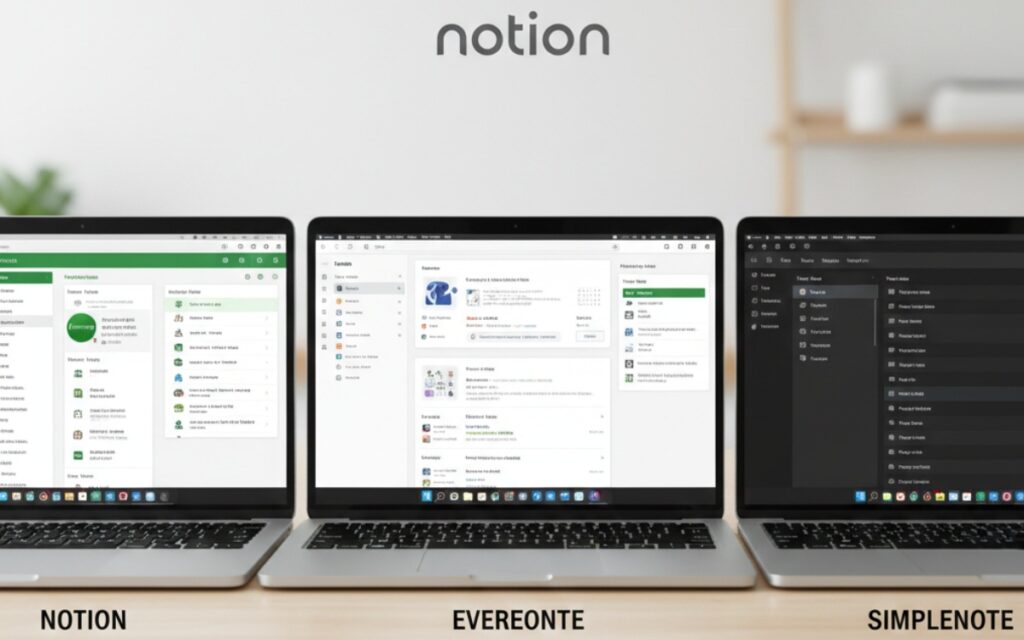
For Students: Notion and OneNote
I’ll be honest, if I were still in college, I’d probably use Notion now. The ability to embed everything (PDFs, images, videos, code blocks) in one place is genuinely useful for class notes.
But here’s the thing about Notion: it has a learning curve. Your first week will feel like you’re fighting with it instead of taking notes. If you can push through that, it gets really powerful. If not, OneNote is right there with zero learning curve and solid handwriting support if you have a tablet.
OneNote’s free, works everywhere, and has this infinite canvas thing that some people love. I personally find it too freeform (I need structure or I lose everything), but for brainstorming or sketch notes, it’s pretty great.
For quick reference during lectures, honestly? A simple app like Apple Notes works fine. Don’t overcomplicate it if you’re just capturing information to review later.
For Professionals: Obsidian and Notion
This is where I’m currently living. I use Obsidian for my personal knowledge management (meeting notes, project docs, technical references) and Notion for team collaboration stuff.
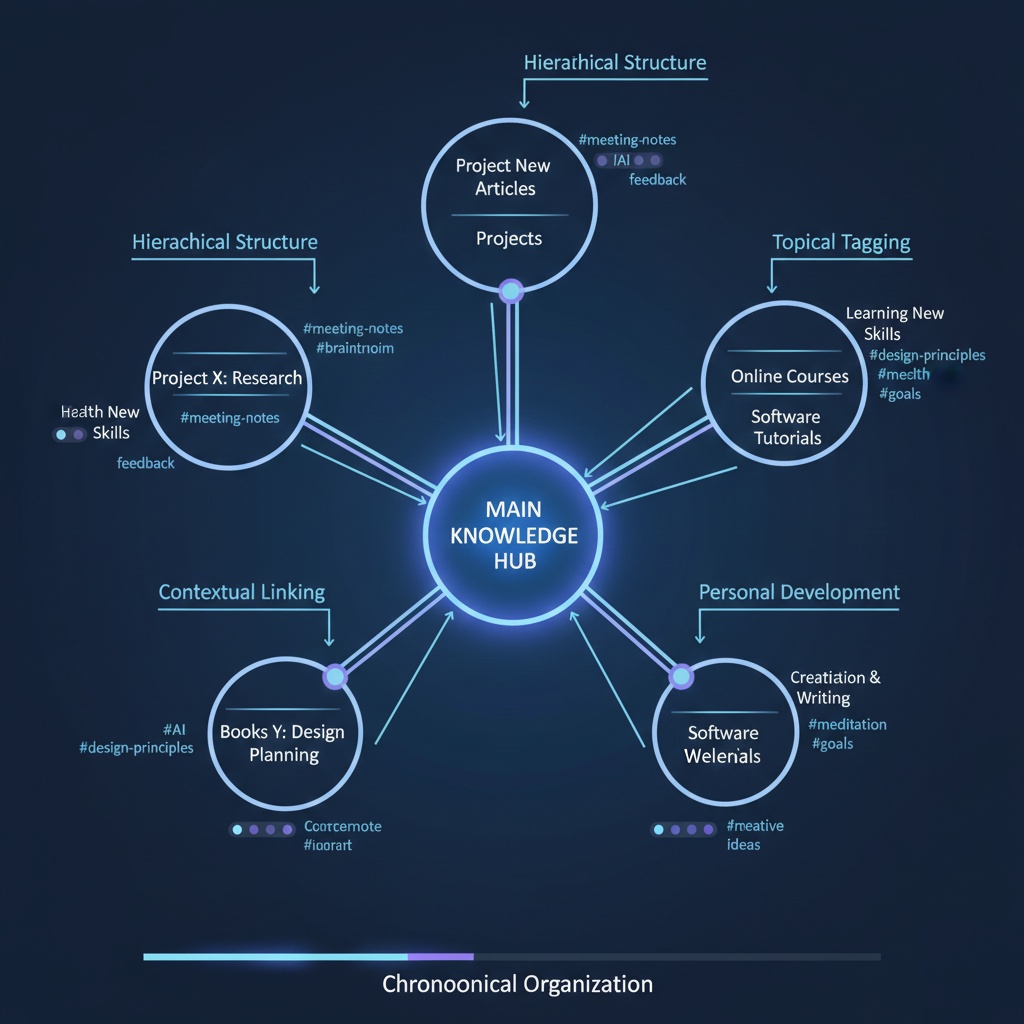
Obsidian changed how I take notes. Instead of organizing everything into folders and subfolders (which I never maintained), I just write notes and link them together. It uses plain Markdown files, so you’re never locked into their ecosystem. If Obsidian disappeared tomorrow, I’d still have all my notes as readable text files.
The graph view showing how your notes connect is either “holy crap this is amazing” or “why would I ever need this” depending on your personality. For me, being able to see connections between project notes and technical concepts has actually helped me think better.
But Obsidian isn’t great for collaboration. That’s where Notion shines. When you need to share project specs, meeting agendas, or documentation with your team, Notion’s real-time collaboration actually works. Plus everyone can comment and update things without version control nightmares.
Check out our guide to collaboration tools for teams if you’re managing remote teams and need more than just note-taking.
For Creatives: Apple Notes and Bear
Here’s my hot take: creatives don’t need fancy features. They need something that gets out of the way.
Apple Notes is criminally underrated for this. It’s fast, it’s always there, and you can sketch or type or dictate. I know designers who use it to capture mood board ideas, writers who draft entire articles in it, and musicians who record voice memos directly into notes.
Bear is prettier and has better Markdown support if you care about that. The tagging system is flexible without being overwhelming. But it’s Mac/iOS only, which is a dealbreaker for some folks.
For visual thinkers, though, you might want something with more visual organization. That’s where mind mapping apps come in, but that’s a whole different category (check out our mind mapping software guide for that).
For Writers: Ulysses and iA Writer
If you’re writing long-form content, you need distraction-free environments and good export options. Full stop.
I draft most articles in iA Writer because it’s minimal and has focus mode, which grays out everything except the sentence you’re working on. Sounds gimmicky, but it genuinely helps me finish drafts faster.
Ulysses is more powerful with better organization (sheets, groups, filters), but it’s subscription-based, which turns some people off. iA Writer is a one-time purchase.
Both export to pretty much any format you’d need. I write in Markdown, export to HTML, paste into WordPress. Done.
For more writing-specific tools, see our productivity apps for writers article.
The Features That Actually Matter
Search That Doesn’t Suck
You’re going to accumulate hundreds or thousands of notes over time. If the search function is slow or can’t find things reliably, you’ll get frustrated and stop using the app.
Test this before committing. Create a bunch of test notes, then try to find them using different keywords. If it takes more than a second or two, that’s going to annoy you eventually.
Obsidian’s search is fast because it’s just searching local text files. Notion’s search is slower because it’s pulling from their servers. Neither is wrong, but it’s different and matters depending on how you work.
Offline Access
Internet goes out. Coffee shop WiFi sucks. Airplane mode exists.
Some apps store everything in the cloud and become useless without connection. Others keep local copies and sync when you’re back online.
I learned this the hard way during a cross-country flight when I needed to review project notes and my app just showed a loading spinner for three hours.
Now I check: can I access my notes with zero connectivity? If the answer is no or “kind of,” I think twice.
Mobile Experience
If your app’s mobile version feels like an afterthought, you won’t use it on your phone. And if you don’t use it on your phone, you’ll eventually stop using it everywhere because you’ll have notes scattered across apps.
The mobile version needs to be genuinely good. Quick capture, easy navigation, reliable sync. Not just “technically it works.”
Some apps are clearly desktop-first with mobile as a bonus. That’s fine if you’re 90% on your computer, but be honest with yourself about how you actually work.
Common Mistakes (That I’ve Made)
Building Too Much Structure Up Front
When I first started with Notion, I spent hours creating this perfect organizational system with templates and databases and properties. It was beautiful.
Never used it the way I planned.
Start simple. One notebook, basic structure. See how you actually use it for a month, then add organization as needed. Don’t pre-optimize.
Switching Apps Too Often
App hopping kills productivity. Every time you switch, you lose time migrating, relearning interfaces, and figuring out new workflows.
I switched apps five times in one year once. You know what happened? I stopped taking good notes entirely because I was always in setup mode instead of capture mode.
Pick an app, commit for at least three months. If it’s genuinely not working after that, then switch. But give it a real shot first.
Ignoring the Free Tiers
Most note-taking apps have generous free tiers. Use them first.
I bought a year of some app (won’t name names) based on reviews, then realized I hated how it handled code blocks. That was $50 I couldn’t get back.
The free versions usually have enough features to know if the app fits your brain. Upgrade when you hit real limitations, not because the pricing page made premium sound essential.
Free vs Paid: What’s Actually Worth Paying For
Speaking of pricing, let’s talk about when it makes sense to open your wallet.
Free is fine if:
- You’re just getting started with organized note-taking
- Your needs are basic (capture, organize, search)
- You don’t need collaboration features
- You’re okay with device or note count limits
Paid makes sense when:
- You need real-time collaboration with teams
- You’re storing huge amounts of data
- You want advanced features like API access or custom workflows
- The sync or mobile experience on free tier is crippled
I pay for Obsidian Sync ($8/month) because their sync is fast and end-to-end encrypted. Could I sync for free with Dropbox or iCloud? Sure. But the official sync just works better and it’s worth it to me.
For more on choosing between free and paid options across all productivity tools, check out free vs paid productivity apps.
What About Task Management?
Here’s where it gets blurry. Some note-taking apps try to do task management. Some task management apps try to do note-taking.
Notion tries to do both. And for some people that works great. For me, it doesn’t. I keep notes in Obsidian and tasks in a separate task management app.
Why? Because my notes are reference material and thinking space. My tasks need different features like due dates, recurring tasks, and notifications. Mixing them feels messy.
But maybe you want everything in one place. That’s valid too. Just know there’s a difference between “this app can technically track tasks” and “this app is actually good at task management.”
We cover the differences in detail in our note-taking vs task management apps comparison.
My Current Setup (And Why It Works for Me)
Right now I’m using:
Obsidian for everything technical, meeting notes, and personal knowledge management. It’s my digital brain. Plain text files stored locally, synced across devices. Fast, flexible, and I can script custom workflows because it’s just Markdown.
Notion for project documentation that needs to be shared with teams. Client wikis, spec docs, anything collaborative. The commenting and real-time editing matter here.
Apple Notes for quick captures when I just need to dump something out of my head fast. Shopping lists, random ideas during walks, voice memos. It syncs to my watch, so I can dictate notes while running.
Three apps sounds chaotic, but each has a specific job. I’m not trying to make one app do everything.
Your setup will probably look different. That’s the point. Figure out what works for your actual workflow, not what some productivity guru says you should do.
How to Actually Choose
Okay, practical advice time. Here’s how to pick without getting paralyzed by options:
Step 1: Think about your main use case. One sentence. “I need to capture meeting notes quickly” or “I need to organize research for long-term projects” or “I need to collaborate with my team on documentation.”
Step 2: Download 2-3 apps that people recommend for that specific use case. Not 10 apps. Not 1 app. 2-3.
Step 3: Use each one for real work for at least a week. Not toy examples. Actual notes you need.
Step 4: Notice what frustrates you. The friction points matter more than the feature lists. If you groan every time you open an app, that’s a sign.
Step 5: Pick the one that had the least friction and commit for 90 days minimum.
Things That Don’t Matter as Much as You Think
- Markdown support: Unless you’re a developer or writer who needs it, plain text is fine
- Customization options: More settings = more time configuring instead of writing
- Cross-platform availability: If you’re 95% on Mac, you don’t need Windows support
- Popular in your industry: Your colleagues using Notion doesn’t mean you have to
Things That Matter More Than You Think
- How fast it opens: You’ll abandon apps that take 5+ seconds to launch
- How it handles attachments: Dragging in PDFs and images needs to just work
- Whether it’s still being updated: Dead apps don’t get bug fixes or new OS support
- If you can export your data: Lock-in is real and painful
The Note-Taking App I Almost Recommended
Evernote used to be the answer to “what note-taking app should I use?” Then they raised prices, added limitations to the free tier, and had some rough years with bugs and slow performance.
It’s gotten better recently, but I can’t fully recommend it anymore. Too many people got burned by the changes. That said, if you’re already invested in Evernote and it works for you, no need to switch just because the internet says so.
Final Thoughts
The best note-taking app is the one you’ll actually use consistently. Sounds obvious, but I see people abandon great apps because they chose based on features instead of feel.
Try a few. Pick one. Use it for real for at least three months before deciding it doesn’t work.
And if you need inspiration for building better productivity systems overall, check out our best productivity apps 2025 roundup or explore automation tools that can work alongside your note-taking setup.
Also, if you’re managing your time poorly, the best note-taking app won’t fix that. Consider looking at dedicated time management apps to round out your workflow.
Just remember: the app is a tool. Your thinking is what matters. Don’t let picking the perfect app become a way to avoid actually taking notes.





2 Comments
Comments are closed.