Best Accessories for Laptops: What Actually Matters (And What’s Just Marketing)
Look, I’ve wasted probably $500 on laptop accessories that sounded great on Amazon but ended up in a drawer after two weeks. RGB mouse pads. “Ergonomic” wrist rests that made my carpal tunnel worse. A laptop stand so flimsy it wobbled every time I typed.
So let me save you some money and share what actually improved my setup after seven years of remote work and way too many hours hunched over a laptop.
This article is part of our comprehensive guide on Computers, Laptops, and Accessories. For the full guide covering everything from choosing the right laptop to optimizing performance, check out the main resource.
The Accessories That Actually Matter
Here’s the thing: most laptop accessory lists are just affiliate link dumps. I’m going to tell you what I actually use daily and why. Some of this stuff is boring. None of it is sexy. But it works.
Cooling Solutions (Yes, They Actually Help)

I ignored laptop cooling for two years. “It’s just thermal throttling,” I told myself. “All laptops get hot.”
Then I watched my MacBook Pro thermal throttle during a client demo. The fan sounded like a jet engine, and my React build times doubled. That was embarrassing.
What actually works:
- Laptop cooling pads with large fans (120mm or bigger)
- Elevation stands that improve airflow underneath
- NOT those USB-powered mini fans that do basically nothing
I picked up a Havit cooling pad for like $30. It dropped my CPU temps by 10-15°C under load. My build times went back to normal. The fans are a bit noisy, but way quieter than my laptop’s internal fans screaming at 100%.
If you’re doing anything intensive (video editing, gaming, heavy development work), this isn’t optional. Thermal throttling will kill your productivity faster than a slow processor will. I’ve covered more detailed laptop cooling solutions if you want to go deeper on this.
Reality check: Those tiny USB fans? They’re garbage. I bought three different models before learning this lesson. Save your money.
Docking Stations (The Productivity Multiplier)

I resisted getting a dock for the longest time. “I’ll just plug things in manually,” I thought. “How hard is it to connect two cables?”
Turns out, super annoying when you do it 3-4 times a day.
A good USB-C dock changed my entire workflow. One cable connection gives me:
- Dual external monitors
- Ethernet connection
- All my peripherals (keyboard, mouse, external drive)
- Power delivery to charge the laptop
What to look for:
- USB-C with Power Delivery (at least 60W, ideally 100W)
- Enough video outputs for your monitor setup
- Actual name-brand stuff (Anker, CalDigit, Plugable)
I’m using an Anker 10-in-1 dock. It cost $120, which felt steep, but I haven’t had a single issue in 18 months. Cheaper off-brand docks? I tried three. All had random disconnection issues or didn’t deliver enough power.
Gotcha: Check your laptop’s USB-C port capabilities. Not all USB-C ports support video output or power delivery. I learned this the hard way with an older Dell laptop.
External Keyboards (Your Wrists Will Thank You)
Using a laptop keyboard full-time is a great way to develop RSI. I ignored this advice until my right wrist started hurting after typing sessions. Now I use an external keyboard 90% of the time.
You don’t need to go full mechanical keyboard enthusiast (though I did, and I have opinions about Cherry MX Browns). Even a decent membrane keyboard will be better than your laptop’s keyboard for extended use.
What I actually recommend:
- Low-profile mechanical keyboard if you type a lot
- Split or ergonomic layout if you have any wrist issues
- Wireless if you value desk space (but wired is more reliable)
I switched to a Keychron K3 about a year ago. Low-profile switches, wireless, good build quality for $75. My typing speed went up, and my wrist pain disappeared after a couple of weeks.
For more serious recommendations, check out the detailed guide on best mechanical keyboards.
Hot take: RGB lighting on keyboards is pointless unless you work in the dark. It’s pretty, but it won’t make you type faster.
The “Nice to Have” Tier
These aren’t essential, but they’ll improve your setup if you’ve got the budget.
External Mice (Trackpads Are Overrated)
I used my MacBook’s trackpad exclusively for three years because “I’m used to it.” Then I got a decent mouse for a specific project, and I realized how much faster I was navigating with it.
Good options:
- Logitech MX Master series (the gold standard, $100)
- Basic office mice (Logitech M510, $25)
- Vertical mice if you have wrist issues
I use an MX Master 3. It’s expensive, but the gesture controls and app-specific button configurations actually save me time. Plus the battery lasts like six weeks.
Budget pick? Logitech M510. $25, reliable, comfortable. I bought one for my parents, and it’s been working for three years.
For a full breakdown of different mouse types and use cases, see the guide on best computer mice.
USB Hubs and Adapters
If your laptop has two USB-C ports and nothing else (looking at you, modern MacBooks), you need adapters. I keep a small USB-C hub in my laptop bag:
- USB-A ports (because not everything is USB-C yet)
- SD card reader (essential for photographers)
- HDMI output
I went through four cheap hubs before buying a decent Anker one. The cheap ones would drop connections randomly or not support fast charging. Spend $30-40 on a quality hub, not $15 on something that’ll frustrate you daily.
Laptop Stands
This is controversial, but I’ll say it: most laptop stands are unnecessary if you have a good external monitor setup. I bought an expensive aluminum stand, used it for a month, then went back to just using my laptop flat on the desk.
When they’re useful:
- If you use your laptop screen as a second monitor
- If you have serious neck strain issues
- If you don’t have external monitors
I keep a simple folding stand in my backpack for when I’m working from coffee shops or co-working spaces. At home? The dock and external monitors handle everything.
Laptop Sleeves and Cases
Don’t overthink this. Get something padded that fits your laptop size. I use a $20 Amazon Basics sleeve. It’s protected my laptop through probably 50 flights and hundreds of coffee shop trips.
Expensive leather cases are nice, but they don’t protect better than a basic padded sleeve. Save your money for accessories that actually improve your workflow.
What You Probably Don’t Need
Let me save you some money on stuff that sounds useful but isn’t:
Laptop privacy screens: Only useful if you work with sensitive data in public frequently. Otherwise, just angle your screen.
USB-powered desk fans: They don’t move enough air to matter. Get a real cooling pad or nothing.
Laptop keyboard covers: These make typing feel worse and don’t actually protect much. Just clean your keyboard occasionally.
Portable printers: In 2025? Use a print shop or office printer. These are terrible, expensive to maintain, and you’ll use it twice.
Screen cleaning kits: Microfiber cloth and water. That’s it. Those expensive “screen-safe” solutions are marketing.
Setting It All Up
Here’s my actual desk setup that works for full-time remote development:
- Laptop on a dock (one cable connection)
- Two external monitors (productivity multiplier)
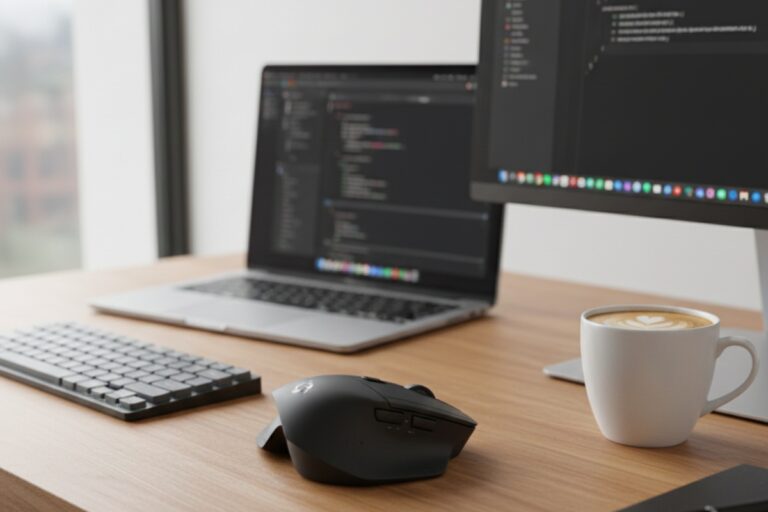
- Mechanical keyboard and mouse
- Laptop sits closed behind the monitors
Total cost: About $300 beyond the laptop and monitors. Setup time: 5 minutes when I first got the dock.
The best part? When I need to take the laptop somewhere, I unplug one cable and I’m mobile in 30 seconds. No struggling with multiple connections.
If you’re looking to optimize your entire setup beyond just accessories, the full guide on laptop performance optimization covers software tweaks and settings that pair well with these hardware improvements.
The Bottom Line
You don’t need 15 accessories. You need the right ones:
- Essential: Good cooling if you do intensive work, quality dock if you use external monitors
- Highly recommended: External keyboard and mouse for full-time use
- Nice to have: Basic USB hub, laptop sleeve
- Skip: Most of the gadgets marketed to laptop users
I’ve spent way too much money learning these lessons. Start with the essentials based on your actual workflow. Add the nice-to-haves only when you’re certain you need them.
And for the love of everything, don’t buy cheap docks or hubs. That’s false economy. Spend a bit more upfront and avoid the frustration of flaky connections and random disconnects.
Real talk: The best accessory is usually the one that solves a specific problem you’re actually having. Don’t buy stuff preemptively. Wait until you’re annoyed by something, then fix that specific annoyance.
Want more tips on keeping your laptop running smoothly? Check out our guide on laptop maintenance tips to avoid the common mistakes that shorten laptop lifespan.