Desktop Computers Buying Guide
This article is part of our comprehensive guide on Computers, Laptops, and Accessories. Check out the full guide for everything you need to know about picking the right tech.
Look, I’ve helped seven people buy desktop computers in the last year. You know what question they all asked first? “Can’t I just get a laptop?”
Sometimes yes. Usually no.
Here’s the thing: desktops are having a moment again, and it’s not just gamers and developers anymore. Remote work changed the game. People realized they’re staring at a screen 8+ hours a day, and suddenly that 13-inch laptop doesn’t cut it.
But buying a desktop in 2025 is weirdly harder than it should be. Too many options. Too much marketing BS. And honestly? Some configurations make zero sense but somehow cost $1,500.
Let me save you the headache I went through with my last build.
Why Even Consider a Desktop?
Before we get into specs, let’s talk about whether you actually need one. I’m not here to sell you something you don’t need.
You probably want a desktop if:
- You’ve got a dedicated workspace (not bouncing between coffee shops)
- Performance matters more than portability
- You want to upgrade components later without buying a whole new machine
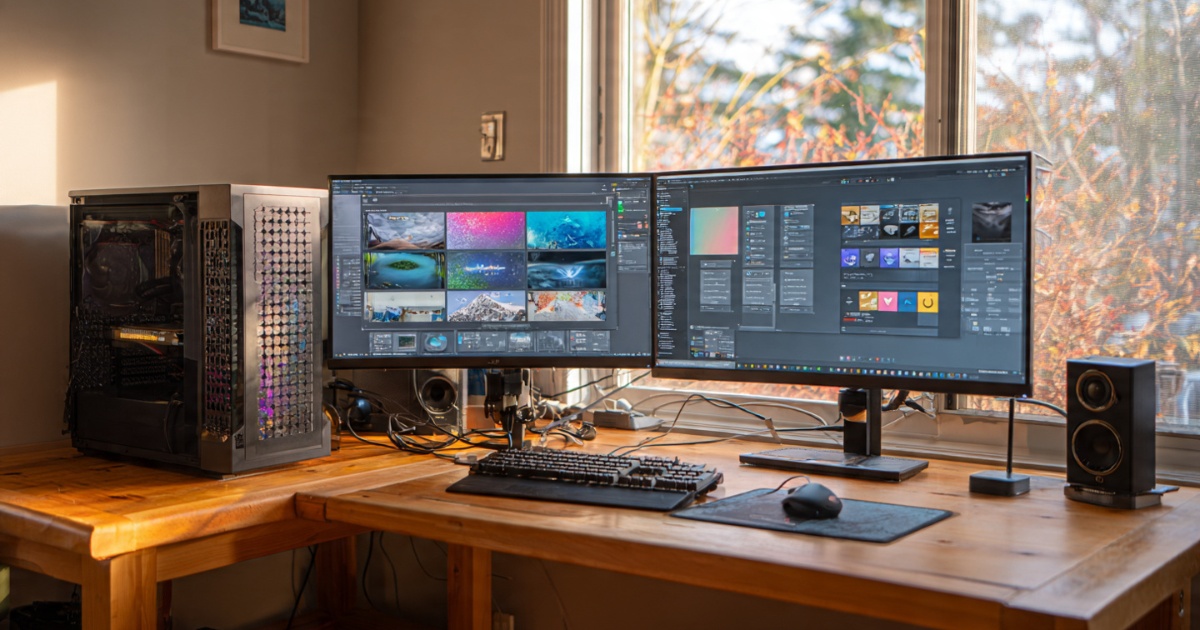
- Multiple monitors sound amazing (they are)
- You’re tired of laptop keyboards and trackpads
Stick with a laptop if:
- You actually move around during the day
- Desk space is limited
- You need battery backup during power cuts
- The thought of cables everywhere stresses you out
I switched back to a desktop in 2022 after five years of laptop-only life. The first week felt weird. By month two? I couldn’t imagine going back. For a detailed comparison of when each makes sense, check out our desktop vs laptop guide.
The Real Decision: Prebuilt vs Custom Build
Here’s where people get religious about this stuff.
Prebuilt desktops are machines you buy complete from Dell, HP, Lenovo, or boutique builders. Everything’s ready to go. Warranty’s straightforward. If something breaks, you call one number.
Custom builds mean you pick every component and either build it yourself or pay someone to assemble it. More control, often better value, but you’re the tech support.
I’ve done both. Here’s what actually matters:
Go prebuilt if:
- You want to plug it in and work
- Warranties and support matter (they should)
- The thought of compatibility issues sounds terrible
- You’re not planning to upgrade much
Go custom if:
- You enjoy researching components (be honest with yourself here)
- You’ve got time to troubleshoot if something’s wrong
- You want exact specs without compromise
- Upgrading in a year or two is likely
My current desktop? Custom build. My mom’s? Prebuilt Dell. Both are the right choice for their users.
What Actually Matters: The Components Breakdown
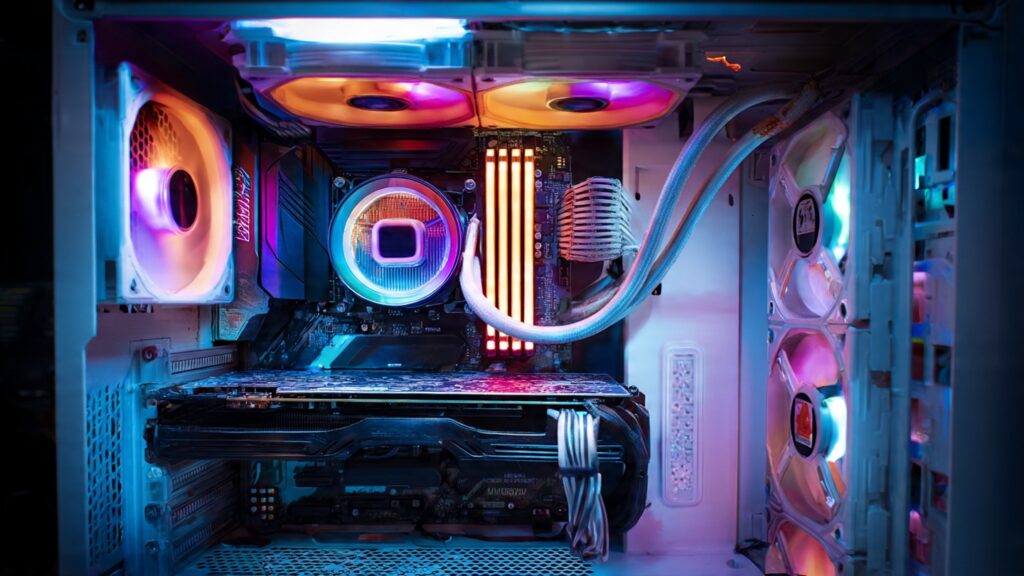
Forget the marketing fluff. Here’s what actually affects your day-to-day experience.
The Processor (CPU)
This is the brain. Intel or AMD, both are solid now. AMD Ryzen chips have been killing it for value lately, but Intel’s 13th and 14th gen caught up.
For general use (web, email, streaming, light multitasking):
- Intel Core i5 or AMD Ryzen 5
- 6+ cores
- Don’t overpay for an i9 if you’re just browsing and writing docs
For demanding work (video editing, 3D rendering, running VMs):
- Intel Core i7/i9 or AMD Ryzen 7/9
- 8+ cores
- More cores = faster rendering, but diminishing returns kick in
Real talk: I upgraded from an i5 to an i7 last year and the difference for my web development work? Barely noticeable. For compiling large projects? Absolutely worth it.
Memory (RAM)
This one’s simple. More RAM means more programs running smoothly at once.
Minimum: 16GB (this is 2025, 8GB struggles now) Sweet spot: 32GB for most people Overkill unless you know why: 64GB+
I ran 16GB for years. Upgraded to 32GB when I started running Docker containers for every project. Best upgrade I’ve made, honestly. The machine just doesn’t choke anymore.
Storage
SSDs changed everything. If someone’s trying to sell you a desktop with just a traditional hard drive in 2025, run.
Standard setup:
- 512GB SSD minimum for your main drive
- Optional: 1-2TB HDD for extra storage if you need it cheap
Better setup:
- 1TB NVMe SSD (way faster than SATA SSDs)
- That’s it for most people
I’ve got a 1TB NVMe for my OS and apps, plus a 2TB SATA SSD for project files. Works great. HDDs are basically archive drives now. For more on choosing the right storage, our computer storage options guide breaks down the differences.
Graphics Card (GPU)
This is where it gets expensive if you’re not careful.
For regular use (no gaming, no video editing):
- Integrated graphics are fine
- Seriously, save your money
For gaming:
- Depends heavily on what games and what settings
- Budget: RTX 4060 or RX 7600
- Mid-range: RTX 4070 or RX 7800 XT
- High-end: RTX 4080 or better
For creative work:
- NVIDIA’s better for video editing (CUDA acceleration)
- More VRAM helps with 4K footage or large Photoshop files
If you’re building a gaming rig, definitely read our full desktop graphics cards breakdown before dropping $800 on a GPU.
Form Factors: Tower vs Small vs All-in-One
Full tower: Big, expandable, lots of cooling. Great if you’ve got the space and might upgrade.
Mid tower: Most common. Good balance of size and expandability.
Small form factor (SFF): Compact, fits anywhere. Less room for upgrades and cooling can be tricky.
All-in-one: Monitor and computer in one unit. Clean look, limited upgrades. If you’re considering these, check out our all-in-one PCs buying guide for the full breakdown.
I went with a mid tower because I’m boring and practical. It sits under my desk. I forget it exists until I need to plug something in.
Budget Breakdowns (Actual Numbers)

Let’s get specific. Here’s what you should expect to pay in 2025:
Budget build ($500-800):
- Good for general use, light multitasking, office work
- Won’t game much, basic photo editing okay
- Ryzen 5 or i5, 16GB RAM, 512GB SSD, integrated graphics
Mid-range ($800-1500):
- Solid all-arounder
- 1080p gaming at high settings
- Good for video editing, development work
- Ryzen 7 or i7, 16-32GB RAM, 1TB SSD, mid-tier GPU
High-end ($1500-3000+):
- Enthusiast territory
- 4K gaming, professional creative work
- Latest gen CPU, 32GB+ RAM, 2TB+ SSD, high-end GPU
Don’t sleep on budget desktops if you’re just doing productivity work. You can get surprising performance for under $700 now.
What About Gaming Desktops?
Gaming PCs are just desktops with beefier GPUs and better cooling. Don’t let the RGB lights fool you into thinking they’re fundamentally different.
That said, if gaming’s your main use case, our gaming desktops explained guide goes way deeper into specific builds and what actually improves game performance.
Common Mistakes I See People Make
Mistake 1: Skimping on the power supply
Cheap PSUs can literally damage your components. Get a reputable brand (Corsair, EVGA, Seasonic). 80+ Bronze rating minimum.
Mistake 2: Overpaying for aesthetics
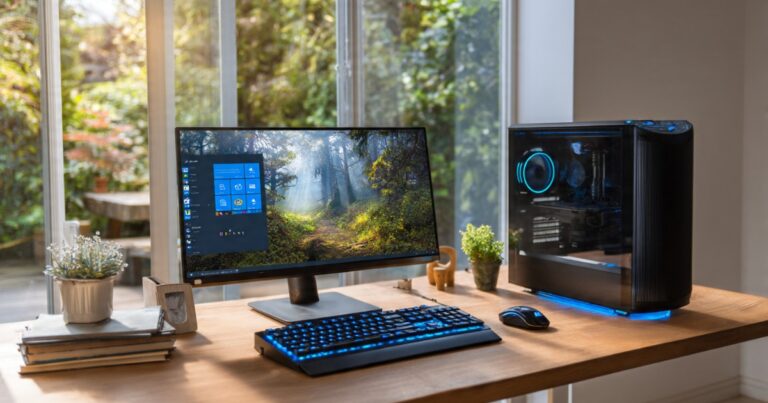
That tempered glass case with rainbow LEDs costs $150 more than a plain black box that performs identically. I get it, it looks cool. Just know what you’re paying for.
Mistake 3: Buying outdated specs
If a desktop still has a mechanical hard drive as the main storage or only 8GB of RAM, it’s outdated. Doesn’t matter if it’s “on sale.”
Mistake 4: Ignoring the monitor
You’re staring at that screen all day. Budget for a decent monitor. 1440p, 27 inches, IPS panel. It matters more than you think.
The Upgrade Question
Here’s what makes desktops special: you can upgrade them.
Easy upgrades (anyone can do these):
- Add more RAM (just slot it in)
- Swap storage drives
- Upgrade GPU (usually just unplug old, plug in new)
Moderate upgrades:
- CPU (need to check motherboard compatibility)
- Power supply (cable management can be annoying)
When to upgrade vs buy new: If your motherboard’s more than 5 years old, sometimes it’s better to start fresh. CPU sockets change, RAM standards change. You end up replacing so much that you might as well build new.
I upgraded my GPU last year (from a 3060 to a 4070). Everything else stayed the same. Spent $550 instead of $1,500 on a whole new build.
My Actual Recommendation
If you’re doing office work, web browsing, and streaming? Get a prebuilt with a recent i5 or Ryzen 5, 16GB RAM, and a 512GB SSD. You’ll spend $600-800 and be happy for years.
If you’re gaming or doing creative work? Either research a custom build (it’s honestly not that hard) or buy from a reputable builder who’ll spec it for your needs.
And don’t get paralyzed by options. Seriously, any modern desktop that meets the basic specs I mentioned will be fine. You’re not making a permanent decision here.
Bottom Line
Desktops aren’t dead. They’re just not for everyone anymore.
If you’ve got a dedicated workspace and value performance over portability, they’re still the best option. More power for less money, easier to upgrade, and honestly? Much more comfortable to use all day.
Just skip the marketing BS, focus on the components that actually matter, and don’t overspend on stuff you won’t use.
And if you mess up? These things are surprisingly forgiving. I’ve seen plenty of weird configurations still work fine for their owners.
Want to dive deeper into the world of computers and accessories? Head back to our main Computers, Laptops, and Accessories guide for everything from monitors to mechanical keyboards.