

Ergonomic Accessories for Computers: Why Your Setup Is Probably Hurting You
Look, I’m not going to sugarcoat this. I ignored ergonomics for six years of my career, and by 2022, I couldn’t type for more than an hour without my wrists screaming at me. Physical therapy appointments, wrist braces, the whole nine yards. Cost me about $800 and three months of reduced productivity.
Don’t be me.
This article is part of our comprehensive guide on Computers, Laptops, and Accessories. For everything you need to know about optimizing your computer setup, check out the full guide.
The Wake-Up Call Nobody Wants
Here’s what actually happens when you ignore ergonomics: nothing. At first.
You’ll feel fine for months, maybe years. Then one day you’ll wake up with a stiff neck that won’t go away. Or your fingers will start tingling during code reviews. Or you’ll get those sharp shoulder pains that make you wince when reaching for your coffee.
The problem with repetitive strain injuries is they sneak up on you. By the time you notice the pain, you’ve already done the damage. I learned this the hard way when my doctor told me I had the early stages of carpal tunnel at 28.
So yeah, I take ergonomics seriously now.
The Three Pillars: Keyboard, Mouse, Chair
Everyone talks about standing desks and monitor arms, but honestly? Get these three right first. Everything else is nice to have.
Ergonomic Keyboards: Worth Every Penny
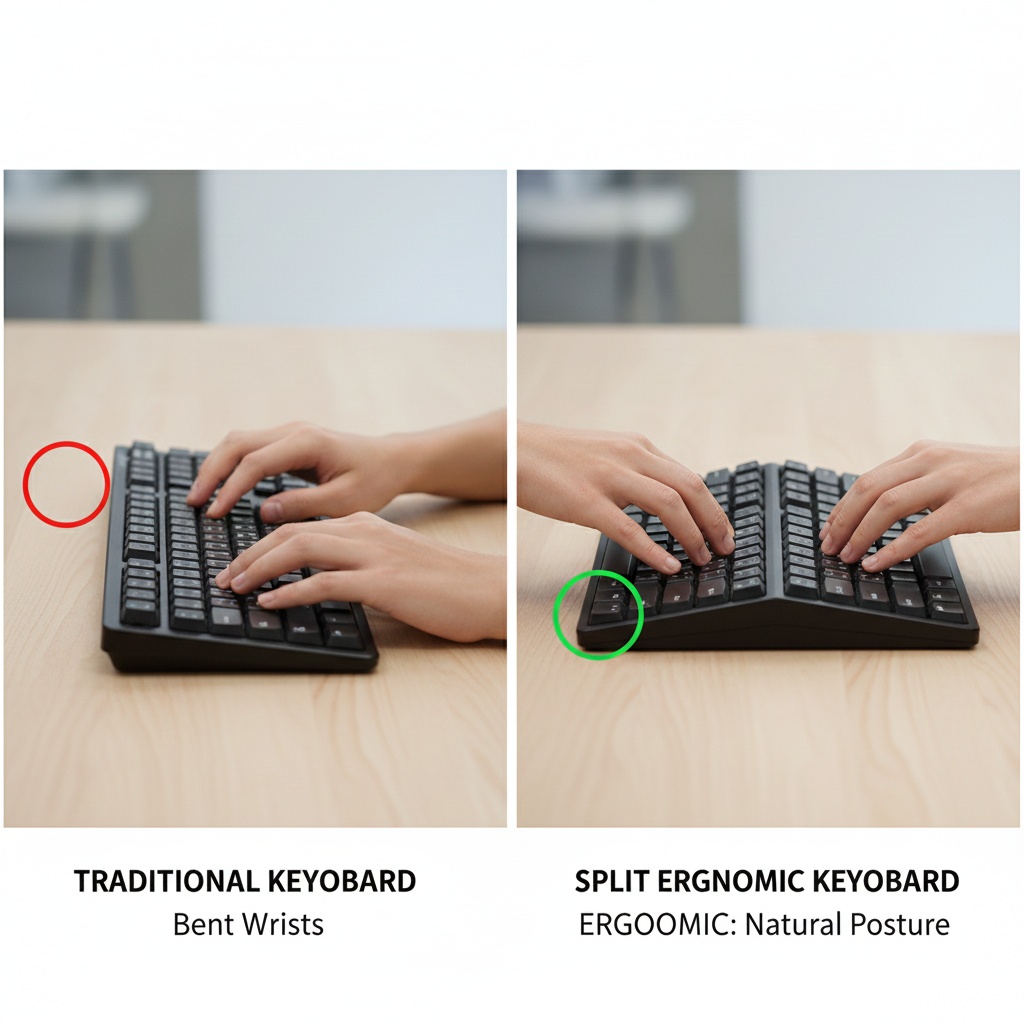
I resisted ergonomic keyboards for years because they looked weird and cost too much. Then I tried a split keyboard during my wrist injury recovery, and I’ll never go back.
What actually matters:
- Split design – Lets your hands rest at shoulder width instead of cramped together
- Tenting – Slight angle that keeps your wrists neutral
- Low profile or mechanical – Less finger travel means less strain
I use a Kinesis Freestyle Edge now. It’s not cheap at around $200, but it’s cheaper than physical therapy. Some people swear by the Microsoft Sculpt (about $60) if you’re on a budget. Both work.
Here’s the thing nobody tells you: there’s a learning curve. You’ll type slower for about two weeks. I dropped from 90 WPM to maybe 40 WPM at first. Stick with it. By week three, I was back to normal speed but without the pain.
If you’re curious about different keyboard options and what really matters for productivity, I’ve written more about choosing mechanical keyboards that won’t destroy your hands.
Mice: The Silent Wrist Killer
Standard mice make you twist your wrist into this pronated position that’s just… not how hands are supposed to work. It’s like trying to eat soup with your palm facing down. Technically possible, but why?
Two types that actually help:
Vertical mice – Your hand sits in a handshake position. Feels bizarre at first, but makes sense anatomically. I use a Logitech MX Vertical ($70-80). The precision is good enough for design work, though gamers might disagree.
Trackballs – Zero wrist movement. Your thumb or fingers do all the work. My coworker uses a Kensington Expert trackball and swears by it. I tried it for a week and couldn’t get used to it, but your mileage may vary.
Pro tip: Get a mouse that’s actually sized for your hand. I used a mouse that was too small for three years. My hand was constantly cramped into this claw position. Switched to a larger model, and the hand pain disappeared in a week.
For more details on finding mice that won’t wreck your wrists, check out our guide to the best computer mice for different use cases.
Chairs: Don’t Cheap Out Here
I sat in a $50 office chair from Amazon for four years. My lower back still hasn’t forgiven me.
You don’t need a Herman Miller Aeron (though they’re great if you can afford the $1,200). But you do need proper lumbar support and adjustable armrests. I upgraded to a used Steelcase Leap I found on Craigslist for $300. Best money I’ve spent on my home office.
What to look for:
- Adjustable lumbar support (not just a pillow)
- Armrests that adjust in height AND width
- Seat depth adjustment (your knees shouldn’t touch the seat)
- Breathable fabric (leather looks nice but you’ll sweat)
Real talk: if you’re working from home and sitting 6-8 hours a day, the chair is where you should spend the most money. Everything else is secondary.
The Stuff That Actually Helps (And What Doesn’t)
Monitor arms – Get one. Being able to adjust your screen height throughout the day is huge. I use a basic $40 one from Amazon, works fine.
Footrests – Only if your feet don’t touch the ground. Otherwise, skip it.
Wrist rests – Controversial, but I use them. The key is they’re for RESTING, not typing. Don’t press your wrists down while typing. That’s worse than no wrist rest.
Standing desks – I have one. I use it maybe 30 minutes a day. They’re fine but not a magic solution. Standing all day is also bad for you. The goal is movement and variation.
The Setup That Fixed My Problems
After my wrist injury, here’s what my setup looks like:
- Split ergonomic keyboard (Kinesis Freestyle Edge)
- Vertical mouse (Logitech MX Vertical)
- Used ergonomic chair (Steelcase Leap)
- Dual monitor arms (so I’m not hunching forward)
- Laptop stand when working mobile
Total cost: about $650. Sounds like a lot until you price out physical therapy sessions at $150 each.
Common Mistakes I See (And Made)
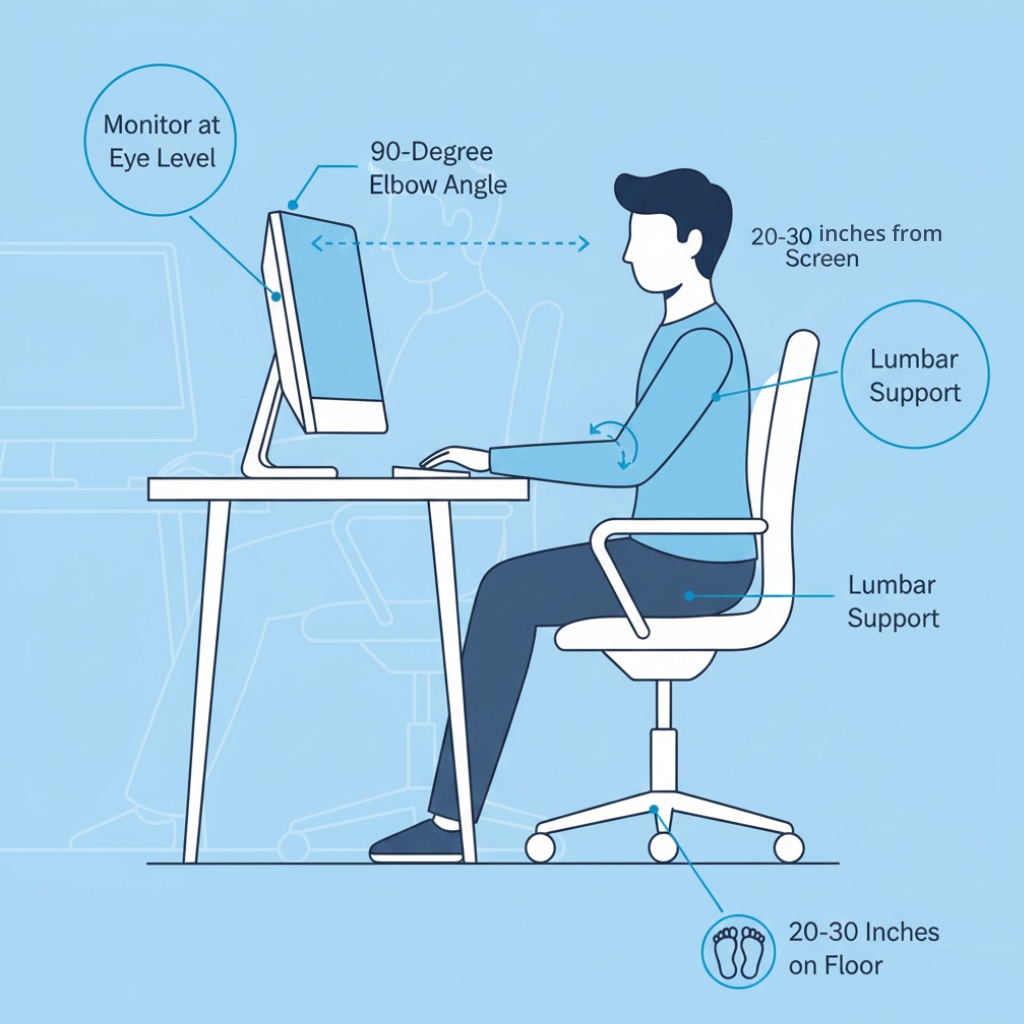
Keyboard too high – Your elbows should be at 90 degrees or slightly more. If your keyboard is on your desk surface, it’s probably too high. I use a keyboard tray now.
Monitor too low – The top of your screen should be at or slightly below eye level. Laptop screens are always too low. Get a stand.
Mouse too far away – Keep your mouse close. If you’re reaching forward to use it, you’re straining your shoulder. I learned this after developing shoulder pain from my mouse being 6 inches too far away.
Not taking breaks – Use the 20-20-20 rule. Every 20 minutes, look at something 20 feet away for 20 seconds. I use a timer because I’ll forget otherwise.
Is It Really Worth It?
Here’s my honest take: if you’re coding, writing, or doing any computer work for more than 4 hours a day, yes. Absolutely worth it.
If you’re casual user who checks email and browses Reddit for an hour? Probably overkill. Maybe just get a decent chair.
The math is simple for me. I make my living on a computer. If I can’t type without pain, I can’t work. Spending $650 to prevent that is a no-brainer.
Plus, once you have a good setup, it lasts. My chair is 8 years old. My keyboard is 3 years old and still going strong. The vertical mouse I replace every 2 years or so.
Where to Start
Don’t try to fix everything at once. I made that mistake and spent $1,000 in one week. Start with the thing causing you the most pain.
If your wrists hurt: Start with the keyboard or mouse. One or both is the culprit.
If your back hurts: Chair first, then monitor height.
If your neck hurts: Monitor positioning. You’re probably looking down too much.
And honestly? Try stuff out. Amazon has good return policies. I returned three keyboards before finding one that worked for me.
For those of you doing a lot of coding work, you might want to check out our guide on the best laptops for programmers, which includes tips on optimizing your portable setup too.
The Bottom Line
Ergonomics isn’t sexy. It’s not going to make your code run faster or your designs look better. But it’ll let you keep doing this work for the next 20 years without chronic pain.
I wish someone had told me this when I was 22 and thought I was invincible. Would’ve saved me a lot of pain and money.




3 Comments
Comments are closed.