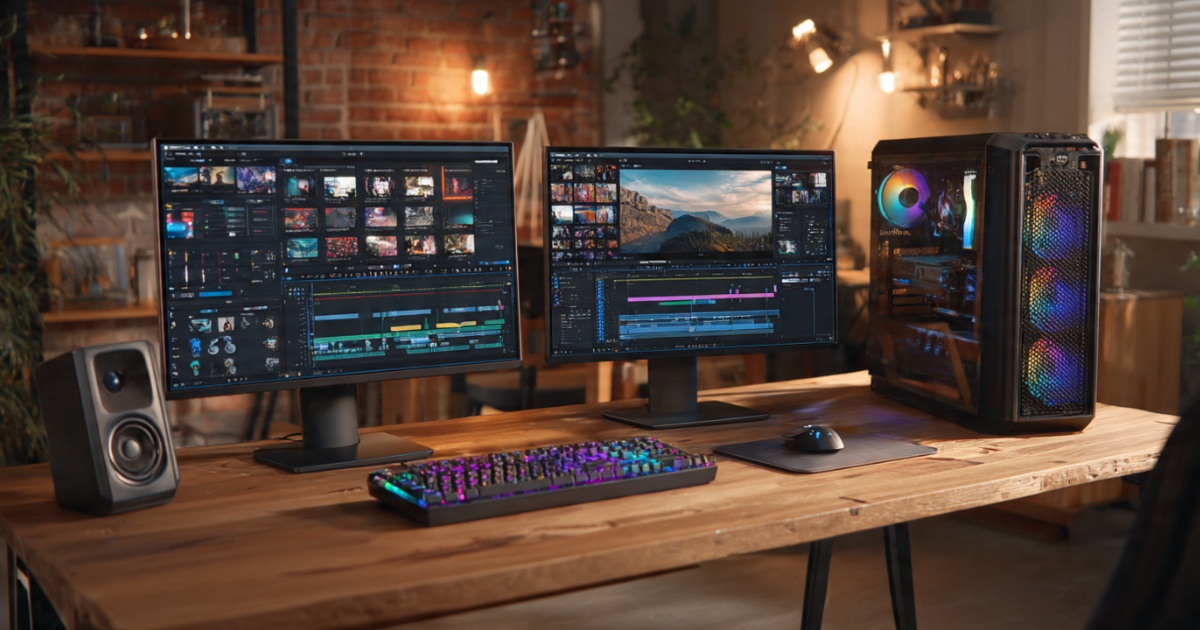
Best Computers for Video Editing: What Actually Works in 2025
Look, I’m going to save you from the mistake I made two years ago. I dropped $2,800 on a “video editing beast” based on a YouTube review, and it choked on 4K footage within three months. The problem? I bought for specs, not for actual workflow.
Here’s what nobody tells you upfront: video editing doesn’t just need a fast computer. It needs the RIGHT fast computer. And that changes depending on whether you’re cutting together YouTube videos or working on Netflix-grade color correction.
Let me break down what actually matters based on real-world use, not marketing BS.
Why Your Current Computer Probably Sucks at Video Editing
Before we dive into recommendations, let’s talk about why video editing destroys most computers. It’s not just about processing power (though that helps). You’re asking your machine to:
- Decode multiple video streams simultaneously
- Apply real-time effects and color grading
- Render previews without melting your CPU
- Handle massive file transfers without bottlenecking
- Keep everything responsive while encoding in the background
I’ve watched a $1,500 gaming laptop handle 1080p editing fine, then completely die when I switched to 10-bit 4K footage. The CPU was fine. The GPU was great. But the SSD couldn’t keep up with the data throughput.
That’s the kind of stuff we need to avoid.
What Actually Matters: The Non-Negotiables
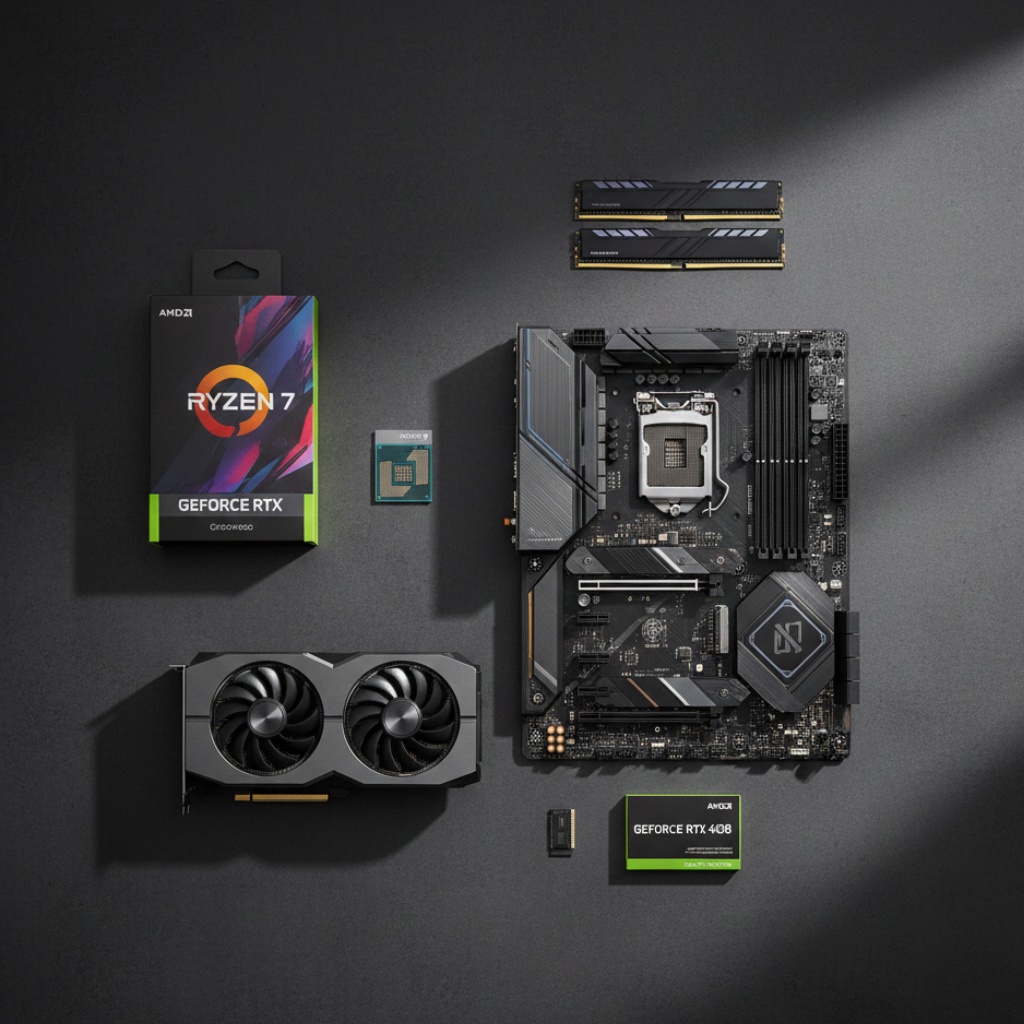
Forget the fancy RGB lighting. Here’s what moves the needle:
CPU cores beat clock speed. My old i7-9700K at 4.9GHz got destroyed by a newer Ryzen 9 5900X at lower clocks because video editing loves parallel processing. If you’re using DaVinci Resolve or Premiere Pro, more cores means faster renders. Period.
RAM is your working space. 16GB is the absolute minimum, but I’ll be honest, I’ve hit that limit editing a single 4K timeline with some effects. 32GB is comfortable. 64GB if you’re doing professional work or running multiple programs. Don’t cheap out here.
Storage speed matters more than size. A 1TB NVMe SSD will feel faster than a 4TB SATA SSD every single day. Your footage should live on a fast drive. I learned this after spending hours waiting for previews to render on my old mechanical drive.
GPU acceleration is clutch. This depends on your software. Premiere loves CUDA (NVIDIA cards). DaVince Resolve will use anything but works great with AMD. Final Cut is optimized for Apple Silicon. Match your GPU to your editing software or you’re leaving performance on the table.
Best Desktops for Video Editing
Desktops are still king for serious video work. Better cooling, more expandability, and you can actually upgrade parts without buying a whole new machine.
The Budget Beast: Custom Ryzen Build ($1,200-1,500)
If you’re starting out or doing YouTube/social content, a custom Ryzen 7 7700X or 7800X3D build hits the sweet spot. I helped my friend build one last month:
- AMD Ryzen 7 7700X
- 32GB DDR5 RAM
- NVIDIA RTX 4060 Ti (8GB)
- 1TB NVMe SSD + 2TB SATA for storage
- Decent tower with airflow
This thing handles 4K timelines in Premiere without breaking a sweat. Renders are quick. And if you need more power later, you can upgrade the GPU or add more RAM without starting over.
The 7800X3D costs a bit more but the 3D V-Cache actually helps with certain editing tasks. Worth it if you can swing the extra $100.
The Professional Workhorse: Intel i9 or AMD Threadripper ($2,500-4,000)
When you’re getting paid for your work, time is money. An Intel i9-14900K or AMD Threadripper build cuts render times dramatically:
- Intel i9-14900K or AMD Threadripper 3960X
- 64GB DDR5 RAM (128GB if budget allows)
- NVIDIA RTX 4070 Ti or RTX 4080
- 2TB NVMe for projects + 4TB+ storage drive
- Professional case with good cooling (this thing runs HOT)
I’ve used both. Intel’s single-core performance is slightly better for Premiere Pro. Threadripper crushes it for DaVinci Resolve and multi-app workflows. Pick based on your software.
One gotcha: these chips generate serious heat. Don’t cheap out on the cooler. I fried a motherboard once because I used the stock cooler on an i9. Not my proudest moment.
The Mac Studio Alternative
Can’t ignore Apple here. The Mac Studio with M2 Ultra is legitimately impressive for video work. It’s expensive ($3,999+), but if you’re in the Final Cut or Premiere ecosystem, it’s hard to beat for:
- Native ProRes encoding/decoding
- Insane power efficiency
- Nearly silent operation
- Seamless integration with other Apple devices
The M2 Max version ($1,999) handles most professional work fine unless you’re doing heavy 8K grading.
For more insights on choosing between desktop builds and pre-built options, check out our Desktop Computers Buying Guide.
Best Laptops for Video Editing (When You Actually Need Portability)

Here’s my controversial take: most people don’t need a laptop for video editing. They WANT one. But if you’re actually editing on location or traveling, here are the ones that don’t suck.
The MacBook Pro 16″ (M3 Pro/Max)
I resisted MacBooks for years. Then I borrowed one for a project. It spoiled me.
The MacBook Pro 16″ with M3 Pro ($2,499+) or M3 Max ($3,499+) handles 4K timelines better than most desktops. Battery life is stupid good. And you can edit on a plane without the fans screaming.
Real talk though: you need the binned M3 Pro at minimum (12-core CPU). The base M3 Pro with 11 cores is noticeably slower with 4K footage.
The Windows Alternative: Razer Blade 16 or ASUS ProArt
If you’re stuck on Windows (I get it), the Razer Blade 16 with RTX 4080 ($3,000+) or ASUS ProArt StudioBook ($2,500+) are solid. They’re loud. They’re heavy. But they work.
The ASUS has better cooling and a calibrated display out of the box. The Razer looks cooler but runs hotter under load. Both will murder your battery if you’re actually editing on battery power.
Need more laptop options? We’ve covered this in detail in our Gaming Laptops Guide – many gaming laptops double as excellent editing machines.
The Specs That Actually Matter
Let me cut through the marketing:
Minimum Specs for 1080p Editing:
- 6-core CPU (Ryzen 5 5600 or i5-12400)
- 16GB RAM
- GTX 1660 or RX 6600
- 512GB NVMe SSD
Comfortable 4K Editing:
- 8-12 core CPU (Ryzen 7 7700X or i7-13700K)
- 32GB RAM
- RTX 4060 Ti or RX 7700 XT
- 1TB NVMe SSD
Professional 4K/6K/8K Work:
- 16+ core CPU (Ryzen 9 7950X, i9-14900K, or Threadripper)
- 64GB+ RAM
- RTX 4080 or better
- 2TB+ NVMe SSD (separate drives for OS and projects)
For detailed specs on storage options that won’t bottleneck your workflow, see our guide on Computer Storage Options.
Common Mistakes I See (And Made Myself)
Buying a gaming computer and assuming it’ll work. Gaming prioritizes different things than editing. A gaming PC might have a killer GPU but only 16GB RAM and a weak CPU. That’s backwards for editing.
Ignoring storage speed. I cannot stress this enough. A fast CPU with a slow drive is like putting a Ferrari engine in a minivan. You’ll spend more time waiting than working.
Cheaping out on RAM. You can always add more later, right? Sure, if your motherboard has slots. I’ve had to throw away perfectly good 16GB kits because I needed 32GB and only had two slots. Buy 32GB from the start if you can.
Not matching GPU to software. I bought an AMD card once without checking Premiere Pro’s CUDA requirements. It worked, but not as well as the NVIDIA equivalent. Do your homework.
Forgetting about cooling. Video encoding pushes your CPU to 100% for extended periods. If your cooling sucks, you’ll thermal throttle and your renders will take longer. I’ve seen $3,000 builds perform worse than $2,000 builds because of bad airflow.
Monitor Matters Too (Nobody Mentions This)
Your computer might be perfect, but if your monitor has terrible color accuracy, you’ll be grading footage on a lie. I’ve shipped projects that looked great on my cheap monitor and washed out on clients’ displays.
Minimum: get an IPS panel with 99% sRGB coverage. Better: grab a monitor with DCI-P3 color space support. If you’re doing professional color work, calibrate it.
Check out our Computer Monitors Buying Guide for specific recommendations.
What About Upgrades?
Here’s the upgrade path I actually recommend:
Start with:
- Good CPU (this is hardest to upgrade)
- 32GB RAM
- 1TB NVMe SSD
- Mid-range GPU
Upgrade later:
- Add more RAM when you hit limits
- Add storage drives as projects pile up
- Upgrade GPU if you add 6K/8K work
This approach saved me from overbuying initially while leaving room to grow.
The Bottom Line
The best computer for video editing depends entirely on what you’re editing and where. YouTube content at 1080p? A $1,200 custom desktop or even a good laptop works fine. Professional work with 4K raw footage and heavy grading? You need a serious desktop with 32GB+ RAM and proper cooling.
Don’t buy for specs. Buy for your actual workflow. Test your software if possible. And for the love of all that is holy, get a fast SSD.
If you’re just starting out, build or buy something mid-range that can be upgraded. You’ll learn what bottlenecks your workflow as you go, and then you can upgrade the specific components that matter.
Last thing: whatever you buy, make sure it has good ventilation. Video rendering generates heat, and heat is the enemy of performance and longevity.
This article is part of our comprehensive guide on Computers, Laptops, and Accessories. For more detailed information on building and choosing the right tech setup, visit the full guide.
Related Articles: