File Organization Apps: Stop Losing Your Files in Digital Chaos
I lost a client proposal last week. Not because my hard drive crashed or my cloud storage failed. I lost it because I had three versions scattered across Downloads, Desktop, and some folder I apparently created at 2 AM called “NEW_FINAL_actualFINAL.”
Sound familiar?
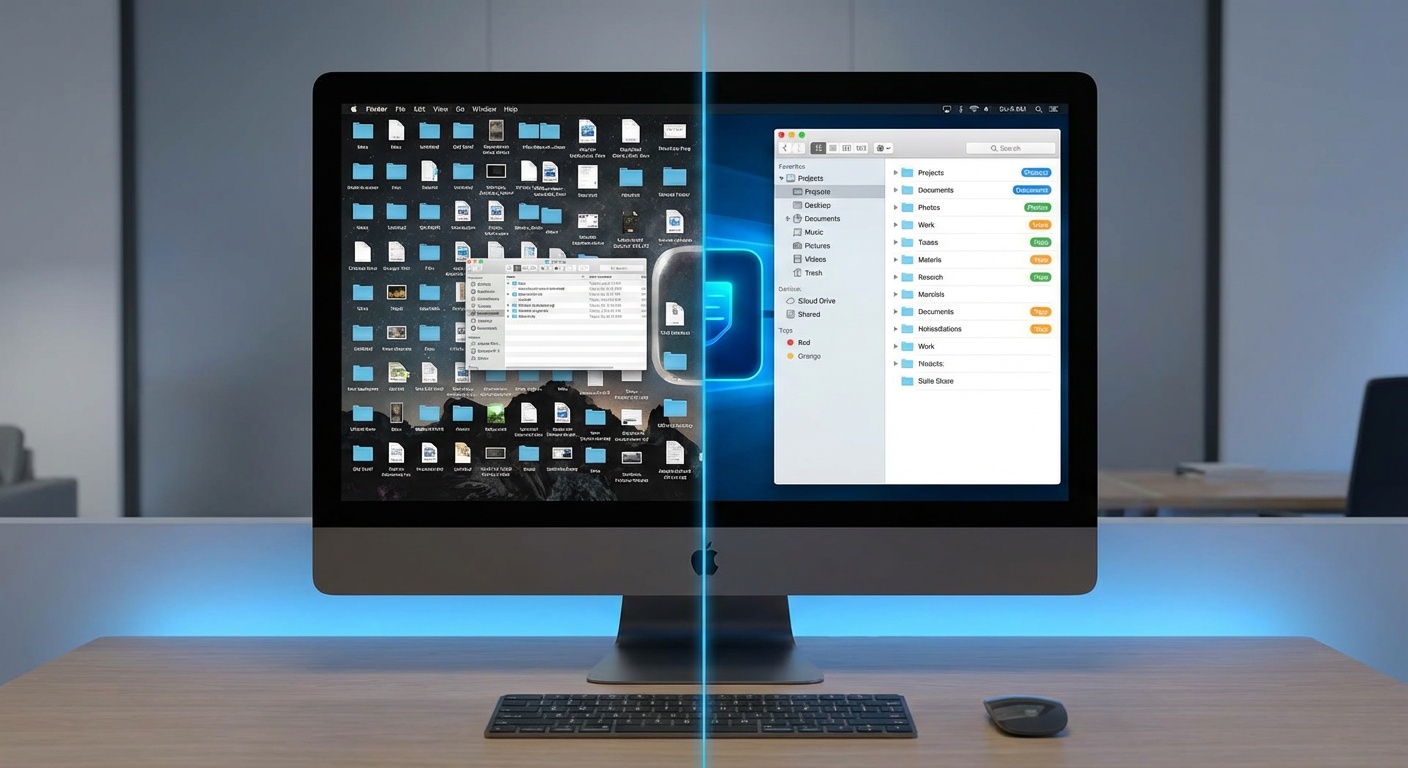
Here’s the thing about file organization: we all know we should do it, but most of us are just one project away from complete digital chaos. I’ve been there more times than I’ll admit, and I’ve tried pretty much every file organization app that promises to fix the mess.
Some actually work. Let me show you what I’ve learned.
Why File Organization Actually Matters (Beyond the Obvious)
Look, I’m not going to lecture you about how “organization improves productivity.” You know that. What you might not know is that the average person spends 4.3 hours per week searching for files. That’s nearly a full workday lost every month just hunting for that one PDF you swear you saved somewhere.
But it gets worse. I did a quick audit of my own system last year and found:
- 47 files named some variation of “document.pdf”
- 12 folders called “New Folder” with no other context
- Three separate Downloads folders because I’d changed my browser settings twice and forgot
The real cost isn’t just time. It’s the mental load of never quite knowing where anything is, and the constant anxiety that you might have deleted something important.
The File Organization Apps I Actually Use

After breaking my system multiple times, I’ve settled on a combination of tools that work together. None of them are perfect, but they solve different problems.
TagSpaces: When Folders Aren’t Enough
I started using TagSpaces about two years ago after a particularly frustrating incident where I couldn’t remember if I’d filed a contract under the client name, the project name, or the date. TagSpaces lets you add multiple tags to files, which sounds simple but changes everything.
What it does right:
- Works locally (no cloud dependency)
- Supports any file type
- Color-coded tags for visual scanning
- Creates a searchable index without moving your files
Where it falls short:
- The interface feels dated
- Syncing tags across devices is clunky
- Takes a while to set up your tagging system
I use it mainly for project files where I need multiple ways to find things. A design mockup might get tagged with the client name, “design,” “2025,” and “approved.” Later, I can search any of those terms and actually find it.
Hazel: The Automation Tool I Should’ve Found Years Ago
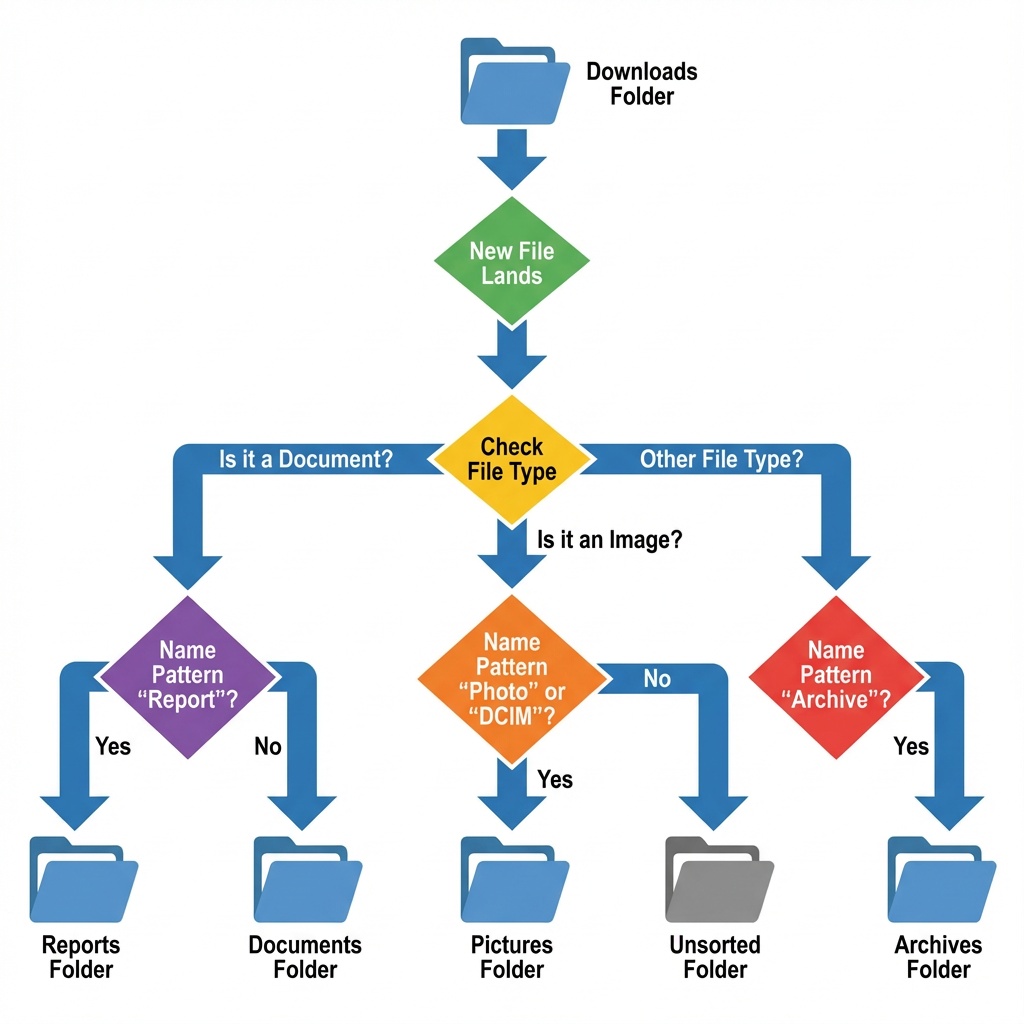
Hazel is Mac-only, which annoyed me until I actually used it. It’s basically a rule engine for your files. You tell it “if a file with this name pattern appears in Downloads, move it here and rename it like this.”
I’ve got about 20 rules running now:
- PDFs with “invoice” in the name go to my accounting folder
- Screenshots automatically get dated and moved to a Screenshots archive
- Anything older than 30 days in Downloads gets moved to a review folder
The best rule I created? Any file that hasn’t been opened in 6 months gets tagged for review. Turns out I was keeping a lot of garbage “just in case.”
Real talk: Setting up Hazel takes time. You’ll spend an afternoon writing rules, then another week tweaking them as you realize you forgot edge cases. But once it’s running, it’s incredibly satisfying to watch files just… go where they belong.
Everything (Windows) / Alfred (Mac): Search That Actually Works
Windows search is a joke. I say this as someone who used Windows exclusively for four years. It’s slow, it misses files, and it indexes things you don’t care about while ignoring what you actually need.
Everything (the app, not the concept) changed my Windows workflow completely. It indexes your entire drive in seconds and searches instantly. Type three letters and boom, there’s your file.
On Mac, I use Alfred with the same principle. The built-in Spotlight is decent, but Alfred is faster and more customizable.
The workflow that saves me constantly: I don’t organize as meticulously as I should. But I name files well, and with instant search, I can find anything in under 5 seconds. It’s not the perfect system, but it’s the system that actually works for how I actually work.
The Cloud Storage Dilemma
Every cloud storage app claims to solve organization. Most just move your mess from your hard drive to their servers.
I’ve used Dropbox, Google Drive, OneDrive, and iCloud extensively. Here’s what I’ve learned:
Dropbox Smart Sync is genuinely useful if you’re running low on local storage. Files stay in the cloud but appear in your folder structure. Click to download when needed.
Google Drive’s search is surprisingly good, especially if you’re already using Google Workspace. It can search inside documents, which has saved me multiple times.
OneDrive integrates well if you’re in the Microsoft ecosystem, but the selective sync is less reliable than Dropbox in my experience. I’ve had files that claimed to be synced but weren’t.
The real problem with cloud storage? Version conflicts. I cannot count how many times I’ve had “Document (Conflicted Copy 2025-01-15).docx” appear because I edited the same file on two devices. Most of these apps are getting better about this, but it still happens.
File Naming: The Unsexy Solution That Works
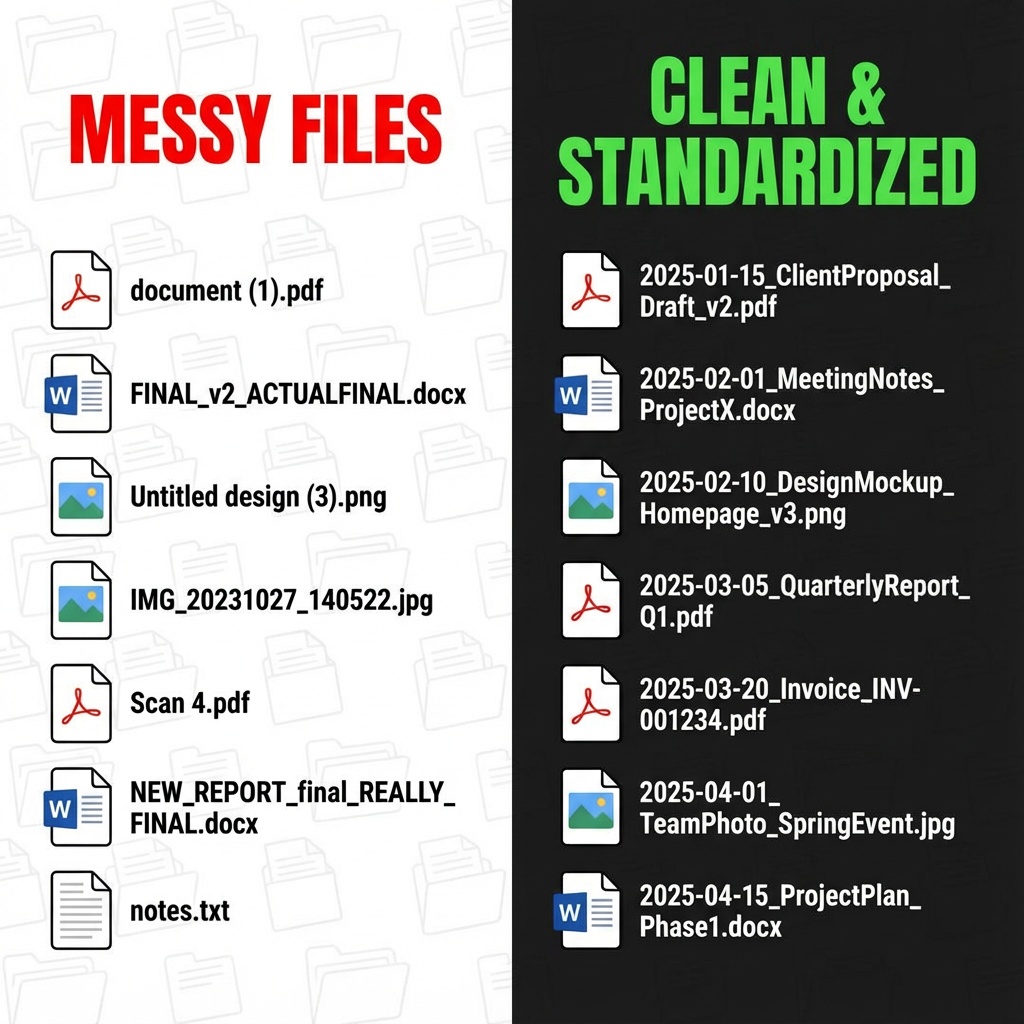
Before you spend money on apps, fix your naming convention. I’m serious. This alone will solve half your problems.
My system (stolen and modified from various developer conventions):
YYYY-MM-DD_ProjectName_FileType_Version.ext
So: 2025-01-15_ClientProposal_Draft_v2.pdf
Why this works:
- Dates sort chronologically automatically
- You know what it is without opening it
- Version numbers prevent “final_FINAL_actualfinal” syndrome
- Searching for the project name finds all related files
It feels rigid at first, but once it’s a habit, you’ll never go back to “document (1).pdf”
The Apps I Tried and Abandoned
Not everything works. Here’s what didn’t stick for me:
Evernote for files: Too heavyweight. It wants to be your note-taking app, your document manager, and your second brain. I just needed file organization.
Notion for file management: Great for notes and databases, terrible for actual files. The 5MB upload limit killed it for me.
DEVONthink: Powerful but overwhelming. If you’re managing a research library, maybe. For everyday file chaos? Overkill.
Trello/Asana for document tracking: I tried using project management tools to track files. It added an extra layer of complexity without solving the underlying problem of where files actually live.
Building a System That Doesn’t Collapse
Every organization system I’ve built has eventually collapsed. Usually around month three when I got busy and stopped maintaining it.
What actually works long-term:
- Automate the boring stuff (hence Hazel)
- Make search better than browsing (hence Everything/Alfred)
- Keep it simple enough that you’ll actually do it
That last point is critical. I’ve seen elaborate folder hierarchies that look beautiful but require five clicks to file anything. Nobody maintains that.
My current system has three top-level folders:
- Active: Stuff I’m working on now
- Archive: Completed projects (organized by year)
- Resources: Reference materials I might need again
That’s it. Everything else is subfolders, tags, and search.
The Tools That Surprised Me

A few apps that aren’t technically “file organization” tools but solved related problems:
Duplicate Cleaner: Found 47GB of duplicate files on my system. Apparently I’d downloaded the same installer six times and never cleaned up.
SpaceSniffer (Windows) / DaisyDisk (Mac): Visual maps of your storage. Helps you find where all your space went. Spoiler: it’s usually old video projects.
Recoll: Free, open-source desktop search that can index basically everything including file contents. Steep learning curve but incredibly powerful.
Common Mistakes I’ve Made (So You Don’t Have To)
Mistake 1: Creating too many folders. More folders doesn’t equal better organization. It just means more places to lose things.
Mistake 2: Not handling Downloads. I used to let stuff pile up in Downloads for months. Now I have Hazel rules and a weekly review. It’s not exciting, but it works.
Mistake 3: Organizing when I should be working. Spent a whole afternoon reorganizing my project folders once. Could’ve just searched for what I needed in 30 seconds.
Mistake 4: Not backing up before major reorganizations. Moved 50GB of files once and hit a permissions error halfway through. Lost the original structure. Now I backup first, always.
Mistake 5: Trusting cloud sync completely. Always verify important files actually synced before deleting local copies.
What Actually Works in 2025
After years of trying different systems, here’s my honest recommendation:
For most people: Get a good search tool (Everything on Windows, Alfred on Mac), create a simple folder structure, and name your files consistently. That’s 80% of the solution.
If you’re drowning in files: Add an automation tool like Hazel or File Juggler. Let the computer do the boring organizing.
If you work across multiple devices: Pick one cloud service and commit to it. Trying to sync between Dropbox, Google Drive, and OneDrive simultaneously is a recipe for chaos.
If you’re managing research or technical documents: Look at TagSpaces or a similar tagging system. Folders alone won’t cut it.
The Honest Truth About File Organization
No app will fix bad habits. I’ve tried. The tools just make it faster to be disorganized.
What actually fixed my file chaos wasn’t finding the perfect app. It was:
- Developing consistent naming habits
- Setting up automation for the repetitive stuff
- Using search instead of browsing when possible
- Doing a weekly cleanup instead of letting it pile up
The apps help, but they’re just tools. The system is what matters.
And if your system is “good enough that you can find what you need in under a minute,” you’re probably fine. Perfect organization is the enemy of getting actual work done.
This article is part of our comprehensive guide on Software, Apps, and Productivity Tools. For more insights on maximizing your digital workflow, check out the full guide.
Related Articles You Might Find Useful
Looking for more ways to streamline your digital life? These guides cover related territory:
- Best Productivity Apps 2025 – Beyond file management, discover the apps that actually boost productivity
- Task Management Apps – Because organizing files is one thing, organizing what you’re actually working on is another
- Best Cloud Storage Solutions – Deep dive into which cloud service actually deserves your files
- Automation Tools for Productivity – More on automating the boring stuff so you can focus on real work