
Best Collaboration Apps for Students: Tools That Actually Help (Not Hinder) Group Projects
I learned something brutal during my college years: group projects fail more often because of bad communication tools than bad teammates.
Junior year, our capstone team tried coordinating a semester-long software project through a Facebook group thread. Yeah. That went about as well as you’d expect. We lost track of who was doing what, file versions became a nightmare, and someone accidentally deleted our shared Google Doc the week before the deadline.
After graduating and working with actual dev teams, I realized we’d been using collaboration tools wrong the entire time. So if you’re a student staring down group assignments, lab reports, or thesis research with classmates, here’s what actually works.
Why Student Collaboration is Different
Here’s the thing: most collaboration software is built for companies with budgets, IT departments, and people who get paid to show up. Students have none of that.
You need tools that are:
- Free or dirt cheap (obviously)
- Dead simple to onboard (your groupmates won’t read a manual)
- Mobile-friendly (half your team is coordinating between classes)
- Reliable with spotty wifi (looking at you, campus library basement)
Professional tools like Slack or Microsoft Teams? They’re overkill. You don’t need 47 integrations and admin controls. You need something your entire team can figure out in five minutes without a tutorial.
The Core Stack: What You Actually Need
After helping my younger sister through her engineering program and watching what works for real student teams, here’s the minimum viable toolkit:
Real-Time Communication: Discord
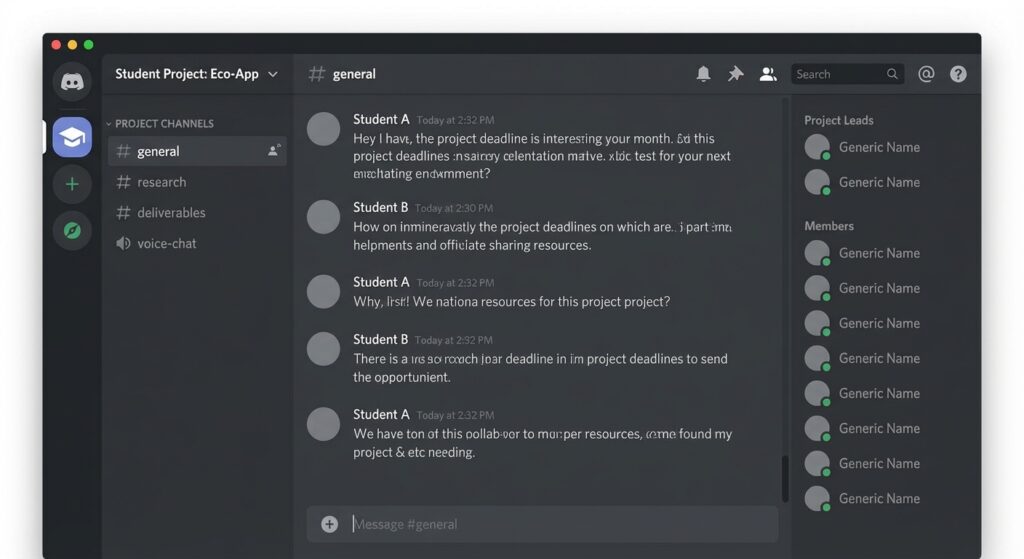
I know, I know. Discord is for gamers. Except it’s also become the best free collaboration platform for students, and here’s why:
You get voice channels (free, unlimited), screen sharing, file uploads up to 8MB (25MB with Nitro, but you don’t need it), and threading that actually works. Plus, your entire team already has it installed.
What I’ve seen work:
- Create a server for your project
- One text channel per major deliverable
- A “random” channel for memes (this matters more than you think)
- Voice channels for quick sync-ups
The killer feature? You can hop into a voice channel whenever, no scheduling. Need to ask your teammate something? Join the voice channel. They’re either there or they’re not. No calendar invites, no Zoom links that expire.
Document Collaboration: Google Docs (Still)
Look, I’ve tried Notion, I’ve tried Confluence, I’ve tried collaborative markdown editors. For mixed groups where some people are on Windows, some on Mac, some on Chromebooks, Google Docs just works.
The version history alone has saved my butt more times than I can count. Someone overwrites your section at 2 AM? Docs remembers. You can see exactly who changed what and when.
Pro tip I wish I’d known: Use the “Suggesting” mode instead of direct editing. Seriously. It prevents the “wait, who deleted my paragraph?” fights that derail teams.
File Storage: Google Drive + Organized Folders

This sounds obvious, but I’ve seen graduate students still emailing files back and forth with “FINAL_v3_ACTUALLY_FINAL.docx” names.
Set up a shared Drive folder on day one. Create a structure that makes sense:
Project Name/
├── Research & Sources/
├── Drafts/
├── Final Deliverables/
└── Meeting Notes/
The secret? Have ONE person own the folder structure. Democracy doesn’t work for file organization.
The Specialized Tools (When You Need Them)
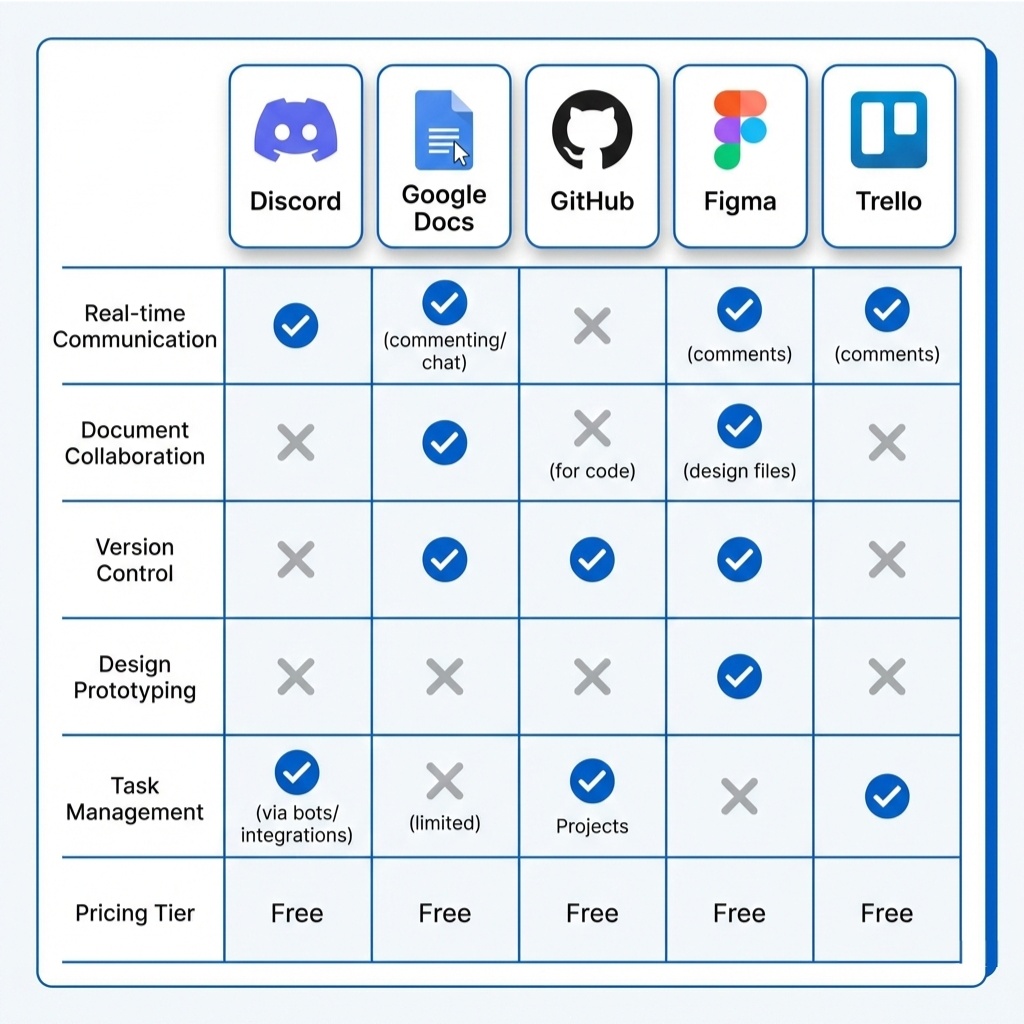
For Code Projects: GitHub
If you’re in CS, engineering, or any technical field, you’re probably already using GitHub. If you’re not, you should be.
I watched a friend’s team lose an entire week of work because they were manually merging code files. Don’t do this. Learn basic Git. You don’t need to master rebasing or cherry-picking. Just:
- Clone the repo
- Make a branch
- Push your changes
- Open a pull request
There are a thousand tutorials. Pick one, spend an hour, save yourself weeks of pain.
GitHub also works for non-code stuff. I’ve used it for research papers (LaTeX), documentation, even design files. The version control is that good.
For Design Work: Figma
Free for students, real-time collaboration, works in the browser. If you’re doing any UI/UX work, graphic design, or even just mockups for presentations, Figma is absurdly good.
Three people can literally design the same screen at the same time. You can see their cursors moving. It’s wild and incredibly useful when you’re on a deadline.
For Task Management: Trello (or Nothing)
Controversial take: most student teams don’t need project management software.
You’re working on one project for a few months, not managing a product roadmap. A shared Google Doc with checkboxes often works better than learning Trello, Asana, or Monday.
That said, if your project is complex (think multi-month senior thesis with multiple deliverables), Trello’s free tier is solid. Create columns for “To Do,” “In Progress,” and “Done.” Add cards for each task. That’s it. Don’t overthink it.
What Usually Goes Wrong (And How to Fix It)
Problem 1: Too Many Tools
I’ve seen teams using Discord for chat, Slack for “official” communication, Trello for tasks, Asana for “backup” tasks, and three different cloud storage services.
Stop. Pick one tool per category and stick with it. Tool proliferation kills projects faster than lazy teammates.
Problem 2: No Single Source of Truth
Someone updates the Trello board. Someone else updates the Google Doc. Now nobody knows what’s actually due this week.
Fix: Designate one place for the authoritative information. Usually that’s a pinned message in Discord or a “Master Timeline” doc. Everything else is just discussion.
Problem 3: Async Hell
Text-only communication makes everything take longer. A five-minute voice call solves what would’ve been 47 messages over three hours.
If you’re going back and forth more than three times on something, just hop on voice. Screen share if needed. Make a decision and move on.
The Setup That Works

Here’s what I recommend for most student group projects:
Core trio:
- Discord – All communication (text and voice)
- Google Drive – All files
- Google Docs – Collaborative writing
Add if needed:
- GitHub (for code)
- Figma (for design)
- Trello (for complex projects only)
That’s it. Resist the urge to add more tools. Every additional tool is another place information gets lost.
Reality Check: The Human Part Matters More
Here’s what nobody tells you: the best collaboration tools won’t save a dysfunctional team.
I’ve seen projects succeed with nothing but email and a shared Dropbox folder because the team communicated well. I’ve also seen teams with enterprise-grade tooling completely implode because nobody actually talked to each other.
What actually matters:
- Setting clear expectations up front
- Regular check-ins (even just 10 minutes)
- Speaking up when you’re stuck or behind
- Dividing work fairly based on actual skills
The tools just make the human collaboration easier. They’re not a substitute for actually working together.
Quick Start Checklist
Setting up for a new group project? Do this:
- Create a Discord server (2 minutes)
- Set up a shared Google Drive folder (2 minutes)
- Create a “Project Overview” doc with roles and deadlines (10 minutes)
- Have everyone install the mobile apps (5 minutes)
- Do a test run before your first real meeting (5 minutes)
Total setup time: under 30 minutes. Then you’re ready to actually work.
When to Upgrade
Still in the planning phase? The free versions of everything are fine.
But if your project is generating serious work (thesis, capstone, something portfolio-worthy), consider:
- Discord Nitro ($10/month) – Bigger file uploads, better streaming
- Google One (100GB for $2/month) – If you’re drowning in research files
- Figma Professional (Free with student email) – Unlimited version history
Don’t pay for tools until you’ve actually hit the limits of the free versions.
The Tools That Didn’t Make the Cut
Microsoft Teams: Too corporate. The interface is confusing. Your school might force you to use it, but don’t volunteer.
Slack: Great for companies. Overkill for student projects. The free version’s message limit will bite you.
Notion: Looks amazing in screenshots. Takes forever to set up. Half your team won’t understand it. Save it for personal projects.
WhatsApp/iMessage: Fine for casual coordination. Terrible for actual project work. Files get buried, search is awful, no threading.
What I’d Tell My Past Self
If I could go back and redo those college group projects:
- Set up tools properly on day one. Don’t wing it.
- Voice calls save time. Stop trying to explain complex things in text.
- Version control everything. Even if it’s just Google Docs version history.
- One person owns organization. Democracy creates chaos.
- Check in often, not just before deadlines. Small problems become disasters if you wait.
And honestly? The tools matter less than you think. Pick something simple, get everyone on board, and focus on actually doing the work.
The worst collaboration tool used consistently beats the best tool that half your team ignores.
This article is part of our comprehensive guide on Software, Apps, and Productivity Tools. For more insights on productivity software and app comparisons, check out the full guide.
Related articles you might find helpful:
- Collaboration Tools for Teams – Understanding professional collaboration software
- Productivity Tools for Students – Complete toolkit for academic success
- Free vs Paid Productivity Apps – When to upgrade your tools
- Best Note-Taking Apps for Professionals – Capturing and organizing information effectively