Best PDF Editors: The Tools That Actually Work (And the Ones That Don’t)
I’ve been editing PDFs professionally for about six years now, and I still remember the first time I needed to modify a client’s contract. Opened it in Adobe Reader, clicked edit, and… nothing. Just a reminder that I needed to upgrade to the $15/month plan.
That moment sent me down a rabbit hole of PDF editors that I’m still kind of in. Some were incredible. Others made me want to throw my laptop out the window.
So let’s talk about PDF editors that actually work in 2025, because trust me, you don’t want to waste time on the wrong one.
Why PDF Editing Is More Annoying Than It Should Be
Here’s the thing about PDFs: they were designed to be viewed, not edited. Adobe created the format in the 1990s specifically so documents would look the same on every device. Great for sharing, terrible for making changes.
Most people don’t realize that a PDF isn’t like a Word doc. It doesn’t have editable text layers by default. It’s basically a container of images and positioning data. So when you try to edit one, you’re asking the software to reverse-engineer the whole thing.
This is why some PDF editors work beautifully on one document and completely butcher another. I learned this the hard way when I tried to edit a scanned contract last year and the editor just… rearranged all the text into nonsense.
What I Actually Look for in a PDF Editor
After testing probably 20+ different tools, here’s what matters:
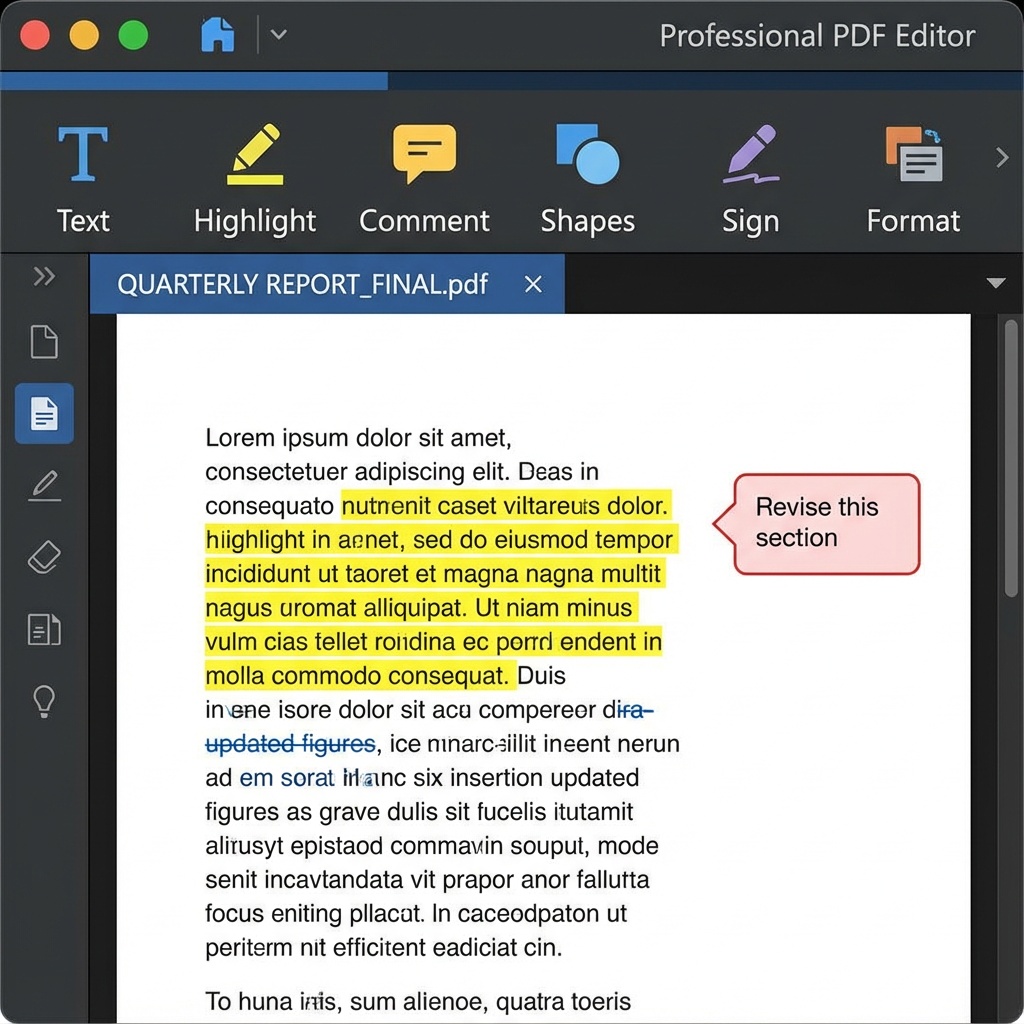
Text editing that doesn’t break everything. You know when you change one word and suddenly half the page reformats itself? Yeah, that. A good editor preserves formatting.
Form filling that’s actually usable. I’ve filled out hundreds of forms, and some editors make it feel like fighting with the PDF instead of just filling it out.
Annotation tools that don’t look like a 5-year-old drew them. If I’m marking up a document for review, I want it to look professional.
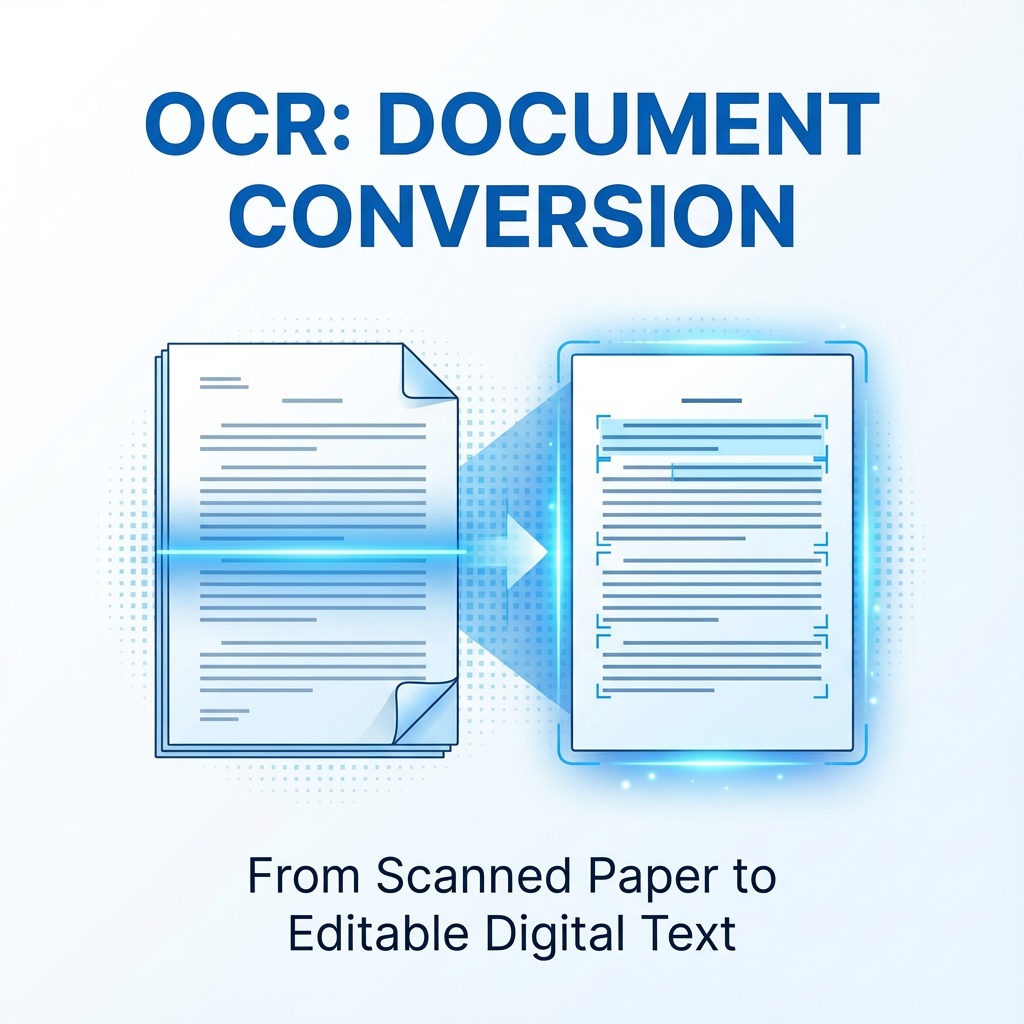
OCR for scanned documents. Optical Character Recognition. Basically, it reads the text in images so you can edit scanned PDFs. Not all editors have this, and when you need it, nothing else will do.
Reasonable pricing. Some tools want $200+ per year for features I’ll use once. No thanks.
The PDF Editors I Actually Recommend
Adobe Acrobat Pro DC – The Industry Standard (That Costs Too Much)

Look, Adobe Acrobat is the gold standard. It does everything. Text editing, form creation, OCR, signing, redaction, you name it.
But it’s $239.88 per year for a single license. Every. Single. Year.
I used it for three years at my last job because the company paid for it. It’s genuinely excellent if you’re editing PDFs daily. The text editing is smooth, the OCR is accurate, and it integrates with everything.
Would I pay for it out of my own pocket? Not unless I was making serious money from PDF work. There are better deals now.
Best for: Professionals who need every feature and don’t mind the cost.
PDF Expert (Mac Only) – My Personal Choice
I switched to PDF Expert about two years ago and haven’t looked back. It’s $79.99 for a lifetime license on Mac, or $8.99/month if you want the subscription.
The interface is clean. Text editing actually works. I can sign documents with my trackpad, which sounds stupid but saves me so much time. And the annotation tools are professional-looking without being complicated.
Here’s what sold me: I opened a 300-page technical manual that was half scanned, half digital. PDF Expert handled it perfectly. Split-second page loads, OCR worked on the first try, and I could edit both types of content without the app freaking out.
Only downside? Mac only. If you’re on Windows, skip to the next one.
Best for: Mac users who want professional features without Adobe’s price tag.
Foxit PDF Editor – The Windows Alternative
Before I switched to Mac, I used Foxit for almost three years. It’s basically Adobe Acrobat’s younger, cheaper sibling. You get 90% of the features at about 40% of the price ($159 per year, or $239 for a perpetual license).
The editing tools are solid. OCR is built-in. You can create fillable forms, add signatures, and redact sensitive information. I’ve used it for everything from editing resumes to modifying contracts.
One thing that annoyed me: the interface feels cluttered compared to PDF Expert. There are buttons everywhere. But once you learn where everything is, it’s fine.
Best for: Windows users who need robust features without Adobe pricing.
Sejda PDF Editor – The Online Option That’s Surprisingly Good
I discovered Sejda last year when I needed to edit a PDF on my wife’s Chromebook. No apps allowed, just browser-based tools.
Sejda blew my mind. You can do basic editing, merge PDFs, compress files, and even OCR scanned documents, all in your browser. The free version lets you process up to 3 files per day with some size limits.
I’ve used it maybe a dozen times now for quick edits. It’s not replacing my main editor, but for “I just need to change this one thing” moments? Perfect.
The paid version is $63 per year, which includes desktop apps for Mac and Windows. Honestly pretty reasonable.
Best for: Quick edits, anyone on a Chromebook, or people who don’t want to install software.
PDFescape – Free and Functional (With Limits)
This is the editor I recommend to people who just need basic functionality. It’s browser-based, completely free for files under 100 pages, and lets you edit text, add annotations, and fill forms.
I used PDFescape for about a year when I was freelancing and didn’t want to pay for software. It worked fine for simple tasks. But trying to edit complex documents? Forget it. The text editing is clunky, and it doesn’t have OCR in the free version.
Still, for free, it’s hard to complain.
Best for: Casual users who only edit PDFs occasionally.
The Tools I Don’t Recommend (And Why)
Microsoft Edge’s Built-In PDF Editor: It’s free and built into Windows, which is great. But the editing is so basic it’s almost useless. You can add text boxes and draw shapes. That’s about it. I tried editing a contract with it once and gave up after five minutes.
Google Docs PDF Editor: Same problem. You can convert PDFs to Google Docs format, but the conversion mangles formatting so badly you’ll spend more time fixing it than if you’d just used a real editor.
Random “Free PDF Editor” Software: I’ve tested probably 10 different apps that claim to be free PDF editors. Most are trials in disguise, add watermarks, or limit you to 3 pages. Just… don’t waste your time.
What About Free Options?
Real talk: truly free PDF editors are rare because PDF editing is technically complicated. The free tools that exist either have serious limitations or make money by pushing you toward paid upgrades.
If you’re okay with limitations, PDFescape and Sejda’s free tiers are your best bets. But if you’re editing PDFs more than once a month, investing in a paid tool will save you so much frustration.
I wasted probably 10 hours over six months trying to make free editors work before I finally bought PDF Expert. Should’ve done it sooner.
Features You Might Actually Need (That I Didn’t Think About)
Batch Processing: If you need to do the same thing to multiple PDFs (like adding page numbers or watermarks), some editors can automate it. Adobe and Foxit have this. PDF Expert… doesn’t, which honestly annoys me sometimes.
Redaction: Permanently removing sensitive information. Not just covering it with a black box, but actually deleting the data. Critical if you’re handling legal or medical documents. Make sure your editor does “true” redaction.
Form Creation: Building fillable PDFs from scratch. Adobe’s the best at this. Foxit’s pretty good. PDF Expert can do basic forms but nothing complex.
Digital Signatures: Most editors can add signatures now, but certificate-based signing (the legal kind) is less common. Adobe and Foxit handle this well.
My Actual Workflow in 2025
I use PDF Expert for 90% of my work. Quick edits, annotations, signing documents. It’s fast and doesn’t get in my way.
For anything involving forms or batch processing, I use Foxit (I still have a license from my Windows days, runs fine in a VM).
And for super quick edits when I’m not at my desk? Sejda in a browser.
This three-tool setup has handled everything I’ve thrown at it for the past year.
What to Choose Based on Your Situation
You edit PDFs daily for work: Get Adobe Acrobat or Foxit. The cost is worth it.
You’re on Mac and edit occasionally: PDF Expert. Just buy the lifetime license.
You’re on Windows and want something reliable: Foxit PDF Editor.
You edit maybe once a month: Try Sejda or PDFescape’s free tiers first.
You need OCR regularly: Adobe, Foxit, or Sejda paid version. Don’t settle for tools without it.
The Bottom Line
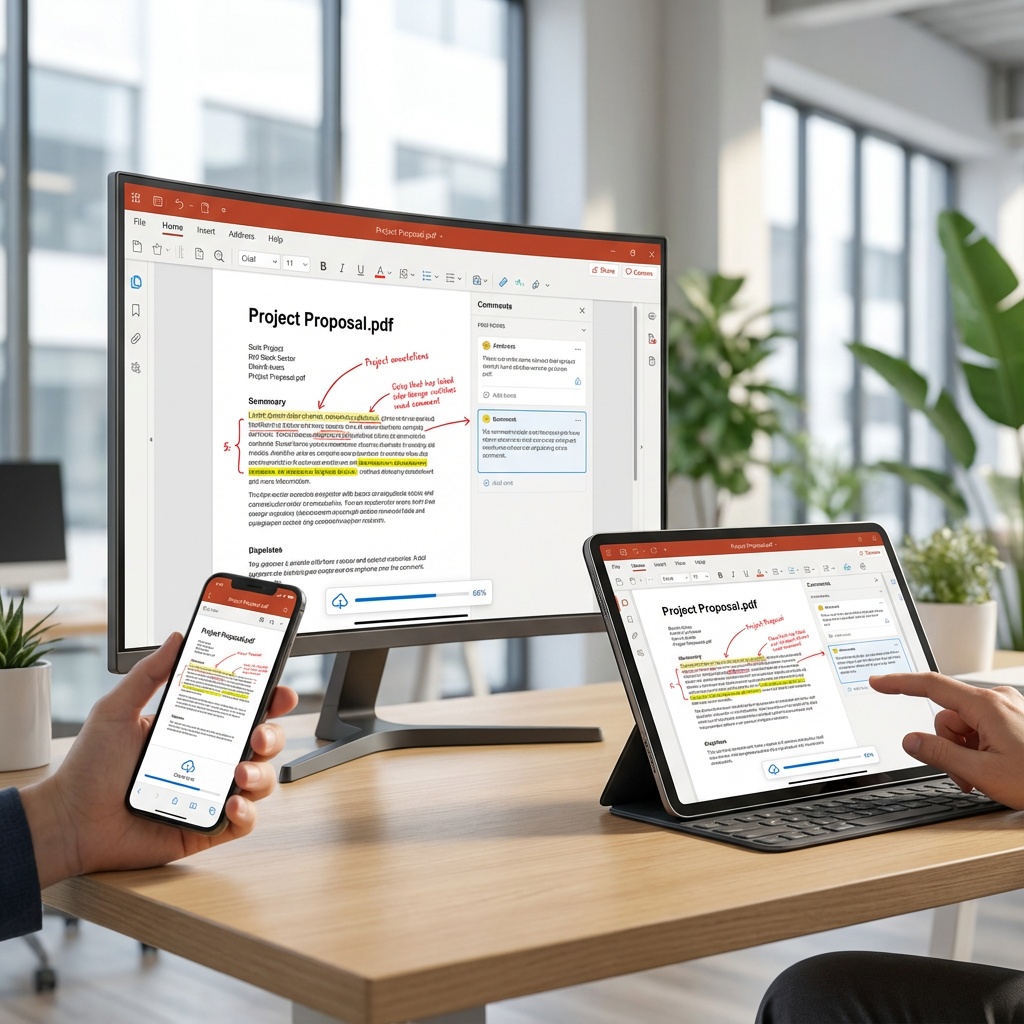
PDF editing shouldn’t be this complicated, but here we are. The good news? The tools have gotten way better in the last few years.
I’ve gone from fighting with Adobe Reader to having a setup that actually works. If you’re still struggling with PDFs, pick one of the tools above based on your needs and budget. You’ll save yourself hours of frustration.
And if you’re still using Adobe Reader thinking “there must be a way to edit this”… there isn’t. Stop torturing yourself and get a real PDF editor.
Related Articles
This article is part of our comprehensive guide on Software, Apps, and Productivity Tools. For more insights on productivity software, check out the full guide.
Looking for more productivity tools?
- Learn about the Best Productivity Apps for 2025 to optimize your entire workflow
- Explore File Organization Apps to manage your documents better
- Check out Best Office Suites 2025 for complete document editing solutions
- Discover Automation Tools for Productivity to streamline repetitive tasks