Cloud vs Local Productivity Apps: Which Actually Works Better for Your Workflow?
I switched from Evernote to Obsidian last year. Then switched back. Then tried Notion. Then went back to Obsidian again.
You know what I learned? The cloud vs local debate isn’t about which is “better.” It’s about which one won’t make you want to throw your laptop out the window when you’re trying to get actual work done.
Here’s the thing: I’ve been using productivity apps for seven years now, and I’ve seen both sides fail spectacularly. Cloud apps that stopped syncing during a client presentation. Local apps that lost three months of notes when my hard drive decided to give up on life. Fun times.
So let’s talk about what actually matters when you’re choosing between cloud-based and local productivity tools.
What We’re Actually Comparing Here
Before we get into the weeds, let’s be clear about what we mean. Cloud apps store your data on someone else’s servers (Google Drive, Notion, Todoist). Local apps keep everything on your machine (Obsidian, Sublime Text, local Excel files).
Some apps try to do both, which honestly just complicates things.
The Real Advantages of Cloud Apps
Sync Just Works (Usually)
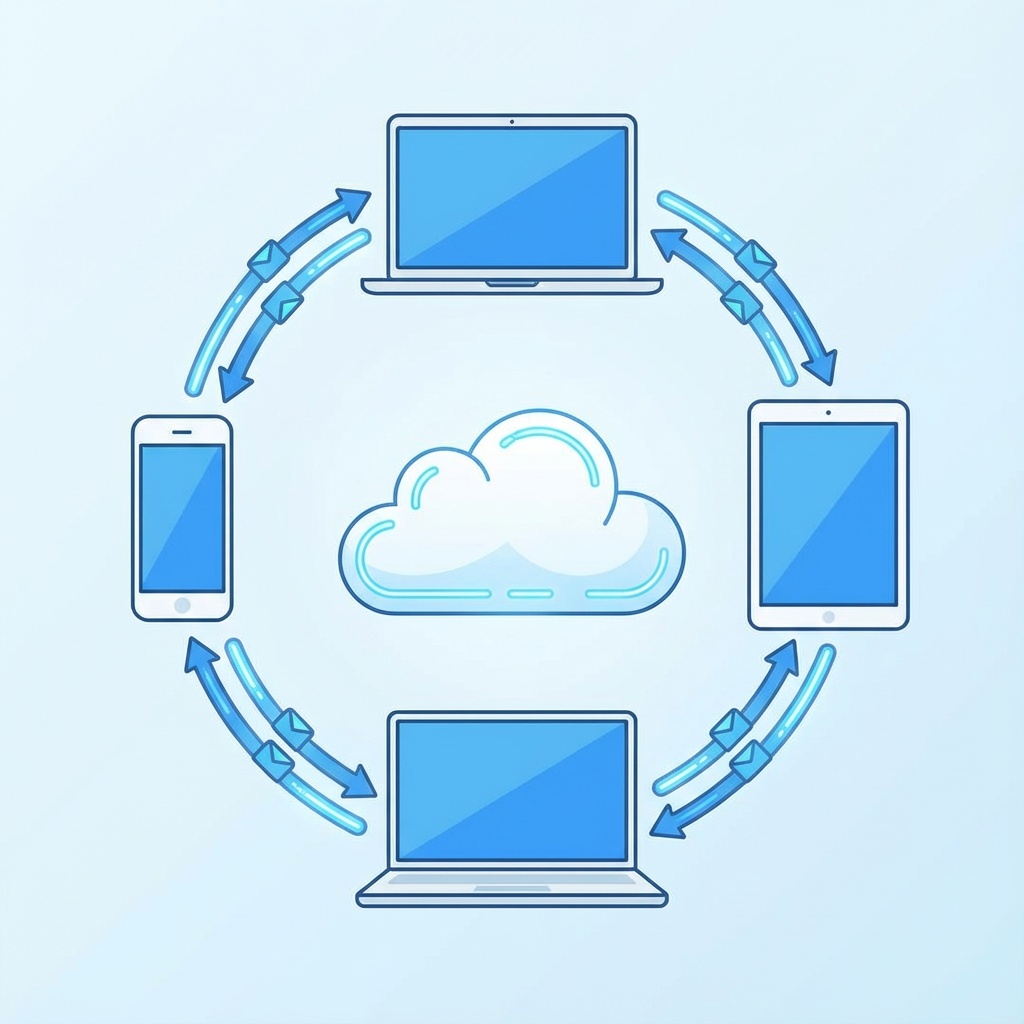
Look, when cloud sync works, it’s magic. I can start a document on my desktop, continue on my phone during lunch, and finish on my laptop at a coffee shop. No USB drives, no email attachments to myself, no “final_v3_ACTUAL_final.docx” nonsense.
Google Docs does this perfectly. I’ve never once worried about whether my changes saved or if my collaborators can see my edits. It just happens.
But here’s what the marketing doesn’t tell you: when cloud sync breaks, it breaks in spectacular ways. Ever had two versions of a document merge incorrectly? I have. Lost about four hours of work because Evernote decided my phone version was the “right” one and overwrote my desktop edits.
Collaboration Without the Headache
If you’re working with a team, cloud apps are pretty much mandatory. Trying to collaborate on a local file means sending versions back and forth like it’s 2005. Nobody wants that.
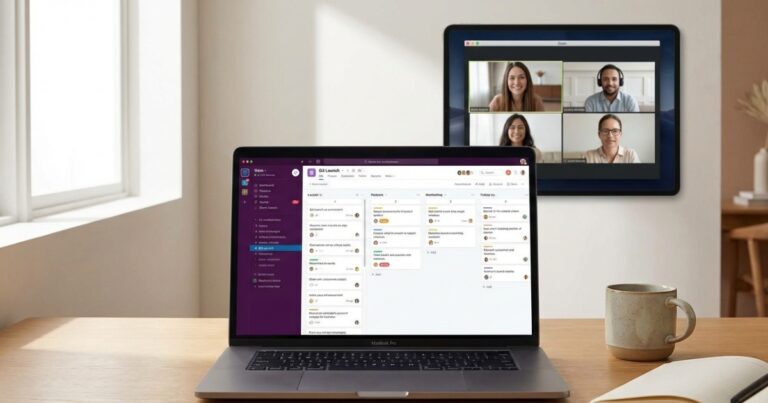
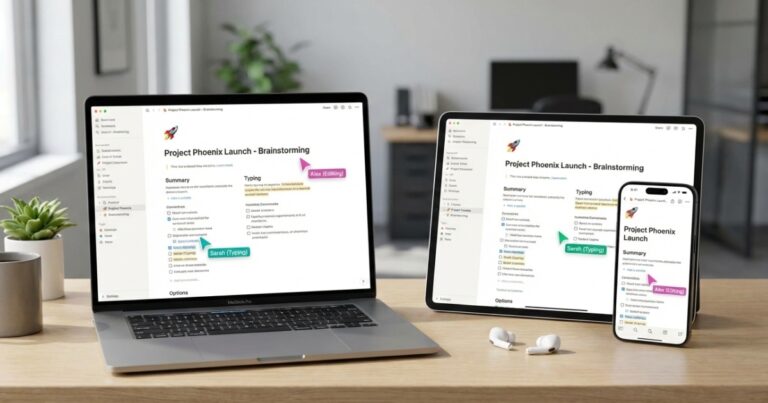
Notion handles this well. Multiple people can edit the same page simultaneously, you can see who’s typing where, and comments work exactly how you’d expect. Same with project management software like Asana or Trello.
Access From Anywhere (With Caveats)
Need to check your task list from your phone? Cloud apps win. Want to quickly share a note with someone? Cloud apps win.
But “anywhere” has an asterisk: anywhere with internet access. Which brings me to…
Where Cloud Apps Fall Apart
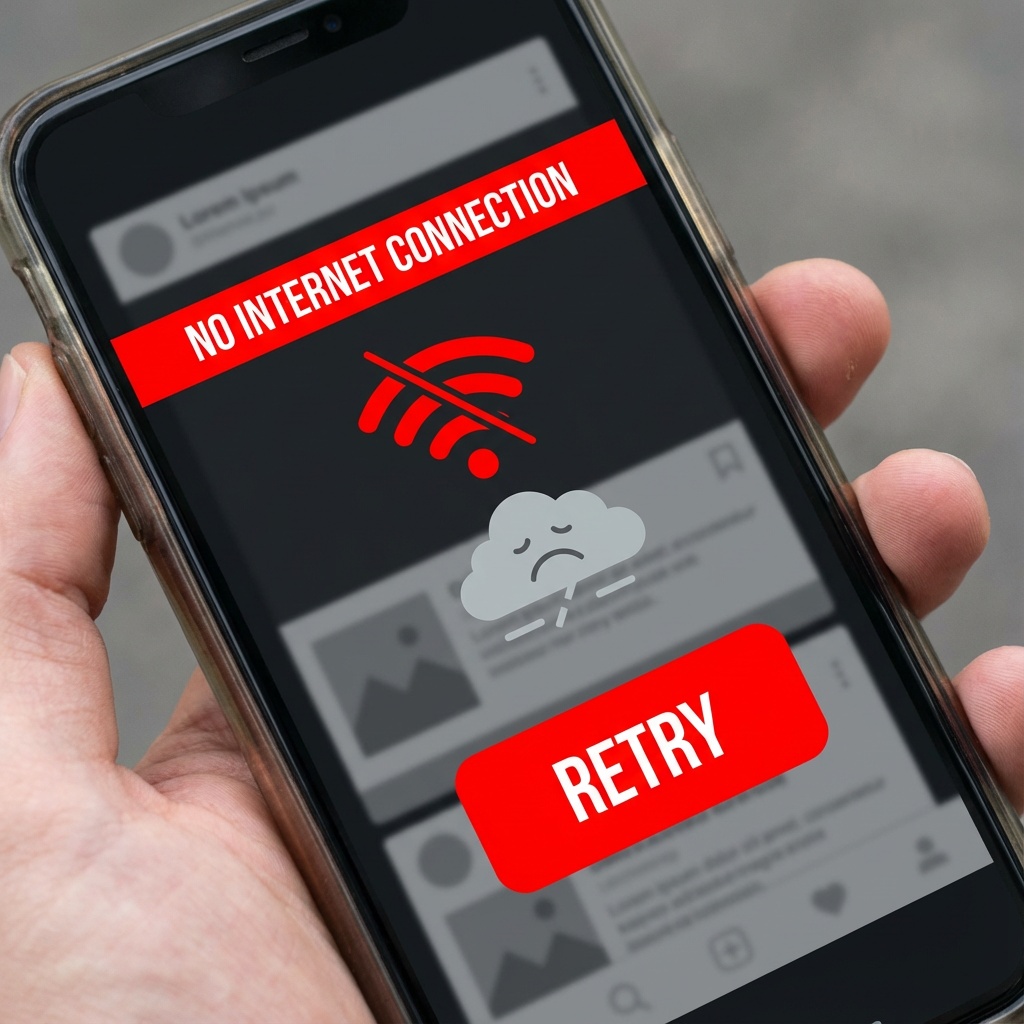
Internet Dependency Is Real
I learned this the hard way on a flight to Denver. Paid for WiFi. It barely worked. Couldn’t access any of my Notion notes because they hadn’t fully cached. Spent three hours staring at spinning loading indicators.
Most cloud apps have “offline mode,” but it’s usually an afterthought. Things load slowly, features don’t work, and you’re never quite sure if your changes will sync correctly when you’re back online.
You Don’t Control Your Data
Remember when Evernote changed their pricing and forced everyone to export their notes? Or when Google decided to sunset Reader? Yeah.
With cloud apps, you’re renting space. The company can change terms, raise prices, or shut down entirely. Your data is technically yours, but good luck getting it all out in a usable format if you need to migrate.
I’ve gone through three note-taking app migrations now. Each one took a full weekend of cleanup and reformatting. Not fun.
Performance Can Be Sluggish
Ever tried to search through 500 notes in Notion? Go make coffee. It’ll be done by the time you get back.
Cloud apps run in browsers or use Electron, which means they’re inherently slower than native local apps. Opening a large document in Google Docs takes seconds. Opening the same file in LibreOffice? Instant.
This might not matter for casual use, but when you’re in the middle of focused work and every click has a delay, it adds up.
The Case for Local Apps

Speed and Responsiveness
Obsidian opens in maybe half a second. Searching through 2,000+ markdown files? Nearly instant. No loading spinners, no waiting for server responses, no “checking for updates.”
Local apps run natively on your machine, which means they use your actual hardware instead of fighting for browser resources. The difference is noticeable, especially if you’re working with large files or datasets.
Privacy and Control
Your data lives on your hard drive. Nobody’s scanning it for keywords, training AI models on it, or potentially exposing it through a security breach.
For personal stuff or sensitive work documents, this peace of mind matters. I keep my journal in Obsidian specifically because I know those files aren’t sitting on someone’s cloud server.
Work Offline, Always
No internet? No problem. Local apps work exactly the same whether you’re online or sitting in a basement with no WiFi. This was a game-changer when I was working from a cabin in the mountains last summer.
Customization and Flexibility
Local apps, especially open-source ones, let you tinker. With Obsidian, I’ve got plugins for everything: task management, daily notes, backlinks, even integration with my time management apps. Try doing that with Google Docs.
You own the files, so you can write scripts to process them, use version control with Git, or build your own tools on top of them.
Where Local Apps Struggle
Backup Is Your Problem
Here’s the scary part: if your hard drive dies and you don’t have backups, you lose everything.
I learned this lesson with a corrupted external drive that had two years of project notes. Thankfully I had most of it backed up to Backblash, but I still lost some stuff. Now I run automated backups to three different locations because I’m paranoid.
Cloud apps handle backups automatically. Local apps? That’s on you.
Collaboration Is Painful
Want to share a local file with someone? You’re back to email attachments or Dropbox links. Want real-time collaboration like Google Docs? Not happening.
Some local apps try to bridge this gap. Obsidian has a sync service (which is cloud-based, ironically). Others integrate with Dropbox or Google Drive. But it’s never as seamless as native cloud collaboration.
Mobile Experience Usually Sucks
Mobile apps for local-first tools are often clunky. Syncing requires workarounds (usually through Dropbox or iCloud). File management gets complicated. The whole experience feels like an afterthought.
If you need solid mobile access, especially for quick capture or reference, cloud apps win here.
So Which Should You Choose?
Real talk: it depends on what you’re actually doing.
Go with cloud apps if:
- You work with teams regularly
- You need mobile access often
- You switch between devices constantly
- You want zero-maintenance syncing
- Internet access is reliable for you
Go with local apps if:
- Speed and performance matter to you
- You work offline frequently
- Privacy and data control are priorities
- You like customizing your tools
- You’re disciplined about backups
I use both. My task management lives in Todoist (cloud) because I need it everywhere. My notes live in Obsidian (local) because I want speed and control. My documents for collaboration go in Google Drive. Personal writing stays local.
The Hybrid Approach That Actually Works
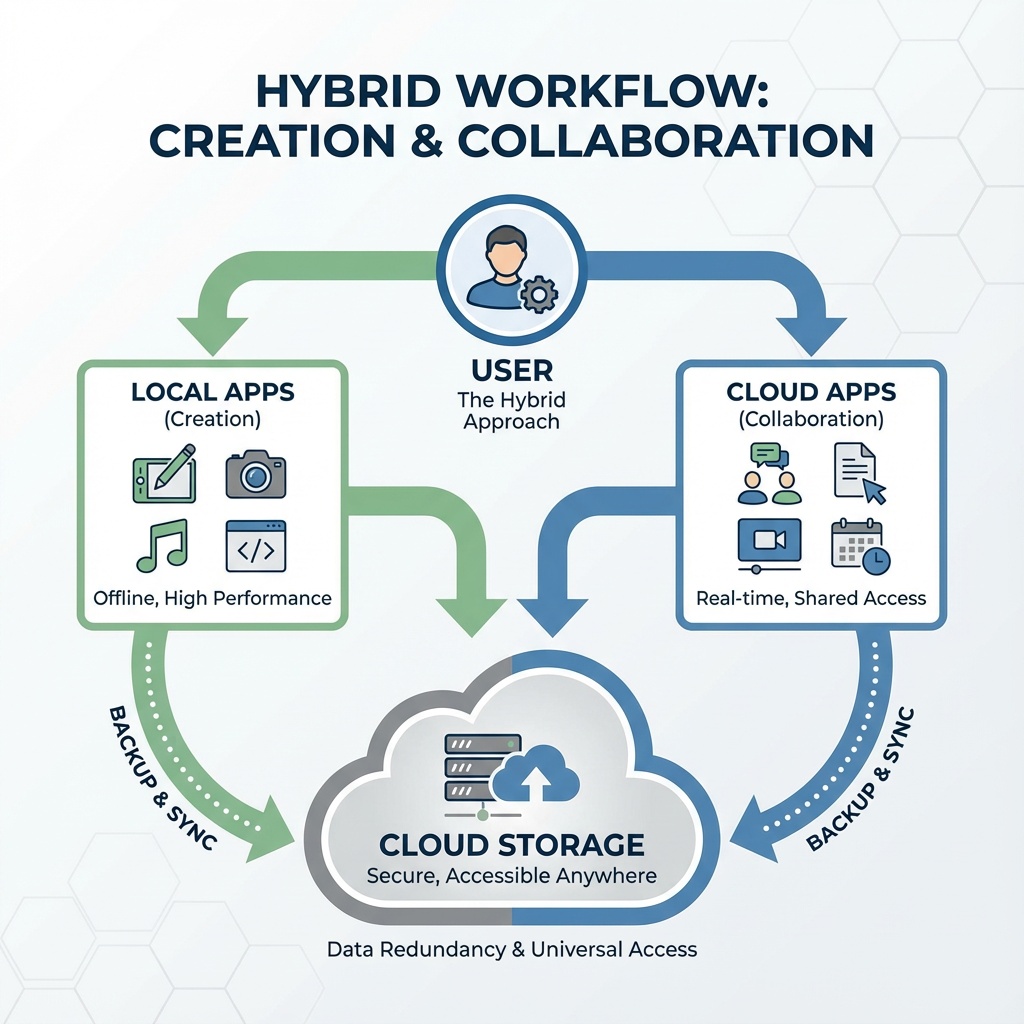
You don’t have to pick one or the other exclusively. Here’s what I’ve settled on after years of experimenting:
Local for thinking and creating: Notes, journaling, drafting, and anything that needs focus time happens in local apps. Fast, private, offline-ready.
Cloud for sharing and collaborating: Final documents, team projects, shared resources go to cloud platforms. Easy access, simple sharing.
Local files with cloud backup: Use local apps, but sync the files to Dropbox or Google Drive in the background. Best of both worlds, though setup takes some work.
The key is being intentional. Don’t just default to cloud because it’s convenient or local because it’s “better.” Think about your actual workflow and choose accordingly.
Common Mistakes I’ve Seen (And Made)
Mistake 1: No backup strategy for local files
If your only copy is on your laptop, you’re living dangerously. Set up automated backups. Today. Right now. I’ll wait.
Mistake 2: Putting everything in one cloud app
Vendor lock-in is real. When that app changes pricing or features, you’re stuck. Keep some diversity in your tool stack.
Mistake 3: Ignoring offline needs
Test your cloud apps offline before you’re stuck on that flight. Make sure offline mode actually works and syncs properly afterward.
Mistake 4: Over-complicating the setup
I once had a system with seven different apps all “talking” to each other through Zapier. It broke constantly. Simple is better. Use fewer tools, even if they’re not “perfect.”
Tools Worth Checking Out
Strong cloud options:
Notion for all-in-one workspace needs, though performance can lag. Google Workspace if you need reliable collaboration. Todoist for task management that syncs flawlessly.
Solid local choices:
Obsidian for notes and knowledge management. VS Code or Sublime Text for any text editing. Local Excel or LibreOffice for spreadsheets that don’t need sharing.
Hybrid solutions:
Dropbox or Google Drive for syncing local files. Bear (on Mac/iOS) for notes with iCloud sync. Craft for a nice middle ground between local and cloud.
This article is part of our comprehensive guide on Software, Apps, and Productivity Tools. For more on finding the right tools for your workflow, check out our guides on best productivity apps and productivity tools for professionals.
Bottom Line
Neither cloud nor local apps are universally better. Cloud apps excel at collaboration and accessibility. Local apps win on speed, privacy, and reliability.
I’ve wasted too much time chasing the “perfect” productivity setup. The real answer is boring: use what works for your specific needs, keep backups, and don’t overthink it.
Start with the default cloud option for your use case. If you run into frustrations (sync issues, privacy concerns, performance problems), then explore local alternatives. But don’t switch just because some productivity guru says local is “better.”
Your productivity system should fade into the background and let you work, not become a project itself.
Now if you’ll excuse me, I need to go update my backup strategy. Again.
Related Articles: For deeper dives into specific tools, explore our guides on best cloud storage solutions, file organization apps, and automation tools for productivity.