Task Prioritization Tools: What Actually Works (And What Doesn’t)
I used to think I was terrible at prioritization. Turns out, I was just using the wrong tools. Or more accurately, I was trying to force my brain into systems that looked good on paper but fell apart after day three.
Here’s the thing about task prioritization: everyone’s selling you a methodology. Eisenhower matrices, Getting Things Done, eat-that-frog nonsense. But nobody talks about the tools that actually make these systems stick. Because here’s what I’ve learned after burning through probably 15 different productivity apps: the methodology doesn’t matter if your tool makes it painful to use.
So let’s talk about task prioritization tools that actually work. Not the ones with the prettiest landing pages, but the ones you’ll still be using three months from now.
Why Most Task Apps Fail at Prioritization
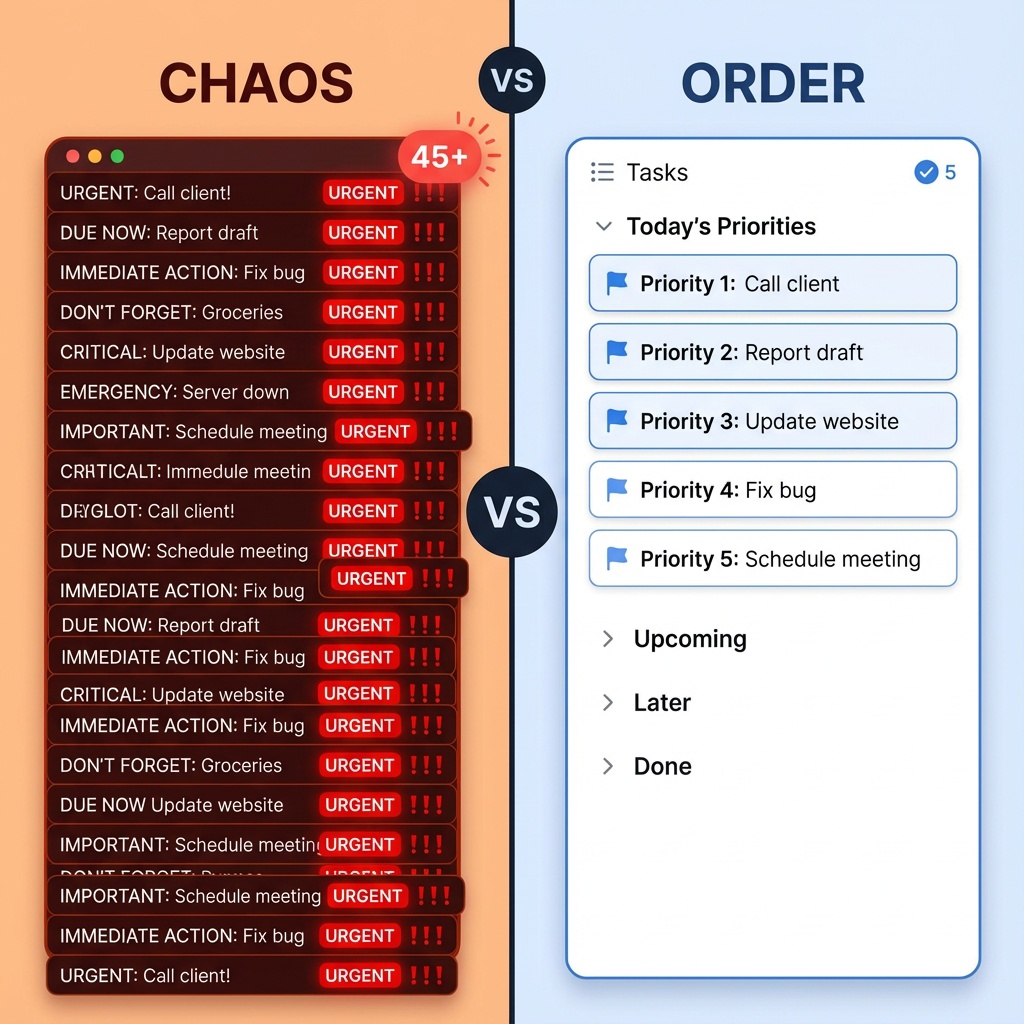
Before we get into what works, let’s talk about why most tools fail. I’ve watched my own task lists turn into graveyards of good intentions, and it usually comes down to three problems.
The friction problem. If adding priority levels takes more than two seconds, you won’t do it. I’ve used apps where setting priority required opening a dropdown, scrolling through options, confirming, and then closing a modal. By the time I finished, I’d forgotten what I was prioritizing.
The complexity trap. Some tools give you eight priority levels, custom fields, tags, and flags. Sounds powerful, right? In practice, you spend more time organizing tasks than actually doing them. I once spent 20 minutes color-coding my task list. The tasks took 15 minutes to complete.
The “everything is urgent” syndrome. Tools that let you mark everything as high priority are lying to you. If everything’s urgent, nothing is. The best prioritization tools force you to make real choices.
What Actually Makes a Good Prioritization Tool
After trying everything from pen and paper to elaborate project management systems, I’ve noticed the tools I stick with share a few traits.
Quick capture is non-negotiable. If I can’t dump a task into the system in under 5 seconds, I’ll forget it before I open the app. The best tools let you add tasks with keyboard shortcuts or quick-add features that don’t interrupt your flow.
Visual hierarchy matters more than you think. I need to see what’s important at a glance. Not buried in a list of 50 items, not hidden behind filters. Just right there when I open the app. Color coding helps, but only if it’s automatic based on priority rules you set once.
Flexible but not overwhelming. Three priority levels are usually enough: do now, do soon, do eventually. More than that and you’re just creating work for yourself. The tool should make it easy to bump things up or down as priorities shift, because they will.
Tools That Actually Work
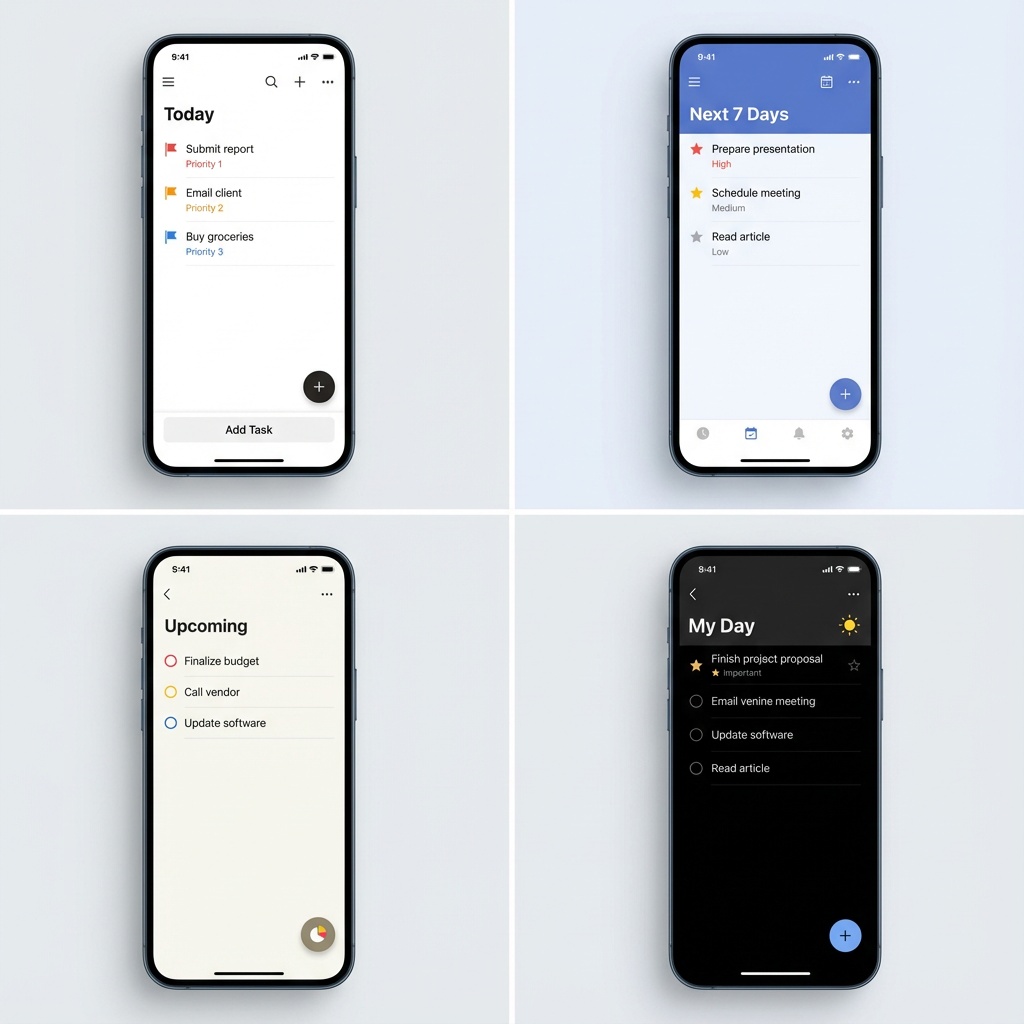
Let’s get specific. These are the tools I’ve personally used for task prioritization, with real pros and cons based on actual use.
Todoist: The Reliable Workhorse
I keep coming back to Todoist. Not because it’s fancy, but because it doesn’t get in my way. The priority system is dead simple: four color-coded flags (p1 through p4). High priority tasks show up in red at the top of your list. That’s it.
What works: The natural language input is stupid good. Type “finish report p1 tomorrow” and it parses everything correctly. Keyboard shortcuts for everything. The filters let you create custom views like “show me p1 tasks due this week.”
What doesn’t: The free version limits you to 5 projects, which feels stingy. No built-in time blocking. The mobile app can be laggy with large task lists.
Real talk: I’ve used Todoist for three years now. It’s not exciting, but it works. Sometimes boring is exactly what you need.
TickTick: Todoist’s Scrappier Cousin
TickTick does everything Todoist does, plus a bunch of extra features. Priority levels work similarly, but you also get a built-in Pomodoro timer and calendar view. The Eisenhower matrix template is actually useful, unlike most productivity theater.
What works: Better free tier than Todoist. The calendar integration actually makes sense. Habit tracking built in if you’re into that. Premium is cheaper.
What doesn’t: The UI feels cluttered compared to Todoist. Too many features can be distracting. Syncing occasionally hiccups between devices.
I switched to TickTick for about six months. Switched back to Todoist because I kept getting distracted by features I didn’t need. But if you want more bang for your buck, TickTick delivers.
Things 3: The Apple Ecosystem Lock-In
If you’re all-in on Apple devices, Things 3 is gorgeous. The “Today” view with its clean design makes prioritization feel zen. You can set deadlines, mark tasks as “This Evening,” and the whole experience just feels premium.
What works: Best-in-class design. Quick entry from anywhere with keyboard shortcuts. The “Today” view forces you to commit to what’s actually getting done.
What doesn’t: Apple only, so you’re locked in. No collaboration features. One-time purchase sounds good until you want the iPad version too. Can’t set recurring tasks with complex patterns.
I used Things 3 when I was Mac-only. Loved it. Then I got a Windows work laptop and had to bail. Still miss that UI though.
Microsoft To Do: The Underrated Free Option
Don’t sleep on Microsoft To Do. It’s free, works everywhere, and the “My Day” feature is basically forced prioritization. Every morning, you pull tasks into “My Day” from your master list. If it doesn’t make the cut, it’s not a priority today.
What works: Completely free. Integrates with Outlook if you live in email. Simple star system for priority. Shared lists actually work well for teams.
What doesn’t: Feels basic compared to paid options. No advanced filtering. The UI isn’t winning design awards. Limited automation.
Honestly surprised how much I use this for work stuff. The Outlook integration alone makes it worth having.
Asana: When You Need Team Prioritization
Asana isn’t really a personal task app, but if you’re managing projects with other people, the priority fields and custom fields system works. You can create templates that force priority selection, set up rules that auto-sort by priority, and actually see what your team thinks is urgent.
What works: Powerful for teams. Custom fields let you define your own priority system. Timeline view shows how priorities shift. Great for complex projects.
What doesn’t: Overkill for personal use. Learning curve is real. Free tier is limited. Can feel like managing the tool becomes a task itself.
I use Asana at work because everyone else does. For personal stuff? Way too much.
The Tools I’ve Tried and Abandoned
Let’s be honest about what didn’t work. Trello is great for visual project management, but terrible for prioritization. Everything looks equally important on a board. Notion is powerful but I spent more time building systems than using them. Any.do looked pretty but the prioritization felt like an afterthought. Remember the Milk has probably the best keyboard shortcuts ever made, but the UI feels like 2010.
What I Actually Use Daily
Right now, my system is Todoist for personal tasks and Microsoft To Do for work. I know, I know, two apps is one too many. But work tasks live in Outlook, and fighting that integration is more painful than having two apps.
My Todoist setup: Everything starts as p4 (no priority). Once a week, I review and promote things to p2 or p3. Only stuff I’m doing today gets p1. This keeps me honest about what’s actually urgent.
My To Do setup: Every morning, I pull 5-7 tasks into “My Day.” If I can’t finish those, I pulled too many. Simple forcing function.
The Priority System That Actually Works

Forget fancy frameworks. Here’s what works for me and most people I know who’ve figured this out.
Three buckets. Today, This Week, Eventually. That’s it. If you need more granularity than that, you’re overthinking it.
The daily reset. Every morning, pick 3-5 things that must happen today. Not 20. Not 10. Five maximum. If you get those done and have energy left, great. Pull more from “This Week.”

The weekly review. Spend 15 minutes every Sunday or Monday looking at everything. What got bumped? What’s no longer important? What’s creeping up? This is where you do the actual prioritization thinking.
The purge rule. If something has been in “Eventually” for more than a month, delete it. You’re not going to do it. And that’s fine.
Common Prioritization Mistakes I Still Make
Even with good tools, I mess this up. I’ll mark too many things as urgent because they all feel urgent. I’ll avoid setting priorities because then I’d have to admit some tasks aren’t important. I’ll reorganize my task list instead of actually doing tasks.
The tool doesn’t fix these problems. It just makes them easier to spot. Which is honestly half the battle.
What About AI-Powered Prioritization?
Some new apps are using AI to prioritize your tasks automatically based on deadlines, importance signals, and past behavior. I’ve tried Motion and Reclaim. The auto-scheduling is neat in theory. In practice, the AI doesn’t know that “respond to CEO’s email” is more urgent than “update documentation” even if the documentation has an earlier deadline.
Maybe this gets better. Right now, I don’t trust it enough to hand over prioritization decisions.
The Brutal Truth About Prioritization
No tool will make you good at prioritizing. They just make it easier to be honest with yourself about what matters. The hard part isn’t using the app. It’s deciding that some things aren’t going to get done today. Or this week. Or maybe ever.
The best prioritization tool is the one that makes it impossible to lie to yourself about how much time you have. That’s why “My Day” style features work. That’s why limiting p1 tasks works. Because you can’t fool the system into believing you have 40 hours in a day.
What to Choose
If you’re on Apple devices and want something beautiful: Things 3. If you want free and powerful: TickTick or Microsoft To Do. If you need something that just works and has been working for years: Todoist. If you’re managing a team: Asana.
Personally? Try the free options first. If you find yourself fighting the tool or not using it after a week, move on. The best prioritization tool is whichever one you’ll actually open every day.
And if you try all these and still can’t get prioritization to stick, the problem might not be the tool. It might be that you’re trying to do too much. Been there. Still there sometimes.
Related Articles
For more strategies on staying organized and productive, check out our complete guide on Software, Apps, and Productivity Tools. You’ll find comprehensive coverage of everything from note-taking apps to collaboration platforms.
Looking to build a complete productivity system? These related articles might help:
- Best Productivity Apps 2025 – Overview of top tools for organizing work and life
- Task Management Apps – Deep dive into keeping tasks organized and prioritized
- Time Management Apps – Tools for improving workflow and efficiency
- Productivity Tools for Entrepreneurs – Systems for managing multiple projects and teams