Email Management Tools: How I Finally Stopped Drowning in My Inbox
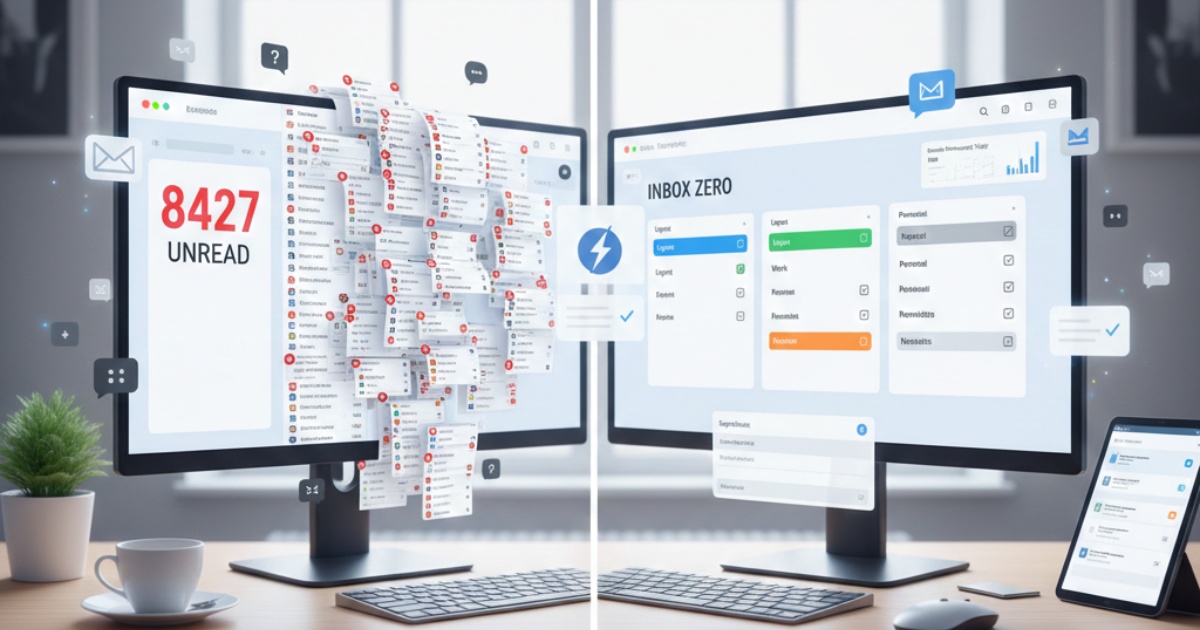
Look, I’m going to start with a confession: I once had 8,347 unread emails. Not a typo. Eight thousand, three hundred and forty-seven.
I’d hit inbox zero exactly once in my career, back in 2019, and it lasted about 36 hours before everything went to hell again. The problem wasn’t just volume (though yeah, that’s part of it). The problem was I was treating email like a task manager, a filing cabinet, and a reminder system all at once. Spoiler: email sucks at all three of those jobs.
After years of fighting with Gmail’s native interface and trying every productivity hack under the sun, I finally figured out what actually works. And it’s not about willpower or discipline. It’s about using tools that fit how your brain actually processes information.
This article is part of our comprehensive guide on Software, Apps, and Productivity Tools. For the full guide covering everything from note-taking to project management, check out the main resource.
Why Email Management Actually Matters (Beyond the Obvious)
Yeah, everyone says “email is overwhelming.” But here’s what nobody talks about: bad email management creates a weird psychological tax. Every time you open your inbox and see chaos, your brain does this little spike of anxiety. It’s like walking into a messy kitchen 50 times a day.
I noticed this last year when I was debugging why I felt exhausted by 2 PM every day. Turns out, I was context-switching into my email about 40 times per session. Each switch cost me 10-15 minutes of focus getting back into actual work. The math is brutal.
The right email tools don’t just organize messages. They remove decisions. And decisions are what burn you out.
The Email Management Tools I Actually Use (And Why)
Superhuman: When Speed Actually Matters
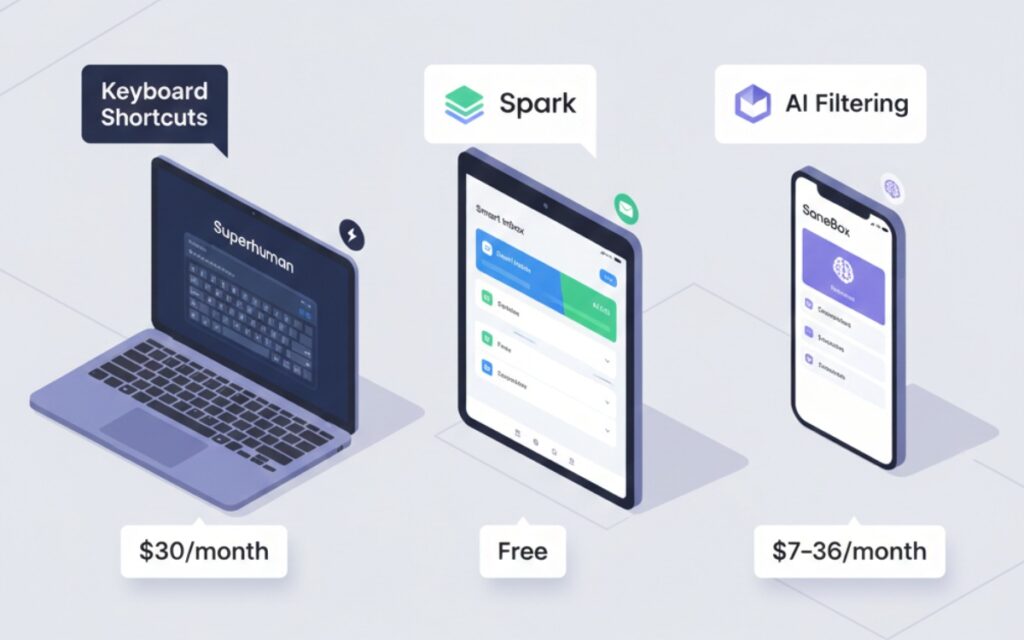
I resisted Superhuman for two years because $30/month for email felt ridiculous. Then I tried it during a free trial and… damn. The keyboard shortcuts aren’t just faster than clicking around, they completely change how you process email.
What makes it different:
- Hit-based workflow (every email needs a decision: archive, snooze, or reply)
- Remind me functionality that actually works
- Split inbox automatically sorts by importance
- You can blow through 100 emails in under 10 minutes once you learn the shortcuts
The catch? It’s expensive, and it only works with Gmail or Outlook. If you’re on a different provider, you’re out of luck.
My use case: High-volume email (100+ per day) where speed matters more than advanced filtering. I use this during my morning email sprint (more on that later).
Spark: The Free Option That Doesn’t Feel Like a Compromise
Before Superhuman, I used Spark for about three years. It’s free, works on Mac, iOS, and even has a decent Android version now. The smart inbox feature groups emails by type (personal, newsletters, notifications), which sounds gimmicky but actually helps a lot.
What I like:
- Built-in email scheduling
- Snooze that syncs across devices
- Quick replies with templates
- Team collaboration features (though I never used these)
The gotcha: The Mac app can be a memory hog. I’ve seen it using 1.2GB of RAM when I have multiple accounts connected. Not a dealbreaker, but something to watch if you’re on an older machine.
SaneBox: Set It and Forget It Filtering
SaneBox isn’t really an email client. It’s more like a smart assistant that lives inside your existing email setup. You train it by dragging emails into different folders (@SaneLater, @SaneNews, etc.), and it learns what’s important to you.
The magic: After about two weeks of training, SaneBox was correctly filtering 90% of my low-priority emails. My inbox went from 40 new messages per day to maybe 8-10 that actually needed attention.
Reality check: It costs $7-$36/month depending on features, and the learning period can be annoying. You’ll spend the first week second-guessing its decisions and manually moving things around. But after that? It’s worth every penny.
If you’re looking for more ways to optimize your workflow, check out our guide on Task Management Apps for tools that complement email management.
Email Strategies That Actually Reduced My Inbox Anxiety
The Two-Touch Rule (My Version)
Everyone talks about “touch each email once.” That’s impossible if you get technical support requests or client communications that need research. Here’s what actually works:
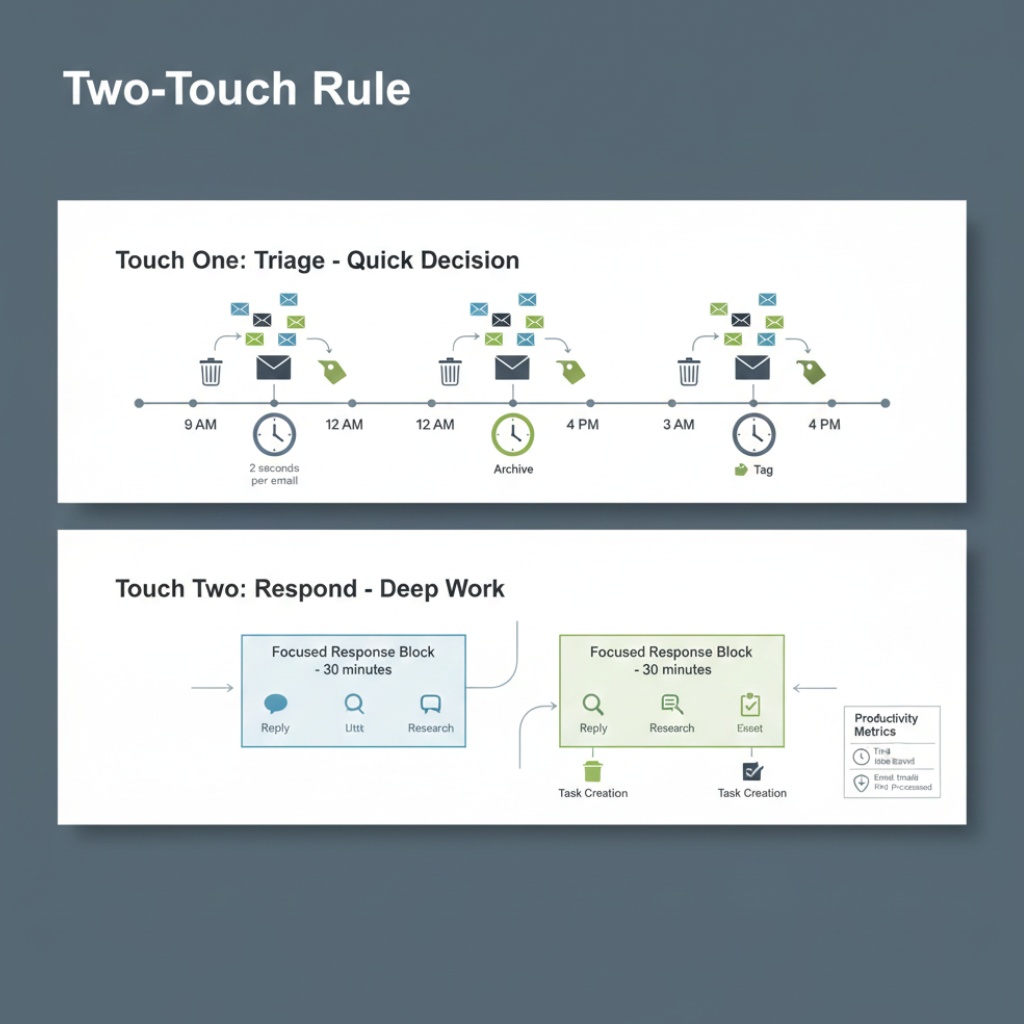
First touch: Triage only. Archive, delete, or tag for later. Takes 2 seconds per email.
Second touch: Actually respond or take action. Scheduled for specific times.
I do first-touch at 9 AM, 12 PM, and 4 PM. Second-touch happens during two 30-minute blocks at 10:30 AM and 3 PM. This stopped the constant email checking that was destroying my deep work time.
Aggressive Unsubscribing (And Why You Should Be Ruthless)
Last month I used a tool called Leave Me Alone to audit my subscriptions. I had 247 active email lists. TWO HUNDRED AND FORTY-SEVEN.
I unsubscribed from 203 of them in one sitting. The remaining 44 are newsletters I actually read (like Postgres Weekly and software engineering digests). Everything else? Gone.
Pro tip: When unsubscribing, don’t click the unsubscribe link in the email itself. That sometimes confirms you’re an active email address. Instead, use a tool that handles it through email headers or uses temporary email aliases.
Email Templates (Because You’re Probably Rewriting the Same Thing 20 Times)
I finally sat down and created templates for my 10 most common email responses:
- Meeting request responses
- “Thanks, I’ll get back to you by [date]” holding replies
- Technical support initial response
- “No” emails (the hardest ones to write)
Superhuman and Spark both have built-in template features. Gmail has “Canned Responses” which is the same thing but with a worse name.
Creating these took me two hours. They’ve saved me probably 5 hours per week since. Do the math on that ROI.
For organizing the rest of your digital life, our article on Best Cloud Storage Solutions covers file management alongside email.
Tools for Specific Email Problems
If You’re Drowning in Newsletters: Stoop or Meco
I tried the “separate email address for newsletters” approach. It lasted three weeks before I stopped checking that inbox entirely and missed important stuff.
Stoop and Meco both pull newsletters out of your email and into a separate reading app. It’s like Pocket but specifically for email subscriptions. The difference? Your inbox stays clean, but you actually see and read the newsletters because they’re in a dedicated space.
I use Meco. It’s free for up to 50 newsletters, and the reading experience is genuinely better than email. Plus it has a feature that generates audio versions of text newsletters, which is wild.
If You Need Advanced Automation: Email by Zapier or Make
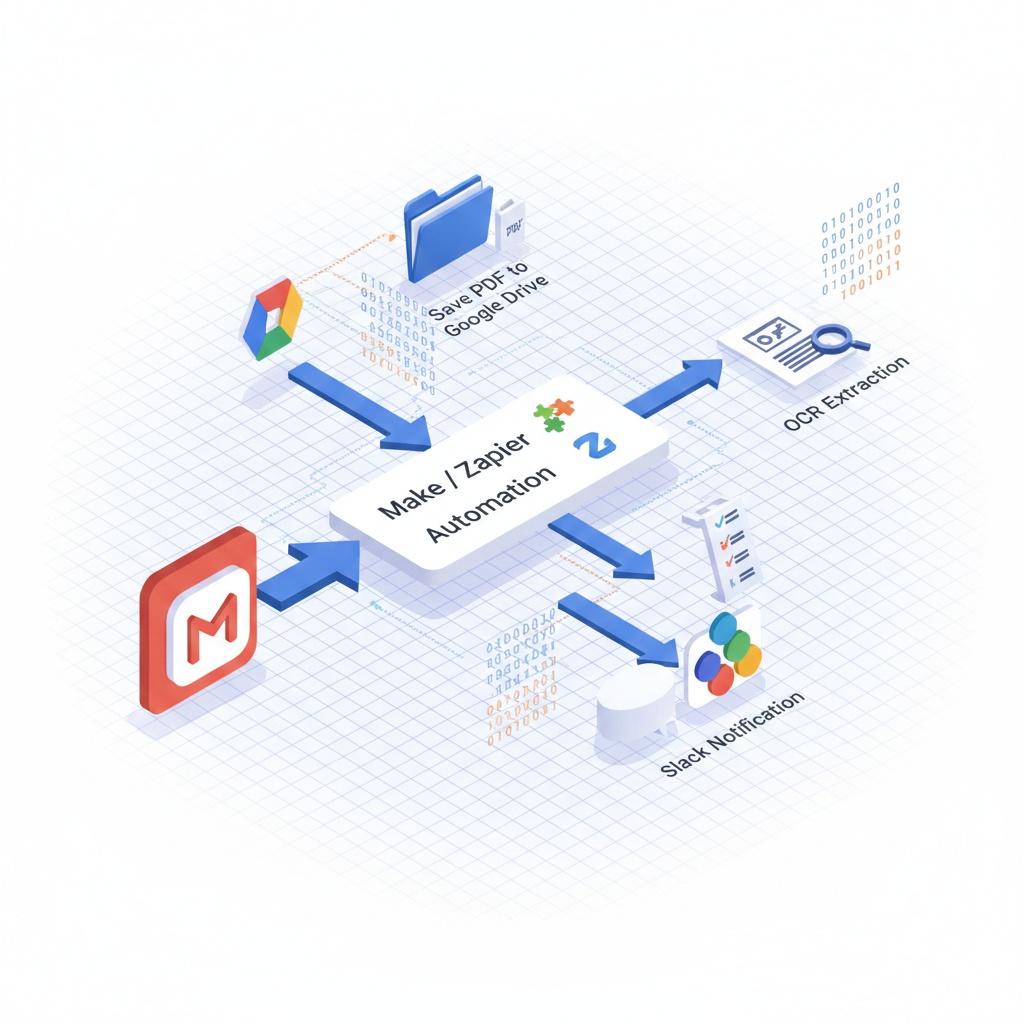
Sometimes you need emails to trigger actual workflows. Like “when I get an email from this client, create a task in Asana and ping my Slack.”
I used to do this with Gmail filters and forwarding rules. It was a mess. Now I use Make (formerly Integromat) because it’s more flexible than Zapier for email routing.
Real example: When I get invoices emailed to my accounting address, Make automatically saves the PDF to Google Drive, extracts the amount and vendor using OCR, and adds a row to my bookkeeping spreadsheet. Took about an hour to set up. Saves me 30 minutes of manual data entry per week.
Want more automation ideas? Check out Automation Tools for Productivity for workflow optimization beyond just email.
What Doesn’t Work (Let’s Be Honest)
Inbox Zero as a Daily Goal
I tried this for six months straight in 2021. Hit inbox zero maybe 40% of the time. The other 60%? I’d stay up until midnight frantically processing emails just to hit some arbitrary goal I’d set for myself.
Inbox zero is a tool, not a religion. Some days you’ll have 15 emails sitting there. That’s fine. The goal is handled emails, not zero emails.
Email Clients with Too Many Features
I tried Microsoft Outlook’s focused inbox, folders, categories, flags, and rules system. It was like flying a 747 when I just needed to drive to the grocery store. The cognitive load of maintaining all those systems was worse than the original email problem.
The trap: More features feel like they should help. But each feature is a decision point, and decision points are exhausting.
Checking Email First Thing in the Morning
This one’s on me. For years, I’d wake up, grab coffee, and immediately open email. By 8:30 AM I’d already be in reactive mode, responding to other people’s priorities instead of working on mine.
Now I don’t open email until 9 AM. I spend the first hour on actual project work. This one change probably doubled my productive output.
Learn more about managing distractions in our guide to Focus and Distraction-Blocking Apps.
My Current Email Setup (The Full Stack)
Here’s exactly what I use as of January 2025:
Primary client: Superhuman (macOS and iOS)
Filtering: SaneBox running in the background
Newsletters: Meco for reading, SaneNews folder for storage
Automation: Make for invoice processing and client alerts
Templates: Built into Superhuman, synced across devices
Scheduling: Superhuman’s built-in send later (though Boomerang also works great)
This setup costs me about $45/month total. Is it worth it? Last time I calculated, I’m saving 6-8 hours per week on email management. At my hourly rate, that’s… yeah, it’s worth it.
The Biggest Email Management Mistake I See
People treat email like a to-do list. It’s not. Email is an inbox (literally). Things come in, you process them, and they go somewhere else.
The fix: Use actual task management tools. When an email requires action, I immediately create a task in my actual task manager (our task management guide here) with a link back to the email if needed. Then I archive the email.
This one mindset shift changed everything. Email became a delivery mechanism, not a storage system.
Stuff Worth Trying (Even Though I Haven’t Yet)
I keep hearing about Hey (the $99/year email service from Basecamp). Their whole philosophy is “email shouldn’t be immediate.” They have a screening system where new senders don’t hit your inbox until you explicitly approve them.
I haven’t pulled the trigger because migrating email addresses is a pain, but everyone I know who uses it swears by it. Might be worth a look if you’re starting fresh or willing to go through migration hell.
Also watching Shortwave (formerly Brev.ai). It uses AI to summarize long email threads and suggest responses. I’m skeptical of AI email tools in general, but the demo videos look promising. We’ll see.
For more productivity tool recommendations, explore our guide on Best Productivity Apps 2025.
What Actually Works: The Summary
After trying basically every email tool and strategy out there, here’s what survived in my actual workflow:
- Use a fast email client with keyboard shortcuts (Superhuman or Spark)
- Let AI-powered filtering handle the noise (SaneBox or built-in smart features)
- Process email in batches, not constantly (2-3 times per day max)
- Unsubscribe aggressively (if you haven’t read it in three months, you won’t)
- Move newsletters to a separate reading app (Meco or Stoop)
- Create templates for common responses (stops you from rewriting the same email)
- Don’t treat email as a to-do list (that’s what task managers are for)
The goal isn’t perfect email zen. The goal is spending less mental energy on email so you can use that energy for actual work.
I still have days where email gets overwhelming. Last Tuesday I came back from a long weekend to 240 unread messages. But with the right tools and workflow, I processed them all in about 45 minutes instead of letting them haunt me for three days.
That’s the real win. Not inbox zero. Just inbox managed.