
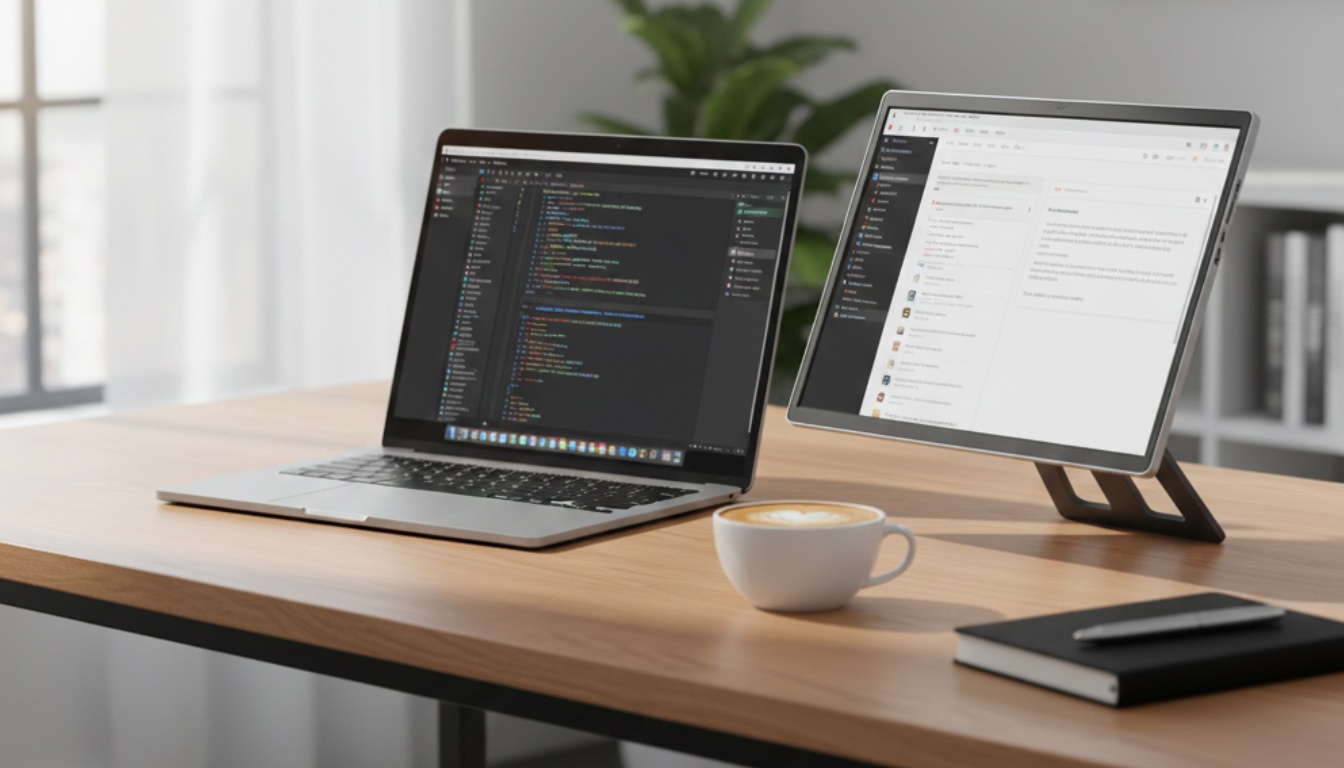
Portable Monitors for Laptops: Why I Finally Stopped Working on One Screen
So here’s a confession: I resisted portable monitors for two years. Thought they were gimmicky. “Just use your laptop screen,” I told myself. “You don’t need more stuff to carry around.”
Then I spent a week debugging CSS layouts on a 13-inch screen while working from a coffee shop.
Never again.
Look, if you’ve ever tried to have your code editor, browser, and documentation open simultaneously on a laptop screen, you know the pain. You’re constantly alt-tabbing, losing your place, and generally wanting to throw things. A portable monitor fixes this, and I’m honestly annoyed I waited so long to get one.
This article is part of our comprehensive guide on Computers, Laptops, and Accessories. For more laptop productivity tips, check out the full guide.
What Actually Makes a Good Portable Monitor?
I’ve tested five different portable monitors over the past year. Here’s what matters (and what’s just marketing nonsense):
Screen Size: The 15.6-Inch Sweet Spot
Most portable monitors range from 13 to 17 inches. I’ve found 15.6 inches to be perfect. It matches most laptop screens, fits in my backpack without being awkward, and gives me enough real estate to actually be useful.
The 13-inch models? Too small. You might as well just use your laptop. The 17-inch ones? Sure, more screen space, but they’re heavy and won’t fit in a normal laptop bag. You’ll end up leaving it at home, which defeats the entire purpose.
Weight: If It’s Over 2 Pounds, You Won’t Carry It
Here’s the thing about portable tech: weight matters more than you think. My first portable monitor was 2.4 pounds. Doesn’t sound like much, right?
Wrong.
After carrying it around for a week plus my laptop, chargers, and other gear, my shoulder was killing me. I ended up leaving it in the car most days.
Now I use a monitor that’s 1.7 pounds. That half-pound difference is huge when you’re hauling it around daily. Trust me on this.
USB-C Power Delivery: Non-Negotiable

If a portable monitor doesn’t support USB-C with power delivery in 2025, skip it. Seriously.
You want one cable doing both video and power. I don’t care how cheap that HDMI-only monitor is. Having to carry an extra power brick and deal with two cables is a pain you don’t need.
My current setup? One USB-C cable from my laptop to the monitor. That’s it. The monitor draws power from my laptop, displays the image, and I’m done. Clean. Simple. No extra adapters cluttering my bag.
For more on optimizing your laptop setup, check out our guide on Best Accessories for Laptops.
The Reality of Battery Life
Let me be real with you about something the marketing materials won’t mention: portable monitors destroy your laptop’s battery life.
When I first got mine, I thought “cool, I can work all day without plugging in.” Nope. Running a second display through USB-C can drain your battery 40-50% faster. Sometimes more.
So here’s what actually works:
Coffee Shop Sessions (2-3 hours): Totally doable with a decent laptop battery. My MacBook Pro can handle this. Just barely.
All-Day Conference Work: You’re going to need to find an outlet. Pack your charger. Don’t be the person whose laptop dies during an important video call because you were trying to be clever.
Airport Work: Hit or miss. Depends on your laptop. My ThinkPad X1 Carbon can push maybe 4 hours with the portable monitor. That’s usually enough for airport delays, but I always bring my charger just in case.
If battery life is critical for you, also read our article on Laptops with Longest Battery Life to find a laptop that can handle the extra power draw.
Screen Quality: IPS or Go Home
This one bit me early on. I bought a cheap portable monitor with a TN panel because it was $80 less than the IPS version.
Big mistake.
The viewing angles were terrible. If I tilted the screen even slightly, the colors shifted. And forget about showing something to a colleague. They’d have to be directly in front of it to see anything clearly.
IPS panels cost more, but they’re worth it. The colors are accurate, viewing angles are good, and you won’t want to throw the thing out the window after a week.
Resolution-wise? 1080p is fine for most work. I’ve tried a 4K portable monitor, and honestly, it was overkill. The text was tiny, it drained battery even faster, and for coding or document work, I couldn’t tell the difference. Save your money.
Real-World Use Cases Where These Actually Shine
Let me tell you where portable monitors actually make sense:
Remote Work from Not-Your-Desk
I work from home three days a week and co-working spaces two days. The portable monitor lives in my backpack. When I get to the co-working space, boom, instant dual-screen setup. Same productivity as my home office.
Game changer for maintaining workflow consistency.
Client Meetings and Demos
Last month I had to demo a web app to a client at their office. Having my code on one screen and the live demo on the other made the presentation way smoother. No awkward screen sharing, no switching windows mid-sentence.
The client actually asked where I got the monitor.
Travel (But Be Realistic)
I’ve taken my portable monitor on business trips. It’s great for hotel room work sessions. But I don’t bring it on quick overnight trips. The sweet spot is 3+ day trips where I’ll actually be working from the hotel.
One night stays? Not worth the extra weight and hassle.
Common Problems Nobody Warns You About
Here’s the stuff that surprised me:
Stands Are Garbage: Most portable monitors come with these flimsy built-in stands that fold out. They work, but barely. Get a proper adjustable stand or use books. I’m not joking about the books. Stack two hardcovers and it’s more stable than the included stand.
Brightness Settings Are Weird: Some portable monitors don’t remember your brightness settings between sessions. You’ll need to readjust every time you plug it in. Minor annoyance, but after the 50th time, it gets old.
Color Calibration: Out of the box, many portable monitors are way too bright and the colors are oversaturated. Spend ten minutes calibrating it when you first get it. Your eyes will thank you.
What to Actually Buy
I’m not going to list 20 options because that’s not helpful. Here’s what I’d buy today:
For Most People: ASUS ZenScreen MB16ACV (15.6″, 1080p, IPS, USB-C). It’s $200-250, weighs 1.9 pounds, and just works. I’ve had mine for 18 months. Zero issues.
If Money’s Tight: ViewSonic VG1655 (15.6″, 1080p, IPS). Usually around $150. Slightly heavier, stand is worse, but the screen quality is solid. Good budget pick.
If You Want Premium: ASUS ProArt PA148CTC. OLED panel, better color accuracy, nicer build. But it’s $400+. Unless you’re doing photo or video work, you probably don’t need it.
For a complete breakdown of all laptop accessories, including docking stations and keyboards that pair well with portable monitors, visit our Best Accessories for Laptops guide.
The Setup That Actually Works
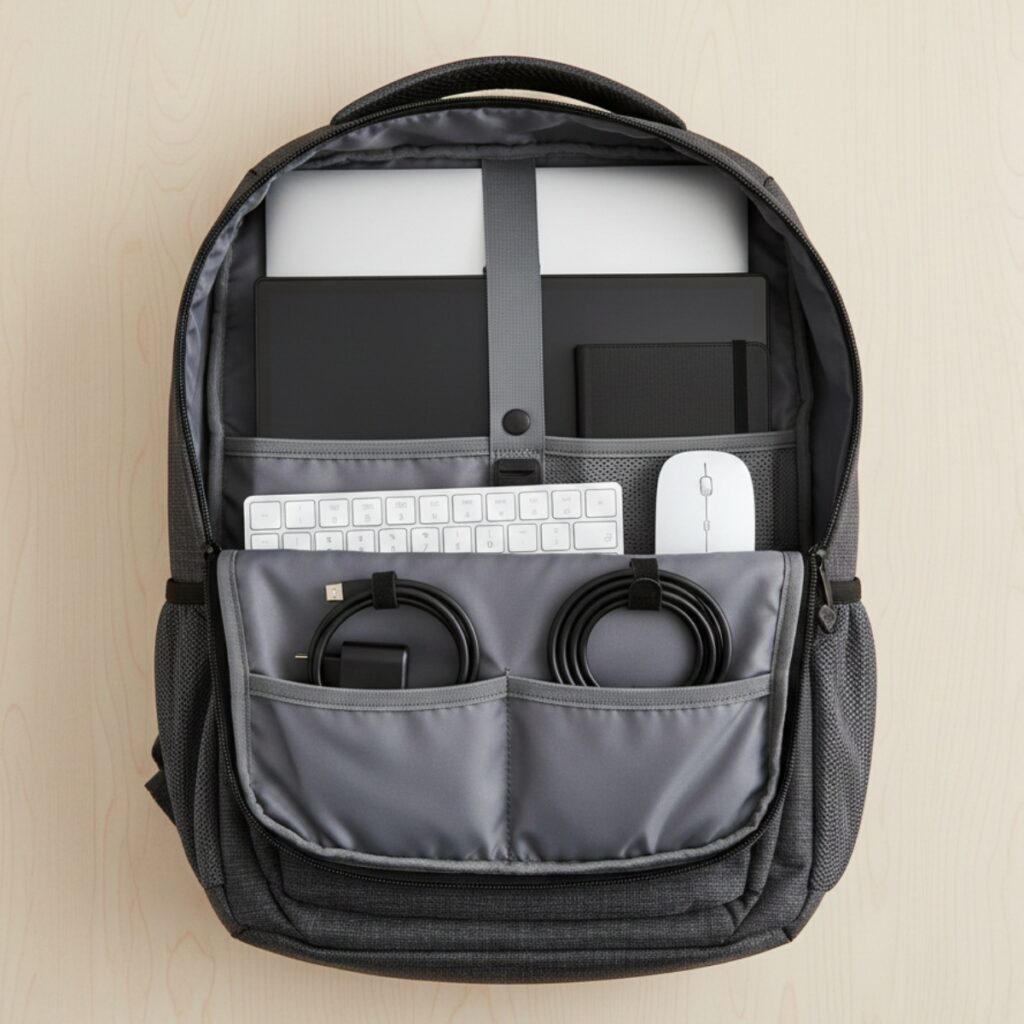
Here’s my current travel setup after a year of trial and error:
- 15.6″ portable monitor (ASUS ZenScreen)
- Laptop stand (Roost Stand, folds flat)
- Bluetooth keyboard and mouse (Logitech MX Keys Mini and MX Anywhere 3)
- Single USB-C cable for the monitor
The laptop sits elevated on the stand, portable monitor to the left, keyboard and mouse in front. Boom. Instant office wherever I am.
Total weight including cables: About 4 pounds extra. Worth it for the productivity boost.
Want to maximize your productivity even more? Check out our tips on Laptop Performance Optimization.
Is It Actually Worth It?
Look, portable monitors aren’t for everyone. If you only work from one location, just get a regular external monitor. They’re cheaper and better.
But if you move around and need a second screen? Yeah, it’s worth it.
I debated this purchase for months. Thought it was an unnecessary expense. But after using one for a year, I’d buy it again in a heartbeat. The productivity gain from having two screens, even when I’m not at my main desk, pays for itself.
Just get one that’s actually portable (under 2 pounds), has USB-C, and uses an IPS panel. Skip the 4K models unless you have a specific need. And maybe budget for a better stand than the one it comes with.
Real talk: This is one of those purchases that seems optional until you try it. Then you wonder how you ever worked without it.
Wrapping Up
Portable monitors fixed a problem I didn’t realize was costing me so much productivity. No more alt-tabbing between windows. No more squinting at tiny code on a 13-inch screen. Just clean, dual-screen workflow wherever I’m working.
They’re not perfect. Battery drain is real. The included stands are mediocre. And yes, it’s one more thing to carry. But for remote workers, digital nomads, or anyone who needs real productivity away from their main desk, it’s absolutely worth the investment.
For more insights on choosing the right computer setup for your needs, explore our comprehensive Computers, Laptops, and Accessories Guide. You’ll find detailed comparisons, buying guides, and optimization tips to help you build the perfect mobile workstation.



One Comment
Comments are closed.