Laptop Security Tips: What Actually Works (And What’s Just Theater)
This article is part of our comprehensive guide on Computers, Laptops, and Accessories. For more laptop guides, check out the main resource.
I’ve had two laptops stolen in my career. The first one? Coffee shop in Portland, 2019. Turned my back for literally thirty seconds to grab my order. Gone.
The second time was worse. My car got broken into outside a client meeting. They took my backpack with my work laptop inside. That one hurt because I thought my car was “safe enough.”
Here’s what I learned: laptop security isn’t just about antivirus software. It’s about layers. Physical security, digital security, and not being an idiot (which I clearly was, twice).
Let me walk you through what actually matters.
The Physical Stuff Nobody Talks About
Your Laptop Is a $1,200 Target
Real talk: most laptop theft is opportunistic. Someone sees an unattended MacBook and takes it. Super sophisticated heist? Nope. Just you being distracted for 45 seconds.
What I do now:
- Cable locks in public spaces. Yeah, they look dorky. I don’t care anymore. My Kensington lock cost $25. My replacement laptop cost $1,800. Do the math.
- Never leave it visible in your car. Even in your trunk. After my car incident, I talked to the cops. They said thieves literally cruise parking lots looking for laptop bags in back seats. If you must leave it, shove it under the seat and throw a jacket over it.
- Track it before you need to. I’ve got Find My Mac enabled on my MacBook and Prey Project on my work Windows laptop. Set this up TODAY, not after it’s gone. I’m serious.
Encryption: Your Last Line of Defense
When my car got broken into, the only thing that saved me from a data breach nightmare was FileVault. Everything was encrypted. The thief got a $1,400 paperweight, but they didn’t get my client’s source code or my saved passwords.
Turn on full disk encryption right now:
- Mac users: System Preferences > Security & Privacy > FileVault
- Windows: Settings > Update & Security > Device Encryption (or BitLocker if you’ve got Pro)
- Linux: You should’ve done this during installation, but LUKS has you covered
Takes maybe 2 hours to encrypt everything the first time. After that, it’s invisible. Zero performance hit on modern hardware.
Digital Security: Stop Making It Easy
Your Password Game Is Probably Weak
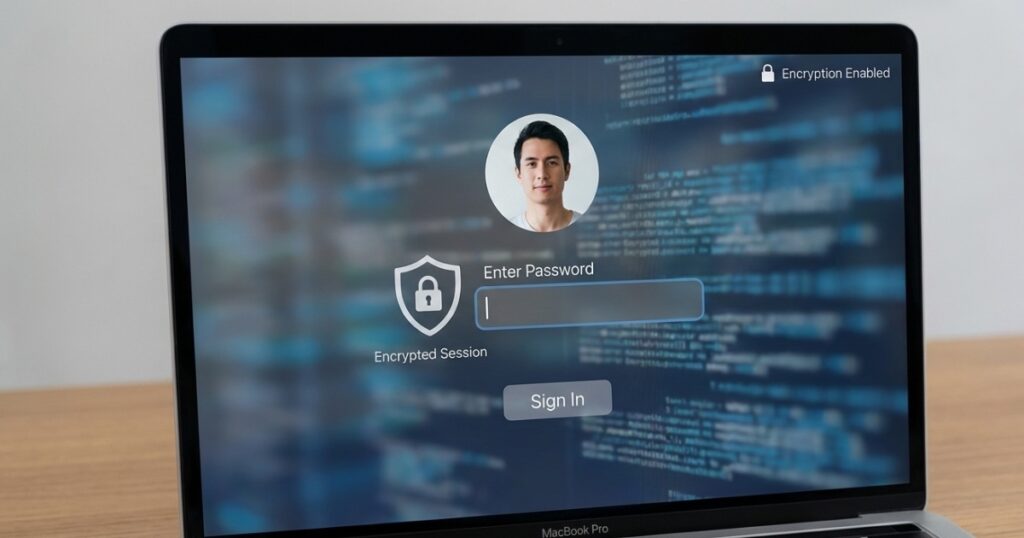
I’m not going to lecture you about “use a password manager.” You already know. But here’s what I see constantly: people use great passwords for their LastPass vault, then use “Welcome123!” for their laptop login.
Your laptop password matters. It’s not just keeping your roommate from looking at your files. It’s the key to everything if your disk encryption fails or if someone gets physical access while it’s running.
Current best practice:
- Minimum 12 characters
- Actually random, not “CorrectHorseBatteryStaple” (yeah, that’s compromised now)
- Different from every other password you use
- Changed if you type it in public (shoulder surfing is real)
I use a 16-character random password generated by 1Password. I type it wrong about 30% of the time. That’s how you know it’s good.
Lock Your Screen Automatically
Here’s a stupid mistake I made in 2021: I set my MacBook to require a password after 5 minutes of inactivity. Seemed reasonable.
One day I ran to a meeting, came back 4 minutes later, and someone was literally at my desk looking at Slack messages. They weren’t being malicious, just nosy. But still.
Now I set it to 1 minute. Or better yet, require password immediately when the screen saver starts. Yeah, it’s annoying to type your password 40 times a day. Know what’s more annoying? Someone reading your email because you went to get coffee.
If you’re on a Mac, get used to hitting Control + Command + Q before you stand up. Muscle memory took me about a week to build.
The Software Security Layers
Do You Actually Need Antivirus?
Controversial take: on macOS and modern Windows with Defender, traditional antivirus is mostly theater. I ran Norton for years on my Windows laptop. Slowed everything down, caught exactly zero threats.
What actually protects you:
- Keep your OS updated. I know, I know. Updates break things. But you know what else breaks things? Unpatched vulnerabilities. I’ve got mine set to auto-update overnight.
- Browser security matters more. Use uBlock Origin. Use HTTPS Everywhere. Don’t install sketchy extensions. That’s where 90% of malware tries to get in now.
- Windows Defender is fine. Microsoft finally figured it out around 2018. It’s built-in, doesn’t tank performance, and actually works. Don’t pay for Norton unless you’re running a business and need centralized management.
VPNs: When They Matter (And When They Don’t)
You don’t need a VPN at home. Your home WiFi is already encrypted (assuming you’re not still using WEP from 2004, which holy hell, please don’t be).
You DO need a VPN on public WiFi. Coffee shops, airports, hotels, anywhere you’re on shared network infrastructure.
I use Mullvad because I’m paranoid. But honestly? Any reputable paid VPN works. Free VPNs are selling your data. That’s their business model. Don’t use them.
One exception: if you’re just checking email on Starbucks WiFi for 5 minutes, you’re probably fine without a VPN. The risk is low. But if you’re accessing anything sensitive (banking, work systems, SSH keys), turn it on.
This ties into overall laptop performance optimization since VPNs can slow down your connection, though modern ones barely make a difference.
The Stuff That Feels Paranoid (But Isn’t)

Webcam Covers Are Not Crazy
I’ve got a little sliding cover on my laptop webcam. Cost $3 on Amazon. People mock me for it.
You know what’s crazier? The number of documented cases of webcam hijacking. It’s not common, but it happens. I sleep better knowing it’s covered when I’m not using it.
Plus, I take a lot of video calls in my pajamas. Last thing I need is accidentally joining a call with my camera on.
Two-Factor Everything
If your laptop gets stolen and it’s not locked, the thief has access to all your saved passwords in Chrome or Safari. Two-factor authentication means they still can’t actually log into anything.
I use an authenticator app (Authy) instead of SMS. SMS can be intercepted with SIM swapping. Rare, but it happens.
Yeah, 2FA is annoying. So is explaining to your boss why someone drained the company bank account.
What to Do BEFORE Your Laptop Gets Stolen
Because it might. It happened to me. Twice. Learn from my mistakes.
Your pre-theft checklist:
- Enable disk encryption (FileVault, BitLocker)
- Install tracking software (Find My, Prey)
- Back up everything (cloud + external drive)
- Document your serial number
- Take a photo of your laptop
- Enable firmware password (prevents booting from external drives)
That firmware password thing is huge on Macs. Without it, someone can just boot into recovery mode and bypass everything. With it, they need your password or an Apple Store.
If you’re a student managing your laptop budget, don’t skip these steps just because your machine was cheap. The data is worth more than the hardware.
Common Mistakes I See Constantly
Leaving admin accounts enabled. Use a standard account for daily stuff. Only use admin when installing software. Makes it way harder for malware to do damage.
Public charging stations. USB data theft is real. I’ve started carrying a USB data blocker (basically just the power pins, no data pins). Or bring your own AC adapter.
Trusting hotel WiFi. Even password-protected hotel WiFi is sketchy. Everyone has the password. Anyone on that network can try to sniff your traffic. VPN or hotspot from your phone.
Auto-login enabled. I get it. Typing your password every time sucks. But auto-login means anyone who opens your laptop has full access. Don’t do it.
When You Screw Up Anyway
Laptop stolen? Here’s your 15-minute action plan:
- Remote wipe immediately. Find My Mac or Windows Find My Device. Wipe it. Data matters more than maybe getting it back.
- Change all your passwords. Everything. Your email, banking, work accounts. Everything. Yes, all of them.
- File a police report. You’ll need it for insurance. Cops probably won’t find your laptop, but the report matters for documentation.
- Alert your company IT. If it’s a work laptop. Do this first, actually. Before the remote wipe. They need to know.
- Check your bank accounts. Right now. Make sure nothing weird happened.
This is also a good time to review your laptop maintenance habits on your replacement device so you don’t repeat the same security mistakes.
Final Thoughts
Security’s annoying. It slows you down. It makes you type passwords constantly. It costs money for locks and VPNs and tracking software.
Know what’s more annoying? The three days I spent after my laptop got stolen. Filing police reports. Changing passwords. Explaining to clients why I couldn’t access their projects. Buying a new laptop on my credit card.
That coffee shop theft in 2019 taught me something: security isn’t about being paranoid. It’s about acknowledging that bad things happen to normal people.
I’m not special. I’m not a target. I’m just a person with a laptop that’s worth stealing. That’s enough.
So yeah, use the cable lock. Encrypt your drive. Set up tracking. Back your stuff up.
Future you will thank present you.
And for the love of all that’s holy, don’t leave your laptop in your car.
Related Articles
Looking for more ways to keep your tech safe and optimized? Check out:
- Best Laptop Backpacks – physical security starts with how you carry your laptop
- Desktop vs Laptop: Which to Choose – security considerations for different form factors