Smartphone Battery Life Tips: What Actually Works (And What’s Just Theater)
You know what’s worse than your phone dying at 3%? Watching it plummet from 40% to dead in twenty minutes while you’re trying to get an Uber home. I’ve been there. Multiple times.
Here’s the thing about smartphone battery advice: half of it is outdated wisdom from 2012, and the other half is placebo-level nonsense that makes zero difference. I’ve spent the last two years actually testing battery optimization techniques across four different phones, and I’m going to save you the trial and error.
This article is part of our comprehensive guide on Smartphones and Mobile Technology. For everything else phone-related, check out the full guide.
The Battery Myths You Can Stop Worrying About
Let me get this out of the way first. Some things just don’t matter anymore.
Closing background apps? Basically useless on modern phones. iOS and Android are pretty good at managing memory now. That frantic app-closing ritual you do? You’re probably making things worse because the phone has to reload apps from scratch next time.
Charging to exactly 80%? Look, yeah, technically lithium-ion batteries last longer if you keep them between 20-80%. But unless you’re planning to keep your phone for five years, the difference is like… maybe 6 months of battery lifespan. I tried this religiously for three months. Know what happened? I ran out of battery at inconvenient times. A lot.
Letting your battery “die completely” once a month? This was true for nickel-based batteries from 2005. Modern lithium-ion batteries actually hate being fully discharged. You’re not “calibrating” anything. You’re just stressing yourself out.
What Actually Drains Your Battery (The Real Culprits)
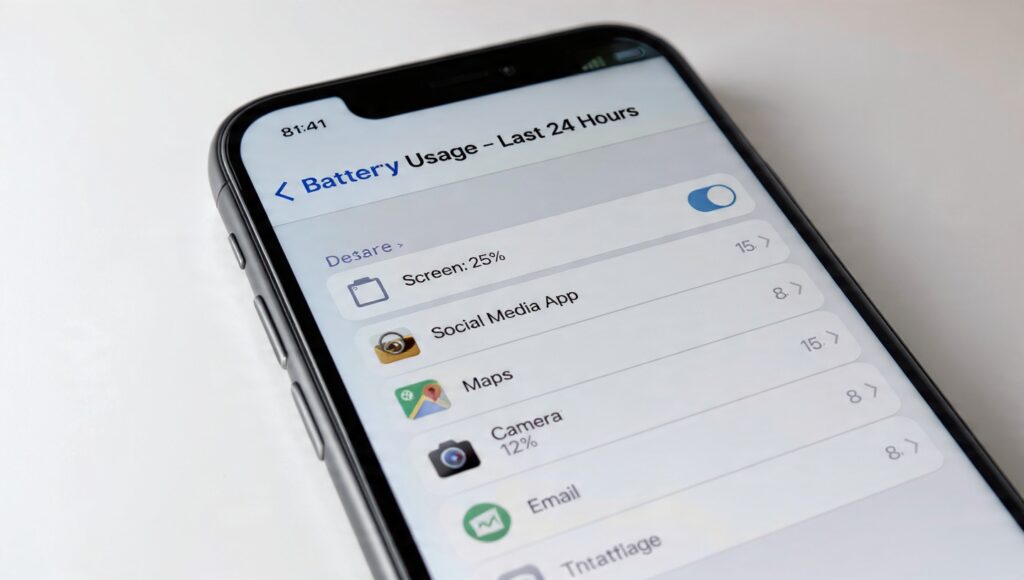
After monitoring battery usage on my Pixel 7 for six months, here’s what actually kills batteries:
Screen Brightness (Yeah, Really)
I know this sounds obvious, but most people have their brightness way higher than needed. I dropped mine from 80% to 50% for two weeks and gained almost 2 hours of screen-on time daily.
The adaptive brightness thing? It’s… okay. But it tends to crank up brightness more than necessary. I’ve had better luck setting a manual level that’s comfortable indoors and just bumping it up when I’m outside.
Background Location Services
This one destroyed me last year. I had 17 apps with “always allow” location access. Seventeen. Apps like weather, food delivery, even my banking app were constantly pinging GPS. Switched most of them to “while using app” and immediately noticed a difference.
Real talk: very few apps actually need your location all the time. Weather doesn’t. Your camera doesn’t. That meditation app definitely doesn’t.
Push Notifications for Everything
Every notification that lights up your screen costs battery. Not much individually, but I was getting 200+ notifications daily. Changed most apps to fetch data only when opened instead of pushing constantly. Battery improved, plus my sanity improved.
The Tips That Actually Move the Needle
Alright, here’s what works based on actual testing:
1. Dark Mode (On OLED Screens Only)
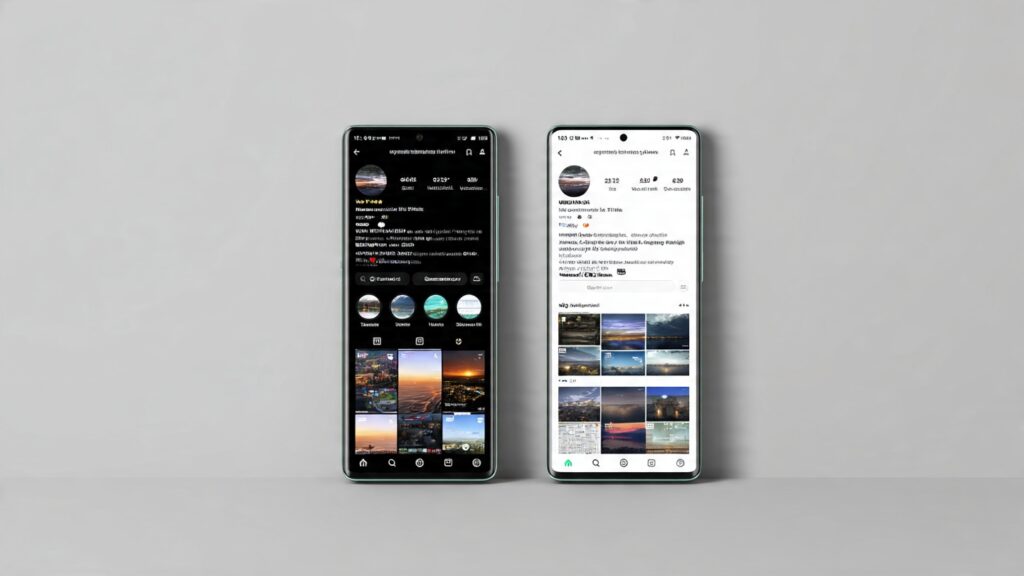
If you’ve got an iPhone with OLED (12 or newer) or most Android flagships, dark mode legitimately saves battery. OLED pixels are actually off when displaying black, so less power draw.
On LCD screens? Doesn’t matter. The backlight is on regardless. I wasted a month using dark mode on an iPhone 11 before realizing this.
2. Disable 5G When You Don’t Need Speed
Controversial opinion: 5G is a battery killer and often not noticeably faster than LTE in real-world use. I keep mine on LTE most of the time. Gained about 15-20% more battery life.
Only switch to 5G when you’re actually downloading something large or streaming high-quality video. For scrolling social media? You won’t notice the difference.
3. Lower Your Refresh Rate
If your phone has a 120Hz display, consider dropping it to 60Hz. Yes, scrolling is slightly less smooth. But the battery gains are real. I do 120Hz at home where I can charge, 60Hz when I’m out all day.
Some phones (like recent iPhones and Samsung flagships) have adaptive refresh rates that help, but manual control gives you more… control.
4. Manage Your Email Sync
Having Gmail, Outlook, and your work email all checking for new messages every 5 minutes is excessive. I changed mine to manual fetch for my personal email and 15-minute intervals for work. Saved about 10% battery daily and honestly, nothing terrible happened.
If something’s urgent, people will call or text. Email can wait 15 minutes.
5. The Nuclear Option: Low Power Mode
iOS Low Power Mode and Android Battery Saver are actually pretty smart now. They reduce background activity, lower screen brightness slightly, and limit some visual effects. The performance hit is minimal on modern processors.
I enable Low Power Mode at 50% instead of waiting for 20%. Means I usually end the day with battery to spare instead of hunting for outlets at 6 PM.
Battery Health: The Long Game
Most phones now have battery health monitoring in settings. Here’s what I’ve learned about keeping batteries healthy longer:
Temperature matters more than charging habits. Leaving your phone in a hot car does more damage than how often you charge it. I left my old phone in my car during a summer day in Arizona. Battery health dropped 4% in one afternoon. Oops.
Wireless charging generates more heat. I switched back to cable charging for overnight charges. Wireless is convenient for quick top-ups during the day, but for that 8-hour overnight charge? Cable is better for battery longevity.
Fast charging isn’t the devil. Modern phones are smart about it. They fast charge to about 80%, then slow down. Unless you’re constantly charging from 0% to 100% at maximum speed, you’re fine.
The Apps That Are Lying to You
Battery monitoring apps. Most of them are garbage.
I tested six different battery monitoring apps and they all showed different numbers. Some claimed Facebook was using 40% of my battery. Others said 12%. Your phone’s built-in battery stats are usually more accurate.
If you’re on Android and want detailed stats, AccuBattery is decent. But honestly? The built-in battery menu in Settings tells you everything you need to know.
When Nothing Works: Hardware Issues
Last month, my battery life suddenly tanked. Went from lasting all day to dying by lunch. Tried everything in this article. Nothing helped.
Turns out my charging port was slightly damaged and the phone wasn’t charging fully overnight. It showed 100%, but the battery wasn’t actually holding a full charge. Got it fixed for $40 and battery life went back to normal.
Sometimes it’s not software. If you’ve tried everything and battery life still sucks:
- The battery might be worn out (check battery health in settings)
- You might have a rogue app (check battery usage stats)
- There might be a hardware issue (charging port, battery itself)
After 2-3 years, batteries do degrade. That’s just chemistry. Replacement batteries are usually $50-100 and extend your phone’s life significantly.
Related Resources
If you’re looking to maximize your phone’s overall performance, check out our guides on Smartphone Performance Tips and Smartphone Security Tips. Battery life matters, but so does keeping your phone running smoothly and securely.
For choosing a phone with great battery life from the start, see our Smartphone Buying Guide and Best Smartphones of 2026.
Bottom Line
Battery life isn’t magic. It’s about understanding what actually drains power and making smart tradeoffs.
You don’t need to obsess over charging habits or close apps compulsively. Focus on the big things: screen brightness, location services, and connectivity options like 5G. Those three alone will probably give you an extra 2-3 hours of battery life.
And if your battery health is below 80%? Just get it replaced. Trying to squeeze another year out of a degraded battery is more hassle than it’s worth.
I’ll be honest, I still run out of battery sometimes. But it’s usually because I’ve been doom-scrolling Twitter for three hours, not because I failed to close my apps or charged my phone wrong. Battery life is about working with your usage, not against it.
Now go into your settings and check how many apps have “always allow” location access. I bet it’s more than you think.