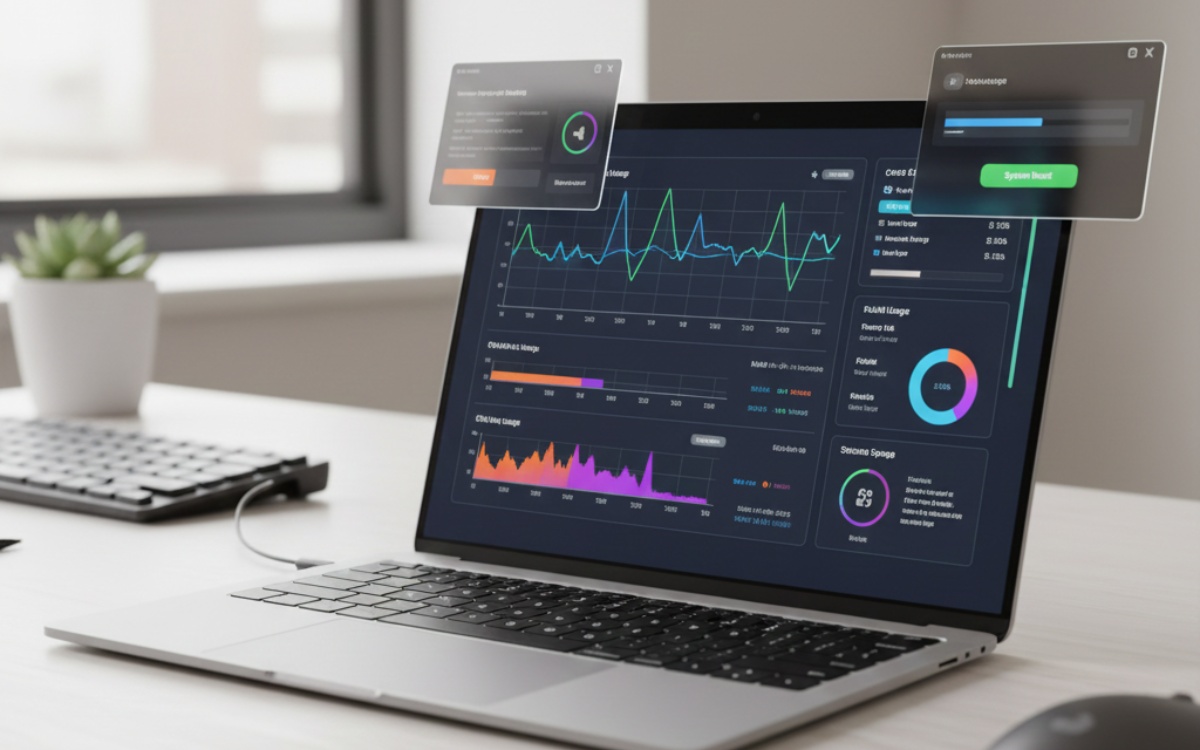
Laptop Performance Optimization: Stop Your Laptop from Running Like Garbage
This article is part of our comprehensive guide on Computers, Laptops, and Accessories. For the complete resource hub, check out the main guide.
Look, I’ve been there. Your laptop was blazing fast when you got it. Now it sounds like a jet engine taking off every time you open Chrome, and the battery dies faster than your motivation on a Monday morning.
Last month, my three-year-old ThinkPad started taking 4 minutes to boot. Four. Minutes. I almost threw it out the window. But here’s the thing: most laptop slowdowns aren’t because your hardware is dying. They’re because of stupid software bloat and settings you can actually fix.
Let me show you what actually works, based on stuff I’ve had to fix on my own machines and way too many family laptops.
Why Your Laptop Got Slow in the First Place
Before we fix anything, let’s talk about what’s killing your performance. It’s usually one of these culprits:
Startup Programs Running Wild Every app you install wants to launch at startup. Spotify, Discord, Steam, that PDF reader you installed once. They all sit there eating RAM like it’s free.
Background Processes You Forgot About Windows Update. Antivirus scans. Cloud backup services syncing your entire photo library. All happening at once, usually right when you’re trying to get work done.
Dying Storage Drive If you’re still on a mechanical hard drive in 2025, that’s your problem right there. I’ll get to this.
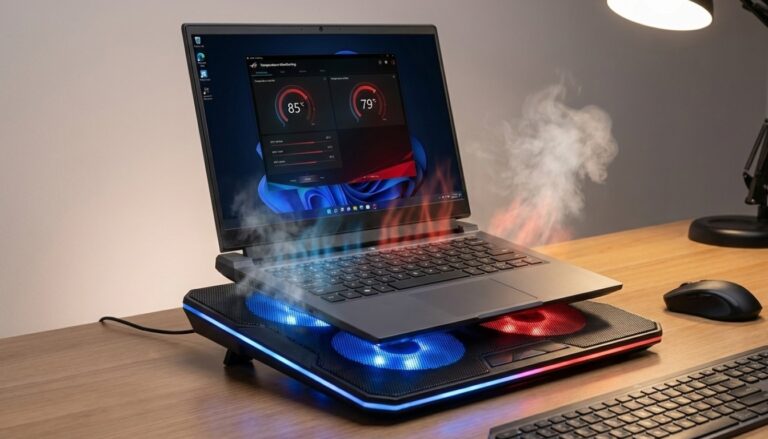
Thermal Throttling Your laptop gets hot, CPU slows down to protect itself, everything turns into molasses. Rinse and repeat.
The Quick Wins (Do These First)
1. Kill the Startup Bloat
Windows:
- Hit
Ctrl + Shift + Escto open Task Manager - Go to the Startup tab
- Disable everything except your antivirus and critical drivers
- Seriously, you don’t need Spotify loading on boot
Mac:
- System Settings > General > Login Items
- Remove everything you don’t actually need immediately
I did this on my mom’s laptop last week. Went from 47 startup programs to 8. Boot time dropped from 3 minutes to 45 seconds. She thinks I’m a wizard now.
2. Check What’s Eating Your RAM
Real talk: if you’ve got 8GB of RAM or less in 2025, you’re going to have a bad time. But let’s work with what you’ve got.
Windows Task Manager trick:
- Sort by Memory usage
- Look for Chrome tabs (yeah, I see you with 50 tabs open)
- Close apps you’re not actively using
- If you see something called “Runtime Broker” using 500MB+, that’s Windows being Windows
Mac Activity Monitor:
- Applications > Utilities > Activity Monitor
- Sort by Memory
- Quit the memory hogs
Pro tip: Chrome’s built-in task manager (Shift + Esc) will show you which tabs are destroying your RAM. That YouTube tab you left open? It’s probably using 800MB.
The Storage Situation (This One’s Important)
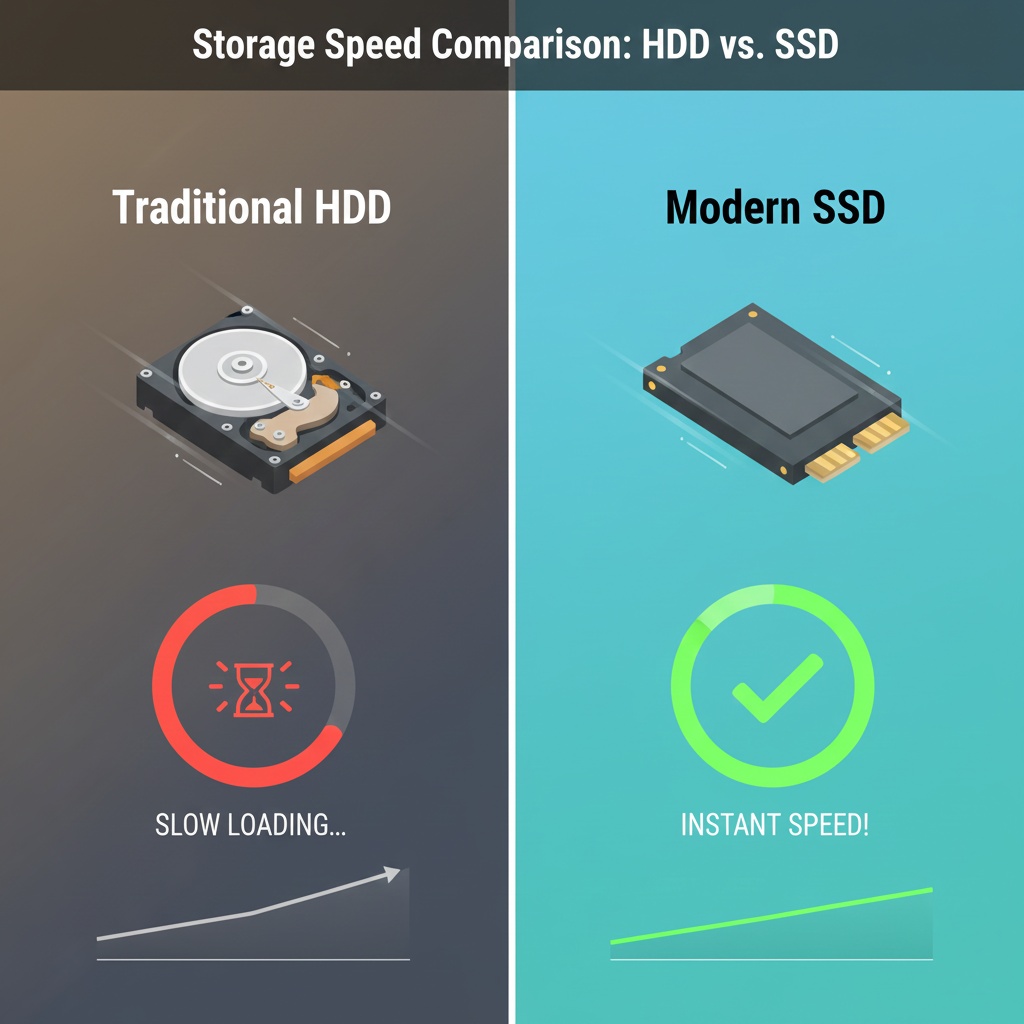
If you’re still running a spinning hard drive, upgrading to an SSD will change your life more than any other tweak on this list. I’m not exaggerating.
My partner’s 2019 Dell was dying. Took 5 minutes to boot, apps took forever to load. Swapped in a $50 SATA SSD. Now it boots in 30 seconds. Best $50 I ever spent on someone else’s computer.
What to do about storage:
- Check if you have an HDD or SSD (Google your laptop model if unsure)
- If HDD and your laptop supports it, upgrade to an SSD
- If already on SSD, make sure you have 20% free space minimum
- SSDs slow down when they’re nearly full (don’t ask me why, they just do)
Quick cleanup:
- Delete old downloads (mine was 40GB last time I checked)
- Clear browser cache
- Uninstall programs you don’t use
- Use Windows Storage Sense or Mac’s Optimize Storage
For more ways to keep your machine healthy long-term, check out our laptop maintenance tips guide.
Fixing the Heat Problem
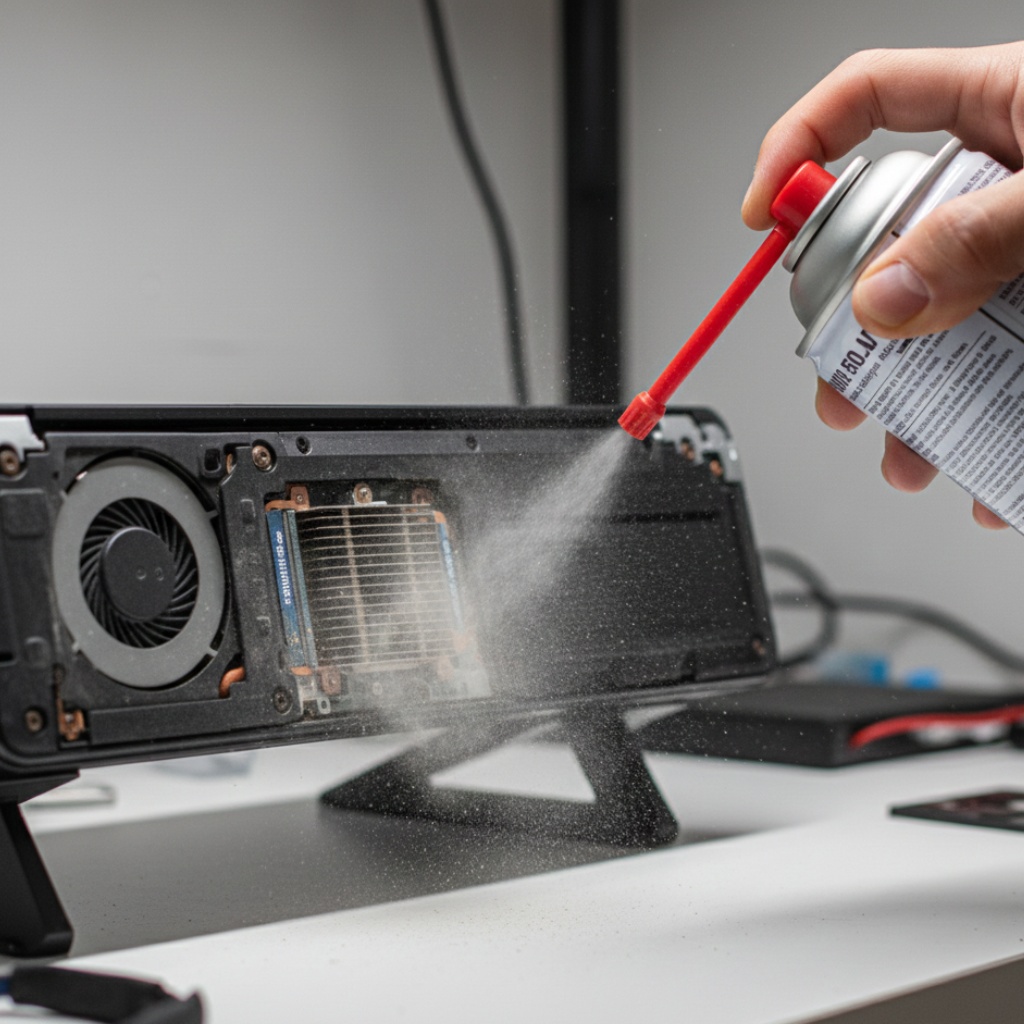
Here’s what nobody tells you: a dusty laptop is a slow laptop. When your cooling system gets clogged, your CPU throttles itself to avoid overheating. Performance tanks.
What I do every 6 months:
- Turn off laptop, unplug everything
- Get a can of compressed air
- Blow out the vents (seriously, so much dust will come out)
- Do this outside or over a trash can
If your laptop sounds like it’s about to achieve liftoff during normal use, you’ve got a heat problem. I wrote a whole thing about laptop cooling solutions if you need more aggressive fixes.
Software side:
- Close unnecessary background apps (they generate heat)
- Don’t use your laptop on soft surfaces (blocks airflow)
- Consider a laptop cooling pad if you game or do heavy work
Battery Life Optimization (Because We All Need This)
Your battery might not be dying. It might just be configured wrong.
Windows Battery Settings:
- Search for “Battery Saver”
- Turn it on when unplugged
- Adjust screen brightness (the biggest battery killer)
- Change power plan to “Balanced” or “Power Saver”
Mac Energy Settings:
- System Settings > Battery
- Enable “Low Power Mode” when needed
- Turn off automatic graphics switching if you don’t need it
The habits that actually matter:
- Close apps you’re not using (looking at you, Slack)
- Reduce screen brightness (50-60% is usually fine)
- Disconnect external devices when not needed
- Turn off Bluetooth and WiFi if you’re working offline
I get about 7-8 hours on my laptop now instead of the 4-5 I was getting before I fixed these settings. Check out which models naturally have the longest battery life if you’re in the market for an upgrade.
Operating System Tune-Ups
Windows Users
Disable visual effects:
- Search “Performance Options”
- Select “Adjust for best performance”
- Or manually disable animations you don’t need
Turn off background apps:
- Settings > Privacy > Background apps
- Disable everything except essentials
Manage Windows Updates:
- Settings > Windows Update > Advanced Options
- Set “Active hours” so updates don’t run during work
- This saved me during a demo last month when Windows decided to update mid-presentation
Mac Users
Reduce Motion and Transparency:
- System Settings > Accessibility > Display
- Turn on “Reduce motion” and “Reduce transparency”
- Makes a bigger difference than you’d think
Manage Spotlight:
- System Settings > Siri & Spotlight
- Exclude folders you don’t need indexed
- Especially external drives
When Software Isn’t the Problem
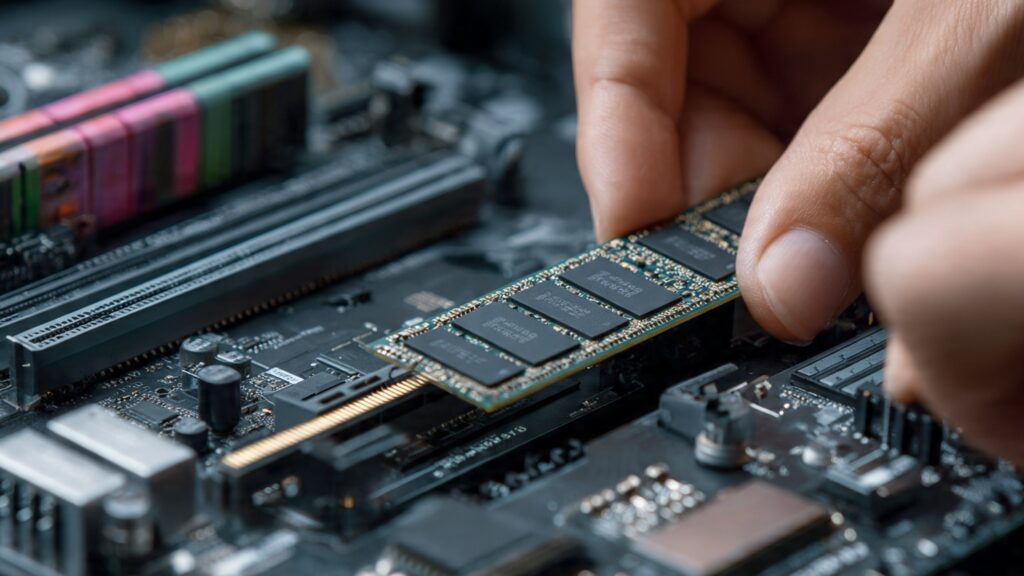
Sometimes your laptop is just old and there’s only so much you can do. But before you buy new:
Consider upgrading RAM:
- If you have 8GB, go to 16GB
- Check if your laptop supports it (Google: “[your laptop model] RAM upgrade”)
- It’s usually pretty easy to install yourself
Factory reset as last resort:
- Back everything up first (seriously, everything)
- Clean install of your OS
- Only works if the slowdown is software-related
- I’ve seen this revive laptops I thought were toast
Know when to quit:
- If your laptop is 7+ years old with a dual-core CPU
- If upgrading would cost more than a decent used laptop
- If the battery is swelling (stop using it immediately)
My Current Routine
Here’s what I actually do to keep my laptop running well:
Weekly:
- Close apps I’m not using
- Clear browser cache and old downloads
- Check Task Manager for weirdness
Monthly:
- Review startup programs
- Uninstall stuff I don’t use
- Check storage space
Every 6 months:
- Blow out the vents with compressed air
- Update all drivers
- Consider a factory reset if things feel sluggish
This routine takes maybe 15 minutes a month. Beats buying a new laptop every two years.
The Bottom Line
Look, laptop performance optimization isn’t rocket science. Most of it is just undoing the damage that software companies do by making everything run at startup and in the background.
The big wins are usually:
- SSD upgrade if you’re on HDD
- Cleaning out startup programs
- Keeping your laptop clean and cool
- Managing your RAM usage
Everything else is fine-tuning. Start with these, and you’ll probably get 80% of the performance back.
And if all else fails, back up your stuff and do a clean OS install. It’s annoying but effective. Just did this on my work laptop last month after Chrome extensions turned it into a memory-eating monster.
Your laptop doesn’t need to run like garbage. Most of the time, it just needs someone to clean up the mess. Now go forth and optimize.
Want to dive deeper? Our complete guide to computers, laptops, and accessories covers everything from buying advice to advanced troubleshooting. And if you’re dealing with security concerns alongside performance issues, don’t miss our laptop security tips.