

Best Laptops for Students: What Actually Matters (And What Doesn’t)
This article is part of our comprehensive guide on Computers, Laptops, and Accessories. For more tech advice and reviews, check out the full guide.
Here’s what happened last September: my cousin called me panicking because she’d just spent $1,200 on a “student laptop” that the sales guy recommended. Turns out it was a gaming laptop with RGB everything and a GPU she’d never use for writing essays in Google Docs.
I’ve helped probably a dozen students pick laptops over the years, and the advice I give them is basically the opposite of what you’ll hear in most computer stores. Students don’t need the fastest processor or the prettiest design. They need something that won’t die during a three-hour lecture and can survive being stuffed into a backpack five days a week.
Let me save you some money and headaches.
What Students Actually Need (Spoiler: Not Much)
Look, I’m not going to feed you the typical “students need powerful machines for the future” line. Most students spend 80% of their time in a web browser, a word processor, and maybe Zoom. That’s it.
Here’s what actually matters:
Battery life. This is number one. I don’t care if a laptop has the fastest SSD in the world if it dies halfway through your afternoon classes. You want at least 8 hours of real-world use. And when manufacturers say “up to 10 hours,” divide that by 1.5 to get the actual number.
Weight. Carrying a 5-pound laptop plus textbooks will wreck your back by week three. Anything under 3.5 pounds is ideal. Your shoulders will thank you.
Build quality. Cheap plastic that cracks when you look at it wrong? Pass. Students drop things. A lot. I’ve seen laptops that looked like they’d been through a war zone by the end of freshman year.
Keyboard comfort. You’ll be typing thousands of words per week. A mushy keyboard will make you hate your life during finals week.
The stuff that doesn’t matter as much as you think? Gaming performance, touchscreens, 4K displays, and having 32GB of RAM. Unless you’re in film school or computer science doing actual development work, you’re paying for features you won’t use.
Budget Tier: Under $500
I know, I know. Five hundred bucks sounds like nothing for a laptop. But here’s the thing: Chromebooks have gotten scary good for basic student work.
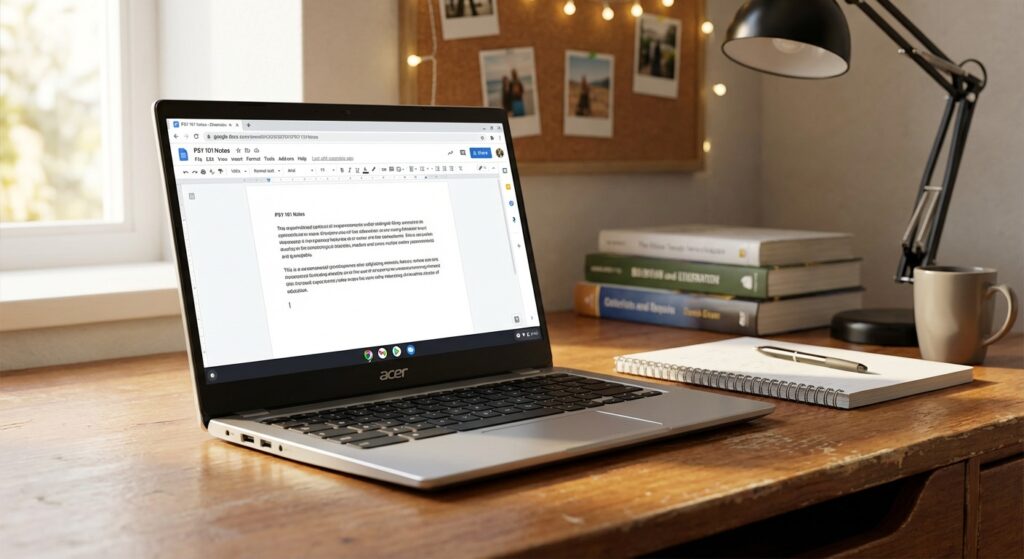
Acer Chromebook Spin 714 (around $450): This was my recommendation for a friend’s kid last year, and she’s still using it daily. 12-hour battery life, 3 pounds, and it handles Docs, Sheets, and about 15 Chrome tabs without breaking a sweat. The catch? You’re living in the Google ecosystem. If all your school stuff is online already, you won’t even notice.
Lenovo IdeaPad 3 (around $380-450): If you absolutely need Windows for specific software, this is your baseline. It’s not going to win any beauty contests, but it’s got a solid keyboard and enough power for Microsoft Office and web browsing. I helped my neighbor set one up last month. Works fine. Nothing exciting, but reliable.
Real talk: At this price point, you’re making compromises. These laptops won’t last four years of heavy use. But for freshmen who aren’t sure what they need yet? Better to start cheap and upgrade later than blow $1,500 on something you’ll regret.
If you’re trying to decide between different budget options, check out our guide on desktop vs laptop comparisons to see if a desktop might actually make more sense for your dorm setup.
Mid-Range: $600-$900

This is the sweet spot. You get actual quality without selling a kidney.
Microsoft Surface Laptop Go 3 (around $650): I’m biased here because I recommended this to three students last year and all three are still happy with it. 12.4-inch screen keeps the weight down to 2.5 pounds, battery lasts through a full day of classes, and the keyboard is genuinely nice to type on. It’s also built like a tank. One student dropped hers down a flight of stairs. Still works.
The downside? Limited ports. You’ll want to grab a USB hub if you need to plug in multiple things at once. Not a dealbreaker, just annoying.
HP Pavilion 15 (around $700-800): If you want a bigger screen for split-screen note-taking or watching lectures, this is solid. 15.6-inch display, decent AMD Ryzen processor, and enough RAM (8GB) to handle multitasking. My sister used one through her nursing program and it handled all her online modules without issues.
MacBook Air M1 (around $750 refurbished, $900 new): Yeah, I’m including a Mac. Here’s why: if you’re already in the Apple ecosystem with an iPhone and iPad, the integration is genuinely useful. AirDrop for moving files, Handoff for switching between devices, and the battery life is absurdly good. I’ve seen these go 15 hours between charges.
But don’t buy a Mac just because everyone else has one. You’re paying extra for the logo. If you’re on Windows or don’t care about ecosystem stuff, save your money.
For students who need to maximize their productivity setup, our laptop performance optimization guide has tips that’ll make any mid-range laptop feel snappier.
Premium: $1,000+
This is only if you’re in a program that actually needs it. Film editing, architecture, engineering, computer science with heavy development work. Otherwise, you’re overpaying.
Dell XPS 13 (around $1,100): This is what I’d buy if someone forced me to spend over a grand. Premium build, gorgeous display, excellent keyboard, and it weighs less than 3 pounds. I borrowed one for a week last year to test it out. The thing is legitimately great. Battery life hits 10-12 hours, and the screen is bright enough to work outside.
MacBook Air M3 (around $1,200): If you’re going Mac, this is the one. The M3 chip is overkill for most student work, which means it’ll stay fast for years. Plus, the fanless design means it’s silent during library study sessions. I watched someone edit 4K video on one last month. Didn’t even warm up.
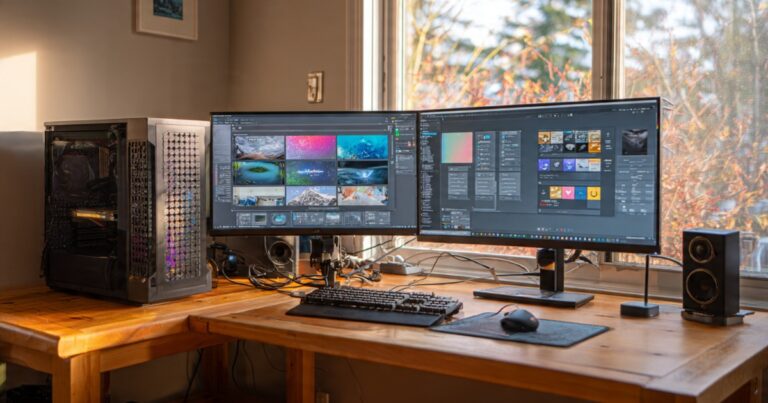
For creative programs: If you’re doing serious video editing or 3D modeling, check out our best computers for video editing guide instead. You might actually need a desktop for that kind of work.
The Real-World Stuff Nobody Talks About

Let me share some war stories from helping students over the years.
The backpack test matters. Before you buy, think about how you’ll actually carry this thing. I’ve seen students with 15-inch laptops crammed into tiny backpacks, edges sticking out, getting dinged up daily. If you’re walking between classes all day, size matters more than screen real estate.
Consider a protective case day one. I don’t care how careful you think you’ll be. Laptop sleeves cost $20. Laptop repairs cost $300. Do the math.
Battery degradation is real. That amazing 10-hour battery life? It’ll drop to 7-8 hours after a year of heavy use. This is normal. But it’s why buying something with 6 hours of battery life new is a bad idea. You’ll be hunting for outlets by sophomore year.
Port situation matters more than you think. Modern laptops love to cut ports to save weight. But if you need to plug in a USB drive during a presentation while your laptop’s charging, having only two USB-C ports becomes really annoying really fast. Check what ports you actually need before buying.
Weight over spec sheet. I’ve seen so many students buy “powerful” laptops and then leave them in their dorm because they’re too heavy to carry. A slower laptop you actually bring to class is infinitely more useful than a fast one gathering dust.
For more tips on keeping your laptop running well throughout your college years, check our laptop maintenance guide.
Common Mistakes I’ve Seen
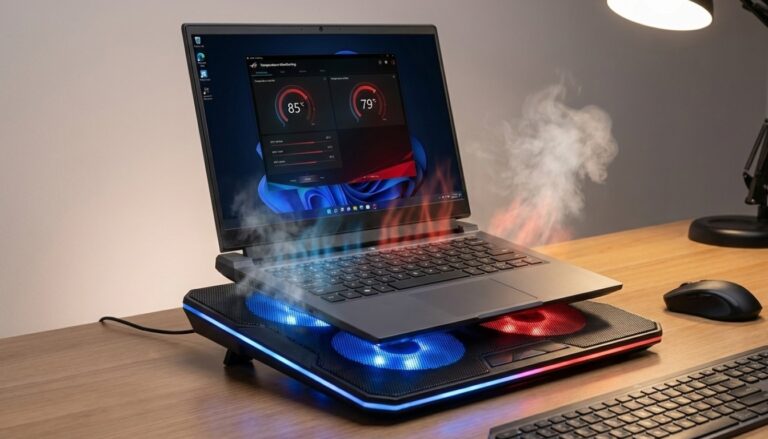
Mistake 1: Gaming laptops for non-gamers. Unless you’re actually gaming between classes, you’re paying for hardware you don’t need. Gaming laptops are heavy, have terrible battery life, and cost way more than student laptops with similar practical performance.
Mistake 2: Buying too much computer. You don’t need 16GB of RAM for taking notes. You don’t need an i7 processor for writing papers. I’ve seen students spend $500 extra on specs they’ll never use. That money’s better spent on textbooks. Or food. Definitely food.
Mistake 3: Ignoring storage. 128GB sounds like a lot until you install Microsoft Office, Zoom, Spotify, and three months of lecture recordings. Go for 256GB minimum. Trust me on this.
Mistake 4: Buying extended warranties from the store. These are usually overpriced. If you’re worried about damage, look into your family’s homeowners or renters insurance. Often covers electronics with a lower deductible than store warranties.
Mistake 5: Not testing the keyboard. If possible, try typing on it before buying. You’re going to be staring at that keyboard for hours every day. A bad keyboard will make you miserable during finals week when you’re typing 3,000-word essays.
Quick Recommendations by Major
Look, I’m oversimplifying here, but:
Liberal arts, business, most sciences: Any laptop in the $500-700 range will do fine. Chromebook if you’re fully cloud-based, Windows if you need specific software.
Engineering, computer science: $800-1,000 range. You’ll need actual processing power and RAM for running IDEs, simulations, or VMs. Check out best laptops for programmers for specific recommendations.
Film, design, architecture: $1,000+ or consider a desktop setup. Rendering and editing need real power. Our laptops for creative professionals guide has better options for these fields.
Pre-med, nursing, pharmacy: Mid-range is fine. You’re mostly doing online modules and research papers. Save your money for when you’re actually in professional school.
What About Accessories?
Don’t sleep on the accessories. A $50 investment in the right gear makes your $700 laptop way more useful.
External mouse: Please don’t be the person using a trackpad for everything. Your wrist will hurt by week two. A basic Logitech wireless mouse costs $15 and will save your sanity.
Laptop stand: If you’re studying in your dorm, getting your screen to eye level prevents neck pain. I use a $25 adjustable stand. Life-changing.
USB hub: If your laptop only has two ports, a $20 hub gives you more flexibility. Especially useful during presentations.
Screen protector and keyboard cover: For the klutzes among us. Costs $30 together, prevents a $200 screen replacement when you spill coffee during an all-nighter.
Check our full best accessories for laptops guide for more detailed recommendations.
Battery Life Reality Check
When a manufacturer says “up to 10 hours battery life,” they mean under perfect conditions: screen brightness at 40%, just browsing basic websites, Wi-Fi on but barely used. You know, the way nobody actually uses a laptop.
Real-world battery life (screen at comfortable brightness, Spotify playing, multiple Chrome tabs, maybe Zoom running):
- “10 hours advertised” = 6-7 hours actual
- “8 hours advertised” = 5-6 hours actual
- “15 hours advertised” (MacBook territory) = 10-12 hours actual
I learned this the hard way sophomore year when my “8-hour battery” laptop died 4 hours into a marathon study session. Bring your charger to long days on campus. Just do it.
For tips on extending battery life, our laptop performance optimization article has some solid tricks.
The Durability Question
Confession: I’ve never had a laptop survive four full years of daily use without something breaking. Hinges get loose, batteries degrade, keys pop off. It happens.
But some laptops hold up better than others. In my experience:
Most durable: ThinkPads (business-grade Lenovos), MacBooks (especially the aluminum ones), Dell XPS series, Microsoft Surface laptops.
Middle of the pack: HP Pavilions, most Asus laptops, Dell Inspirons.
Question marks: Budget Chromebooks under $300, no-name Amazon brands, anything that feels flimsy when you pick it up.
The best test? Pick up the laptop with one hand from a corner. If it flexes or creaks, it’s probably not going to survive being thrown in a backpack 500 times.
My Actual Top Picks (January 2025)

If a student asked me today what to buy, here’s what I’d recommend:
Best overall value: Acer Chromebook Spin 714 ($450). Does everything most students need, battery lasts forever, weighs nothing.
Best Windows laptop: HP Pavilion 15 ($750). Big enough screen for split-screen work, solid specs, good keyboard.
Best if money’s no object: MacBook Air M3 ($1,200). Overkill for most students, but you’ll use it through grad school if needed.
Best for computer science: Dell XPS 13 ($1,100). Enough power for development work, good Linux support if you need it, professional build quality.
Best budget backup: Lenovo IdeaPad 3 ($400). Keep your expectations low and it’ll exceed them.
The Upgrade Question
Should you buy a cheaper laptop now and upgrade in two years, or spend more upfront for something that lasts?
Honestly? It depends on your program. If you’re undeclared freshman year, start cheaper. You might discover you need specific features you didn’t expect. If you’re locked into a four-year engineering program, investing more upfront makes sense.
I usually recommend the middle path: get something in the $600-800 range that’s good enough for most work but won’t destroy your budget. If you find you need more power later, sell it and upgrade. Laptops hold their value decently if you take care of them.
Where to Buy (And Where Not To)
Good places:
- Manufacturer websites (often have student discounts)
- Best Buy (easy returns if something’s wrong)
- Amazon (check seller ratings, watch for fakes)
- Your school bookstore (sometimes has deals)
Sketchy places:
- Third-party eBay sellers claiming “new in box”
- Craigslist (too many scams)
- Airport electronics stores (massive markups)
And verify student discounts! Apple, Microsoft, Dell, and HP all offer education pricing. Sometimes it’s 10% off, sometimes more. Just need a .edu email address.
Final Thoughts
Look, buying a laptop for school shouldn’t be this complicated. But the laptop market loves to confuse people with specs and marketing nonsense.
Here’s the truth: most students need something light, with good battery life, and a decent keyboard. Everything else is bonus features. Don’t let sales people upsell you on stuff you won’t use.
Start with your actual needs. How much will you be carrying it around? What software do you absolutely need? What’s your realistic budget? Then find the lightest laptop in that budget with the best battery life. Done.
And if you’re still not sure what you need, wait a few weeks into the semester. See what your classmates are using. Ask your professors what they recommend. Better to use your old laptop (or a borrowed one) for a bit than rush into buying the wrong thing.
For more detailed guides on choosing the right computer setup for your needs, check out our complete Computers, Laptops, and Accessories guide.
Related Articles You Might Find Helpful
- Laptop Performance Optimization – Make your student laptop faster
- Best Laptops for Programmers – If you’re in CS or related fields
- Laptop Maintenance Tips – Keep it running through graduation
- Best Accessories for Laptops – Essential gear for student life
- Laptops with Longest Battery Life – When you can’t be near an outlet
- Best Laptop Backpacks – Protect your investment
- Desktop vs Laptop: Which to Choose – Is a dorm desktop setup better?




2 Comments
Comments are closed.