
Computer Storage Options: HDDs, SSDs, and What Actually Works
You know what nobody tells you when you’re building your first PC or upgrading a laptop? Storage choice matters way more than you think. I’ve seen people drop $2,000 on a gaming rig with an RTX 4090, then bottleneck the whole thing with a 5400 RPM hard drive because “storage is storage, right?”
Wrong. So wrong.
Last year, I helped a friend troubleshoot why his new laptop felt sluggish. Decent specs on paper, but everything took forever to load. Turns out? The manufacturer had slapped in a cheap HDD to hit a price point. We swapped it for a mid-range SSD, and the thing felt like a completely different machine.
Here’s what you actually need to know about storage options in 2025, without the marketing BS.
This article is part of our comprehensive guide on Computers, Laptops, and Accessories. For everything from choosing the right laptop to essential accessories, check out the full guide.
The Three Main Storage Types (And When They Don’t Suck)
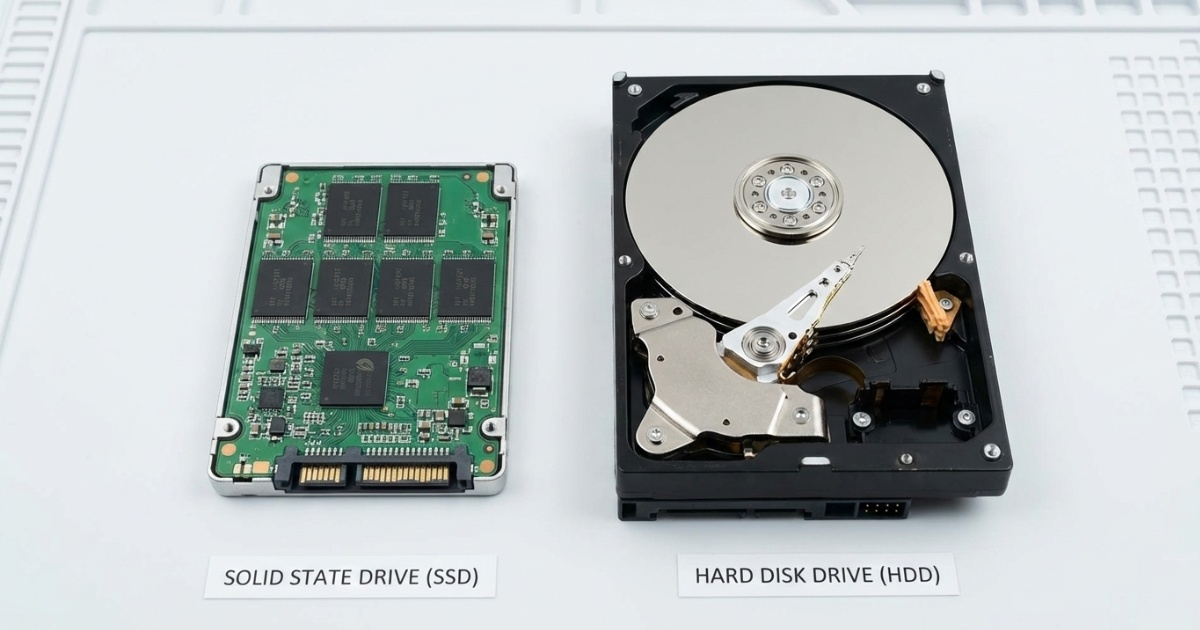
Hard Disk Drives (HDDs): Not Dead Yet
Look, I know HDDs get dumped on constantly. They’re slow, they’re mechanical, they can fail if you look at them wrong. But here’s the thing: they’re still useful for specific situations.
What HDDs are good for:
- Mass storage on a budget (I’ve got a 4TB HDD for video project archives)
- Secondary drives for files you rarely access
- NAS setups where you need tons of space cheap
Where HDDs fail you:
- Boot drives (your OS will crawl)
- Gaming (load times will test your patience)
- Any workflow with lots of small file reads/writes
- Laptops (seriously, just don’t)
I still run a 2TB HDD in my desktop for old project files and backups. Cost me $50. A 2TB SSD would’ve been $150+. For stuff I access maybe once a month? That’s fine.
Real talk: If someone tries to sell you a new laptop with an HDD as the primary drive in 2025, walk away. I don’t care how good the deal looks.
Solid State Drives (SSDs): The Default Choice Now
SSDs used to be this premium luxury thing. Not anymore. Prices have dropped so much that there’s basically no excuse not to use one as your main drive.
I switched my old desktop from HDD to SSD back in 2019, and it felt like going from a bicycle to a sports car. Boot time went from 2 minutes to 15 seconds. Programs opened instantly. File transfers that used to take 10 minutes finished in 30 seconds.
Types of SSDs you’ll run into:
SATA SSDs:
- Max speed around 550 MB/s
- Cheap and widely compatible
- Good enough for most people
- What I recommend for budget builds
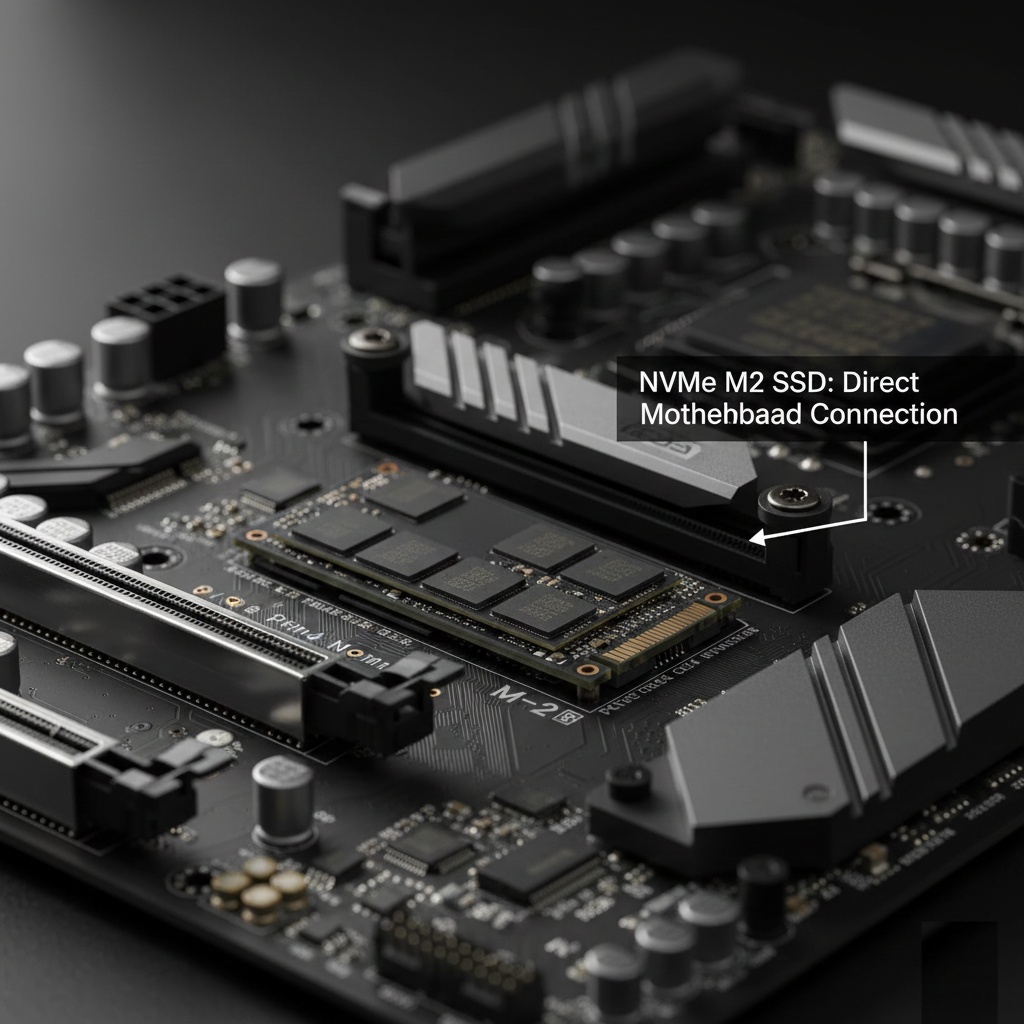
NVMe SSDs (M.2):
- Speeds up to 7,000 MB/s on PCIe 4.0
- Tiny form factor (fits in a slot on your motherboard)
- Worth it if you work with large files constantly
- My current setup uses a 1TB Samsung 980 Pro
Here’s what actually matters: unless you’re doing 4K video editing or running massive databases, you probably won’t notice the difference between a good SATA SSD and a fancy NVMe drive in daily use. I tested this. Opening Chrome? Same speed. Loading Steam games? Maybe 2 seconds faster with NVMe.
But video rendering? Yeah, NVMe crushes it.
Common SSD gotcha: Don’t fill them completely. SSDs slow down when they’re near capacity. I learned this the hard way when my boot drive hit 95% full and everything started stuttering. Keep at least 10-15% free space.
Hybrid Drives (SSHDs): The Awkward Middle Child
Hybrid drives try to give you “the best of both worlds” by combining a small SSD cache with a traditional HDD. In theory, frequently accessed files get stored on the fast SSD portion while everything else sits on the HDD.
In practice? Meh.
I tested a Seagate FireCuda SSHD a couple years back. It was faster than a plain HDD, sure. But nowhere close to a real SSD. The 8GB cache only helped with files you accessed repeatedly, and the algorithm for deciding what to cache wasn’t always smart.
When hybrid drives make sense:
- You need 2TB+ storage but can’t afford a full SSD
- It’s a secondary drive in a desktop
- Literally no other option fits your budget
When they don’t:
- As a boot drive (just get a 500GB SSD instead)
- In laptops (the performance gain isn’t worth it)
- If you can stretch budget for a real SSD
Honestly? With SSD prices where they are now, I’d rather get a smaller pure SSD for my OS and programs, then add a cheap HDD for bulk storage. Hybrid drives feel like a solution to a problem that doesn’t exist anymore.
What Speed Actually Means (And What’s Just Marketing)
Manufacturers love throwing around big numbers. “7,000 MB/s read speeds!” Sounds impressive. But here’s what I’ve learned from actually using these things:
Sequential read/write speeds (the big numbers in ads):
- Matter for: Large file transfers, video editing, moving giant folders
- Don’t matter for: Boot times, opening apps, gaming, web browsing
Random read/write speeds (4K performance):
- Matter for: Everything else, especially OS responsiveness
- Often ignored in marketing because the numbers aren’t as sexy
I’ve got a PCIe 3.0 NVMe drive that does 3,500 MB/s sequential and a PCIe 4.0 drive that does 7,000 MB/s. You know what? My computer doesn’t feel twice as fast. Because most of what you do involves random small file access, not copying 50GB video files.
Check out our guide on Best Laptops for Programmers to see how storage choices affect development workflow.
Storage Configurations That Actually Work
For Most People: Single SSD Setup
- 500GB-1TB NVMe SSD for everything
- Simple, fast, no complexity
- What I run on my laptop
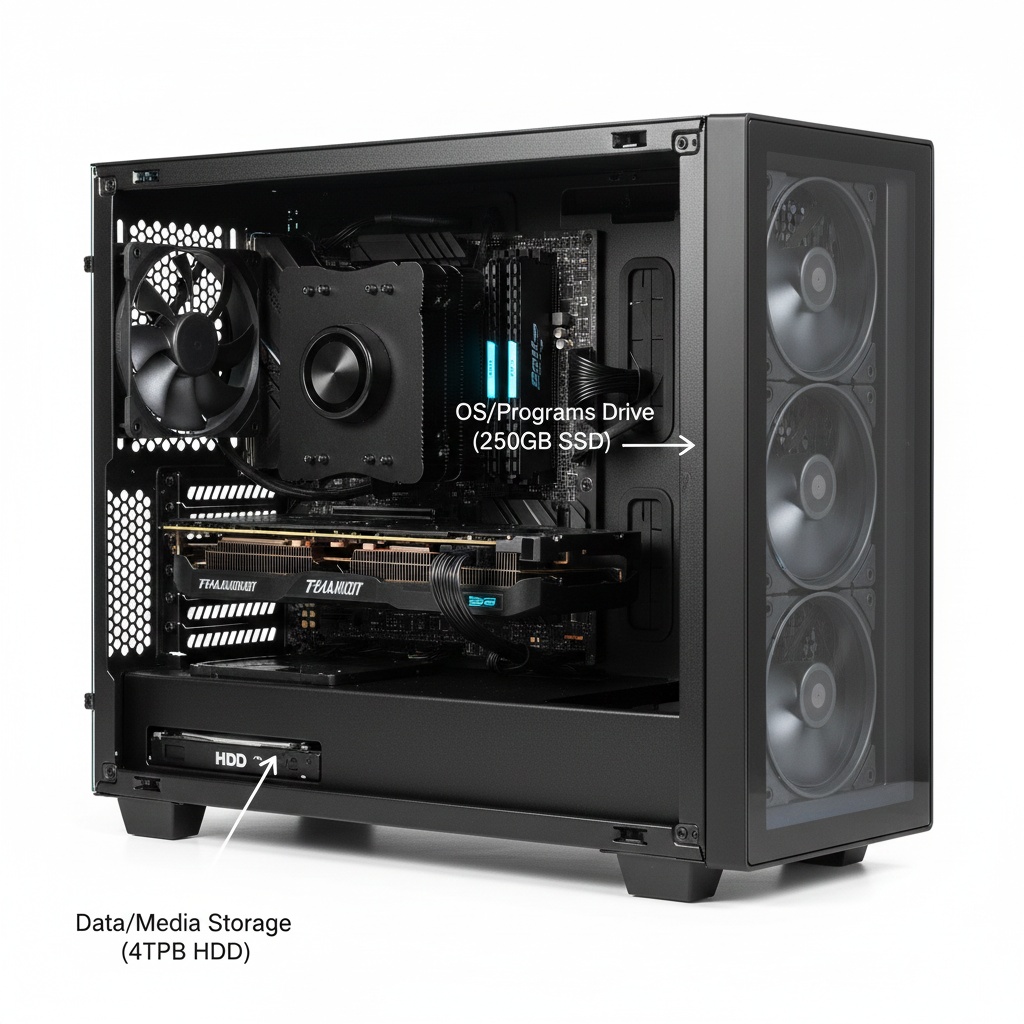
For Power Users: SSD + HDD Combo
- 500GB-1TB SSD for OS and programs
- 2TB+ HDD for media, backups, archives
- My current desktop setup
- Costs less than going all-SSD
For Professionals: Multi-SSD Setup
- Fast NVMe for OS (500GB)
- Larger NVMe for active projects (1-2TB)
- SATA SSD or HDD for completed work
- Only worth it if you actually need the speed
I ran the multi-SSD setup for a while when I was doing a lot of video work. The moment I stopped editing 4K footage regularly, I downgraded. The performance difference for normal work wasn’t worth the cost.
The Mistakes I’ve Made (So You Don’t Have To)
Buying the cheapest SSD: Learned this one early. Got a no-name 120GB SSD for $20. It died in 8 months and took my data with it. Stick to known brands: Samsung, Crucial, WD, Kingston.
Ignoring endurance ratings: SSDs have a limited number of write cycles. Most consumer drives are rated for 150-300 TBW (terabytes written). For normal use, you’ll never hit this. But if you’re running a database or doing constant video rendering, check the endurance spec. I burned through a cheap SSD in 18 months running a local dev server that wrote logs constantly.
Not checking compatibility: Bought a Gen 4 NVMe drive for a laptop that only supported Gen 3. It worked, but at Gen 3 speeds. Wasted money on performance I couldn’t use.
Forgetting about TRIM: Windows usually enables TRIM automatically for SSDs, but double-check. Without it, your SSD will slow down over time as deleted files aren’t properly cleared.
For more on keeping your system running smoothly, check out our Laptop Performance Optimization guide.
What to Buy in 2025
Best Budget Option:
- Crucial BX500 (SATA SSD, 500GB, ~$40)
- WD Blue SA510 (SATA SSD, 1TB, ~$70)
Best Value NVMe:
- Kingston NV2 (1TB, ~$60)
- Crucial P3 (1TB, ~$65)
High-Performance Pick:
- Samsung 990 Pro (1TB, ~$120)
- WD Black SN850X (1TB, ~$110)
Bulk Storage:
- Seagate Barracuda (2TB HDD, ~$50)
- WD Blue (4TB HDD, ~$85)
Prices change constantly, but those are solid choices that won’t let you down. I’m currently running the Samsung 990 Pro as my main drive and it’s been rock solid for 6 months.
If you’re building a complete system, our Desktop Computers Buying Guide covers how storage fits into the bigger picture.
The Bottom Line
Storage isn’t exciting until you get it wrong. Then it’s the most frustrating part of your computer.
Here’s my actual advice: Get a 500GB-1TB SSD as your main drive. If you need more space, add a cheap HDD for bulk storage. Don’t overthink NVMe vs SATA unless you’re doing professional media work. And for the love of all that’s holy, back up your important stuff.
I’ve lost data to failed drives twice. Once was a cheap SSD that died without warning. The second was an HDD that got knocked while spinning. Both times sucked. Learn from my mistakes.
Want more tips on maintaining your computer? Check out our Laptop Maintenance Tips for keeping everything running smoothly.

2 Comments
Comments are closed.