
Collaboration Tools for Teams: What Actually Works (And What Doesn’t)
I’ve been on both sides of the remote work thing. Three years ago, I was that person insisting Slack was enough for everything. Spoiler: it wasn’t. Last year, our team tried using seven different tools at once. Also a disaster.
Here’s what I’ve learned after managing distributed teams across three time zones: the right collaboration tools can make remote work feel almost normal. The wrong ones? They’ll have you scheduling “syncs about syncs” and wondering why nothing ever gets done.
This article is part of our comprehensive guide on Software, Apps, and Productivity Tools. For the complete overview of productivity software, check out the main guide.
Why Most Teams Get Collaboration Tools Wrong
Look, buying Asana or Monday.com doesn’t magically make your team collaborative. I learned this the hard way when we spent $2,000 on licenses and still had half the team emailing Word docs back and forth.
The problem isn’t usually the tool. It’s that nobody thinks about what “collaboration” actually means for their team. Are you shipping code together? Managing client projects? Running marketing campaigns? Each needs different things.
Real talk: If you’re just looking for “the best collaboration tool,” you’re asking the wrong question. I’ll show you how to figure out what you actually need.
Communication Tools (Because Email Isn’t Enough)
Slack vs Microsoft Teams vs Discord
I’ve used all three. Extensively. Here’s the breakdown nobody tells you:
Slack is great until your company hits about 50 people. Then the channels multiply like rabbits, notifications become overwhelming, and you’ll spend 20 minutes searching for that link someone shared last Tuesday. We’re paying $12.50 per user per month, and honestly? It’s worth it for the integrations alone.
Microsoft Teams makes sense if you’re already in the Microsoft ecosystem. I resisted it for two years because, well, Microsoft. But if you’re using Office 365 anyway, the integration is actually pretty solid. Video calls are more stable than Zoom half the time.
Discord works surprisingly well for smaller teams, especially if you’ve got a younger crew who already uses it for gaming. It’s free for most features, and the voice channels are clutch for quick conversations. Just don’t expect enterprise-grade security or compliance features.
My take: Start with Slack if you’re under 100 people and need lots of app integrations. Go Teams if Microsoft already has its hooks in you. Try Discord if you’re a startup burning through cash and need something that just works.
For more on managing your communication workflow, check out our guide on Email Management Tools.
Project Management (Where Tasks Go to Live or Die)
The Big Players
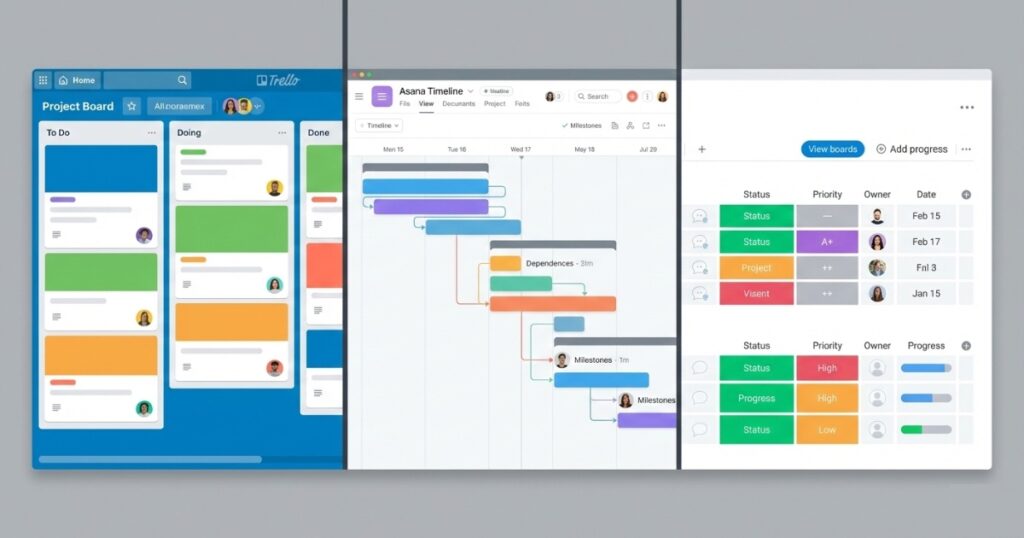
I’ve killed projects in Trello, Asana, Monday.com, and ClickUp. Not because the tools are bad, but because we picked the wrong one for what we were doing.
Trello is dead simple. Cards, lists, boards. That’s it. Perfect for content calendars or simple workflows. Terrible for complex projects with dependencies. We used it for our blog pipeline for two years before outgrowing it.
Asana hits a sweet spot for medium-complexity projects. The timeline view actually helps you spot bottlenecks before they wreck your sprint. But the learning curve is real. Took our team three weeks to stop fighting it.
Monday.com looks pretty and demos well. In practice? It can get overwhelming fast. Too many views, too many customization options. Great for agencies juggling multiple clients, overkill for a product team shipping features.
ClickUp tries to be everything. Tasks, docs, goals, time tracking, chat. I appreciate the ambition, but honestly? It feels bloated. Loading times can be rough, and the UI tries to do too much.
What I’d pick today: Asana for product development, Trello for simple workflows, Monday.com if you’re running an agency. Skip ClickUp unless you really need that all-in-one approach.
If you’re struggling with task overload across multiple tools, our Task Management Apps guide breaks down focused solutions.
Document Collaboration (Google Docs Isn’t Always the Answer)
Hot take: Google Docs is fine for most stuff. But I’ve watched three people try to edit a complex technical document at once, and it turned into a formatting nightmare.
Google Workspace (Docs, Sheets, Slides) works great for 90% of collaborative writing. Real-time editing, commenting, suggesting mode. Version history saved my butt more times than I can count.
Notion is what happens when a wiki, a database, and a document editor have a baby. I love it for knowledge bases and team documentation. Terrible for quick notes or anything requiring complex formatting. And the offline mode? Don’t get me started.
Confluence is… fine. If you’re using Jira, it makes sense. Otherwise, it’s overkill and feels stuck in 2015.
Coda and Airtable bridge documents and databases. Cool concept, steep learning curve. We tried migrating our product roadmap to Coda last year. Three months later, half the team still didn’t get it.
For focused writing work, see our Note-Taking Apps Guide and Productivity Apps for Writers.
File Sharing (Dropbox vs Google Drive vs OneDrive)
I’ve lost files in all three. Here’s the truth:
Google Drive is the default for a reason. 15GB free, integrates with Gmail, search actually works. We’ve been using it for five years. The only complaints? Syncing can be wonky on slower connections.
Dropbox used to be the king. Now it’s just expensive. $20/month for 2TB when Google gives you the same for $10. The Smart Sync feature is nice, but not $10-per-month nice.
OneDrive comes with Office 365, so you’re probably already paying for it. Integration with Windows is smooth. The mobile app crashed on me twice last week, though.
Box is for enterprise security nerds. If you’re in healthcare or finance, you might need it. Everyone else? It’s overkill.
My setup: Google Drive for shared documents, Dropbox for client deliverables (because they’re used to it), OneDrive because it came with Office.
Need more storage options? Our Best Cloud Storage Solutions guide covers this in depth.
Video Conferencing (The Zoom Fatigue Is Real)
Zoom won the pandemic. It’s stable, it works, your parents can figure it out. The 40-minute limit on free accounts is annoying but kind of genius for keeping meetings short.
Google Meet is fine if you’re already in Google Workspace. No downloads, just click a link. Quality isn’t quite Zoom-level, but it’s close enough.
Microsoft Teams for video is actually pretty good. Screen sharing is smoother than Zoom sometimes. The interface is cluttered though.
Around and Mmhmm tried to reinvent video calls. Cool features, but nobody else uses them, so what’s the point?
Stick with Zoom unless you’ve got a specific reason not to.
Remote Whiteboarding (Because Actual Whiteboards Don’t Work on Zoom)
Miro is the one we use. It’s chaotic and messy and somehow that works for brainstorming. We mapped our entire product roadmap on it last quarter. The free plan is surprisingly generous.
Mural is Miro’s more corporate cousin. Templates are better, facilitation features are slicker. Also more expensive.
Figma works great if you’re doing design work. Not really for general collaboration though.
Lucidchart for flowcharts and diagrams. Less freeform than Miro, more structured. Better for technical documentation.
For creative brainstorming workflows, check out our Mind Mapping Software guide.
Time Tracking (For When You Need to Prove You’re Working)
Toggl is simple. Start timer, stop timer, generate report. We use it for client billing. The browser extension saves me from forgetting to track constantly.
Harvest does time tracking plus invoicing. If you’re freelancing or running an agency, it’s worth the $12/month.
Clockify is the free alternative to Toggl. Works fine, fewer features, ads in the interface.
RescueTime tracks automatically in the background. Eye-opening when you realize you spent four hours on Twitter. Depressing, but eye-opening.
Combine this with our Time Management Apps strategies for better productivity.
What Remote Teams Actually Need (My Framework)

After setting up collaboration stacks for four different teams, here’s my cheat sheet:
Communication:
- Real-time chat (Slack/Teams/Discord)
- Video conferencing (Zoom)
- Async updates (Loom for quick videos)
Project Management:
- Task tracking (Asana/Trello/Monday)
- Documentation (Notion/Confluence)
- Time tracking if billing clients (Toggl)
File Sharing:
- Cloud storage (Google Drive/Dropbox)
- Version control for code (GitHub/GitLab)
Creative Collaboration:
- Whiteboarding (Miro)
- Design feedback (Figma)
Don’t try to use everything at once. Pick one tool per category max. Otherwise you’ll spend more time managing tools than doing actual work.
For specific team types, see Collaboration Tools for Remote Work and Collaboration Apps for Students.
Common Mistakes I’ve Made (So You Don’t Have To)
Mistake #1: Too Many Tools Last year we had Slack for chat, Asana for tasks, Notion for docs, Miro for brainstorming, Google Drive for files, and Zoom for calls. Sounds organized, right? Wrong. Nobody knew where anything was. We consolidated to three tools and productivity actually improved.
Mistake #2: Not Training the Team Bought Monday.com, sent a 10-minute Loom walkthrough, expected everyone to figure it out. Three months later, half the team was still using spreadsheets. Now we do live onboarding sessions. Takes longer upfront, saves months of confusion.
Mistake #3: Ignoring Mobile Apps Picked a tool with a trash mobile app. Guess what happens when your team can’t check tasks or respond to messages on their phones? They just… don’t. Mobile experience matters more than you think.
Mistake #4: Going All-In Too Fast Spent $5,000 on annual licenses before confirming the tool would work for us. Three months in, we realized it wasn’t a good fit. Now we test with free trials or monthly billing first.
Mistake #5: Forgetting About Integrations Our task management tool didn’t connect to our chat app. Meant manually updating both. Lasted two weeks before we gave up. Check integrations before committing.
The Tools I’d Actually Recommend (Based on Team Size)
Solo/Freelancer (1-2 people):
- Slack free tier for client communication
- Trello for task tracking
- Google Drive for files
- Zoom free for client calls
- Cost: Mostly free, maybe $20/month total
Small Team (3-10 people):
- Slack Standard ($8/user/month)
- Asana Premium ($13/user/month)
- Google Workspace ($12/user/month)
- Miro free tier
- Cost: ~$35/user/month
Medium Team (10-50 people):
- Microsoft Teams (comes with Office 365)
- Monday.com ($12/user/month)
- Notion Team ($10/user/month)
- Miro Team ($10/user/month)
- Cost: ~$40-50/user/month
Large Team (50+ people):
- Microsoft Teams or Slack Enterprise
- Asana Business or Monday Enterprise
- Confluence for documentation
- Whatever tools your IT department approves
- Cost: Negotiate custom pricing
Integration Automation (The Secret Sauce)
Here’s something that changed our workflow: Zapier and Make (formerly Integromat).
We set up automations like:
- New Asana task → Slack notification
- Google Form submission → Creates card in Trello
- Email attachment → Saves to Google Drive folder
Costs about $20-30/month but saves hours of manual copying between tools.
Zapier is easier to set up but more expensive. Make has a steeper learning curve but way more power and better pricing.
For broader productivity automation, see Automation Tools for Productivity.
Free vs Paid: When to Upgrade
I bootstrapped my first team on free tools for eight months. Here’s when we finally upgraded:
Slack: When searching message history became critical (free only shows 90 days)
Asana: When we needed timeline view and dependencies (project planning got complex)
Zoom: When 40-minute meetings weren’t cutting it (never, actually, we just scheduled multiple calls)
Google Workspace: When we needed custom email addresses (professionalism matters to clients)
General rule: Start free, upgrade when you’re actually hitting limitations, not just because you can afford it.
Our Free vs Paid Productivity Apps guide dives deeper into this decision.
Security Stuff You Can’t Ignore
I’m not a security expert, but I’ve made enough mistakes to know what matters:
Two-factor authentication: Turn it on. Everywhere. Our Asana account got compromised last year because one team member had a weak password. Not fun.
Access controls: Review who has admin access quarterly. We found three ex-contractors still had full access to our Google Drive six months after they left.
Data backup: Tools can fail. Notion went down for four hours last month. We lost nothing because everything was backed up to Google Drive automatically.
Compliance: If you’re handling customer data, check if your tools are GDPR/HIPAA/SOC 2 compliant. This matters more than you think.
What’s Actually Worth It in 2025
After spending probably $50,000+ on collaboration tools over five years, here’s what I’d pay for again:
Worth every penny:
- Slack (communication is critical)
- Asana (project chaos is expensive)
- Google Workspace (reliability matters)
- Zoom (stable video calls pay for themselves)
Worth it if you need it:
- Notion (for documentation-heavy teams)
- Miro (for creative/design teams)
- Monday.com (for agencies)
Skip unless you have specific needs:
- ClickUp (too bloated)
- Most “all-in-one” solutions
- Tools that don’t integrate with your existing stack
The Honest Truth About Remote Collaboration
No tool will fix bad communication. I’ve seen teams with Slack, Asana, and Zoom still fail at working together because nobody established clear processes.
The best collaboration stack is the one your team actually uses. I’d rather have a team crushing it with Trello and Google Docs than struggling with a fancy $50/user/month setup nobody understands.
Start simple:
- Pick a chat tool (Slack/Teams/Discord)
- Pick a task tracker (Trello/Asana/Monday)
- Use Google Drive for files
- Add more tools only when you feel real pain
Test stuff. Most tools have free trials. Actually use them with your team before buying. And for the love of productivity, don’t try to implement five new tools at once.
What I’m Using Right Now
Since people always ask, here’s my current stack for a 12-person remote team:
- Communication: Slack Standard ($100/month)
- Projects: Asana Premium ($156/month)
- Docs: Google Workspace ($144/month)
- Files: Google Drive (included)
- Video: Zoom Pro ($180/month)
- Whiteboarding: Miro (free tier, might upgrade)
- Time Tracking: Toggl ($108/month)
Total: ~$700/month or about $58/person. Not cheap, but we tried going cheaper and productivity tanked.
Tools on My Radar for 2026
I’m watching a few new players that might be worth trying:
Linear for issue tracking looks slick. Better than Jira for product teams, supposedly.
Height is trying to be a better Asana. Early but interesting.
Twist from the Todoist team positions itself as “calmer” team communication. Async-first approach.
Grain for recording and sharing meeting clips. Could replace Loom for us.
Haven’t fully tested any of these yet. My policy is to wait until tools mature before betting the farm on them.
Check out Productivity App Trends 2026 for more emerging tools.
Final Recommendations
If you’re setting up collaboration tools from scratch:
Week 1: Set up Slack and Google Drive. Get everyone comfortable with basic chat and file sharing.
Week 2: Add a task management tool. Start simple with Trello, upgrade to Asana if you need more power.
Week 3: Establish Zoom for video calls. Set up recurring meeting rooms.
Week 4: Add specialized tools based on actual pain points. Documentation? Add Notion. Visual brainstorming? Try Miro.
Give each tool at least a month before deciding it doesn’t work. And actually train your team. A 30-minute onboarding session beats a “figure it out yourself” approach every time.
The goal isn’t to have the perfect stack. It’s to have tools that get out of your way and let your team actually work together. Everything else is just features.
For a complete overview of all productivity software options, revisit our main Software, Apps, and Productivity Tools guide.





One Comment
Comments are closed.