

Focus and Distraction-Blocking Apps: What Actually Works (And What Doesn’t)
I’ll admit it: I used to think I had pretty good focus. Then I checked my screen time last month and realized I was picking up my phone 87 times a day. Eighty-seven. Most of those were “just checking” Slack or Twitter for “work reasons.”
Yeah, I had a problem.
So I went down the rabbit hole of focus apps and distraction blockers. Tried about a dozen of them. Some worked great. Some made things worse. And a few taught me that my productivity issues weren’t really about the apps at all.
Here’s what I learned after spending way too much time trying to stop wasting time.
This article is part of our comprehensive guide on Software, Apps, and Productivity Tools. For the full guide on boosting your workflow, check out the main hub.
The Real Problem With Distraction
Before we get into specific apps, let’s talk about what actually happens when you’re trying to focus.
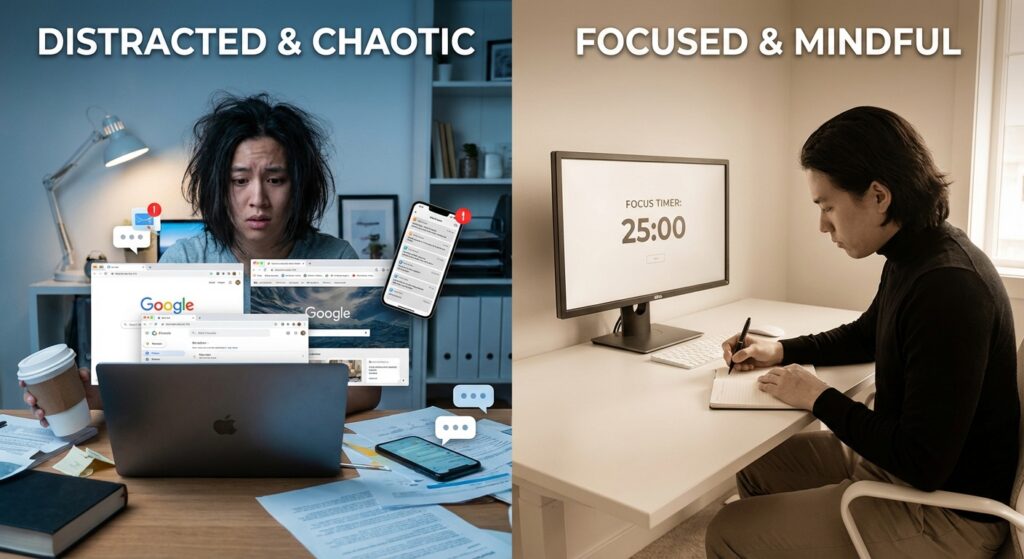
You sit down to write code or finish a report. Your brain knows this is going to require effort. So it does what brains do: it looks for an escape route. Could be email. Could be Reddit. Could be reorganizing your desktop icons for the third time this week.
The thing is, most distraction-blocking apps treat this like a willpower problem. Just block the websites, right? Problem solved.
Except that’s not how it works. I’ve watched myself, blocked from Twitter, suddenly develop an intense need to check the weather. Then sports scores. Then whether my package shipped. The distraction just shape-shifts.
The apps that actually helped me weren’t just blockers. They were the ones that either made distractions inconvenient enough that I’d notice the urge, or structured my time so I had permission to be distracted later.
Apps I’ve Actually Used (The Good and The Bad)
Freedom: The Nuclear Option
What it does: Blocks websites and apps across all your devices at once.
I started with Freedom because I wanted something that wouldn’t let me cheat. You can block specific sites or use their pre-made lists (Social Media, News, etc.). The killer feature is device syncing. Block Twitter on your laptop, and it’s also blocked on your phone.
Here’s what actually happened: It worked. Too well, sometimes.
I set up a recurring block from 9 AM to noon every weekday. First few days were rough. I’d hit a mental wall while coding and instinctively reach for my phone, only to see Freedom’s “Still Focused?” message.
But after a week, something shifted. I started actually taking breaks instead of doom-scrolling. Getting up, walking around, making coffee. You know, like a functional human.
The catch: It’s $40/year. Not cheap. And if you’re the type who’ll just disable it when things get hard, you’re wasting your money. I almost did that twice in the first month.
Good for: People who need an external enforcer and are willing to commit. If you have zero self-control (no shame, neither do I), this works.
Cold Turkey: The Free Alternative
Cold Turkey is basically Freedom’s meaner older sibling. Free version blocks websites on Windows. Paid version ($39 one-time) adds app blocking and scheduling.
I used this before Freedom, and honestly, it’s more aggressive. You can set “Frozen Turkey” mode, which locks you out even if you restart your computer. I’m not joking. I’ve rebooted my machine trying to bypass it. Didn’t work.
Reality check: This is great if you trust yourself to set reasonable blocks. It’s terrible if you’re likely to schedule a 6-hour focus session and then regret it two hours in. Ask me how I know.
Forest: The Gamification Approach
What it does: You plant a virtual tree that grows while you focus. Leave the app, the tree dies.
Look, I’m not usually into cutesy productivity apps. But Forest actually worked for me during deep focus sessions.
The trick is that it’s just inconvenient enough. If I want to check Twitter, I have to actively kill a tree. Sounds dumb. Feels dumb. But that tiny moment of “do I really need to check this?” is often enough to snap me back.
Plus, they plant real trees through a partnership with Trees for the Future. I’ve “planted” 47 real trees so far. Does that offset my carbon footprint from all the AWS servers I’ve spun up? Probably not. But it feels good.
Good for: Shorter focus sessions (30-90 minutes). I wouldn’t use this for an all-day thing, but for “I need to finish this feature right now,” it’s solid.
Cost: Free with ads, $2 to remove them.
One Sec: The Friction Creator
This one’s clever. Instead of blocking apps, it adds a breathing exercise before you can open them.
So you tap Instagram, and instead of the feed, you get a 10-second breathing thing. After that, it asks “Do you still want to open this?”
Half the time, I’d realize I didn’t actually want to check Instagram. I was just bored or avoiding something.
The problem: Only works on iOS. And you can skip the breathing after a couple seconds if you really want to. But honestly, that little pause is often all you need.
RescueTime: The Reality Check
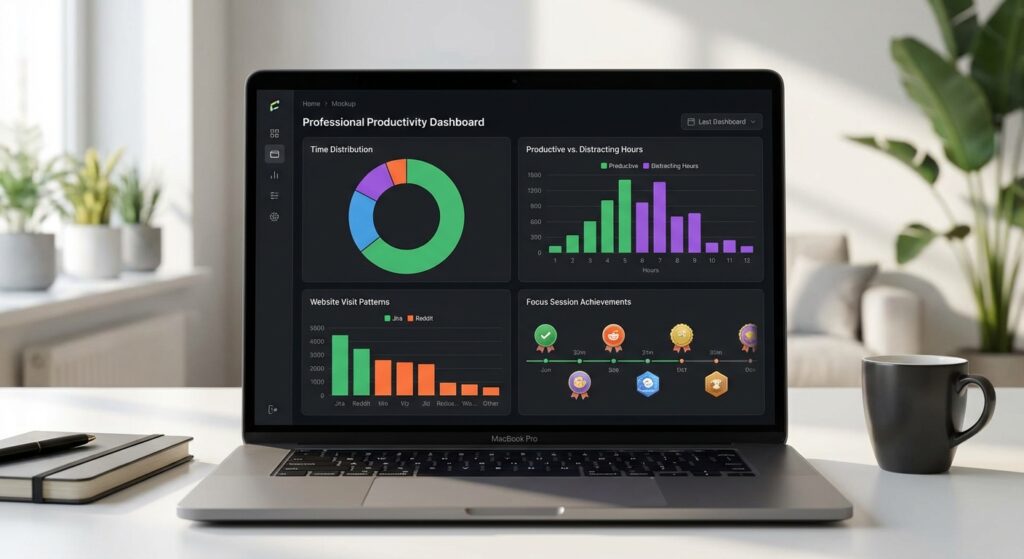
RescueTime isn’t really a blocker. It just tracks everything you do on your computer and shows you where your time went.
I ran this for two weeks before installing any blocking apps. The data was… humiliating. Four hours on “communication” (Slack and email). Two hours on “news and opinion.” Only three hours of actual coding.
Here’s the thing: Seeing the numbers made me realize which distractions were actually problems. Turned out Twitter wasn’t my issue. Email was. I was checking it every 15 minutes, and each check would derail me for 20 minutes of back-and-forth.
So I set up a Freedom block for email during my morning focus time. Problem solved.
Good for: Diagnosing before treating. Run this for a week before you block anything. You might be surprised what’s actually eating your time.
Cost: Free version is decent. Premium is $9/month (not worth it, in my opinion).
What I Actually Use Now
After trying everything, here’s my current setup:
Morning (9 AM – 12 PM): Freedom blocks social media, news sites, and email. I keep Slack open because my team needs me, but I mute all channels except critical ones.
Afternoon: Forest for 45-minute focus sessions with 15-minute breaks. I usually do two or three of these.
Evening: Nothing blocked. If I want to burn an hour on YouTube, that’s fine. I’ve earned it.
This combo works because it’s not about perfect focus all day. It’s about protecting my best hours and being realistic about the rest.
The Apps That Didn’t Work (For Me)
Stay Focused (Chrome extension): Too easy to disable. I’d just open an incognito window or switch to Firefox.
SelfControl (Mac): Works, but it’s permanent until the timer runs out. Set a 4-hour block and realize you need to check your bank account 30 minutes in? Too bad. That’s actually good in theory, but I found it too inflexible.
Brain.fm: It’s supposed to play focus-enhancing music. Maybe it works for some people. For me, it was just expensive background noise. I cancelled after the free trial.
What Actually Matters
After months of experimenting, here’s what I’ve figured out:
The app doesn’t matter as much as the system. I’ve had days where Freedom was running and I still accomplished nothing because I didn’t know what I was supposed to focus on.
Now I start each morning with three things I need to finish. That’s it. Three things. Everything else is bonus.
The apps just make it easier to actually do those three things without getting sidetracked. They’re not magic. They won’t fix a lack of clarity about what you’re trying to accomplish.
Common Mistakes I Made (So You Don’t Have To)
Blocking too much too soon: First week with Freedom, I blocked everything. Email, Slack, every website except Stack Overflow. Lasted two days before I gave up. Start small. Block one or two things and see how it goes.
Not scheduling breaks: If you block distractions for four hours straight, you’re going to crack. Schedule breaks. Actually take them. Go outside. Don’t just switch from blocked Twitter to unblocked email.
Treating it like a permanent solution: I used Freedom religiously for three months, then stopped for a month, then came back to it. That’s fine. Your focus needs change. Sometimes I need strict blocks. Sometimes I just need to see RescueTime’s disappointed report at the end of the day.
Ignoring the underlying issue: If you’re constantly distracted, maybe the work is boring, or you’re burned out, or you’re trying to focus for too long without breaks. Apps can’t fix that. Take a real break. Or better yet, figure out why you’re avoiding the work.
So What Should You Actually Use?
If you’re just starting: Try Freedom or Cold Turkey for two weeks. Block your biggest time-wasters during your most productive hours. See what happens.
If that feels too aggressive: Start with RescueTime. Just track for a week. Then decide what needs blocking.
If you like gamification: Forest is fun and surprisingly effective for shorter sessions.
If you’re on iOS and want something gentle: One Sec adds just enough friction without being punitive.
Here’s the honest truth: I still get distracted. I still waste time. But I waste less of it than I used to, and I’m more intentional about when I’m actually trying to focus versus when I’m just messing around.
That’s the real win. Not perfect focus. Just better focus when it matters.
Related articles you might find useful:
- Time Management Apps for structuring your entire day, not just focus sessions
- Best Productivity Apps 2025 for a broader look at workflow tools
- Task Management Apps to figure out what you should be focusing on in the first place


One Comment
Comments are closed.