Top Calendar Apps: The Ones That Actually Work (And the Ones That’ll Drive You Crazy)
I switched calendar apps four times last year. Four. You know what I learned? Most of them promise the same thing but fail in wildly different ways.
Here’s the thing: your calendar app is basically mission control for your life. Screw it up, and you’re missing meetings, double-booking yourself, or worse showing up to the wrong Zoom link at 9 AM on a Monday. Ask me how I know.
So let’s talk about the calendar apps that actually work in 2025, the ones with deal-breaking flaws, and how to pick the right one without losing your mind.
Why Your Calendar App Choice Actually Matters
Look, I get it. A calendar’s a calendar, right? Wrong.
I thought the same thing until I missed a client call because Google Calendar decided not to sync my “work” calendar with my phone. Turns out I’d hit some weird permission bug that took 20 minutes of Googling to fix. During the meeting I was supposed to be in.
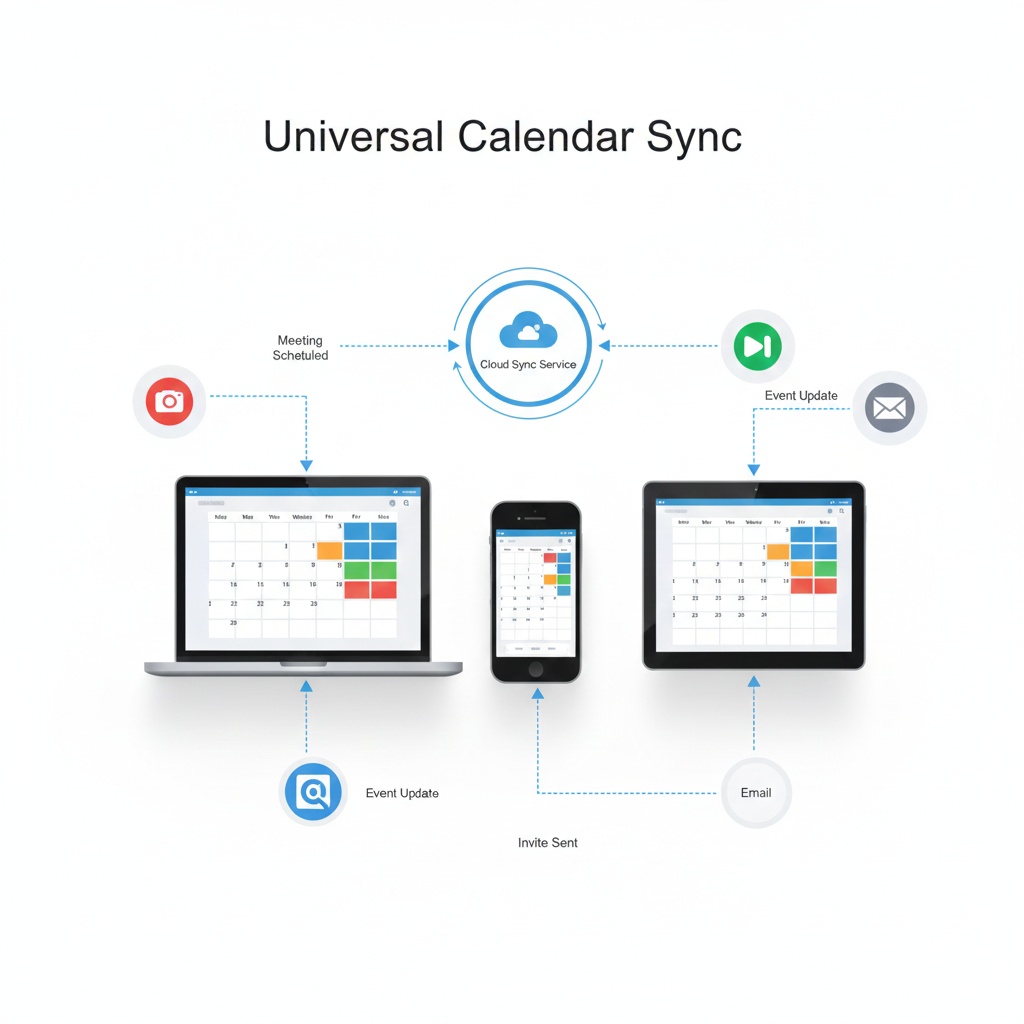
Your calendar app needs to do three things reliably:
- Sync across devices without randomly deciding not to
- Send notifications that actually reach you (not 10 minutes late)
- Integrate with your other tools so you’re not copy-pasting Zoom links like it’s 2015
Everything else is nice to have. But if it can’t nail those three? Move on.
The Big Players: Google Calendar vs Apple Calendar vs Outlook

Google Calendar: The Default Choice
What it does well: Google Calendar just works. I’ve been using it since 2018, and I can count on one hand the number of times it’s actually failed me. The web interface is clean, mobile apps are solid, and the integration with Gmail is genuinely useful meeting invites auto-add to your calendar without you lifting a finger.
Plus, if you’re on Android, it’s basically pre-installed and works with everything.
Where it falls short: The UI hasn’t changed much in years. Not necessarily bad, but if you want something modern-looking, this ain’t it. Also, the task integration is… fine? I ended up using a separate task manager because Google Tasks felt like an afterthought.
Real talk: If you’re already in the Google ecosystem (Gmail, Drive, Meet), just use this. Don’t overthink it.
Apple Calendar: For the Apple Ecosystem Folks
I switched to Apple Calendar when I got a MacBook in 2023. Lasted about six weeks.
What it does well: If you’re all-in on Apple devices, it’s buttery smooth. Natural language input actually works (“Meeting with Sarah next Tuesday at 2pm”), and Siri integration is handy when you’re driving.
The problem: Try using it with anything non-Apple. Good luck. I had a Windows desktop at work, and keeping calendars synced was a nightmare. Plus, the web version feels like it was designed in 2012 and forgotten about.
Best for: People who only use Apple devices and don’t collaborate with anyone outside that bubble.
Microsoft Outlook Calendar: The Enterprise Standard
What it does well: Outlook Calendar is the heavyweight. If you work in a corporate environment, you’re probably already stuck with it. The good news? It’s actually gotten better. The new Outlook (yes, they redesigned it again) is faster and less clunky than the old one.
Scheduling meetings with colleagues is dead simple, and the “find a time” feature for group meetings is genuinely useful.
Where it gets annoying: The mobile app tries to do too much. You’ve got email, calendar, contacts, and tasks all in one place, which sounds great until you’re just trying to check tomorrow’s schedule and accidentally archive 50 emails.
Also, if you’re not using Microsoft 365, half the features don’t work properly.
The Productivity Powerhouses
Notion Calendar (Formerly Cron)
Notion bought Cron in 2022, and honestly? It’s become my daily driver.
Why I like it: It’s fast. Like, really fast. Keyboard shortcuts for everything, multiple time zone support (crucial if you work with remote teams), and it connects to both Google and Outlook calendars simultaneously.
The “instant join” feature for video calls is small but brilliant. One click from your menu bar, and you’re in the meeting. No hunting for Zoom links.
The catch: It’s Mac and web only. No Windows app, no mobile apps yet (they keep promising them). So if you need mobile access, you’re back to using Google Calendar on your phone.
Who should use it: Power users who live in calendar hell and want something built for speed.
Fantastical: The Premium Option
Fantastical costs $5/month. I used it for six months before switching away, not because it’s bad, but because I couldn’t justify the price.
What you get for your money: Beautiful design, natural language parsing that actually understands you, weather integration, and time zone support. The widgets are gorgeous.
Why I stopped: Five bucks a month for a calendar app felt steep when Google Calendar is free and does 90% of the same stuff. If you’re a freelancer or entrepreneur who lives and dies by your schedule, it might be worth it. For me? Nah.
The Underdogs Worth Checking Out
Calendly: Not Really a Calendar, But…
Calendly isn’t a calendar replacement, it’s a scheduling tool. But here’s why it’s on this list: it saves you from the “when are you free?” email chains.
You send someone your Calendly link, they pick a time that works for them, boom meeting scheduled. It syncs with your actual calendar (Google, Outlook, etc.) to avoid double-booking.
I use it for client calls and podcast interviews. Saves me probably 3-4 hours a month of back-and-forth emails.
The free version is limited to one event type. The paid version ($10/month) lets you do unlimited event types and team scheduling.
Reclaim.ai: The AI Scheduling Assistant
This one’s weird but useful. Reclaim.ai automatically schedules tasks, habits, and breaks into your calendar using “smart” time blocking.
I tried it for a month. The idea is solid: you tell it “I need 2 hours this week to work on Project X,” and it finds gaps in your schedule and blocks them off.
The problem I had: It got overly aggressive with blocking time, and I ended up fighting with it more than I’d like. But if you struggle with time management and need something to force you to protect work time, it’s worth a shot.
Free tier available, paid starts at $8/month.
How to Actually Pick the Right One
Stop overthinking it. Here’s the decision tree I wish someone had given me:
Are you in a corporate job using Microsoft 365?
→ Just use Outlook Calendar. Don’t fight the system.
Are you all-in on Apple devices?
→ Apple Calendar. It’s free and already there.
Do you use Gmail and Android?
→ Google Calendar. Done.
Do you live in your calendar and want speed?
→ Try Notion Calendar. It’s free and fast.
Are you a freelancer juggling client meetings?
→ Get Calendly for scheduling + Google Calendar for everything else.
Common Mistakes People Make
Mistake 1: Using Multiple Calendar Apps
I did this. Bad idea. You’ll end up with events in the wrong place, missed notifications, and sync conflicts that’ll make you want to throw your phone.
Pick one. Stick with it.
Mistake 2: Not Setting Up Notifications Properly
Default notification settings are almost always wrong. I like:
- 15 minutes before meetings
- 1 day before for all-day events
- No notification for birthdays (I’ll forget anyway)
Configure this once, and you’ll save yourself constant “oh crap, I’m late” moments.
Mistake 3: Ignoring Time Zone Settings
If you work with anyone outside your time zone, double-check your calendar’s time zone display. I once scheduled a meeting for 3 PM my time, sent the invite, and confused everyone because it showed as 6 PM for them.
Most apps let you display multiple time zones. Use it.
The Bottom Line
Here’s what I’m using right now: Notion Calendar for daily schedule management and Calendly for external meeting scheduling. Both sync to my Google Calendar, which is my “source of truth.”
Is it perfect? No. But it’s fast, reliable, and I haven’t missed a meeting in months.
Your setup will probably be different. Maybe you’re stuck with Outlook because of work. Maybe you’re an Apple person who doesn’t care about cross-platform sync. That’s fine.
Just pick something that actually works for your workflow, set it up properly, and stop switching every three months like I did.
This article is part of our comprehensive guide on Software, Apps, and Productivity Tools. For the full guide on choosing the right productivity apps for your workflow, check out the main resource.
Related Reading:
- Best Productivity Apps 2025 – Full breakdown of top productivity tools
- Time Management Apps – Tools to actually manage your day
- Task Management Apps – Because calendars and tasks need to work together
- Collaboration Tools for Remote Work – Scheduling across time zones and teams