Productivity Apps for Writers: Tools That Actually Help (Not Just Distract)
Look, I’ve tried probably 30 different writing apps over the past five years. Some were amazing. Most were just fancy procrastination tools with good marketing.
Here’s the thing about productivity apps for writers: they can either become your creative engine or turn into yet another way to avoid actually writing. I’ve fallen into both traps, and I want to save you the $200 I’ve wasted on subscriptions that ended up as digital paperweights.
This article is part of our comprehensive guide on Software, Apps, and Productivity Tools. For the full guide covering all productivity categories, check out the main resource.
Why Writers Need Different Tools Than Everyone Else
Most productivity apps are built for project managers or developers. They’re all about tasks, deadlines, and collaboration. But writing? Writing needs something different.
I learned this the hard way when I tried using Asana to manage my novel. Terrible idea. Breaking creative work into “tasks” killed the flow completely. You need tools that understand the messy, non-linear nature of writing.
The Core Apps Every Writer Should Consider

For Daily Writing: Scrivener vs Ulysses
I switched between these two for three years before finally settling on Scrivener. Not because it’s “better,” but because my brain works better with its corkboard view.
Scrivener is like a digital filing cabinet where you can see everything at once. Great for long-form projects. Novels, research papers, that blog series you’ve been planning. The learning curve is real though. Took me two weeks to stop feeling lost in all the features.
Ulysses is cleaner, more minimal. Perfect if you just want to write without thinking about organization. I use it for quick blog posts and articles. The markdown support is smooth, and syncing across devices actually works (unlike some apps I won’t name).
Real talk: both are subscription-based now. Scrivener still offers a one-time purchase, which I prefer because I hate monthly fees piling up.
For Idea Management: Notion vs Obsidian
This is where things get interesting. Both are note-taking powerhouses, but they approach writing organization completely differently.
Notion is what I use for content calendars and research databases. You can build custom dashboards, link notes together, and honestly it’s almost too flexible. I spent a week building the “perfect” writing system in Notion before realizing I’d written zero actual words.
Obsidian changed how I think about ideas. It’s all about connecting thoughts through backlinks. Perfect for fiction writers who need to track character relationships or non-fiction writers building complex arguments. The graph view showing how your notes connect is genuinely useful, not just pretty.
I currently use both. Notion for project management, Obsidian for actual thinking and ideation. Overkill? Maybe. But it works for my workflow.
For Distraction-Free Writing: Cold Turkey vs Freedom
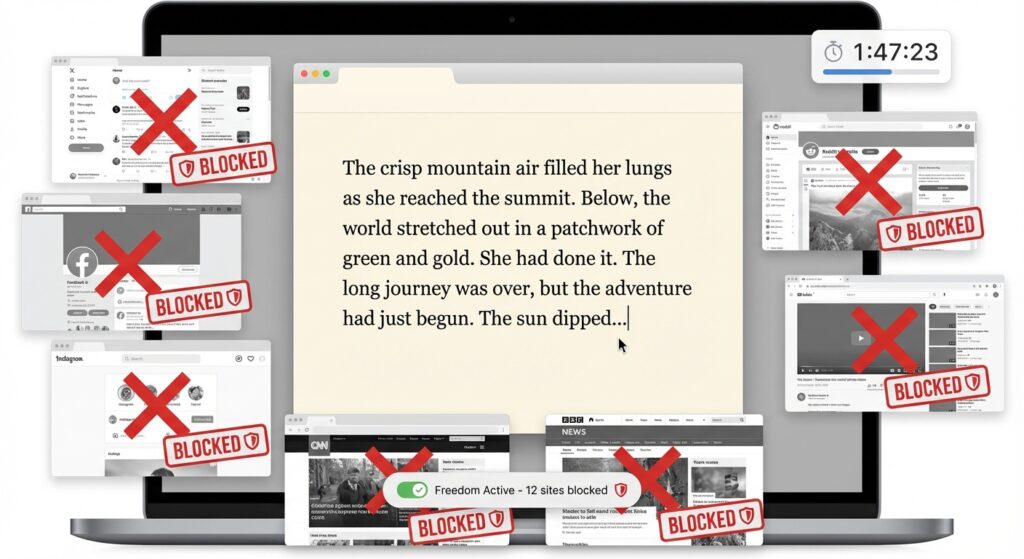
You know what kills writing productivity faster than anything? Opening Twitter “just for a minute” and losing 45 minutes to doomscrolling.
Been there. Done that. Yesterday, actually.
Cold Turkey is nuclear-option distraction blocking. When you activate it, nothing short of a system restart will let you access blocked sites. I’ve used it for NaNoWriMo when I needed to hit daily word counts. It’s harsh but effective.
Freedom is gentler and works across all your devices simultaneously. You can schedule blocking sessions ahead of time, which I do every morning from 6-8 AM. No Instagram, no news sites, just a blank document and my coffee.
The best part? Both have “locked mode” where you can’t cheat and turn them off early. Trust me, you need this feature. Your future self will thank you.
Specialized Tools for Different Writing Styles
Fiction Writers: World Anvil and Campfire
If you’re building complex fictional worlds, Google Docs isn’t going to cut it. I tried managing a fantasy novel’s worldbuilding in a spreadsheet once. Nightmare.
World Anvil is built specifically for worldbuilding. Characters, locations, timelines, magic systems, all interconnected. The free version is solid, but the premium features (especially the interactive maps) are worth it if you’re serious about fiction.
Campfire is similar but feels more intuitive. Better for plotting and character development. The relationship mapping feature helped me catch three plot holes in my last manuscript that I completely missed otherwise.
Non-Fiction and Bloggers: Ahrefs Writing Tools and Hemingway
Here’s where my tech background shows. For blog content, I need more than just a writing app. I need to know if anyone will actually read what I’m writing.
Ahrefs Writing Tools (the free one) helps optimize content without feeling like you’re writing for robots. I check keyword difficulty and search volume before committing to long articles. Saves time compared to writing 3,000 words on a topic nobody’s searching for.
Hemingway Editor is brutal and I love it. Paste your writing in and it’ll call out complex sentences, passive voice, and adverbs. My first draft of this article had 15 “very”s in it. Hemingway made me delete them all. The writing’s stronger for it.
For more on organizing blog content and workflows, check out our guide on task management apps specifically for content creators.
The Automation Layer Most Writers Miss
This is going to sound weird, but automation tools changed my writing process more than any writing app.
I use Zapier to automatically save research articles to Notion when I star them in my RSS reader. Saves me about 30 minutes a week of manual copying and pasting. Small thing, but it adds up.
TextExpander (or similar snippet tools) is underrated. I’ve got shortcuts for common phrases, my email signature, even template structures for different article types. Typing “;intro” expands to my standard blog post introduction framework. Sounds lazy, it is lazy, but it works.
Cloud Storage: Don’t Lose Your Manuscript
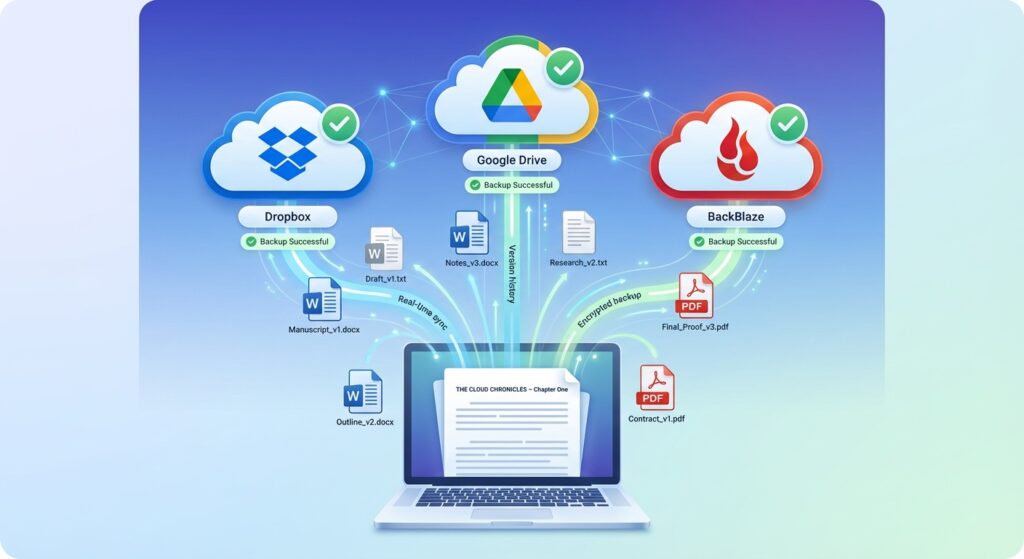
Real story: A writer friend lost 40,000 words of her novel in 2019 because her laptop died and she wasn’t backing up to the cloud. Don’t be her.
I use a combination of Dropbox and Google Drive. Dropbox for active projects (better version history), Google Drive for archives and research materials (more free storage).
Scrivener’s built-in Dropbox sync is reliable, but I also use BackBlaze for full system backups. Paranoid? Yeah. But I’ve never lost work, so the paranoia pays off.
Apps I’ve Quit Using (And Why)
Grammarly Premium: The free version is fine, but the premium suggestions often made my writing sound generic. For technical blog posts, it actively made things worse by “correcting” intentionally casual language.
Evernote: Used it for five years. Left when they kept changing the UI and breaking features. Notion does everything Evernote did, better. Though to be fair, some writers still swear by it.
Microsoft Word: Still use it for final manuscript formatting (publishers want .docx files), but for actual writing? Too slow, too clunky, crashes at the worst times. Learned this during a 3 AM writing session when it ate my last hour of work.
The Minimalist Alternative
Not everyone needs a stack of 10 apps. Some of the most productive writers I know use just two tools:
- iA Writer or Bear (for writing)
- Apple Notes or Google Keep (for quick captures)
That’s it. And they’re publishing consistently, making deadlines, getting work done.
The best productivity system is the one you’ll actually use. If five apps feels like too much overhead, cut it down. Start simple, add tools only when you feel the pain of not having them.
My Current Stack (What I Actually Use Daily)
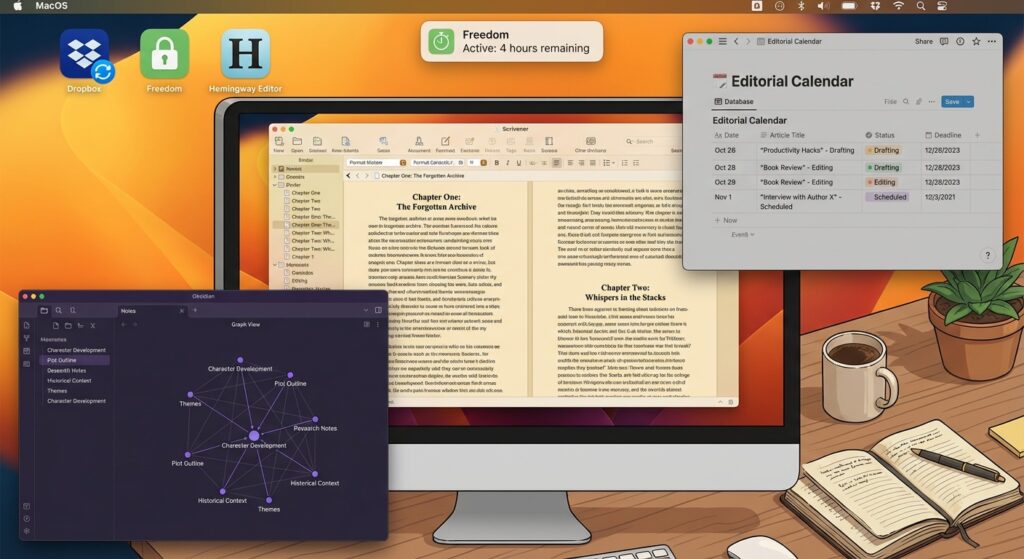
Here’s what’s open on my computer right now:
- Scrivener: For this article and two others in progress
- Obsidian: Research notes and idea connections
- Notion: Editorial calendar and article tracking
- Freedom: Active blocking session (Reddit blocked until 5 PM)
- Hemingway: For editing passes
- Dropbox: Background sync running
On my phone:
- Drafts: Quick idea capture
- Voice Memos: For recording thoughts while driving
Total monthly cost: About $45. Worth every penny for the time saved and words written.
What to Try First
If you’re starting from scratch, here’s my recommendation:
Week 1: Pick one writing app. Scrivener for long-form, Ulysses for blogs, or even just Google Docs if you want free. Write in it every day. Don’t add anything else.
Week 2: Add one distraction blocker. Freedom or Cold Turkey. Schedule one focused writing session daily.
Week 3: Add one idea management tool. Start with the free version of Notion or try Obsidian. Don’t spend more than 30 minutes setting it up.
Week 4: Evaluate. What’s working? What’s just adding friction? Cut ruthlessly.
Most writers overcomplicate this. You need something to write in, something to block distractions, and something to track ideas. Everything else is nice-to-have.
The Uncomfortable Truth About Productivity Apps
I’ve avoided saying this until now, but here it is: no app will make you a better writer. They’ll make you a more organized writer, maybe a more focused writer, but the actual craft? That’s on you.
I’ve seen writers with $500 worth of premium apps who never finish anything. I’ve also seen writers crushing it with nothing but Notepad and a timer.
The apps are tools. Use them to remove friction from your process, not to procrastinate on the hard work of actually writing.
For more thoughts on productivity tools versus productivity theater, check out our analysis of productivity analytics tools and whether tracking actually helps.
What’s Coming in 2026
Quick preview of productivity app trends I’m watching:
AI writing assistants are getting better at understanding context. I’m testing a few that can suggest structural improvements without sounding robotic. Still skeptical, but the technology is improving.
Better offline modes: More apps are realizing writers don’t always have internet. About time.
Privacy-focused alternatives: Tools that don’t upload everything to the cloud. Some writers need this for sensitive projects or just prefer owning their data.
Final Recommendations by Writing Type
Novelists: Scrivener + Obsidian + World Anvil (if fantasy/sci-fi)
Bloggers: Ulysses + Notion + Hemingway + distraction blocker of choice
Academic Writers: Scrivener + Zotero (for citations) + Notion
Journalists: Google Docs (for collaboration) + Otter.ai (for transcription) + strong backup system
Minimalists: iA Writer + Apple Notes. That’s it.
Try Before You Buy
Most of these apps offer free trials. Use them. Actually use them for real work, not just testing features.
I wasted money on apps that looked perfect in demos but didn’t fit my actual workflow. Test during a real project with a real deadline. That’s when you’ll know if it works or just looks pretty.
Also check out our comparison of free versus paid productivity apps to see if premium features are worth the cost for writers specifically.
The Bottom Line
After five years and too much money spent on apps, here’s what I know:
Pick tools that disappear when you’re using them. The best writing apps are the ones you stop noticing because they just work. If you’re thinking about the tool instead of your writing, it’s the wrong tool.
Start simple. Add complexity only when needed. And for the love of everything, back up your work to the cloud.
Now stop reading about productivity apps and go write something. I’ll be here doing the same, with Freedom blocking this very article from the internet until my deadline hits.
Looking for more ways to optimize your creative workflow? Explore our guides on collaboration tools for remote work and time management apps for writers juggling multiple projects.