All-in-One PCs Buying Guide: What Nobody Tells You Before You Buy
So here’s a confession: I bought an all-in-one PC three years ago because my desk looked like a cable management nightmare. Seemed like the perfect solution, right? Clean setup, minimal wires, more desk space.
I returned it two weeks later.
Don’t get me wrong. AIOs aren’t bad. They’re just really specific about who they’re good for. And if you’re reading this trying to decide whether to buy one, you probably need to hear the honest truth before dropping $800-2000 on a machine you can’t upgrade.
This article is part of our comprehensive guide on Computers, Laptops, and Accessories. For more detailed comparisons, visit the full guide.
What Actually Is an All-in-One PC?
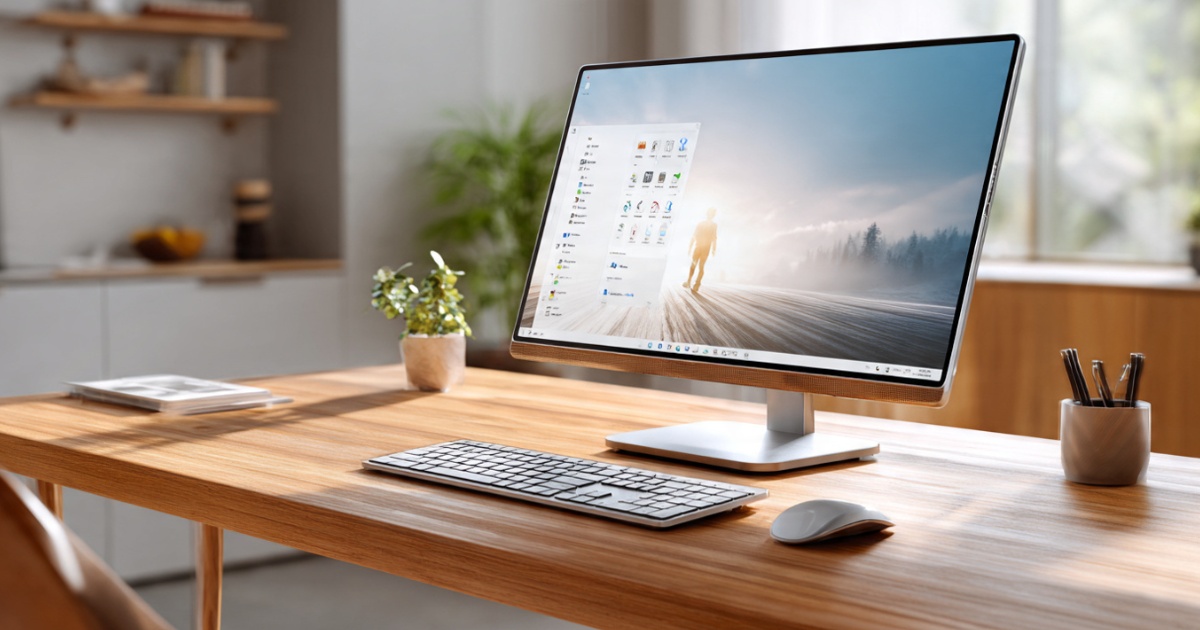
An all-in-one PC crams all the computer guts (CPU, GPU, RAM, storage) into the monitor housing. You get a screen with a computer built into it. Add a wireless keyboard and mouse, and boom. That’s your entire setup.
Sounds great in theory. But here’s what the marketing photos don’t show you: most AIOs use laptop components, not desktop parts. That 27-inch iMac? It’s basically a really nice laptop permanently attached to a big screen.
This matters more than you’d think.
The Real Benefits (When They Actually Matter)
Look, I wouldn’t write this guide if AIOs were completely useless. They shine in specific situations.
Desk Space: If you’re working with limited space, AIOs are genuinely helpful. I’ve seen home offices where a traditional tower just wouldn’t fit. The difference between a 24-inch AIO and a tower plus monitor is about 12 inches of depth. Sometimes that matters.
Cable Management: Remember my cable disaster? One power cable versus the usual seven-cable octopus behind most desks. If you’ve ever tried to figure out which cable goes where after moving your setup, you’ll appreciate this.
Aesthetics: Some people care about how their workspace looks. That’s valid. A sleek iMac or Dell XPS AIO looks cleaner than any tower setup I’ve built. If you’re running a client-facing business or just like nice things, this counts.
IT Management: Here’s something most buying guides skip. If you’re setting up computers for an office, AIOs make deployments way easier. Fewer parts to track, simpler setup, less can go wrong during installation. I helped a small design agency switch to AIOs last year. Setup time per workstation dropped from 45 minutes to about 15.
The Downsides They Don’t Put on the Box
This is where it gets real. AIOs have some serious limitations that most manufacturers gloss over.
Upgrades? Forget About It
That RAM stick died? On a traditional desktop, you’d swap it in five minutes. On most AIOs, you’re either shipping it for repair or living with it.
I’ve seen exactly one person successfully upgrade an AIO. It involved a heat gun, a lot of swearing, and voiding the warranty. The rest of us just accept that what you buy is what you’re stuck with.
When you’re choosing between desktop and laptop options, remember that AIOs fall somewhere in between, but with less flexibility than either.
Repair Costs Are Brutal
Here’s what happened to that AIO I returned: the screen developed a dead pixel cluster three months after the return window. Because the screen IS the computer, fixing it meant replacing basically the entire unit. The quote? $600 for a $900 machine.
On a traditional desktop, a monitor replacement runs $150-300. You keep using your computer with a temporary screen while you wait for the new one.
Performance Per Dollar Takes a Hit
For the same money, you’ll get more power from a traditional desktop. That $1,200 AIO with an Intel i5? A comparably priced desktop tower will have an i7 and probably a better graphics card.
The gap isn’t huge for basic work. But if you’re doing anything intensive, video editing for example, you’ll feel it.
Thermal Throttling Is Real
All those components crammed into a thin chassis? They get hot. And when they get hot, they slow down to cool off.
I tested a mid-range AIO running video exports last year. It started strong but throttled down about 15% after 20 minutes of sustained load. A desktop with proper airflow maintains full speed indefinitely.
What to Actually Look For When Buying
Okay, so you’ve decided an AIO makes sense for you. Here’s what actually matters.
Screen Quality Matters More Than Specs
You’re stuck with this screen for the life of the computer. Don’t cheap out here. I’d take a slower processor with a great 4K IPS panel over a faster machine with a mediocre 1080p TN display.
Look for:
- IPS or better panel technology
- At least 1440p resolution for 24-inch screens, 4K for 27-inch and up
- Good color accuracy if you do any creative work
- Anti-glare coating (trust me on this)
If you’re serious about display quality, check out our detailed monitor buying guide for the specs that actually matter.
RAM and Storage: Max It Out Now
Remember, you can’t upgrade later. Get the maximum RAM you can afford. 16GB minimum for most people, 32GB if you do anything with large files.
For storage, 512GB SSD is the baseline. 1TB is better. Some AIOs still ship with hybrid drives (small SSD plus larger HDD). These are fine for basic use but slower than pure SSD setups.
Ports: Check the Back AND Sides
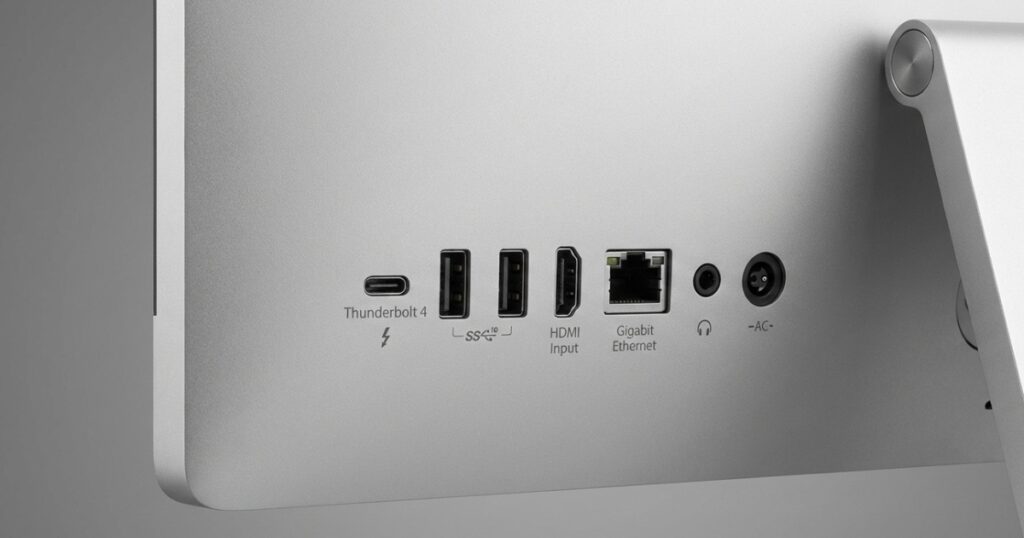
I almost bought an AIO that had all its USB ports on the back. Imagine plugging in a flash drive by feel every time. Not fun.
Make sure you have:
- At least two easily accessible USB ports (USB-C is a bonus)
- HDMI or DisplayPort input if you want to use it as a monitor later
- Ethernet port (WiFi is convenient until it isn’t)
- Headphone jack that’s not behind the monitor
Warranty and Support
This is boring but critical. Since repairs are complicated, you want good warranty coverage. AppleCare for iMacs, extended warranty for Windows AIOs. Factor this into your budget.
Who Should Actually Buy an All-in-One?
After working with dozens of people making this decision, here are the situations where AIOs make sense:
Home Office Workers: If you’re doing emails, web apps, and video calls, an AIO is perfect. You don’t need upgradeability. You do need a clean desk and minimal hassle.
Small Business Reception Areas: Client-facing computers where aesthetics matter. As long as the work is basic (scheduling, billing, email), AIOs are great here.
Casual Creative Work: Light photo editing, basic video work, graphic design that’s not super intensive. You’ll appreciate the good screen and clean setup.
People Who Never Upgrade Anyway: Real talk. Most people use their computer exactly as purchased. If you’ve never opened a computer case and don’t plan to start, the upgrade limitation doesn’t matter to you.
Who Should Skip AIOs?
Gamers: Unless you’re buying something like an Alienware AIO (expensive), you’ll get way better performance from a traditional gaming desktop. Plus, you can’t upgrade the GPU when the next generation drops.
Power Users: If you run VMs, do serious development work, or handle large datasets, the thermal constraints will frustrate you. Get a proper desktop.
Budget Conscious Shoppers: For under $800, budget desktop towers deliver better value. AIOs in this price range often compromise too much.
Anyone Who Likes Tinkering: If you enjoy swapping parts and upgrading, AIOs will drive you crazy. They’re appliances, not modular systems.

Common Mistakes I’ve Seen
Buying the Cheapest Model: The entry-level version of any AIO line usually has too many compromises. Screen quality suffers, storage is minimal, RAM is barely adequate. Spend the extra $200-300 for the mid-tier model.
Ignoring Webcam Quality: If you do video calls (and who doesn’t now?), check reviews of the built-in camera. Some AIOs have surprisingly bad webcams for their price point.
Not Testing the Stand: Some AIO stands don’t tilt or adjust well. If you can, try the display in person. You’ll be looking at it for years. An uncomfortable viewing angle gets old fast.
Forgetting About Ergonomics: Even the nicest AIO might need ergonomic accessories like an external keyboard and mouse for comfortable long-term use. The bundled peripherals are usually just okay.
My Honest Recommendation
If your use case is straightforward, your desk space is limited, and you value simplicity over raw performance or upgradeability, AIOs are solid. Just go in with realistic expectations.
Buy more RAM and storage than you think you need. Get the best screen you can afford. Budget for a good warranty. And accept that in 4-5 years, you’ll probably replace the whole unit rather than upgrade it.
For everyone else? A traditional desktop setup gives you more flexibility, better performance per dollar, and easier maintenance. It’s not as pretty, but it’s more practical.
The AIO I returned three years ago? I built a mini-ITX desktop instead. Smaller than most towers, way more powerful than any AIO in the same price range, and I’ve already upgraded the RAM twice. Still not as clean looking, though. You win some, you lose some.
Related Articles
For more guidance on choosing the right computer setup: