Best Office Suites 2025: I Tested 8 Popular Options So You Don’t Have To
I switched office suites four times in the past two years. Not because I’m indecisive, but because I kept running into weird limitations that nobody mentions in the feature lists.
Like when Google Docs decided to corrupt my 80-page proposal because I had too many comments. Or when LibreOffice’s spreadsheet formulas refused to work the way Excel trained my brain to expect them. Fun times.
Here’s what I’ve learned: the “best” office suite depends entirely on what you’re actually doing with it. And after wasting hours migrating documents between platforms, I’m going to save you that headache.
What Actually Matters in an Office Suite
Forget the marketing pages for a second. When you’re choosing office software, you need to think about three things:
Where you work. Are you glued to your desk, or do you need to edit presentations from your phone while waiting for coffee? Cloud-based suites win for mobility, but desktop apps are faster when you’re wrestling with massive spreadsheets.
Who you work with. If your team uses Microsoft 365, good luck convincing them to switch. Compatibility isn’t just a checkbox feature, it’s the thing that breaks collaboration at 11 PM before a deadline.
What you’re building. Simple documents? Any suite works. Complex data analysis with pivot tables? You’ll want the heavy hitters. Desktop publishing with precise layouts? Yeah, that narrows your options fast.
Microsoft 365: Still the Standard (Unfortunately?)
Price: $6.99/month personal, $9.99/month family
Best for: Professional environments, advanced Excel users
Look, I have mixed feelings about Microsoft 365. It’s expensive. It’s bloated. And yet, I keep paying for it.
Why? Because when someone sends me a Word document with track changes and embedded Excel charts, it just works. No formatting surprises. No “can you export this as a PDF instead?” emails.
What actually works well:
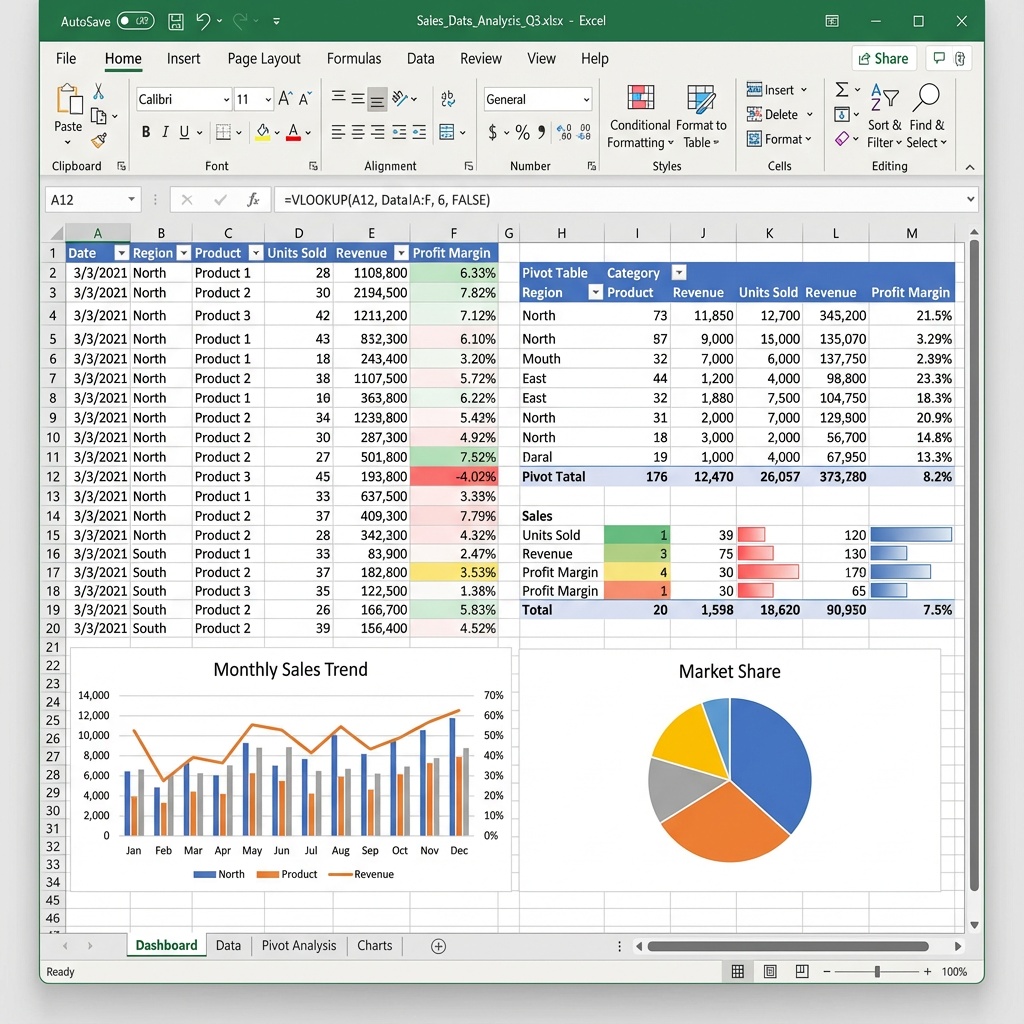
Excel is still the king for serious data work. I built a project tracking system with 40,000 rows last year, and Excel handled it without breaking a sweat. Google Sheets would’ve melted. PowerPoint’s design ideas feature saves me hours when I need to make something look professional quickly.
What’s annoying:
The desktop apps update constantly, sometimes breaking my workflow. Last month, Word randomly decided to change how it handles image positioning. Also, you’re paying forever. Stop paying, lose access to your files’ advanced features.
Real talk: If you’re in a corporate environment or do heavy data analysis, you’re probably stuck with this. It’s the standard for a reason.
Google Workspace: The Cloud-First Reality
Price: Free (personal), $6/month (Business Starter)
Best for: Remote teams, simple collaboration, students
I use Google Docs every single day. Not because it’s the most powerful, but because it removes friction.
Someone needs to review a document? Share a link. Three people need to edit simultaneously? It just works. No version control nightmares, no “final_FINAL_v3_revised.docx” files cluttering my downloads folder.

Where it shines:
Real-time collaboration is genuinely magical. I’ve watched clients make edits while I’m on a video call with them. The version history saved me twice when I accidentally deleted important sections. And everything auto-saves, which is great until you realize you can’t easily disable that.
Where it falls short:
Formatting gets weird when you import Microsoft documents. Sheets chokes on complex formulas and large datasets. I once tried to analyze 10,000 rows of data, and it took 30 seconds just to scroll. Also, good luck working offline, the offline mode is technically there but feels like an afterthought.
Best use case: If your team is distributed and you’re working on documents that don’t need pixel-perfect formatting, this is probably your answer.
LibreOffice: The Free Alternative That Almost Works
Price: Free (actually free, not freemium)
Best for: Privacy-focused users, basic documents, tight budgets
I wanted to love LibreOffice. Open source, no subscription, runs on anything. Perfect, right?
Then I spent two days trying to figure out why my VLOOKUP formulas worked differently than Excel. And why opening a .docx file from a client resulted in images scattered randomly across pages.
What’s good:
It’s free. Really free. No ads, no premium tiers, no cloud upselling. Writer handles basic documents fine. Calc is solid for simple spreadsheets. If you’re writing a novel or tracking your budget, this works.
What’s frustrating:
Compatibility is hit or miss. A complex Excel file? Expect formatting issues. The interface feels dated, which is fine, except it also means some features are buried in weird menu locations. And the macros don’t transfer well if you’re migrating from Microsoft.
Reality check: This is great if you’re not collaborating with Microsoft users and don’t need cutting-edge features. I keep it installed as a backup viewer, but it’s not my daily driver.
For more options on free productivity tools, check out our comparison of free vs paid productivity apps.
Apple iWork: Beautiful But Isolated
Price: Free (with Apple device)
Best for: Mac/iPad users who stay in the Apple ecosystem
Pages, Numbers, and Keynote are gorgeous. If you use a Mac, you’ve probably opened them at least once and thought, “wow, this looks nice.”
And then you tried to share the file with someone using Windows.
The good stuff:
The templates are actually usable. Keynote presentations look professional with minimal effort. The apps integrate seamlessly with iCloud. If you’re creating documents primarily for yourself or other Apple users, the experience is smooth.
The catch:
Export to Microsoft formats, and weird things happen. A beautifully formatted Pages document becomes a slightly broken Word file. Numbers doesn’t handle complex Excel formulas well. And if you switch to Windows or Android for part of your workflow, you’re stuck using the clunky iCloud web apps.
Bottom line: Great for personal use or small teams entirely on Apple devices. Everywhere else, you’ll hit friction.
Zoho Workplace: The Under-the-Radar Option
Price: Free (limited), $3/month per user (Standard)
Best for: Small businesses, teams wanting Google-like collaboration without Google
I discovered Zoho when looking for something cheaper than Google Workspace but more reliable than free tools. It’s not flashy, but it works better than you’d expect.
What surprised me:
The Writer app handles offline editing better than Google Docs. The spreadsheet tool (Sheet) is more capable than I expected, though still not Excel-level. And the whole suite integrates with Zoho’s other business tools if you’re using their CRM or project management software.
The limitations:
The interface feels a generation behind. Not bad, just not as polished. Fewer templates and add-ons compared to the big players. And good luck finding detailed tutorials online, the community is smaller.
Who should try it: If you’re a small business looking to cut costs without completely compromising functionality, Zoho deserves a look. Just expect a learning curve.
Explore more about collaboration tools for teams to see how different suites handle teamwork.
WPS Office: Familiar But Sketchy?
Price: Free (with ads), $29.99/year (Premium)
Best for: People wanting Microsoft-like interface without Microsoft prices
WPS Office looks almost exactly like old Microsoft Office. That’s intentional, and it makes the learning curve basically zero.
But I have to be honest, the free version bombards you with ads and tries to install extra software during setup. That immediately makes me suspicious.
What works:
If you need to open and edit Microsoft documents without paying for Microsoft, WPS handles compatibility better than most alternatives. The interface is instantly familiar. It runs fast even on older hardware.
What’s sketchy:
Those ads in the free version are aggressive. The premium version is reasonable at $30/year, but then you’re paying anyway, so why not just get Microsoft or Google? Also, it’s Chinese-owned, which matters if you’re concerned about data privacy and where your documents live.
My take: It fills a niche for people who absolutely need Microsoft compatibility but can’t or won’t pay. Just read the privacy policy carefully.
OnlyOffice: The Serious Open Source Option
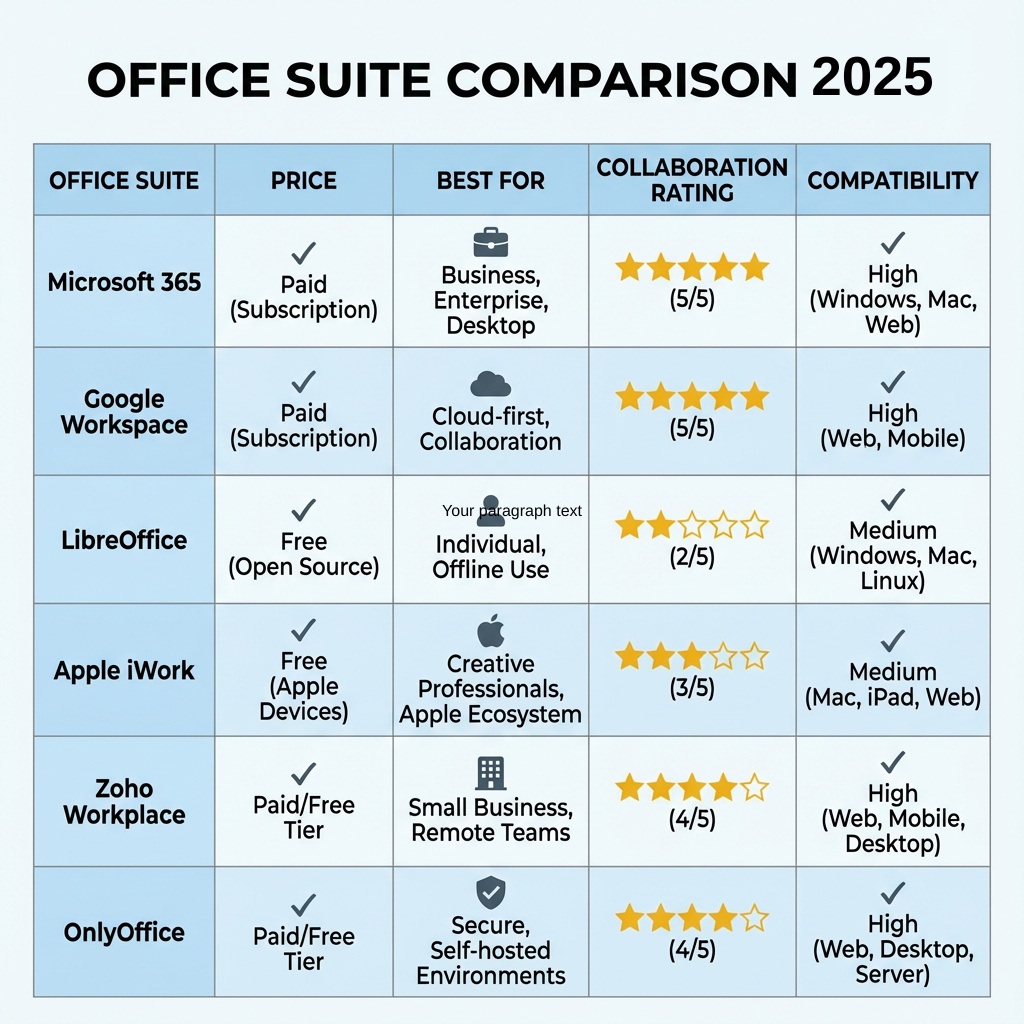
Price: Free (open source), paid plans for cloud features
Best for: Privacy-focused teams, self-hosted solutions
OnlyOffice is what I recommend when someone says “I want Google Docs but without giving Google my data.”
Why it’s interesting:
Better Microsoft compatibility than LibreOffice. Clean, modern interface. You can self-host it on your own servers if you’re into that. Real-time collaboration works surprisingly well.
The tradeoffs:
Fewer features than the commercial options. The mobile apps are functional but basic. Setting up your own instance requires technical knowledge. And while it handles .docx files better than LibreOffice, it’s still not perfect.
Best for: Tech-savvy teams or anyone who needs control over where their data lives. I wouldn’t recommend this to my non-technical friends, but for developers or privacy-conscious users, it’s solid.
What I Actually Use (And Why)
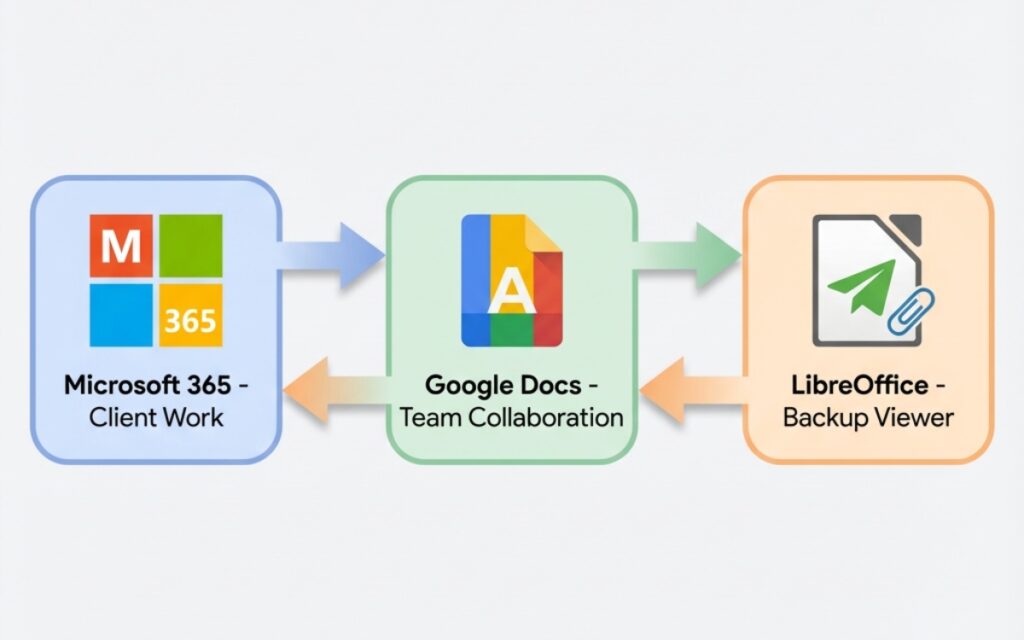
Here’s my current setup, which probably seems ridiculous:
Microsoft 365 for client work and complex Excel analysis. When someone pays me to deliver a document, I use the tools that guarantee it’ll look right on their end.
Google Docs for collaboration with my team and quick notes. The speed and real-time features beat everything else when I need to work with others.
LibreOffice as a backup viewer when I’m on a machine without Microsoft installed.
Is this overkill? Maybe. But each tool solves a specific problem I actually have, not just problems I might theoretically encounter.
For more insights on organizing your digital workflow, see our guide to file organization apps.
How to Actually Choose
Stop trying to find the perfect office suite. It doesn’t exist. Instead, answer these questions:
Do you collaborate with people outside your organization? Use whatever they use. Compatibility headaches aren’t worth the savings.
Is your work mostly cloud-based or local? Cloud suites win for flexibility. Desktop apps win for speed and offline reliability.
What’s your actual budget? Free tools have limitations. Paid tools have subscriptions. Pick your compromise.
How complex are your documents? Simple text and basic spreadsheets? Anything works. Advanced formatting and data analysis? You need the heavy hitters.
The Stuff Nobody Tells You
After switching between these suites multiple times, here are the gotchas that only show up after you’ve committed:
Migration isn’t smooth. Even between Microsoft and Google, which supposedly play nice, you’ll lose formatting, embedded objects get weird, and macros break. Budget extra time if you’re switching.
Mobile apps vary wildly. Some suites have great mobile experiences. Others feel like afterthoughts. If you edit on your phone, test this before committing.
Storage limits matter. That “unlimited” storage might not be unlimited. Or it counts against your email quota. Or it compresses your files. Read the fine print.
Learning curves add up. Every suite does things slightly differently. Keyboard shortcuts change. Features move. This sounds minor until you’re hunting for the mail merge function at midnight.
If you’re looking to boost overall efficiency, check out our recommendations for time management apps to complement your office suite.
My Actual Recommendation
If you’re working solo or with a small team and don’t have complex needs: Google Workspace. The collaboration features and price point make sense for most people.
If you’re in a corporate environment or need serious Excel functionality: Microsoft 365. Fight the subscription cost, you’ll need the compatibility.
If you’re on a tight budget and mostly working alone: LibreOffice for basic needs, or spend the $30/year on WPS Office if you need better Microsoft compatibility.
If privacy is your priority and you’re technical: OnlyOffice self-hosted.
What’s Actually Changing in 2025
AI features are showing up everywhere now. Microsoft has Copilot. Google has Duet AI. And honestly? Most of it feels half-baked.
I tried using AI to help write a proposal last month. It generated generic content that needed complete rewriting. The summarization features work okay, but nothing revolutionary yet.
The real improvement I’ve noticed is better collaboration features and faster cloud sync. Less flashy, but actually useful when you’re trying to work with other humans.
For a broader look at productivity trends, explore our article on productivity app trends 2026.
Final Thoughts
I’ve wasted too many hours switching office suites chasing the perfect solution. Here’s what I learned: pick based on who you’re working with and what you’re actually building, not what features sound cool in a blog post.
Test the free trials. Open some of your real documents. Try the collaboration features with actual teammates. The suite that handles your specific workflow smoothly is the right one, even if it’s not the one with the longest feature list.
And whatever you choose, set up automatic backups. Because I’ve learned that lesson the hard way too.
This article is part of our comprehensive guide on Software, Apps, and Productivity Tools. For more recommendations, check out our guides on best productivity apps 2025 and project management software.