

Best External Hard Drives: Storage Solutions That Actually Work
I’ve lost data exactly twice in my career. Once because I trusted a single internal drive. The second time because I bought the cheapest external drive I could find on Amazon and it died after four months.
Both times hurt like hell.
Here’s what I’ve learned about external hard drives after going through probably 15 different models over the years, backing up everything from client databases to my wife’s 200GB photo library.
This article is part of our comprehensive guide on Computers, Laptops, and Accessories. For the complete breakdown of computer hardware and gear, check out the full guide.
Why You Actually Need an External Hard Drive in 2025
Cloud storage is great until your internet goes down. Or until you realize you’re paying $120/year for 2TB on Google Drive when a physical drive costs the same. Once.
I use both. Cloud for critical stuff that needs to sync across devices. External drives for massive file archives, video projects, and that “just in case” backup of everything.
Real talk: if you’ve never had a hard drive fail on you, you will. It’s not if, it’s when. And when it happens at 2 AM before a client deadline, you’ll wish you’d spent the $80 on a backup drive.
What to Look for (The Stuff That Actually Matters)
Storage Capacity
Most people buy too little storage, then buy another drive six months later. Don’t be most people.
My recommendation: Buy at least 2TB, even if you think you only need 500GB. Files grow. Projects accumulate. That 4K video you shot “just for fun” takes up 50GB.
I’m currently using a 4TB drive for my main backup, and I’m at 2.8TB. Glad I didn’t go with the 2TB model.
Speed: HDD vs SSD
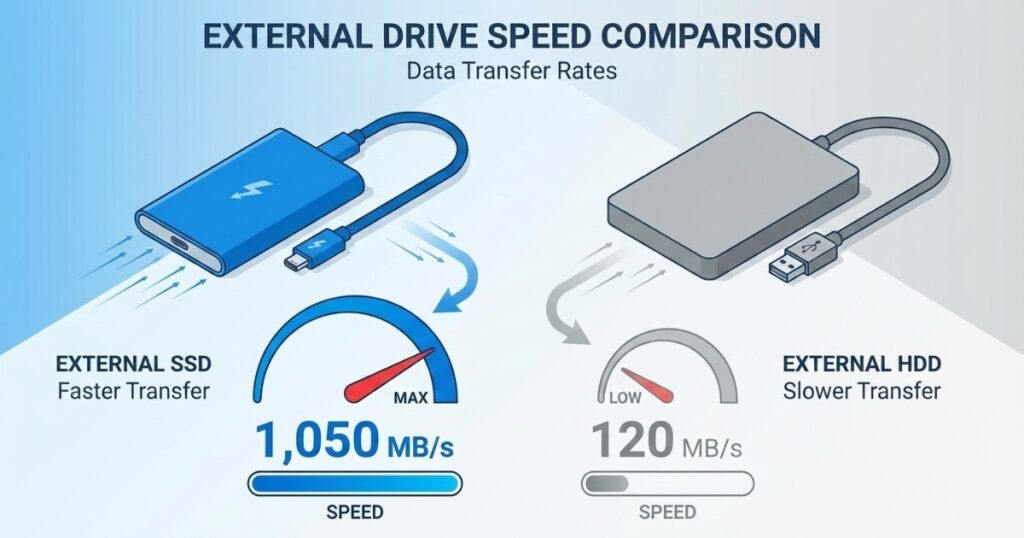
Here’s where it gets interesting. Traditional hard disk drives (HDDs) are cheap and huge. Solid state drives (SSDs) are fast and expensive.
For backups that you set and forget? HDD is fine. I backup my laptop every night to an HDD, and I don’t care that it takes 20 minutes instead of 5.
For working files, video editing, or transferring large datasets regularly? SSD is worth every penny. I moved my active project drive to an external SSD last year, and file transfers went from “go make coffee” speed to “wait, it’s done already?”
Connection Type
USB 3.0 is the minimum. USB 3.1 or 3.2 is better. Thunderbolt 3/4 is overkill unless you’re doing serious video work.
I made the mistake of buying a USB 2.0 drive in 2023 (long story, was in a rush). Transferring 100GB took literally three hours. Never again.
Top External Hard Drives I Actually Recommend
Best Overall: WD My Passport (HDD)
Capacity options: 1TB to 5TB
Price: Around $50-$130 depending on size
Speed: USB 3.2 Gen 1
This is my go-to recommendation for most people. It’s reliable, reasonably fast for an HDD, and Western Digital’s reputation is solid. I’ve had the same 4TB model running for three years with zero issues.
The included backup software is actually decent, which is rare. Most bundled software is garbage.
Good for: Regular backups, photo libraries, general storage
Not great for: Active video editing, gaming libraries you access frequently
Best SSD: Samsung T7 Portable SSD
Capacity options: 500GB to 4TB
Price: $80-$400
Speed: Up to 1,050 MB/s
Fast as hell. I use this for active client projects and it’s night and day compared to my HDD backup drive. File transfers that took 10 minutes now take 90 seconds.
The metal case gets warm during heavy transfers, but never hot enough to worry about. And it’s tiny. Fits in my laptop bag without me even noticing.
Good for: Video editing, large file transfers, external boot drives
Not great for: Your budget if you need multiple TB of storage
Best Budget Option: Seagate Expansion Desktop
Capacity options: 4TB to 18TB
Price: $90-$300
Speed: USB 3.0
It’s a brick. It needs wall power. But it’s cheap storage that works.
I use an 8TB model for archiving old projects I might need someday. It sits on my desk, does its job, costs half what other 8TB drives cost.
Good for: Bulk storage, home media servers, archives
Not great for: Portability, traveling
If you need something for your desktop setup, this is a solid choice.
Best for Mac Users: LaCie Rugged
Capacity options: 1TB to 5TB
Price: $90-$250
Speed: USB-C, Thunderbolt options
The orange bumper isn’t just for looks. I dropped mine from desk height onto hardwood. Still works fine.
Pre-formatted for Mac, includes USB-C cable, works with Time Machine out of the box. If you’re in the Apple ecosystem, this saves you the reformatting headache.
Good for: Mac backups, field work, clumsy people like me
Not great for: Windows users (you’ll need to reformat)
Common Mistakes I’ve Seen (And Made)
Buying Based Only on Price
That $35 “5TB” drive on Amazon? It’s probably refurbished, probably slow, and definitely going to fail sooner than you’d like.
I learned this the expensive way. The drive cost $35. The data recovery service cost $400. Do the math.
Not Testing the Drive Immediately
Take it out of the box. Plug it in. Transfer a big file. Then transfer it back. Make sure it works before the return window closes.
I once had a drive that worked fine for small files but corrupted anything over 2GB. Discovered this two weeks after purchase. Amazon wouldn’t take it back.
Forgetting About Power Requirements
Some portable drives draw power from USB. Others need wall power. I bought a drive for travel that needed a power adapter. Defeated the whole purpose.
Check the specs. If it says “bus-powered,” you’re good for portability.
Only Having One Backup
Here’s a fun rule: if your data exists in only one place, it doesn’t really exist.
I do a 3-2-1 backup strategy now:
- 3 copies of important data
- 2 different storage types (internal SSD + external HDD + cloud)
- 1 copy offsite (cloud)
Overkill for most stuff? Maybe. But I sleep better.
For more on protecting your data and laptop security, check out our dedicated guide.
How to Actually Use Your External Drive
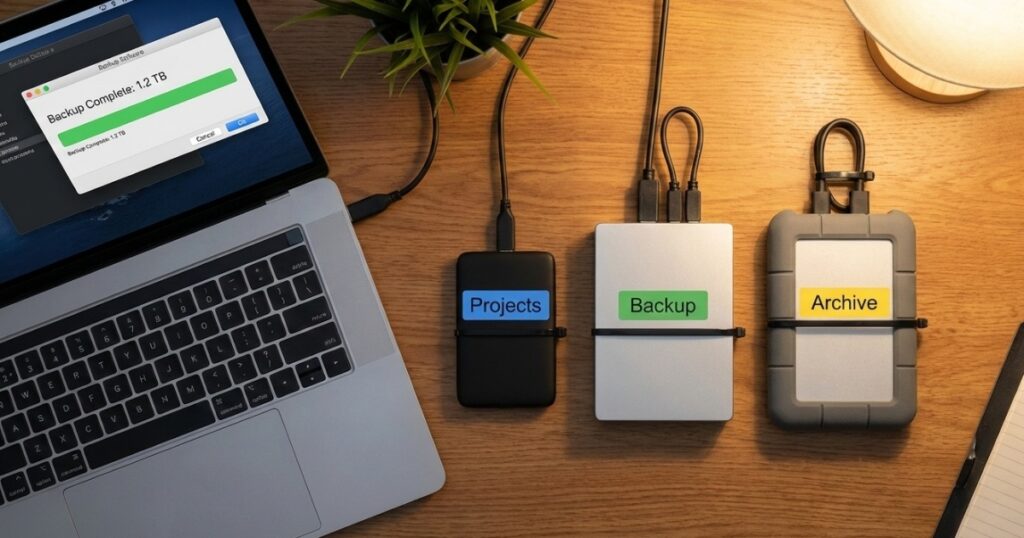
Set Up Automatic Backups
If you have to remember to backup, you won’t backup. Set it and forget it.
- Mac: Time Machine (built-in, works great)
- Windows: File History or third-party tools like Macrium Reflect
- Cross-platform: I use Backblaze for cloud + a scheduled rsync script for local
Organize Before You Regret It
Create a folder structure that makes sense. I use:
/Projects
  /2025
  /2024
  /Archive
/Personal
  /Photos
  /Documents
/Backups
  /Laptop_Backup
  /Phone_Backup
Future you will thank present you.
Eject Properly (Yes, Really)
I know, I know. But I’ve corrupted files by yanking drives out during writes. Just click eject. Takes two seconds.
What About NAS vs External Drives?
Network Attached Storage is great if you need multi-device access or want to run your own mini server. But it’s more complex and more expensive.
I have both. NAS for shared family stuff. External drive for my personal backups.
If you’re curious about storage solutions beyond external drives, we’ve got a detailed breakdown.
The Bottom Line
Buy more storage than you think you need. Get a reputable brand. Set up automatic backups. Test it before you need it.
My current setup:
- Samsung T7 SSD (1TB) for active projects
- WD My Passport (4TB) for weekly backups
- Seagate Expansion (8TB) for archives
Total cost: around $450. Total data lost since setting this up: zero.
That’s worth it.
If you’re building out your complete computer accessories collection, an external drive should be near the top of your list.


One Comment
Comments are closed.