
Laptops for Creative Professionals: What Actually Matters (From Someone Who’s Rendered on Budget Hardware)
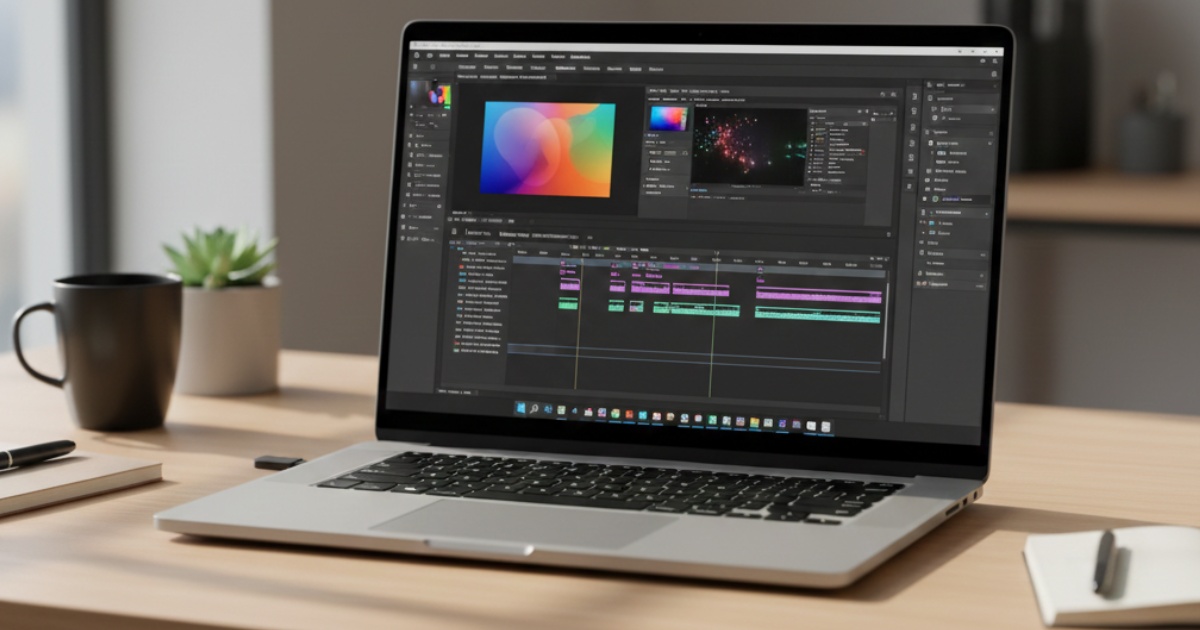
Look, I’ve crashed Premiere Pro more times than I care to admit. Usually around 2 AM, right before a client deadline, on a laptop that was “totally fine for video editing” according to the sales guy.
Spoiler: It wasn’t.
If you’re a designer, video editor, or content creator, your laptop isn’t just a tool. It’s basically your entire production studio, and getting it wrong costs you hours of productivity and a whole lot of frustration. I learned this the hard way when I tried editing 4K footage on 8GB of RAM. Don’t be me.
This article is part of our comprehensive guide on Computers, Laptops, and Accessories. For the full overview of everything computer-related, check out the main guide.
Why Most “Creative” Laptops Are Just Marketing
Here’s the thing about laptop marketing. They’ll slap “perfect for creatives!” on anything with a decent screen and call it a day. But actually working with Adobe Creative Suite, DaVinci Resolve, or even Figma with 47 tabs open? That requires specific hardware that most general-purpose laptops just don’t have.
I spent two years working on a “premium ultrabook” that looked gorgeous but thermal-throttled every time I opened After Effects. The CPU would hit 95°C, clock speeds would tank, and my render times doubled. Real talk: pretty chassis don’t matter when your machine sounds like a jet engine and takes 40 minutes to export a 5-minute video.
The Specs That Actually Matter (And Why)
RAM: 16GB Is the Absolute Minimum
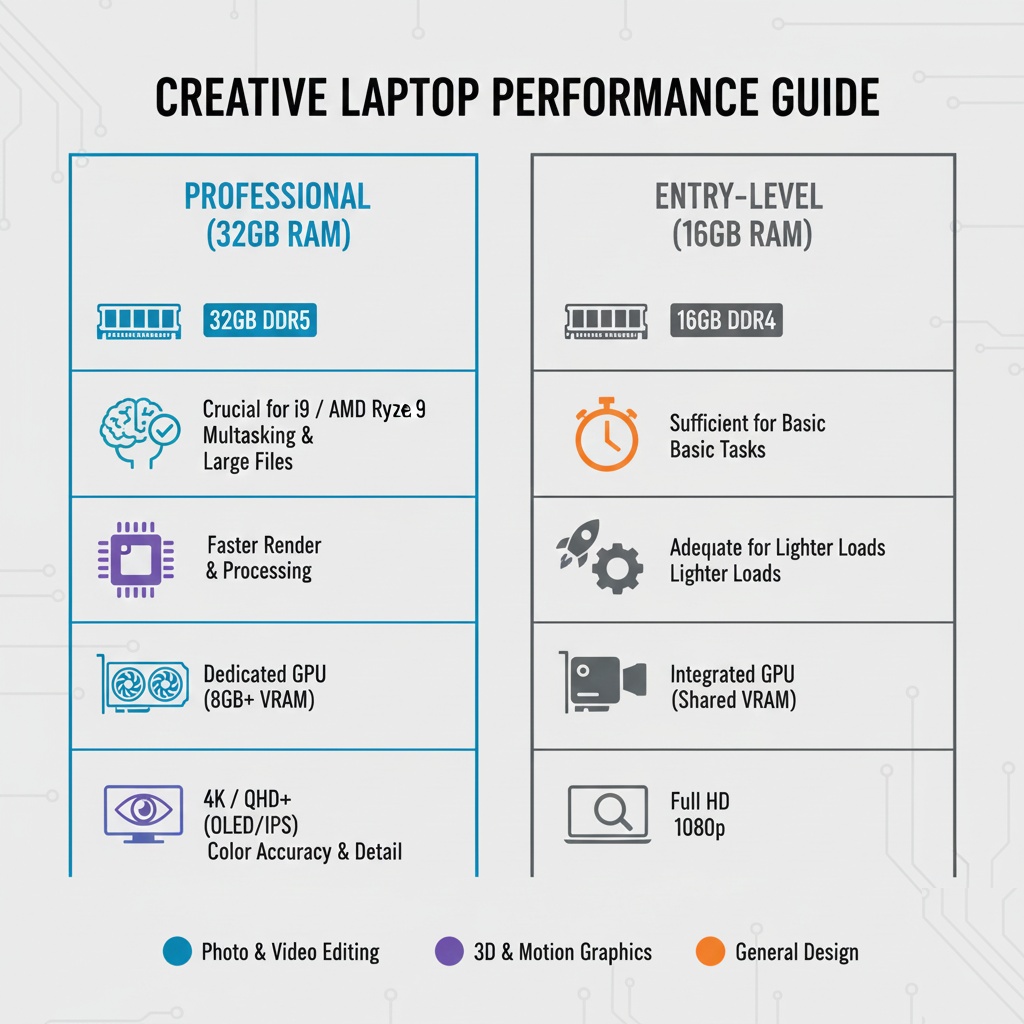
I’ll say it louder for the people in the back: 16GB is the minimum, not the target. Here’s what happens when you try to edit on less:
- Photoshop starts swapping to disk
- Your preview playback stutters
- You can’t have Chrome open alongside your creative apps
- Everything just feels… sluggish
I currently run 32GB on my main laptop, and for heavy 3D work or multi-app workflows, I’d honestly go to 64GB if I could. When you’re working with 50MP RAW files or multiple layers of 4K footage, RAM is what keeps you moving fast.
The difference between 16GB and 32GB isn’t theoretical. It’s the difference between working and watching spinning beach balls.
CPU: More Cores, Real Performance
For most creative work, you want at least 8 cores. Not the efficiency cores Intel loves to advertise – actual performance cores. I tested this last month with identical render jobs on a 6-core i5 versus an 8-core i7. The i7 finished 35% faster. That’s real time saved.
Here’s my experience with different processors:
- Intel 12th/13th/14th gen i7 or i9: Solid for most work, good single-thread performance
- AMD Ryzen 7 or 9 (7000 series): Better multi-threaded performance, runs cooler
- Apple M2 Pro/M3 Pro: Insanely efficient, but you’re locked into macOS
Don’t get hung up on clock speeds alone. A newer 8-core running at 3.5GHz will destroy an older 4-core running at 4.2GHz for creative work.
GPU: Where Things Get Expensive
This is where budget laptops usually fall apart. Integrated graphics are fine for basic photo editing. But video work? 3D rendering? Motion graphics? You need dedicated GPU memory.
I’ve tested both NVIDIA RTX 4060 and 4070 laptop GPUs extensively. The 4070 costs about $400 more, but if you’re doing GPU-accelerated rendering in Premiere or Blender, it pays for itself in saved time within a few months.
For designers working primarily in Photoshop, Illustrator, or Figma, you can get away with less GPU power. But the moment you touch video or 3D, dedicated graphics become non-negotiable. Trust me, I learned this after spending 8 hours rendering a project that should have taken 2.
Display: Color Accuracy Isn’t Optional
You know what’s embarrassing? Delivering a project that looks perfect on your screen but completely wrong everywhere else. Happened to me in 2021. The client’s face was too red in the final video because my laptop display wasn’t color-calibrated.
What you actually need:
- 100% sRGB coverage (minimum for web work)
- Factory calibration (Delta E < 2 if possible)
- At least 300 nits brightness (500+ if you work in bright environments)
- Matte finish (seriously, glare kills productivity)
4K displays look nice but drain battery fast. For a 15-16″ screen, 2560×1600 or 2880×1800 is the sweet spot. You get sharp text and UI elements without massacring battery life. I run a 2.5K display and honestly can’t tell the difference from 4K at normal viewing distance.
Real-World Performance: What I Actually Use

I’ve been using a Dell XPS 15 (2023 model) for the past year. Specs: i7-13700H, 32GB RAM, RTX 4060, 3.5K OLED display. Here’s what happens in actual work:
Photoshop with 30-layer files: Smooth, no lag. RAM usage sits around 12GB.
Premiere Pro with 4K timeline: Playback is good with proxies, struggles a bit without. Exports are quick thanks to hardware encoding.
DaVinci Resolve color grading: This is where the RTX 4060 shines. Real-time color adjustments, minimal render time for effects.
After Effects with plugins: Gets warm under load, but doesn’t throttle. Could use more GPU memory for complex compositions.
The laptop isn’t perfect. Battery life during creative work is maybe 3 hours tops. The fan noise is noticeable. But it handles professional workloads without making me want to throw it out a window, which is more than I can say for previous machines.
Common Mistakes Creative Professionals Make
Mistake 1: Buying Based on Brand Alone
“I’ll just get a MacBook Pro because that’s what creatives use.”
Look, I love macOS for creative work. But you’re paying a 30-40% premium for the ecosystem. If you’re already committed to Adobe apps on Windows, switching to Mac won’t magically improve your work. I know designers who do incredible work on ThinkPads and video editors crushing it on MSI Creator laptops.
Buy the specs you need, not the logo.
Mistake 2: Skimping on Storage
512GB sounds like enough until you’re three projects deep and running out of space. I recommend at least 1TB, especially if you work with video. External drives are fine for archives, but you want active projects on fast internal NVMe storage.
Also, check if the SSD is upgradeable. Some thin laptops have soldered storage, which means you’re stuck with what you bought.
Mistake 3: Ignoring Thermals
Thin and light laptops look great in coffee shops. But sustained creative work generates heat, and if the cooling system can’t handle it, your expensive CPU and GPU will throttle down to protect themselves.
Before buying, search “[laptop model] thermal throttling test” on YouTube. You’ll learn more in 10 minutes than from any spec sheet.
If you’re serious about laptop performance and wondering whether you should invest in a desktop setup instead, check out our guide on Desktop vs Laptop: Which to Choose for a detailed comparison.
My Current Top Picks (February 2025)
For Video Editors:
- MacBook Pro 16″ (M3 Max): Expensive but unbeatable for video. Battery life is insane.
- ASUS ProArt Studiobook: Windows alternative with similar power, costs less.
For Photographers/Designers:
- Dell XPS 15 or 17: Gorgeous display, powerful enough for most work.
- MacBook Pro 14″ (M3 Pro): Portable, great for Lightroom and Photoshop.
Budget Option:
- Lenovo Legion Slim 5: Gaming laptop that handles creative work surprisingly well. Save money here if you’re just starting out.
For students or creatives on a tight budget, our Best Laptops for Students guide includes options that can handle creative work without breaking the bank.
What About Battery Life?
Let’s be realistic. When you’re rendering video or working with GPU-intensive tasks, you’re going to be plugged in. Period. My laptop gets maybe 2.5 hours doing actual creative work.
The MacBooks are different here – M-series chips are genuinely efficient. You might get 6-8 hours of real work. But Windows laptops with dedicated GPUs? Plan to be near an outlet.
If long battery life matters (and it should if you work in coffee shops or travel), check out our list of Laptops with Longest Battery Life. Some models manage 10+ hours for lighter tasks.
The Accessories That Actually Help
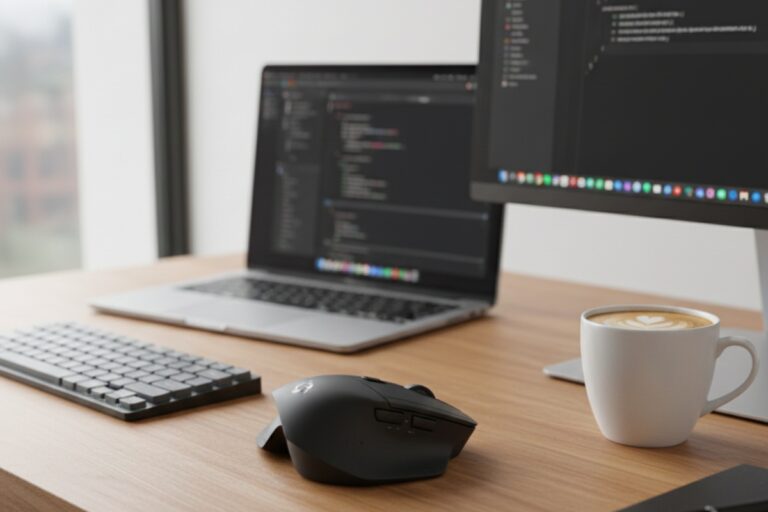
Your laptop is just part of the equation. After a year of remote creative work, here’s what made a real difference:
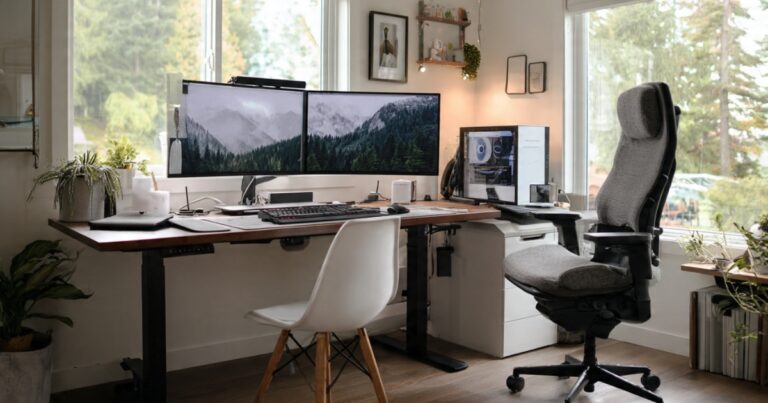
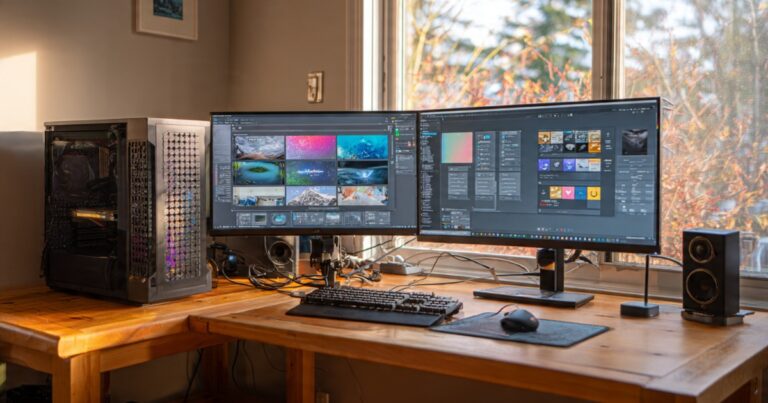
- External monitor (27″ 4K or ultrawide) – Your neck will thank you
- Good mouse – Trackpads are fine, but a precision mouse speeds up editing
- Cooling pad – Yes, they actually help with sustained workloads
- Color calibration tool – If color accuracy matters, invest in a Spyder or similar
We have a detailed breakdown of Best Accessories for Laptops if you want specific recommendations.
So What Should You Actually Buy?
Here’s my honest advice: Figure out your actual workflow first. Open Activity Monitor or Task Manager while you work and see what you’re actually using. RAM maxing out? You need more. GPU sitting at 100%? Upgrade the graphics. CPU barely breaking 50%? Save money there.
Don’t buy specs you won’t use. But also don’t cheap out on the ones that matter for your specific work.
If you’re doing professional work that pays your bills, treat your laptop as a business investment. That $2,000 machine that saves you 2 hours per project pays for itself pretty quickly.
The best creative laptop is the one that disappears into your workflow and just lets you work. Everything else is marketing.
Ready to make your choice? Head back to our comprehensive Computers, Laptops, and Accessories guide for more in-depth comparisons and recommendations across all categories.

One Comment
Comments are closed.