Smartphone Performance Tips: Stop Your Phone From Feeling Like It’s Running Through Mud
My phone started lagging so badly last month that opening Instagram took 8 seconds. Eight. Seconds. I was ready to throw it against a wall and buy a new one. Then I spent 20 minutes actually cleaning up the mess I’d created over two years of “I’ll organize this later” and boom. Back to normal.
You don’t always need a new phone. Sometimes you just need to stop treating it like an infinite storage locker with unlimited processing power.
This article is part of our comprehensive guide on Smartphones and Mobile Technology. For the full guide, visit the main page.
Why Your Phone Feels Slow (And It’s Probably Your Fault)
Here’s the thing. Unless you dropped your phone in a lake or it’s genuinely ancient (we’re talking 5+ years old), the hardware is fine. What’s killing performance is usually:
- 47 apps you installed once and never opened again
- Photos and videos eating 90% of your storage
- Background processes running wild
- That one app that’s been stuck updating for three weeks
- Cache files that have become sentient
I know because I’ve done all of these. Multiple times.
The Quick Wins That Actually Work
Let me save you some time. These fixes take less than 10 minutes total and will make an immediate difference.
Clear Your Storage Right Now
Go look at your storage settings. I’ll wait.
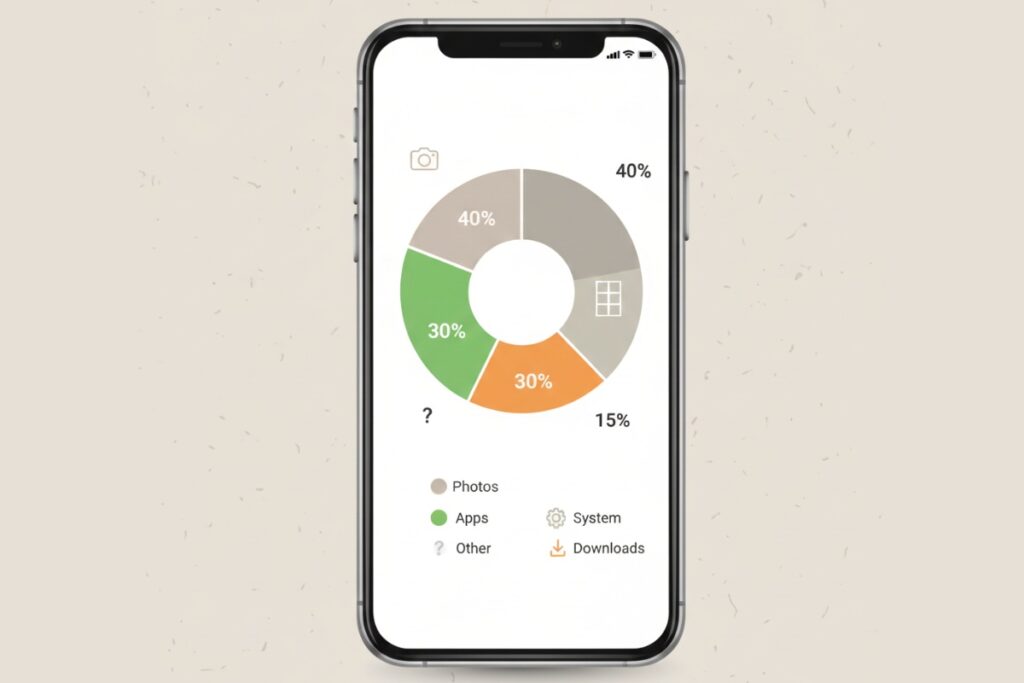
See that? You’re probably sitting at 85-95% full. That’s your problem right there. Phones start choking when storage gets tight because the operating system needs room to breathe.
What I do every month:
- Delete screenshots I’ll never look at again (why do I have 200 of these?)
- Move photos to Google Photos or iCloud
- Uninstall apps I haven’t touched in 30 days
- Clear downloads folder
On Android, go to Settings > Storage. On iOS, Settings > General > iPhone Storage. Both will show you what’s hogging space.
Last time I did this, I freed up 32GB. Turns out I had downloaded an entire season of a show “for offline watching” and forgot about it for six months.
Kill the App Hoarders
Some apps are just greedy. Facebook, Instagram, Spotify. They cache everything and never clean up after themselves.
Instead of uninstalling (because let’s be real, you’re using them), clear their cache:
Android: Settings > Apps > [App Name] > Storage > Clear Cache
iOS: You usually have to delete and reinstall (yeah, it’s annoying)
I clear Spotify’s cache every few weeks. It’ll balloon to 3-4GB if I don’t. The app works exactly the same after clearing it, just downloads your recent playlists again.
Restart Your Phone More Often
I know someone who hasn’t restarted their phone in 67 days. Sixty-seven. Their phone was basically a hand warmer at that point.
Restart once a week. Set a reminder. It clears memory, kills stuck processes, and gives everything a fresh start. Revolutionary, I know.
The Deeper Fixes (When Quick Wins Aren’t Enough)
If your phone’s still sluggish after the basics, time to dig deeper.
Disable Animations (Makes Everything Feel Faster)
This one’s a game changer on Android. Go to Developer Options and set all three animation scales to 0.5x or turn them off completely.
To unlock Developer Options: Settings > About Phone > tap Build Number 7 times. (Yes, really.)
Does this make your phone actually faster? Not really. Does it feel way faster because transitions happen instantly? Absolutely. I’ve been running with animations at 0.5x for two years and I can’t go back.
iOS doesn’t let you disable animations, but you can turn on “Reduce Motion” in Accessibility settings. Not quite the same, but helps.
Check What’s Running in the Background
Some app is probably destroying your battery and performance while you sleep. Time to find it.
Android: Settings > Battery > Battery Usage
iOS: Settings > Battery
Look for anything using more than 20-30% that you’re not actively using. Facebook Messenger running 8 hours a day in the background? Probably don’t need that.
I caught a weather app using 45% of my battery once. It was checking the forecast every 5 minutes. In case a hurricane spontaneously formed, I guess. Uninstalled immediately.
If you’re curious about more detailed battery optimization, check out our guide on Smartphone Battery Life Tips.
Update Your Apps (Or Don’t Update Everything)
Here’s where I’ll probably annoy some people. Auto-updates sound convenient until an update breaks something or makes an app bloated.
I update apps manually. Takes 2 minutes every week, and I can skip updates for apps that are working fine. WhatsApp pushed an update last year that made the app 50% slower on older phones. People who waited a week avoided that mess.
But also, don’t ignore updates forever. Security patches matter. Just be selective.
Factory Reset (The Nuclear Option)
If nothing else works and your phone is still under 3 years old, factory reset it. Back everything up first, obviously.
I did this with a OnePlus 7 that was crawling after two years. Post-reset? Felt like a new phone. All the accumulated junk from apps installing and uninstalling, failed updates, corrupt cache files, it all goes away.
Before you do this:
- Back up photos (seriously, double check)
- Export contacts
- Write down any app-specific logins
- Make sure you know your Google/Apple account password
I’ve done this three times across different phones. Every time it fixed performance issues that nothing else could touch.
What NOT to Do (Stuff That Doesn’t Help)
Let’s talk about performance myths because there’s a lot of bad advice out there.
Task killers are useless. Those “RAM booster” apps? Snake oil. Android and iOS manage memory fine on their own. Constantly killing apps actually makes performance worse because the system has to reload them.
“Performance optimization” apps are mostly garbage. They promise to speed up your phone but mostly just show you ads and drain your battery.
Disabling system apps you don’t understand. Leave system apps alone unless you know exactly what they do. I watched someone disable “System UI” once. Their phone became unusable.
Real Talk: Sometimes It’s Just Old
Look, I’ll be honest. If your phone is 4-5 years old, you’re fighting physics at this point. The hardware isn’t getting better, apps are getting heavier, and operating systems are designed with newer processors in mind.
My old Galaxy S8 from 2017? I did everything on this list and it still struggled with modern apps. Because Instagram in 2025 is built for processors that didn’t exist in 2017.
At some point, you need an upgrade. But before you spend $800 on a new phone, try these tips. You might squeeze another year out of what you’ve got.
Want to explore what’s available when you do upgrade? Our Smartphone Buying Guide covers everything from budget options to flagship devices.
The Bottom Line
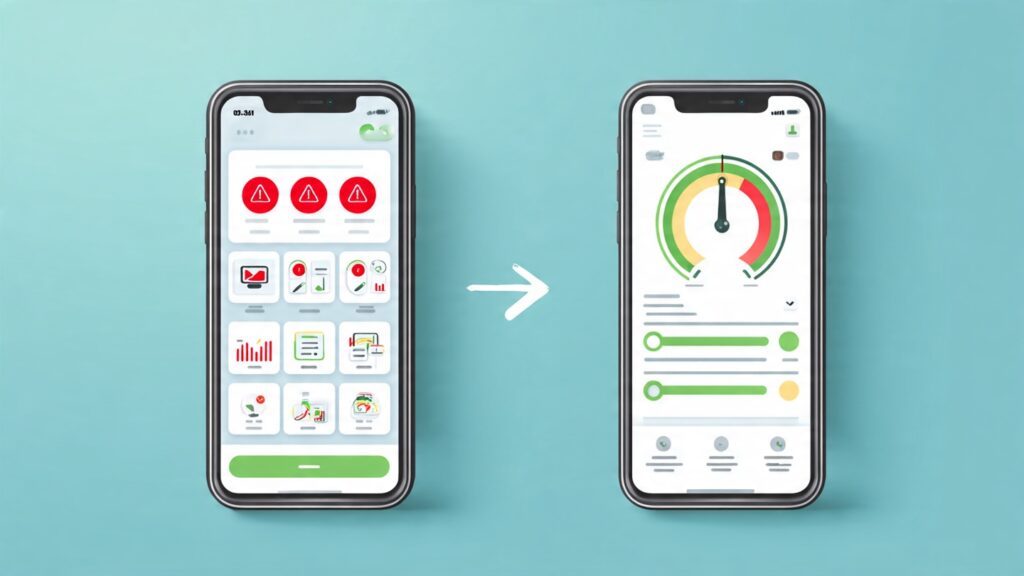
Your phone probably doesn’t suck. You’ve just been ignoring basic maintenance for 18 months while downloading every app that looked mildly interesting.
Clean up your storage. Clear some cache. Restart more than once a season. Check what’s eating your battery. These aren’t revolutionary tips, but they work.
I went from wanting to throw my phone out a window to being perfectly happy with it just by spending 30 minutes cleaning up the mess I’d made. You can probably do the same.
Now if you’ll excuse me, I need to go delete about 300 screenshots of things I swore I’d need later.
Related Articles
Looking for more ways to get the most out of your smartphone? Check out these guides:
- Smartphone Battery Life Tips – Extend your battery life with practical strategies
- Smartphone Security Tips – Protect your device from threats
- Smartphone Buying Guide – When it’s time to upgrade, here’s how to choose
- Best Budget Smartphones – Great performance without the flagship price