

Automation Tools for Productivity: Stop Doing Repetitive Crap Manually
Look, I’ll be honest. I used to think automation was this complicated thing only DevOps engineers needed to care about. Then I spent an entire afternoon copying data from emails into spreadsheets, and something in me just… broke.
That was two years ago. Now? I’ve automated so much of my workflow that I sometimes forget how I used to do things manually. And I’m not talking about complex scripts or fancy AI setups. I’m talking about simple tools that handle the boring stuff while you focus on actual work.
Let me show you what actually works.
Why Manual Work Is Killing Your Productivity
Here’s the thing nobody tells you: it’s not the big tasks that drain you. It’s the thousand tiny repetitive actions you do every single day.
Copying meeting notes into your project tracker. Saving email attachments to specific folders. Sending the same status update to three different people. Formatting data exports. Renaming files. Scheduling social posts.
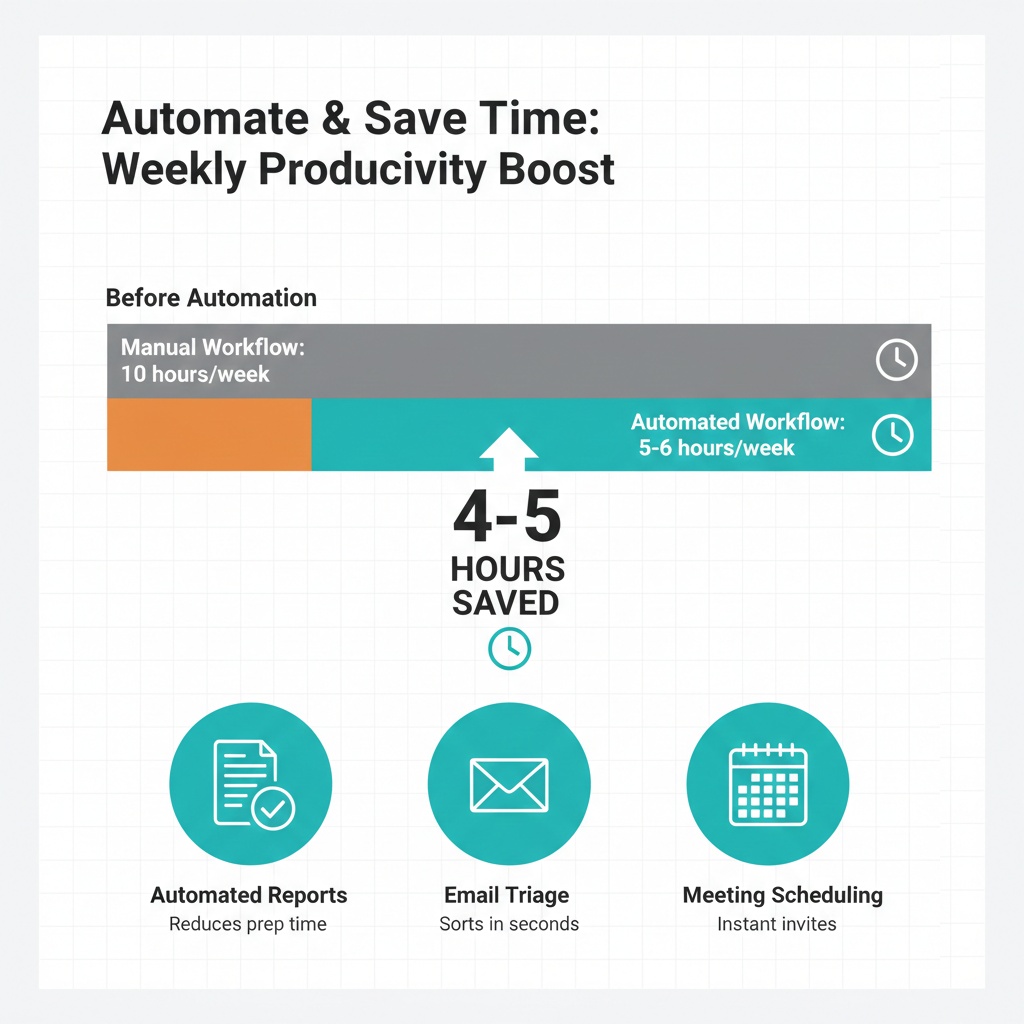
Each one takes 30 seconds. Do that 50 times a day, and you’ve just lost 25 minutes doing robot work. That’s over two hours per week. Eight hours per month.
I tracked this once (yeah, I’m that person). Found out I was spending about 10% of my workweek on stuff a computer could do better. That’s half a day gone, every single week.
The Tools I Actually Use

I’ve tried probably 30 different automation tools. Most of them are either too complicated, too expensive, or solve problems I don’t have. Here are the ones that stuck.
Zapier (The Swiss Army Knife)
This is where most people start, and for good reason. Zapier connects different apps together so they can talk to each other.
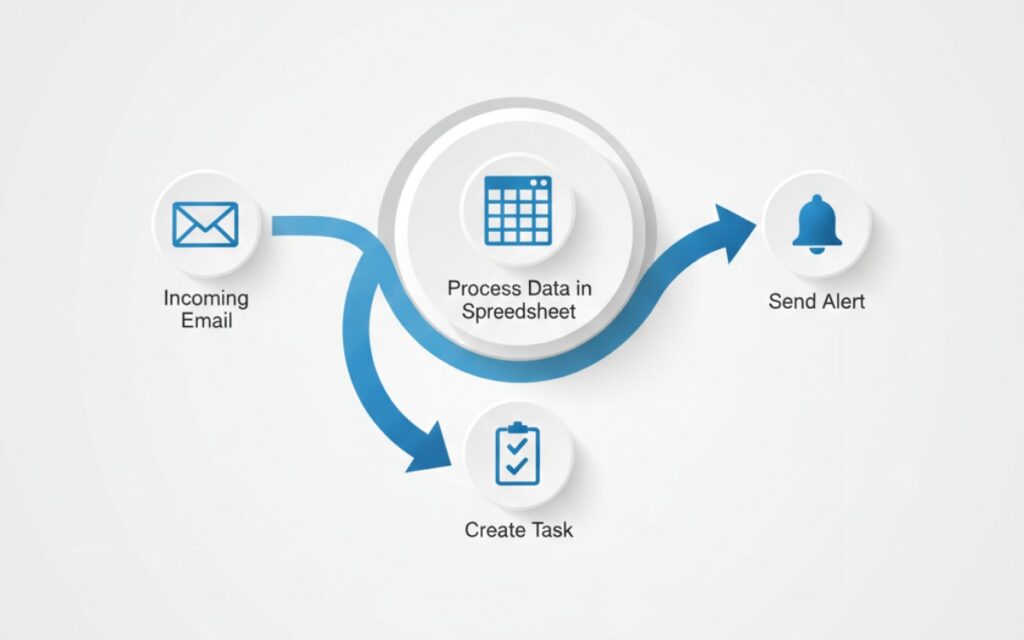
Real example from my workflow: When someone fills out my contact form, Zapier automatically creates a new row in my Google Sheet, sends me a Slack notification, and adds the person to my email list. Zero manual work.
The catch? It gets expensive fast. The free plan gives you 100 tasks per month, which sounds like a lot until you realize a “task” is one action in one automation. I hit that limit in the first week.
I’m on the $20/month plan now. Worth it for me, but you’ve got to actually use it to justify the cost.
Make (Formerly Integromat)
If Zapier is the friendly beginner tool, Make is its more powerful (and slightly confusing) cousin.
The interface looks like a flowchart, which intimidated me at first. But once you get it, you can build way more complex automations. I use it for things like:
- Monitoring my website uptime and texting me if it goes down
- Pulling data from multiple sources and combining it into one report
- Auto-categorizing expenses based on keywords in transaction descriptions
Make’s pricing is better than Zapier’s for heavy users. But there’s definitely a learning curve. Took me a weekend to figure out how to use their router and filter features properly.
IFTTT (For Simple Stuff)
If This Then That. The name tells you what it does.
I use IFTTT mainly for personal automation, not work stuff. Things like:
- Auto-saving my liked tweets to a spreadsheet
- Turning on my smart lights when I get home
- Logging my work hours to a Google Sheet when I clock in
It’s free for basic use, and the mobile app actually works well. Not as powerful as Zapier or Make, but sometimes you just need something simple that works.
Notion Automations (The New Kid)
Notion added native automation this year, and it’s been a game changer for my project management.
I’ve got automations that:
- Move tasks to “In Progress” when I assign them to myself
- Send me a daily digest of overdue items
- Auto-archive completed projects after 30 days
The best part? It’s included with your Notion subscription. No extra cost.
The worst part? It only works inside Notion. You can’t connect it to external apps without using Zapier or Make as a bridge.
TextExpander (Underrated as Hell)
This one’s different. Instead of connecting apps, it expands text snippets.
I type /email and it auto-fills my email address. Type /meeting and I get a pre-formatted meeting agenda template. Type /sig and there’s my full email signature.
Sounds basic, right? But I’m probably typing the same 20-30 things hundreds of times per week. TextExpander has saved me hours.
The business plan has even cooler features like filling in forms automatically and creating dynamic snippets with variables. I use it to generate client proposals where it auto-fills names, dates, and pricing based on what I type.
What I’ve Learned About Automation
Start Small
My first attempt at automation was trying to build this massive workflow that connected seven different apps. It broke constantly, and I spent more time fixing it than I saved.
Now I start with one annoying task and automate just that. Once it’s working smoothly for a month, I add another.
Not Everything Should Be Automated
I tried automating my email responses once. You know, those “Thanks for reaching out” messages. Lasted about a week before someone called me out for sounding like a robot.
Some things need a human touch. Automation is for repetitive tasks where the outcome is predictable and doesn’t need personality.
Test Before You Trust
Last year, I built an automation that was supposed to forward urgent customer emails to my phone. Worked great in testing. Then it broke during a product launch, and I missed three time-sensitive messages.
Always have a backup plan. Check your automations weekly. Set up notifications so you know when something fails.
Track What You’re Saving
I keep a simple note of what I’ve automated and roughly how much time each one saves per week. Helps me justify the cost of paid tools and figure out what to automate next.
Current count: I’m saving about 4-5 hours per week across all my automations. That’s 200+ hours per year. Worth every penny I spend on these tools.
Common Automation Mistakes
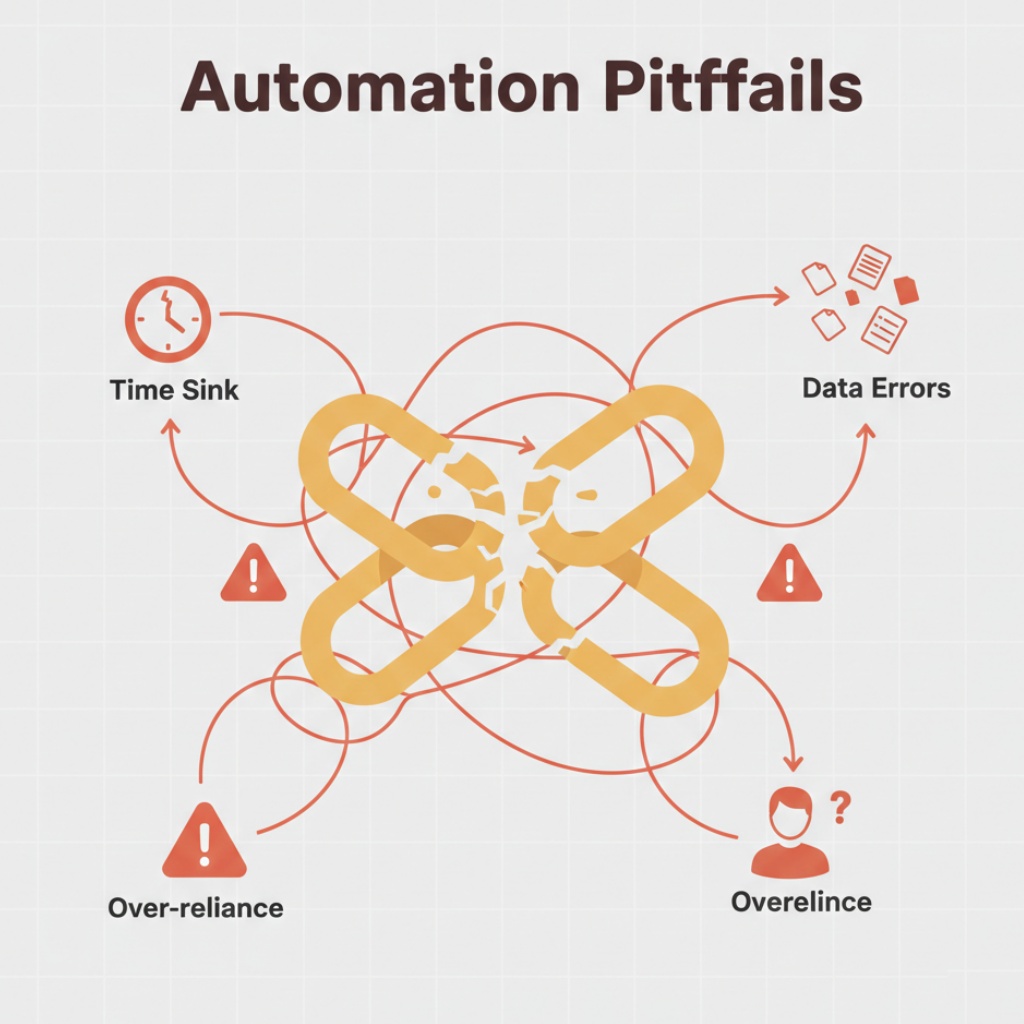
Over-automating everything: You’ll spend more time maintaining automations than you save. Be selective.
Not documenting your workflows: Come back to an automation six months later, and you’ll have no idea what it does or how to fix it. Write down what each automation does and why you built it.
Ignoring error logs: Most automation tools will email you when something breaks. Actually read those emails.
Building dependencies: If automation A feeds into automation B which triggers automation C, one failure breaks everything. Keep things independent when possible.
Tools I Tried and Ditched
Keyboard Maestro: Powerful Mac automation tool, but the learning curve was brutal. Gave up after trying to build a simple file renaming script for three hours.
Microsoft Power Automate: Works great if you’re deep in the Microsoft ecosystem. I’m not, so it felt like overkill.
Automate.io: Similar to Zapier but cheaper. Except their integrations broke constantly, and support took days to respond. Not worth the savings.
Building Your First Automation
Here’s my recommendation if you’re starting from scratch:
- Track your repetitive tasks for one week. Just write them down.
- Pick the most annoying one that you do at least daily.
- Sign up for Zapier’s free plan.
- Search their template library for that specific task.
- Customize the template to match your workflow.
- Test it 5-10 times before trusting it.
That’s it. Don’t overthink it. Most automations take 10-15 minutes to set up.
Once you’ve got one working, you’ll start seeing automation opportunities everywhere. It becomes addictive in the best way.
Real Talk
Automation isn’t magic. You’re not going to “4-hour workweek” your way into sipping margaritas on a beach while robots do your job.
But you can eliminate the boring repetitive stuff that makes work feel like work. That’s worth something.
I still manually do plenty of tasks. Things that need judgment, creativity, or a personal touch. The difference is I’m not wasting energy on copying and pasting data or sending the same message 20 times.
Start with one automation. Just one. See how it feels. Then build from there.
Your future self will thank you.
This article is part of our comprehensive guide on Software, Apps, and Productivity Tools. For the full guide exploring productivity apps, project management software, and collaboration tools, check out the main resource.
Related Articles
If you found this useful, you might also want to check out:
- Best Productivity Apps 2025 – Discover the top apps to organize your work and life
- Task Management Apps – Keep your tasks organized and prioritized effectively
- Time Management Apps – Improve your workflow with the best time tracking tools
- Productivity Tools for Entrepreneurs – Tools that help entrepreneurs manage tasks and teams
- Free vs Paid Productivity Apps – Compare options to find what fits your needs and budget






One Comment
Comments are closed.