
Laptop Maintenance Tips: Lessons I Learned After Killing Two Laptops
Look, I’m not proud of this, but I’ve completely destroyed two laptops in my career. The first one died because I never cleaned the fans (thermal shutdown city), and the second one bit the dust after I spilled coffee on it while ignoring every warning sign that the battery was swelling.
So yeah, I learned laptop maintenance the hard way. Let me save you a few hundred bucks and some serious headaches.
Why Laptop Maintenance Actually Matters
Here’s the thing: laptops are basically portable ovens that we expect to run perfectly for years. We throw them in backpacks, use them on beds (blocking all the vents), and never think about what’s happening inside until something goes wrong.
I’ve seen developers run the same laptop for 5+ years with zero issues. I’ve also seen people kill a $2,000 MacBook Pro in 18 months. The difference? The first group actually maintains their machines.
The Maintenance Tasks Nobody Tells You About
1. Clean Those Damn Fans (Every 3-6 Months)
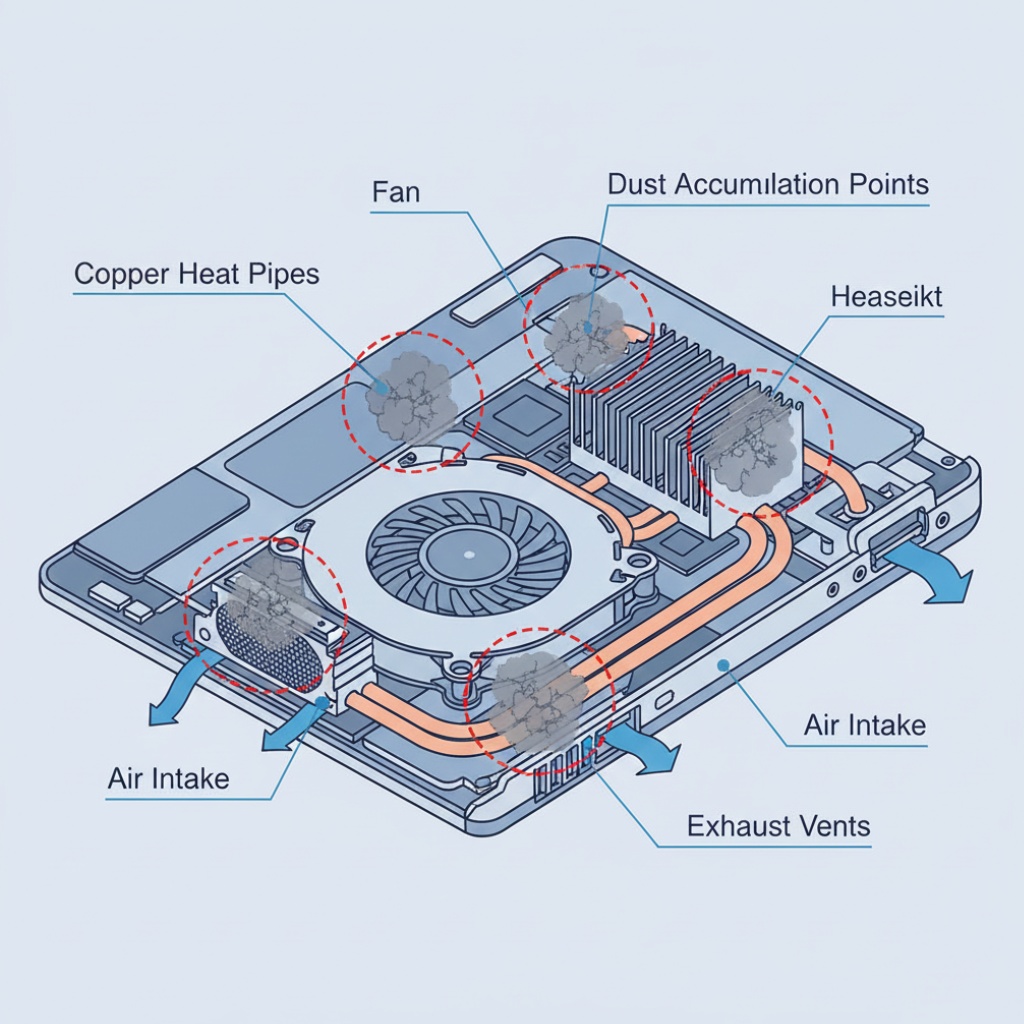
This is the big one. Dust buildup in your laptop’s cooling system will absolutely murder your performance and lifespan.
My ThinkPad started thermal throttling during builds last summer. I opened it up and there was literally a blanket of dust covering the heatsink. CPU temps were hitting 95°C under load.
How to do it right:
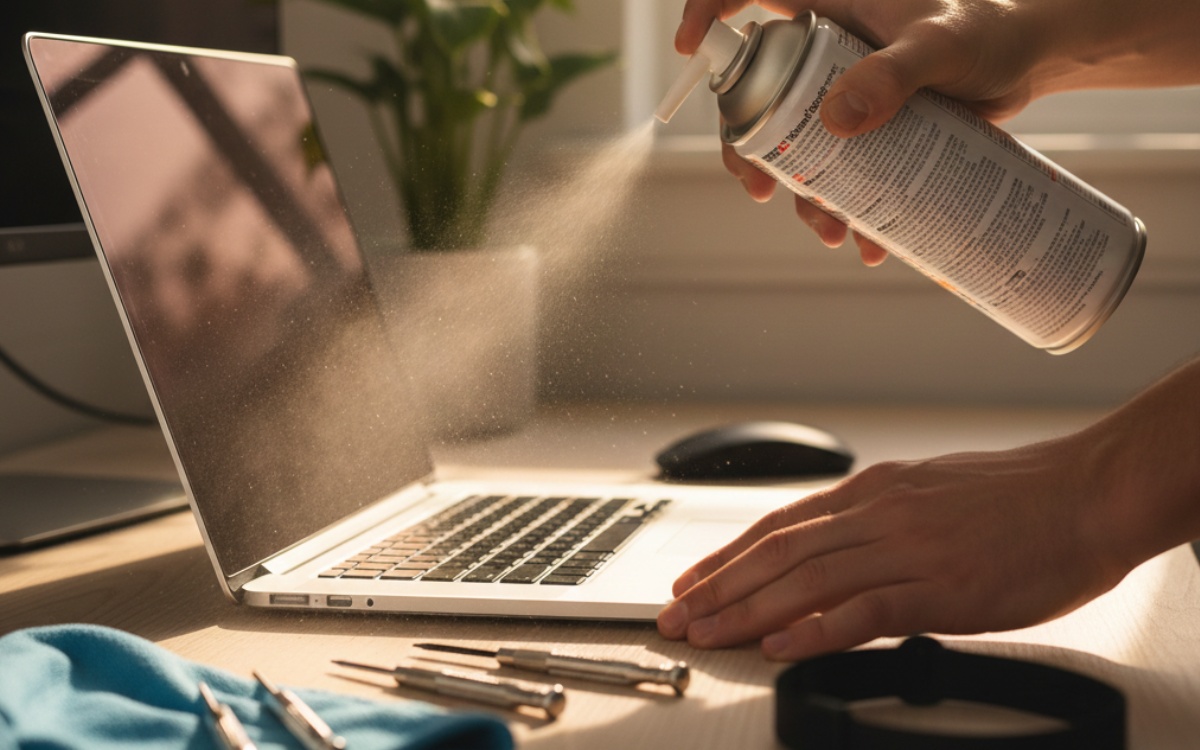
- Get a can of compressed air (the kind for electronics, not your air compressor)
- Turn off your laptop completely
- Hold the fan blades still while you spray (otherwise you’ll spin them too fast and damage the bearings)
- Work in short bursts, not one long spray
- Do this outside or near a window because you’ll be amazed how much crap comes out
For deeper cleaning, you’ll need to open your laptop. If you’re not comfortable with that, most repair shops will do it for $30-50. Worth it.
Want better cooling overall? Check out our guide on laptop cooling solutions for more advanced options.
2. Battery Care Is Weirder Than You Think
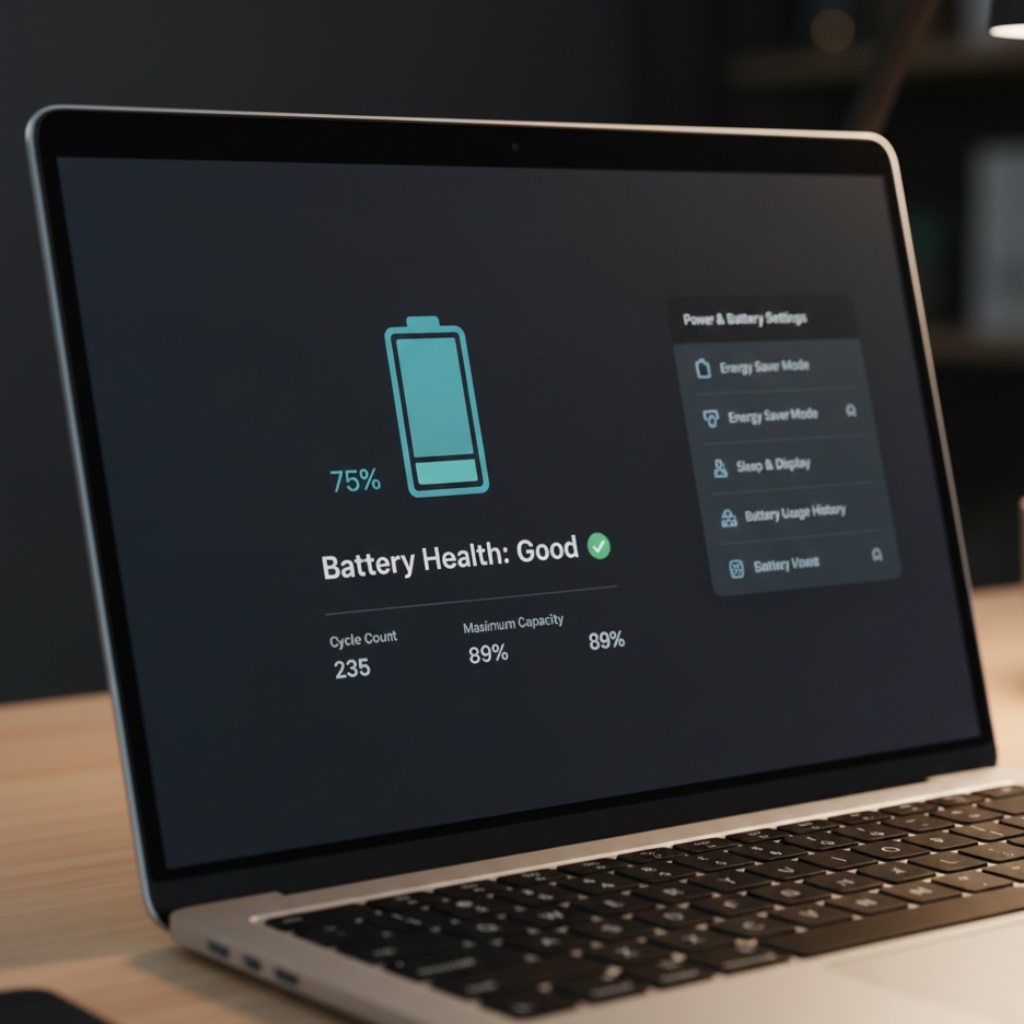
Everyone knows not to let your battery die completely. But here’s what I wish someone told me three years ago: keeping your laptop plugged in at 100% all the time is also bad for lithium-ion batteries.
I used to run my Dell XPS as a desktop replacement, plugged in 24/7. The battery started swelling after 14 months. Not dangerous yet, but the trackpad was getting pushed up. That’s a $150 repair I didn’t need.
What actually works:
- Keep your battery between 20% and 80% when possible
- If you’re using it plugged in all day, some laptops have a “battery care” mode that caps charging at 60-80%
- Don’t store a laptop with a dead battery for months
- Once a month, do a full discharge and recharge cycle
Real talk: modern batteries are smart enough that you don’t need to obsess over this. Just don’t be like me and ignore the warning signs when your trackpad starts popping up.
If you’re looking for laptops with better battery longevity, our laptops with longest battery life guide covers models with the best power management.
3. Update Everything (But Not Right Before a Deadline)
I know, I know. Update notifications are annoying. But here’s what happens when you ignore them for six months:
Last year, I put off a BIOS update on my work laptop. When I finally ran it, it fixed a critical bug that was causing random system freezes I’d been dealing with for weeks. I’d blamed Docker, my IDE, even reinstalled the OS. Nope. Just needed a BIOS update.
Update priority list:
- BIOS/UEFI firmware – These fix serious hardware bugs. Check every 3-4 months.
- Graphics drivers – Especially if you’re doing anything visual or gaming
- Chipset drivers – Windows Update often misses these
- Battery firmware – Yes, this is a thing. Check your manufacturer’s support page.
Pro tip: never update your BIOS on battery power. I’ve seen this brick a laptop when the battery died mid-flash.
4. Physical Damage Prevention (Learn From My Mistakes)
I mentioned the coffee spill. Here’s the full story: I was coding at a coffee shop, got distracted by a Slack message, and knocked over my cup directly onto my keyboard. The laptop was a MacBook Air, so of course the liquid went straight into the logic board.
Total damage? $800 repair quote. I bought a used replacement instead.
Stuff that actually helps:
- Keyboard covers if you eat/drink near your laptop (they’re like $10)
- A good laptop sleeve or case (not just a random backpack pocket)
- Never use your laptop on a bed or couch with the vents blocked
- Keep liquids to the side, not directly in front
Also, get a decent laptop backpack with proper padding. I’ve seen too many cracked screens from drops.
5. Storage Maintenance That Actually Matters
SSDs don’t need defragmentation (please don’t defrag your SSD), but they do need some care.
For SSDs:
- Keep at least 10-15% free space. SSDs slow down dramatically when full.
- Run TRIM regularly (Windows does this automatically, but check)
- Monitor drive health with CrystalDiskInfo or similar tools
For spinning drives (if you still have one):
- Defragment monthly
- Check SMART status
- Back up anything important because these will eventually fail
I learned about the free space thing when my laptop with a 256GB SSD started crawling. I was at 240GB used. Cleared 40GB of old Docker images and build artifacts, and suddenly everything was fast again.
For more performance tips, check our laptop performance optimization guide.
6. Software Cleanup (The Boring But Necessary Stuff)
Your laptop accumulates digital junk like crazy. I’m talking:
- Old program installers
- Temp files that never got cleaned
- Browser caches eating gigabytes
- Duplicate photos and downloads
Every few months, I run through this checklist:
- Uninstall programs I haven’t used in 6+ months
- Clear browser cache and downloads folder
- Run Disk Cleanup (Windows) or similar on Mac/Linux
- Check what’s eating space with WinDirStat or DaisyDisk
Last time I did this, I found 18GB of npm packages in old project folders I’d forgotten about.
The Stuff You Should Actually Worry About
Red flags that mean “fix this now”:
- Laptop getting hot enough to be uncomfortable on your lap
- Fans running at full speed while doing basic tasks
- Battery draining way faster than it used to
- Random crashes or freezes
- Weird noises (clicking, grinding)
Don’t ignore these. I ignored the fan noise on my first laptop and the hard drive failed two weeks later. Could’ve saved it with a backup if I’d paid attention.
Speaking of security, our laptop security tips guide covers protecting your data alongside hardware maintenance.
What You Can Skip (Probably)
Look, some “maintenance” advice is just paranoia or outdated:
- You don’t need to fully discharge lithium batteries anymore (that was NiCad batteries from the 90s)
- Registry cleaners are mostly snake oil and can break things
- You probably don’t need third-party antivirus if you’re on Windows 10/11 (Defender is solid now)
- “PC optimization” software is usually bloatware
Quick Monthly Maintenance Routine
Here’s what I actually do now:
Every month (15 minutes):
- Quick visual check for dust in vents
- Wipe down keyboard and screen
- Check battery health
- Verify backups are running
- Update drivers/firmware if available
Every 3-4 months (30-45 minutes):
- Deep clean fans and vents
- Full software cleanup
- Check disk health
- Update BIOS if needed
- Test backup restore (seriously, do this)
Yearly:
- Consider replacing thermal paste if temps are high (advanced users only)
- Professional cleaning if you’re not comfortable opening it
- Battery replacement if degraded below 80% capacity
Bottom Line
You know what’s funny? I’ll spend hours optimizing code for performance, but I used to completely ignore the machine running it. Maintenance isn’t exciting, but it’s the difference between a laptop that lasts 2 years and one that lasts 5.
The stuff that actually matters: clean the fans, don’t abuse the battery, update firmware, and pay attention when your laptop tries to tell you something’s wrong.
And for the love of all that is holy, keep liquids away from your keyboard.
This article is part of our comprehensive guide on Computers, Laptops, and Accessories. For the full guide covering everything from buying advice to optimization, visit the main hub.




4 Comments
Comments are closed.