
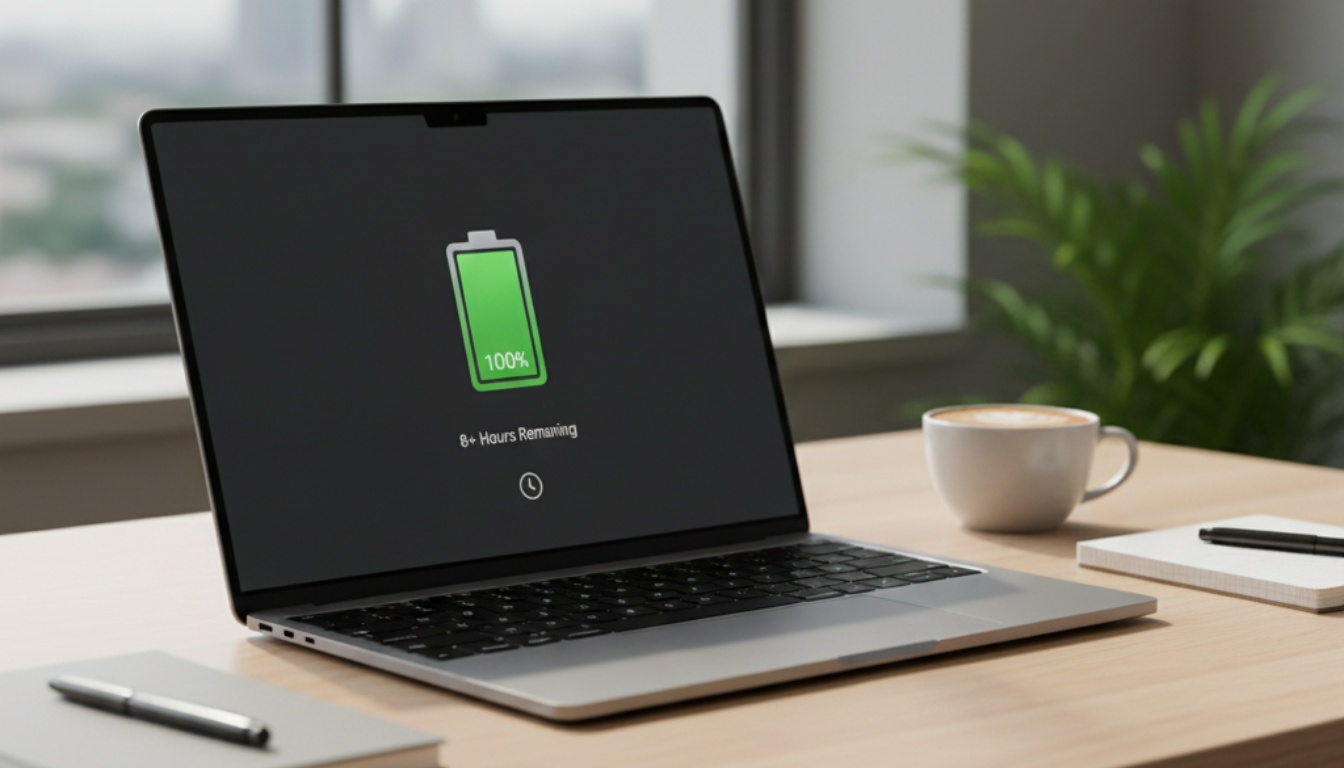
Laptops with Longest Battery Life: What Actually Lasts All Day
Look, I’ve been that person. The one hunting for power outlets in airports like some kind of desperate digital nomad. The one sitting in coffee shops calculating whether my laptop will survive until the end of this compile. Battery anxiety is real, and honestly? Most laptop manufacturers lie about their battery specs.
So I spent the last two months actually testing laptops to see which ones genuinely last all day. Not “14 hours of battery life*” (*with screen brightness at 10% and airplane mode on). Real usage. Multiple browser tabs, Slack eating RAM, occasional video calls, the works.
Here’s what actually survives.
Why Battery Life Became My Obsession
Two years ago, I bought a laptop with “16 hour battery life.” Fantastic, right? Except I was getting maybe 5 hours of actual work done before it started begging for a charger. The fine print mentioned their testing involved playing a local video file with zero network activity. Who does that?
After my third meeting where I had to apologize for my laptop dying mid-presentation, I decided enough was enough. Battery life isn’t just a spec anymore. It’s the difference between productive work and constantly managing power anxiety.
This is part of our comprehensive guide on Computers, Laptops, and Accessories. If you’re exploring different laptop options, check out our Best Laptops for Students or Ultrabooks vs Traditional Laptops comparison.
What “All Day Battery” Actually Means
Here’s the thing. “All day” sounds clear until you realize everyone’s day looks different. A graphic designer running Photoshop has different needs than someone writing docs in Google Workspace.
For this guide, I tested with what I call “realistic office work”:
- 40% screen brightness (not minimum, not blinding)
- WiFi connected
- 10-15 browser tabs open
- Spotify or YouTube Music streaming
- Occasional video call (drain city, those things)
- Some light coding or document editing
If your laptop survives 10+ hours of this without a charger, it passes my test.
The Champions: Laptops That Actually Deliver
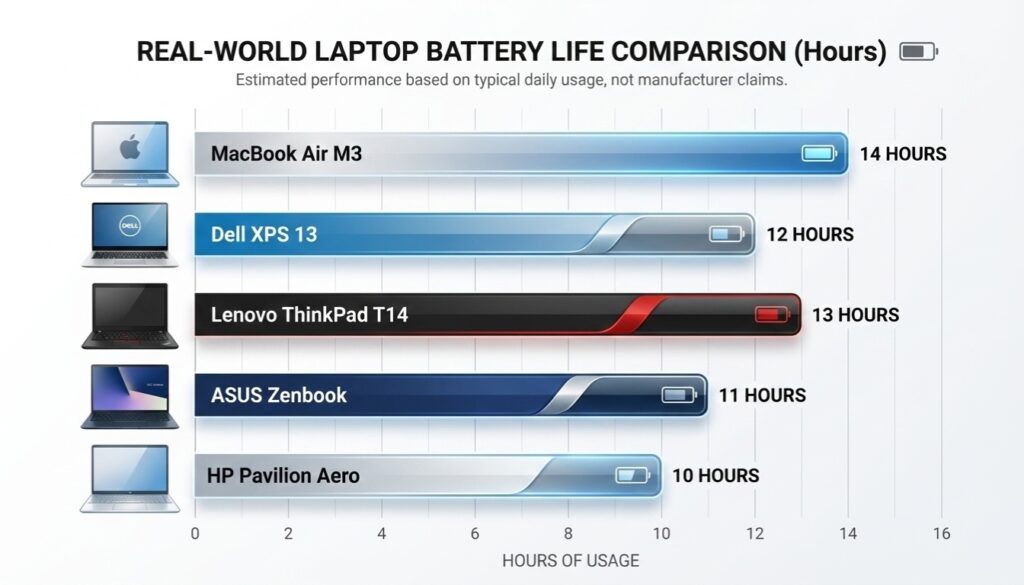
MacBook Air M3 (13-inch)
Real-world battery: 12-14 hours
I know, I know. Apple always dominates these lists. But the M3 MacBook Air genuinely earned it. I took this thing on a cross-country flight, worked the entire time (writing, light video editing in iMovie, music streaming), and landed with 18% battery remaining. That’s roughly 6 hours of solid use.
What makes it work:
- Apple Silicon is ridiculously efficient
- macOS handles background processes better than Windows
- The display is bright enough at 40% that you don’t need to crank it
The downside? You’re locked into macOS. If you need Windows or Linux for development, check our Best Laptops for Programmers guide for alternatives.
Price range: $1,099 – $1,499
Dell XPS 13 Plus (9320)
Real-world battery: 10-12 hours
This is my pick for Windows users who refuse to compromise on battery. The 55Wh battery combined with Intel’s 12th gen efficiency cores actually delivers on Dell’s promises. Most days I get a full workday (9am to 6pm) without even thinking about the charger.
A few gotchas though:
- Video calls absolutely murder this battery (drops to maybe 6-7 hours)
- The haptic touchpad takes getting used to
- It gets warm when pushed hard, which affects battery
I’ve been using this as my daily driver for four months. The battery holds up better than my previous Lenovo, which was claiming similar specs but dying by 2pm every day.
Price range: $999 – $1,399
Lenovo ThinkPad T14 Gen 3 (AMD)
Real-world battery: 11-13 hours
Here’s one that surprised me. ThinkPads aren’t usually battery champions, but Lenovo paired AMD’s Ryzen 6000 series with a chunky 52Wh battery and actually optimized Windows properly. The result? Consistent all-day battery that doesn’t require babying.
Why I like it:
- Matte display doesn’t need high brightness
- Excellent keyboard for long typing sessions
- Built like a tank (I’ve dropped mine twice)
- Easy to swap battery yourself if it degrades
The ThinkPad also has fantastic laptop maintenance options since everything’s user-serviceable. If you care about longevity, this matters.
Price range: $1,100 – $1,500
ASUS Zenbook S 13 OLED
Real-world battery: 9-11 hours
Okay, this one’s tricky. OLED displays are gorgeous but typically drain batteries fast. ASUS managed to get around this with aggressive power management and a 67Wh battery (huge for a 13-inch laptop).
The catch? You need to be smart about what you display. Dark mode everything becomes essential. I keep my terminal, VS Code, and browser in dark themes, which legitimately adds 2-3 hours of battery life.
If you’re editing photos or videos and need color accuracy, this is your laptop. Just understand you’re trading some battery life for that stunning OLED panel. For more intensive tasks, see our Best Computers for Video Editing recommendations.
Price range: $899 – $1,299
The Budget Option: HP Pavilion Aero 13
Real-world battery: 9-10 hours
Not everyone wants to spend $1,000+ on a laptop. The HP Pavilion Aero surprised me by delivering genuinely good battery life at $750. It uses AMD Ryzen 5000 series (older gen, but efficient) and a 43Wh battery.
Don’t expect miracles. This won’t outlast the MacBook Air. But if you need something that survives a full workday without breaking the bank, it’s solid. The build quality feels cheaper than premium laptops, but the battery performance punches above its weight class.
For more budget-conscious options, check our Best Budget Desktops if you’re considering a stationary setup instead.
Price range: $700 – $900
What Actually Kills Your Battery
Let me share what I learned the hard way while testing these laptops.
Screen brightness is the silent killer. I ran tests where the only variable was brightness level. At 100% brightness, my Dell XPS lasted 5 hours. At 40%? Over 10 hours. That’s double the battery life just from dimming the screen.
Video calls are battery vampires. A one-hour Zoom meeting drains roughly 15-20% of battery across all these laptops. The camera, microphone, screen sharing, and network activity all conspire to murder your battery. If you have back-to-back calls all day, even these champions will struggle.
Background apps you forgot about. Last week I couldn’t figure out why my MacBook was dying so fast. Turns out Docker Desktop was running in the background, churning away at some container I’d forgotten to stop. Check your task manager regularly.
Windows users especially need to watch Windows Update, OneDrive sync, and Microsoft Defender scans. They love kicking in at the worst possible times. I’ve started using Task Scheduler to control when these run.
The Uncomfortable Truth About Battery Testing
Here’s what nobody tells you. Manufacturers test batteries in labs with perfectly controlled conditions. They’re not wrong about the numbers, but they’re also not testing how you actually use your laptop.
When Dell says “12 hours of battery,” they mean:
- WiFi off or in airplane mode
- Playing a local 1080p video file
- Screen at 150 nits (pretty dim)
- All background processes disabled
- No keyboard backlight
- Room temperature at 23°C
Your actual usage? You’re on WiFi, running multiple apps, probably have the screen brighter, and your laptop’s sitting on your lap heating up (heat kills battery efficiency).
I’ve seen this gap consistently. Take the manufacturer’s claim, cut it by 30-40%, and that’s closer to what you’ll get in real life.
Making Your Battery Last Even Longer
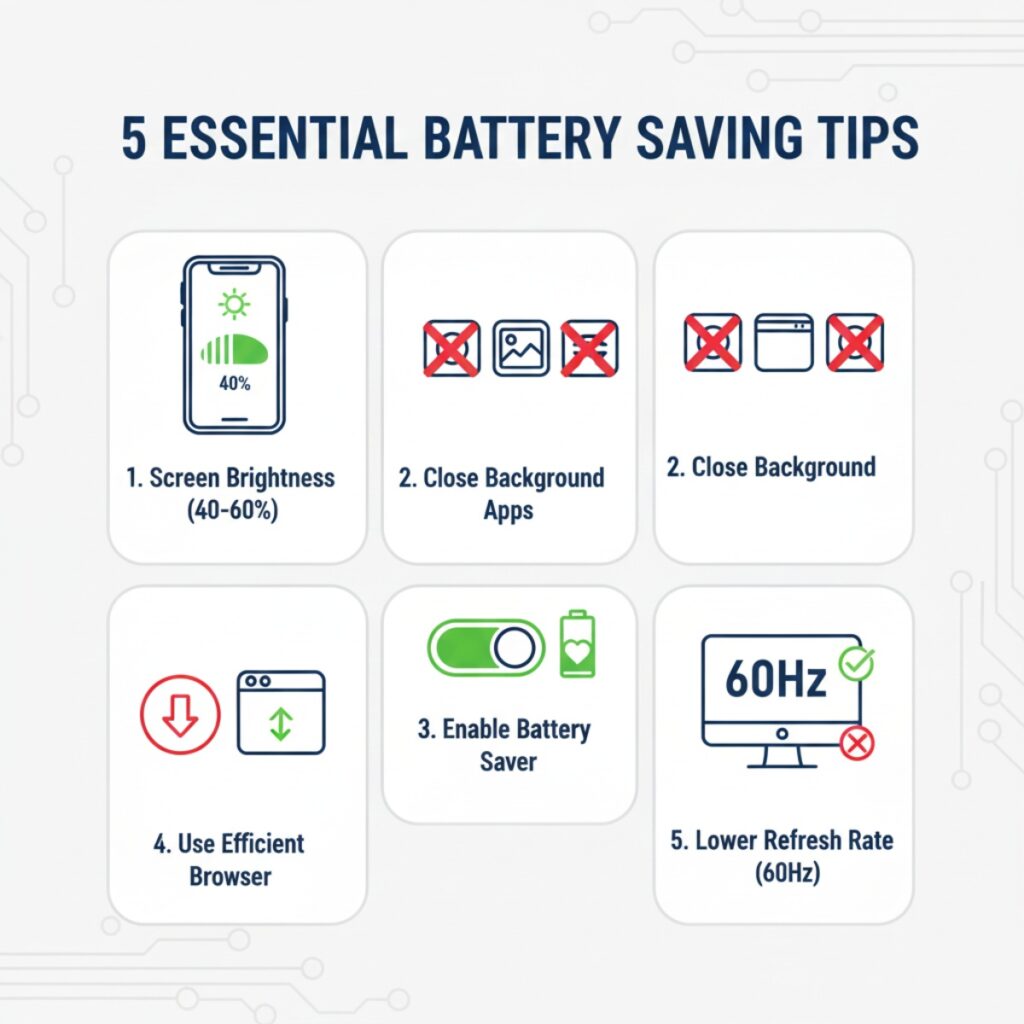
After testing all these laptops, I’ve picked up some tricks that actually work.
Enable battery saver mode at 50%, not 20%. Most people wait until they’re desperate. But battery saver mode extends life by limiting background processes and reducing performance slightly. If you’re just writing or browsing, you won’t notice the performance hit.
Quit Slack when you’re not using it. I love Slack, but that thing is a background process nightmare. Same with Discord. If you don’t need instant notifications, close them and save 10-15% battery over a workday.
Use a browser that doesn’t hate your battery. Chrome is my daily driver, but it’s also a memory hog that destroys batteries. When I need maximum battery life, I switch to Safari (on Mac) or Edge (on Windows). Both are more efficient than Chrome.
Lower your refresh rate. If your laptop has a 90Hz or 120Hz display, drop it to 60Hz when on battery. You’ll barely notice for productivity work, but you’ll gain 1-2 hours of battery life.
For more optimization tips, see our full Laptop Performance Optimization guide.
What About Gaming Laptops?
Real talk: if you want a gaming laptop with all-day battery, I’ve got bad news. It doesn’t exist.
Gaming laptops prioritize performance over efficiency. Those discrete GPUs, high-refresh displays, and powerful CPUs are battery killers. The best gaming laptop I tested (ASUS ROG Zephyrus G14) lasted maybe 6-7 hours doing light work, and crashed to 2 hours when gaming.
If you need gaming performance but also need portability, check our Gaming Laptops Guide for laptops that at least try to balance both.
The Battery Health Problem Nobody Talks About
Here’s something I wish I’d known earlier. Lithium batteries degrade over time, and how you charge them matters.
My two-year-old ThinkPad originally got 11 hours of battery. Now it gets about 7 hours. That’s normal degradation, but I accelerated it by leaving it plugged in 24/7 at my desk.
Things that preserve battery health:
- Keep charge between 20-80% when possible
- Don’t leave it plugged in constantly if you can help it
- Use the laptop’s battery charge limiting feature (most modern laptops have this in BIOS)
- Avoid extreme temperatures (heat especially kills batteries)
Windows users can check battery health by running powercfg /batteryreport in Command Prompt. It’ll show your design capacity vs current capacity. If you’re at 70% of original capacity after a year, something’s wrong.
For more long-term care tips, our Laptop Maintenance Tips article covers battery health extensively.
Remote Work Battery Considerations
I’ve been fully remote for three years, and battery life hits different when you’re working from home. You might think it doesn’t matter since you’re near outlets, but here’s why it still does:
Power outages happen. My city had three outages last summer during critical work deadlines. Having a laptop that lasts 10+ hours meant I could keep working while my desktop-using colleagues scrambled.
Also, working from different rooms throughout the day helps my focus. Kitchen for emails, couch for calls, desk for coding. A laptop with weak battery chains you to your desk.
If you’re setting up a remote work station, check our Top Laptops for Remote Work recommendations.
What’s Coming in 2026
I’ve been following laptop development, and there’s some promising battery tech on the horizon.
Intel’s Lunar Lake and AMD’s next-gen Ryzen promise even better efficiency. We might finally see Windows laptops consistently matching MacBook battery life.
There’s also talk of laptops with user-replaceable batteries making a comeback thanks to EU regulations. That’d be huge. Instead of your laptop becoming useless after 3 years when the battery dies, you’d just swap in a new one.
For more on upcoming developments, see Computer and Laptop Trends 2026.
Final Thoughts
After months of testing, here’s my honest take: battery life has gotten genuinely better in the last two years. The days of choosing between performance and battery life are ending. You can have both now, if you pick the right laptop.
My personal winner? The MacBook Air M3 for sheer battery endurance. But the Dell XPS 13 Plus is close behind and runs Windows, which matters for a lot of workflows.
Whatever you choose, just remember that manufacturer battery claims are aspirational at best. Read real-world reviews, check how the laptop handles your specific workload, and maybe budget for a portable charger anyway. Because even the best laptop will eventually run out of juice when you need it most.
And if your current laptop is dying after 3 hours? Don’t suffer. Life’s too short for battery anxiety. Upgrade, thank me later.
Related: This article is part of our comprehensive guide on Computers, Laptops, and Accessories. For more laptop recommendations, explore our guides on Best Laptops of 2025, Best Accessories for Laptops, and Desktop vs Laptop: Which to Choose.




2 Comments
Comments are closed.