
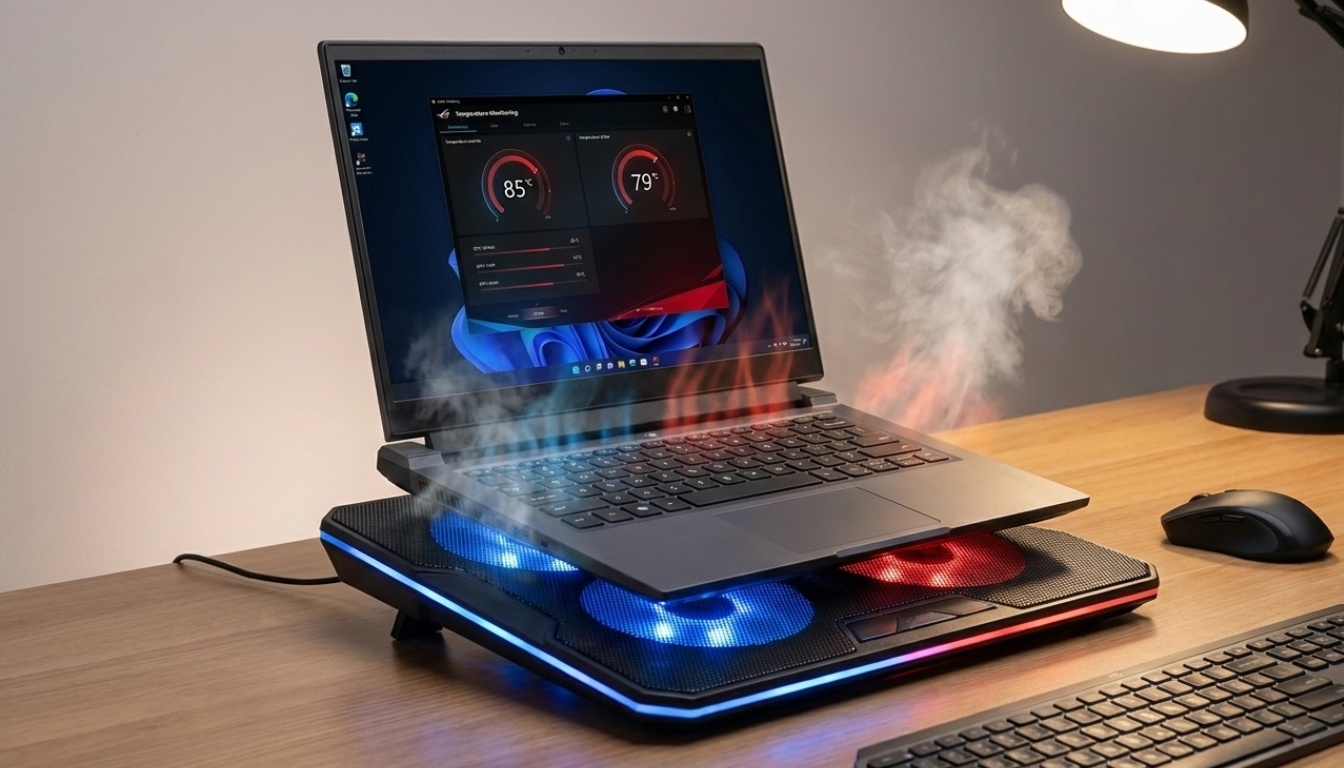
Laptop Cooling Solutions: Stop Your Laptop from Melting (And Save Your Lap)
This article is part of our comprehensive guide on Computers, Laptops, and Accessories. For the complete breakdown of everything laptop-related, check out the full guide.
Look, I’ve literally burned myself with a laptop. Not figuratively. Actually burned. My MacBook Pro was running some Docker containers during a summer afternoon in 2023, and the aluminum case got so hot I had a red mark on my thigh for two days.
So yeah, laptop cooling is personal for me now.
Here’s the thing nobody tells you when you buy that sleek ultrabook or gaming laptop: manufacturers optimize for thin and sexy, not for thermal management. They’ll cram an Intel i7 or AMD Ryzen into a chassis that’s 15mm thick, then act surprised when it thermal throttles under load.
I’ve tested probably a dozen different cooling solutions over the past few years. Some work. Most are snake oil. Let me save you some money and frustration.
Why Your Laptop Gets Hot (The Actually Useful Version)

Before we talk solutions, quick physics lesson. Your CPU and GPU generate heat. A lot of heat. That heat needs to go somewhere, and in a laptop, “somewhere” usually means:
- Through tiny heat pipes to a miniature fan
- Out through vents you probably blocked with your bedspread
- Into the chassis, which then radiates heat everywhere
Modern laptops can pull 45-65 watts under load. Gaming laptops? Try 100-150 watts. That’s like running a light bulb inside a closed metal box sitting on your desk.
The problem gets worse because most people use laptops on soft surfaces. Couches. Beds. Their actual laps. Every single one of these blocks the intake vents on the bottom. I did this for three years before I realized why my laptop sounded like a jet engine every time I opened Chrome.
Cooling Pads: What Actually Works

I’ll be honest, I was skeptical about cooling pads. They looked gimmicky. But after testing a few, some actually do help.
The Basic Mesh Stand
The simplest solution? A laptop stand with mesh. No fans, no power, just airflow. These cost like $15-25 and work surprisingly well for light to moderate use.
I use one of those basic aluminum mesh stands for everyday work. It lifts the laptop about 2 inches off my desk, which improves airflow enough that my temps dropped 5-8°C. Not revolutionary, but it stopped the thermal throttling during video calls.
Real talk: if you’re just doing office work, browsing, or light coding, this is probably all you need. Don’t overthink it.
Cooling Pads with Fans
Here’s where it gets complicated. I’ve tested cooling pads with anywhere from 1 to 6 fans. Most are useless.
The problem is fan placement. Your laptop’s intake vents are in specific spots. A cooling pad with fans that don’t align with those vents is just pushing air at solid aluminum. I had one with five fans that made tons of noise but dropped temps by maybe 2°C. Waste of money.
What worked for me: a pad with two larger fans positioned where my laptop’s actual vents are. Temps dropped 8-12°C under sustained load. The difference between thermal throttling and not thermal throttling.
But here’s the catch. You need to match the pad to your laptop model. Check where your vents are. Don’t just buy the one with the most fans.
For gaming laptops specifically, look into cooling pads designed for that purpose. They’re usually bigger, have more powerful fans, and can handle the heat output. I’ve seen friends get 10-15°C drops on their gaming rigs with the right pad.
The Undervolting Trick Nobody Mentions
Want to know what dropped my CPU temps more than any cooling pad? Undervolting.
This sounds scary but it’s not. You’re basically telling your CPU it doesn’t need as much voltage to run at the same speed. Less voltage = less heat. I used Intel XTU (Intel Extreme Tuning Utility) and dropped my voltage by 125mV. Temps went down 10-12°C immediately.
Zero performance loss. Just less heat.
The downside? Your laptop might crash if you undervolt too aggressively. Start conservative, test stability, then push further. I crashed mine twice before finding the sweet spot. Worth it though.
This trick works great on Intel chips. AMD’s Ryzen Mobile chips are trickier and I don’t have as much experience there. If you’ve got a laptop for programming or video editing, undervolting is basically mandatory if you care about thermals.
Repasting: For When You’re Feeling Brave
I repasted my laptop’s CPU and GPU last year. It was nerve-wracking. But temps dropped 15°C.
Here’s what happens: laptop manufacturers use cheap thermal paste during assembly. After 2-3 years, that paste dries out and stops transferring heat properly. Replacing it with quality paste (I used Thermal Grizzly Kryonaut) makes a huge difference.
But this is not beginner-friendly. You’re opening your laptop, removing the cooling assembly, cleaning off old paste, applying new paste, and reassembling everything. One mistake and you’ve got a very expensive paperweight.
If your laptop is still under warranty, don’t do this. If it’s out of warranty and running hot constantly, consider it. There are tons of YouTube guides for specific laptop models. Watch three different videos before you try it yourself.
Things That Don’t Actually Work
Let me save you some money:
USB desk fans pointed at your laptop: Tried it. Did nothing. The heat is inside the chassis. Blowing air at the outside doesn’t help.
Laptop “cooling sheets”: These metallic pad things you put under your laptop. Complete scam. They claim to “absorb heat” but they’re just thin aluminum sheets. Physics doesn’t work that way.
Software that “optimizes” cooling: Mostly garbage. The only software that helps is monitoring tools so you can see your temps, and fan control software if your manufacturer’s default fan curves are too conservative.
Practical Setup Advice
Here’s what I actually do, after years of trial and error:
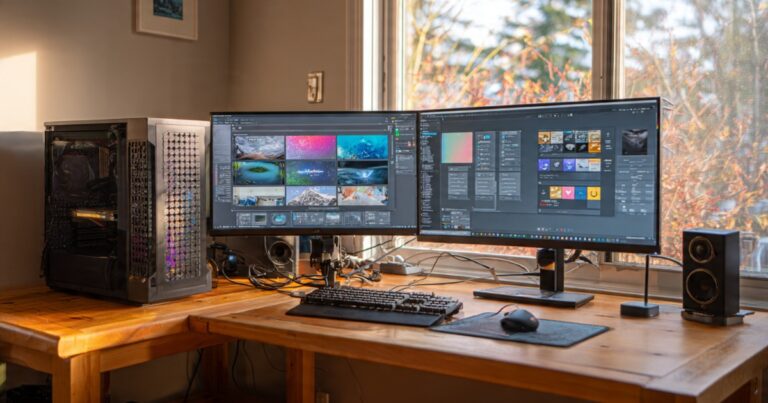
For everyday work: Mesh laptop stand + external keyboard and mouse. This elevates the laptop, improves airflow, and the external peripherals mean better ergonomics anyway. Total cost: maybe $30. Temps stay reasonable.
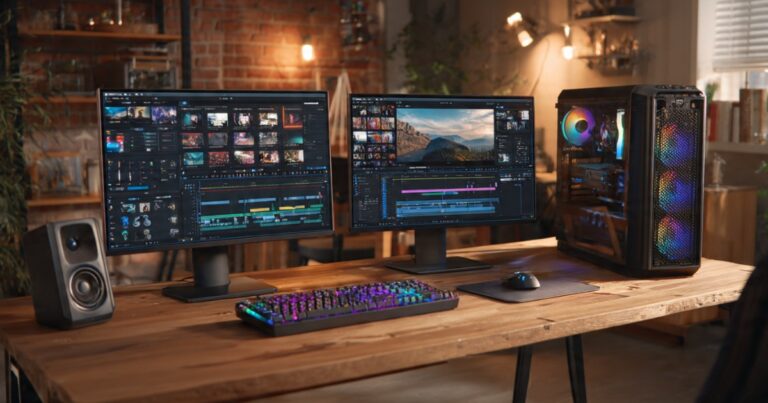
For heavy workloads (compiling code, video rendering): Same setup, plus a cooling pad with fans. I run my renders and the laptop stays under 80°C instead of hitting 95°C and thermal throttling. The cooling pad paid for itself in saved time from not throttling.
For gaming: Dedicated cooling pad, undervolted CPU, and I repasted the thermal compound. Gaming laptops run hot by design. You need every advantage. Check out our gaming laptops guide for more on managing thermals in gaming rigs.
Common Mistakes People Make
Blocking vents: I see this constantly. People put their laptops on soft surfaces, or they have a case/skin that covers vents. Don’t do this. Your laptop is suffocating.
Running too many background apps: Chrome with 47 tabs open is making your CPU work harder than it needs to. Close stuff you’re not using. Fewer background processes = less heat.
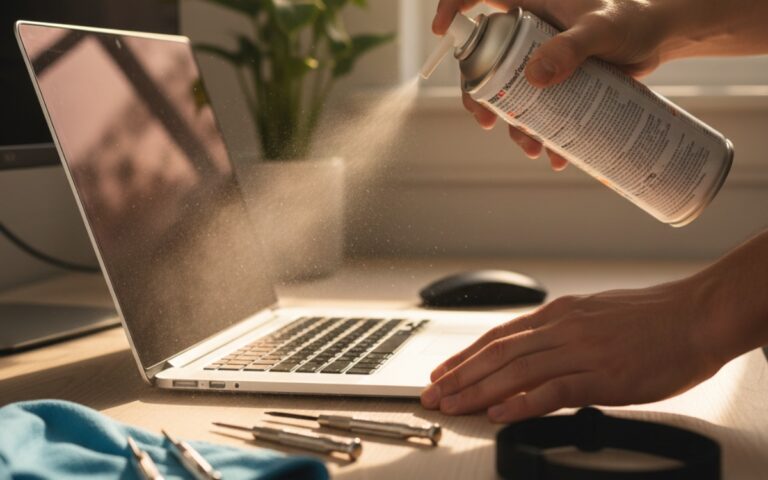
Never cleaning the fans: Dust builds up. I clean my laptop fans every 6 months with compressed air. Takes five minutes. Makes a noticeable difference.
Ignoring thermal throttling: If your laptop is throttling, it’s literally slowing itself down to avoid damage. That’s bad. Fix the cooling, don’t just accept poor performance.
When to Actually Worry
Not all heat is bad. Laptops are designed to run warm. But here’s when you should take action:
- Constant thermal throttling during normal use
- Temps consistently over 90°C
- The laptop is uncomfortable to touch
- Fans running at max speed constantly
- Random shutdowns or crashes under load
If you’re experiencing these, your laptop has a cooling problem. Start with a basic stand, see if that helps. If not, move to a cooling pad. Still bad? Consider repasting or, honestly, looking at better laptops with proper thermal design.
The Bottom Line
Laptop cooling isn’t complicated, but it’s often ignored until something goes wrong. A $20 mesh stand solves most people’s problems. Power users might need a fan-based cooling pad. Enthusiasts can undervolt and repaste.
I’ve been using the same laptop for four years because I actually manage its thermals. Meanwhile, friends complain their two-year-old laptops are slow and hot. The difference is maintenance and awareness.
Don’t let your laptop cook itself. It’s expensive and inconvenient. Take an hour, grab a cooling solution that fits your use case, and stop thermal throttling.
Your laptop (and your lap) will thank you.
Related Articles
Want to keep your laptop running smoothly? Check out our guide on laptop maintenance tips for more ways to extend your laptop’s life. And if you’re in the market for a new machine, see our breakdown of laptops with the longest battery life or explore ergonomic accessories to improve your setup.



2 Comments
Comments are closed.