How to Root or Jailbreak Your Phone (Without Bricking It)
This article is part of our comprehensive guide on Smartphones and Mobile Technology. For everything from buying guides to performance tips, check out the full guide.
Look, I’m going to level with you right from the start: I’ve bricked two phones trying to root them. One was a Samsung Galaxy S7 back in 2017, and I still think about it sometimes. That little “bootloop of death” animation haunts me.
But here’s the thing. Rooting Android or jailbreaking iOS isn’t actually that dangerous if you know what you’re doing. And by “know what you’re doing,” I mean following the right steps and not doing what I did, which was following a sketchy YouTube tutorial at 2 AM.
So yeah, let’s talk about how to unlock your phone’s full potential without turning it into an expensive paperweight.
What Even Is Rooting or Jailbreaking?
Before we get into the how-to, let me explain what’s actually happening here.
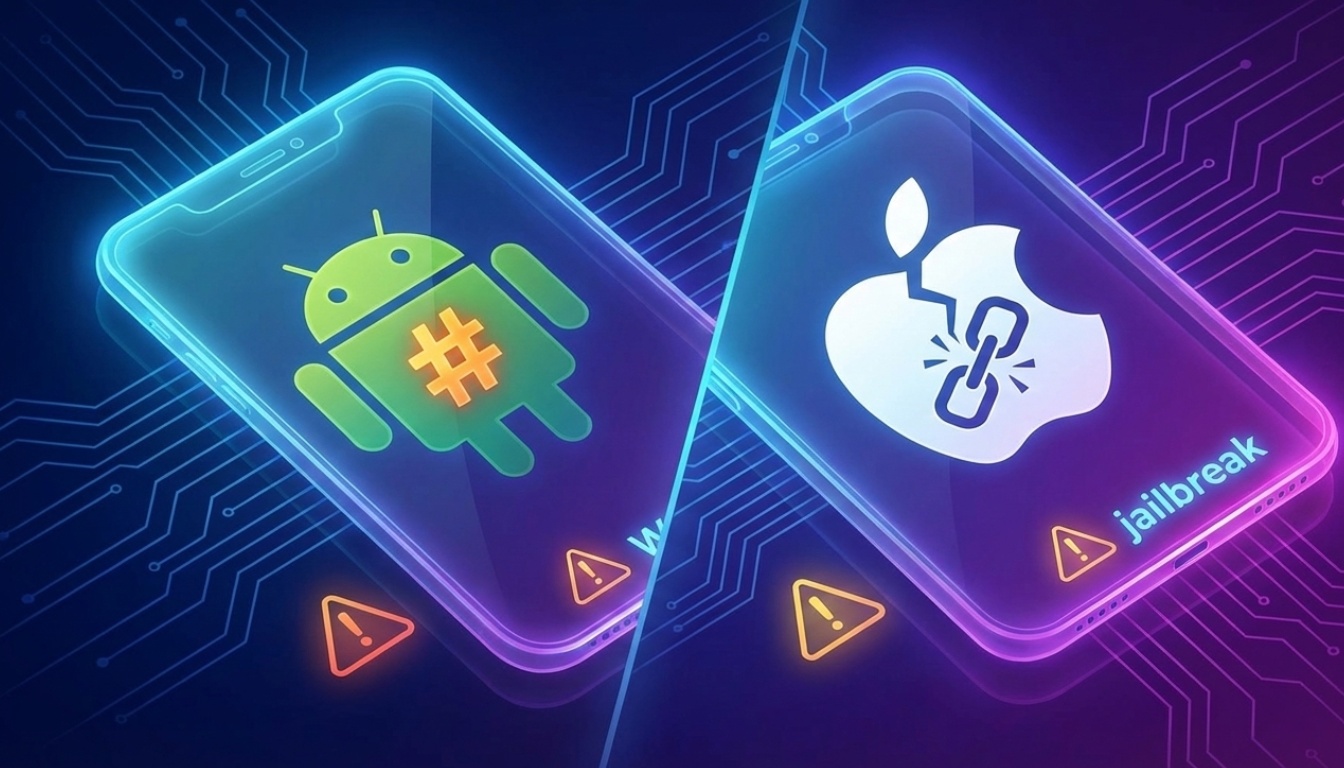
Rooting (Android) gives you superuser access to your phone’s operating system. Think of it like getting admin rights on a Windows PC. You can modify system files, remove bloatware that carriers shove onto your phone, and install apps that need deeper system access.
Jailbreaking (iOS) is Apple’s version of the same thing. It lets you bypass Apple’s restrictions and install apps from outside the App Store, customize your interface beyond what iOS normally allows, and access parts of the system Apple keeps locked down.
Both methods basically give you control over a device you already own. Wild concept, I know.
Why Would You Even Want To Do This?
Good question. Not everyone needs to root or jailbreak their phone. In fact, most people probably shouldn’t. But there are some solid reasons:
For Android rooting:
- Remove carrier bloatware that’s eating your storage
- Install a custom ROM (like LineageOS) for better performance
- Block ads system-wide without paying for apps
- Improve battery life with kernel tweaks
- Run apps that need root access (like Titanium Backup)
I rooted my old OnePlus 6T mainly because I wanted to install a custom ROM that didn’t come with Facebook pre-installed. You know what’s annoying? Not being able to uninstall Facebook. That’s what pushed me over the edge.
For iOS jailbreaking:
- Install apps from Cydia or other alternative app stores
- Customize your home screen and UI beyond Apple’s limits
- Add features Apple refuses to implement (like real file management)
- Use tweaks to enhance existing apps
- Actually own your $1,000+ device
The Risks (Let’s Be Real)

Time for some real talk. This isn’t without risks, and anyone who tells you it’s completely safe is lying.
You could brick your phone. It’s rare if you follow instructions, but it happens. I’ve seen it. I’ve done it.
You’ll void your warranty. Most manufacturers consider rooting or jailbreaking a warranty violation. Apple’s pretty aggressive about this. Android manufacturers vary, but assume your warranty is toast.
You might lose data. Always, ALWAYS back up your stuff first. I learned this the hard way with that Galaxy S7 I mentioned.
Banking apps might stop working. Some banking and payment apps detect root access and refuse to run. There are workarounds (like Magisk Hide for Android), but it’s a cat-and-mouse game. Check out our guide on smartphone security tips before you start messing with system files.
Updates become complicated. You can’t just install official OTA updates anymore. You’ll need to manually flash updates or wait for your custom ROM to update.
Is it worth it? Depends on what you want to do and how comfortable you are with potential issues.
How to Root Your Android Phone (The Safe Way)

Alright, so you’ve decided to go for it. Here’s how to root an Android phone without destroying it.
Step 1: Research Your Specific Device
This is critical. Every phone has a different process. What works for a Samsung Galaxy won’t work for a Google Pixel. Don’t skip this.
Head to XDA Developers forum and search for your exact phone model. Look for guides with lots of replies and recent updates. If the last post was from 2019, keep looking.
Step 2: Unlock Your Bootloader
Most Android phones have a locked bootloader. You’ll need to unlock it first. This process varies by manufacturer:
- Google Pixels: Pretty straightforward through developer settings
- OnePlus: Similar to Pixels, officially supported
- Samsung: More complicated, might require third-party tools
- Xiaomi: Need to request unlock permission from Xiaomi
Warning: Unlocking your bootloader wipes your phone completely. Back. Everything. Up.
Step 3: Install a Custom Recovery
You’ll need TWRP (Team Win Recovery Project) or another custom recovery. This is what you’ll use to actually install the root software.
The process usually involves:
- Download the TWRP image for your specific device
- Boot your phone into fastboot mode
- Flash TWRP using fastboot commands
- Reboot into recovery
Step 4: Flash Magisk
Magisk is currently the best rooting solution. It’s systemless, meaning it doesn’t actually modify your system partition. This makes it easier to pass SafetyNet checks (those things banking apps use to detect root).
Download the latest Magisk APK, boot into TWRP, flash it, and reboot. If everything went right, you now have root access.
I won’t lie, the first time I successfully rooted a phone after my Galaxy S7 disaster, I was sweating. But when it booted up normally and I saw the Magisk Manager app, it felt pretty good.
How to Jailbreak Your iPhone (Current State)
Here’s where things get tricky. Apple really doesn’t want you doing this, and they’ve gotten better at preventing it with each iOS update.
The Jailbreak Landscape in 2025
As of January 2025, jailbreaking isn’t as straightforward as it used to be. The scene changes constantly based on which iOS version you’re running and which jailbreak tools support it.
Your best bet:
- Check r/jailbreak on Reddit for current jailbreak status
- Visit the iOS Jailbreak subreddit wiki
- Don’t update iOS unless you know a jailbreak exists for that version
General Jailbreak Process
If a jailbreak exists for your iOS version:
- Backup everything via iCloud or iTunes
- Download the jailbreak tool (examples: Checkra1n, Unc0ver, Taurine) – but check what’s current
- Run the tool following its specific instructions
- Install Cydia or Sileo for managing tweaks and apps
The biggest pain with iOS jailbreaking? You often need to re-jailbreak after every reboot. It’s called a “semi-untethered” jailbreak, and yeah, it’s as annoying as it sounds.
I played with a jailbroken iPhone 11 for a few months in 2021. The customization was cool, but having to re-run the jailbreak tool every time my phone died got old fast.
What to Do After You’ve Rooted/Jailbroken
So your phone’s rooted or jailbroken. Now what?
For Android:
- Install Magisk modules for systemwide ad blocking
- Try a custom ROM like LineageOS or Pixel Experience
- Use Titanium Backup for complete system backups
- Install Xposed Framework for deeper customization
- Check out smartphone performance tips to really optimize your newly-rooted device
For iOS:
- Browse Cydia for useful tweaks
- Install iCleaner to free up storage
- Try system-wide gesture customizations
- Add widgets and themes Apple doesn’t allow
- Explore app tweaks that modify existing apps
Common Mistakes (That I’ve Made)
Let me save you some headaches:
Not backing up first. I can’t stress this enough. Your data WILL be wiped at some point in this process.
Using outdated guides. That 2018 tutorial on YouTube? Probably doesn’t work anymore. Find recent guides.
Skipping the research phase. Every phone is different. Seriously.
Updating iOS after jailbreaking. This breaks your jailbreak and you’ll need to wait for a new one.
Not checking compatibility. Some root methods don’t work on newer security patches.
Rushing through steps. This isn’t a speed run. Take your time and read everything twice.
Should You Actually Do This?
Real talk: probably not.
If you need to ask whether you should root or jailbreak, you probably don’t need to. Modern Android and iOS are pretty capable out of the box. The main reasons to root or jailbreak these days are pretty niche.
I haven’t rooted my current phone (Pixel 7) because honestly, I don’t need to. Stock Android is clean enough, and I don’t want to deal with the hassle. But I keep my old rooted OnePlus 6T around for tinkering.
That said, if you have a specific reason and you’re comfortable with the risks, go for it. Just do your research, follow current guides, and for the love of all that is holy, back up your data.
The Bottom Line
Rooting and jailbreaking aren’t as scary as they used to be, but they’re not risk-free either. The tools have gotten better, the communities are helpful, and there are plenty of resources available.
But ask yourself: do you actually need root access? Or are you just curious? If it’s the latter, maybe practice on an old device first. Trust me on this one.
And if you do decide to go for it, take your time, read everything carefully, and don’t do what I did with that Galaxy S7. That phone deserved better.
Want to learn more about getting the most out of your phone? Check out our guides on smartphone buying and extending battery life. And if you’re thinking about upgrading to a device that’s easier to root, our best smartphones of 2026 guide might help.