
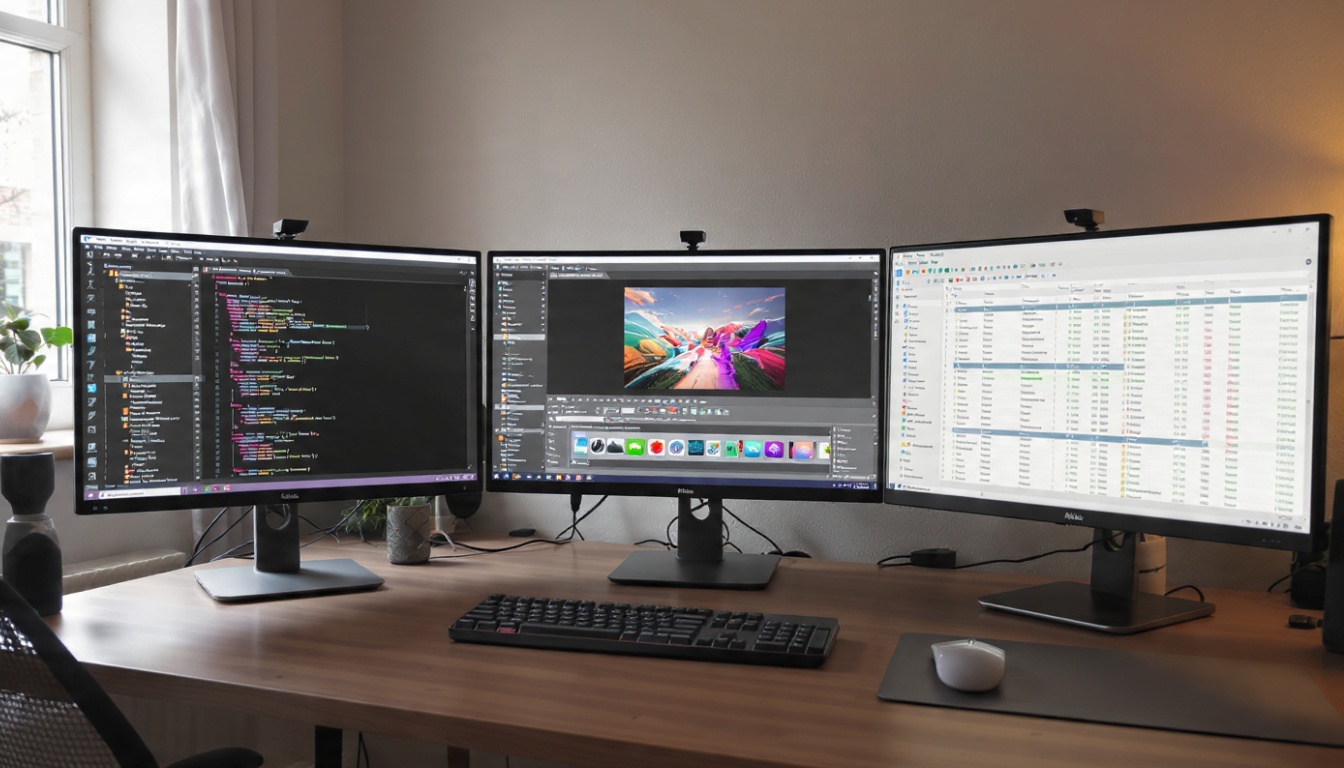
Computer Monitors Buying Guide: What Actually Matters When You’re Spending Your Money
Look, I’ve bought seven monitors in the last five years. Yeah, seven. Some were great decisions. Others? Let’s just say I learned expensive lessons about what “4K gaming” actually means on a 60Hz panel.
Here’s the thing nobody tells you: the monitor market is full of specs that sound impressive but don’t matter for your actual use case. And the specs that DO matter? They’re often buried in the fine print or worded so confusingly you need a degree to understand them.
So let me break down what you actually need to know when shopping for a monitor. No marketing fluff. Just the stuff I wish someone had told me before my first purchase.
This article is part of our comprehensive guide on Computers, Laptops, and Accessories. For more tech recommendations and buying guides, check out the full resource.
First, Figure Out What You’re Actually Doing
I know this sounds obvious, but hear me out. I spent $600 on a color-accurate 4K display for “work” when 80% of my work was writing code in a terminal. That money could’ve been better spent elsewhere.
For coding and general productivity: You don’t need anything fancy. Honestly, a 1440p IPS panel with decent brightness will serve you perfectly. I use a 27-inch 1440p display for development, and it’s great. Text is sharp, I can fit multiple windows side by side, and it didn’t cost me a kidney.
For gaming: This is where it gets complicated. Refresh rate matters way more than resolution for competitive games. I learned this the hard way after buying a beautiful 4K 60Hz monitor for gaming. It looked gorgeous in single-player games, but in CS:GO? I got destroyed. Switched to a 1440p 144Hz panel and the difference was night and day.
For design and photo editing: Color accuracy isn’t negotiable here. You need an IPS panel (more on panel types in a sec) with good color coverage. Look for monitors that cover at least 99% sRGB. If you’re doing print work, you’ll want something that handles Adobe RGB or DCI-P3 too.
For video editing: You want size and resolution. A 32-inch 4K display gives you plenty of timeline space and sharp preview windows. Bonus points if it supports HDR for color grading, but that’s getting into professional territory.
Panel Types: The Choice That Actually Matters
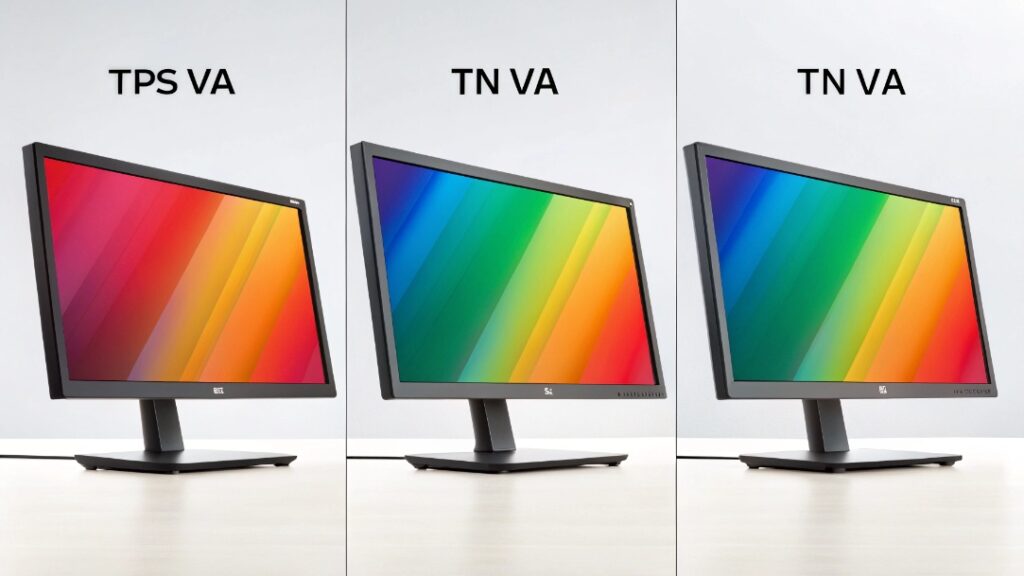
There are three main types, and each has real tradeoffs. I’ve used all three extensively, so here’s my take.
IPS (In-Plane Switching): Best color accuracy and viewing angles. This is what I recommend for most people. The colors stay consistent even when you’re looking at the screen from an angle, which matters more than you’d think if you ever watch movies with someone else or adjust your sitting position throughout the day.
The downside? Response times aren’t as fast as TN panels, and you might notice some “IPS glow” in dark scenes. It’s that light bleeding from the corners when you’re watching something dark. Doesn’t bother me anymore, but it annoyed the hell out of me at first.
TN (Twisted Nematic): Fast. Really fast. This is what competitive gamers swear by. Response times are typically 1ms, which means less motion blur and ghosting.
But the colors? Honestly mediocre. And the viewing angles are terrible. If you tilt the screen even slightly, colors shift. I had a TN panel for a few months, and every time I leaned back in my chair, the screen would wash out. Drove me crazy.
VA (Vertical Alignment): The middle ground. Better contrast than IPS, better colors than TN. Sounds perfect, right?
The catch is response times. VA panels are generally slower, which can lead to smearing in fast-moving scenes. If you’re big into gaming, you’ll notice it. For movies and general use? They’re actually pretty great.
Resolution: How Much Do You Actually Need?
Real talk: most people don’t need 4K. I said it.
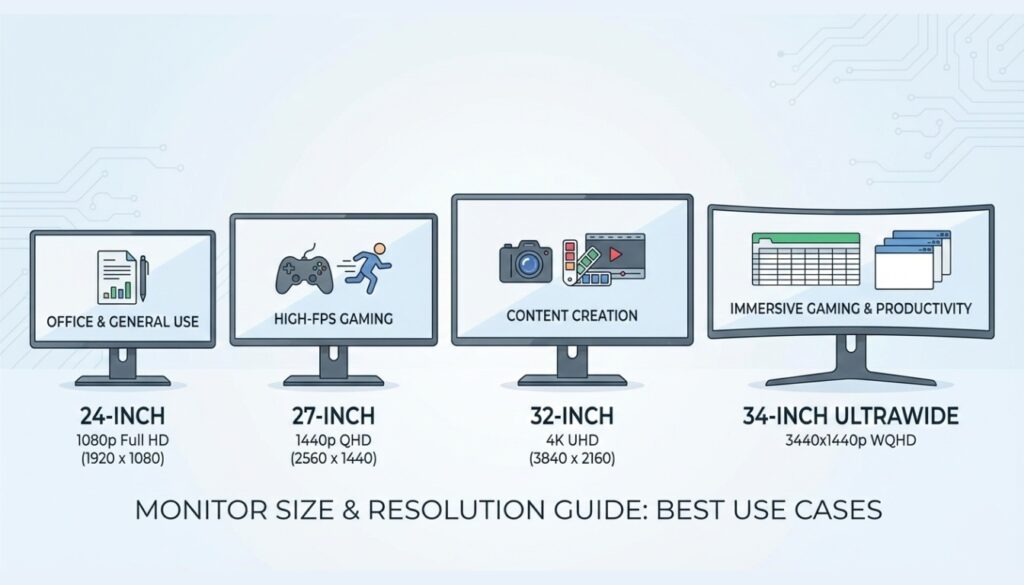
1080p (1920×1080): Fine for 24-inch monitors and smaller. Text is still crisp, games run fast, and you don’t need a GPU that costs more than your rent. For budget desktop setups, this is totally reasonable.
But on anything bigger than 24 inches? You start seeing pixels. I tried using a 27-inch 1080p monitor once. It looked like someone smeared Vaseline on the screen.
1440p (2560×1440): Sweet spot for most people. This is what I run on my main setup. Text is sharp, you get more screen real estate than 1080p, and modern GPUs can handle it without breaking a sweat. Plus, 1440p gaming monitors tend to come with higher refresh rates at reasonable prices.
4K (3840×2160): Gorgeous. Absolutely stunning. And completely overkill unless you’re doing specific work that requires it or gaming with a high-end GPU.
I have a 4K monitor for video work, and yeah, the extra pixels matter there. But for everyday use? I honestly can’t tell the difference between 4K and 1440p on a 27-inch screen from my normal sitting distance. Your eyes have limits, and marketing teams know you don’t know what those limits are.
Refresh Rate: When It Matters and When It Doesn’t
If you don’t game, 60Hz is fine. Seriously. Don’t let anyone convince you otherwise.
But if you DO game, 144Hz is a game changer. I played on 60Hz for years, then tried a friend’s 144Hz monitor. Within five minutes, I knew I couldn’t go back. The smoothness is addictive.
240Hz? That’s for serious competitive players. I tried one, couldn’t really tell the difference from 144Hz. But I’m also not playing professionally, so take that with a grain of salt.
For laptops designed for gaming, refresh rate matters even more since you can’t easily upgrade the display later.
Size: Bigger Isn’t Always Better
Here’s what I’ve learned about monitor sizes:
- 24 inches: Good for small desks. With 1080p, text is sharp and everything fits on your desk.
- 27 inches: The sweet spot. Big enough for split-screen work, not so big you’re turning your head constantly. I’ve been using 27-inch displays for three years and have zero complaints.
- 32 inches and up: You better have 4K at this size, or you’ll see individual pixels. Also, make sure your desk is deep enough. I tried a 32-inch on a shallow desk once, and I felt like I was sitting in the front row of a movie theater. Neck strain is real.
One thing I learned: if you’re setting up a laptop with external monitors, make sure your laptop can actually drive the resolution and refresh rate you want. Found that out when my old work laptop could barely handle dual 1440p displays.
Connectivity: Don’t Overlook This
Check your ports before you buy. Modern monitors come with HDMI, DisplayPort, and sometimes USB-C.
DisplayPort: Best for high refresh rates and high resolutions. If you’re gaming above 60Hz, this is usually your best bet.
HDMI: Perfectly fine for most uses. Just make sure it’s HDMI 2.0 or newer if you want 4K at 60Hz. HDMI 2.1 supports 4K at 120Hz, which matters for next-gen console gaming.
USB-C: Convenient if you have a newer laptop. One cable for video, data, and charging. I use this with my MacBook, and it’s fantastic. But not all USB-C is created equal. Some only do video, others also deliver power.
Pro tip: Get a monitor with multiple inputs. I switch between my work laptop and gaming desktop constantly, and having both connected with a button to switch between them saves so much cable swapping.
Features That Sound Cool But You Might Not Need
HDR: Looks amazing when it works. But “HDR” on a $300 monitor usually isn’t real HDR. True HDR needs high brightness (600+ nits) and good local dimming. Most budget “HDR” monitors just slap the label on and call it a day.
Curved screens: Gimmicky on anything smaller than 34 inches. I tried a curved 27-inch once. Could barely tell it was curved. Curved ultrawides, though? Those are actually immersive.
Built-in speakers: Universally terrible. Just get decent external speakers or a headset.
What I’d Buy Today (For Different Budgets)
Under $200: 24-inch 1080p IPS at 75Hz. Nothing fancy, but it’ll get the job done for office work and casual gaming.
Around $300-400: 27-inch 1440p IPS at 144Hz. This is where the value is. You get great specs without breaking the bank.
$600+: This is where you can get into 4K territory, ultrawide displays, or high-end features like proper HDR. But honestly? For most people, you’re getting diminishing returns.
For specific recommendations, check out our guides on best laptops for students and computers for remote work, which often include good monitor pairing advice.
Common Mistakes I See (And Made Myself)
Buying too small for the resolution: 1080p looks rough on a 27-inch screen. Trust me.
Ignoring the stand: Some monitors come with stands that barely adjust. I bought one once where I couldn’t tilt the screen at all. Spent $40 on a VESA mount to fix it. Check if the stand does height adjustment and tilt.
Forgetting about desk space: Measure your desk before buying. I almost bought a 34-inch ultrawide that literally wouldn’t fit on my desk. Saved myself a return headache by measuring first.
Not checking reviews for quality control: Some monitor brands have terrible QC. Dead pixels, excessive backlight bleed, that sort of thing. Spend 10 minutes reading reviews. If everyone’s complaining about the same issue, that’s a red flag.
Skipping the return policy: Some monitors develop issues or just don’t look right in your specific setup. Make sure you can return it if needed. I’ve returned two monitors over the years. No regrets.
Final Thoughts: Buy for Your Actual Needs
Look, monitors last years. I’ve had my main display for four years now, and it’s still going strong. So it’s worth thinking through what you actually need versus what sounds cool in marketing copy.
Don’t get caught up in having the absolute best specs unless your work genuinely requires it. I know too many people with overkill setups who just browse Reddit and write emails.
Figure out your use case. Set a realistic budget. Read some real user reviews (not just the professional ones). And remember: the best monitor is the one you’ll use productively without thinking about it.
For more hardware advice and tech reviews, check out our complete guide to computers and accessories, including deep dives into storage solutions, desktop graphics cards, and ergonomic setups.




4 Comments
Comments are closed.